Wallet Keys

FLEXIPASS Wallet Keys integration
Wallet Keys is Centro's newest Flexipass integration. It issues a guest's room key as a mobile wallet pass (added to the phone's wallet) and can also encode a physical key card for the stay — both driven automatically from the guest's booking and check-in.
It sits alongside the existing Webkeys integration. The difference:
| Webkeys | Wallet Keys | |
|---|---|---|
| How the guest unlocks | Door button inside the Centro app | Mobile wallet pass on the phone, or a physical key card |
| When keys are issued | On demand from the app | Automatically as the stay is created and the guest checks in |
| Best for | In-app door control | Contactless wallet entry and front-desk key cards |
Key capabilities
-
Automatic wallet key provisioning A Flexipass reservation and door access are created for the guest as soon as their stay is set up — no manual key issuing required.
-
Mobile wallet passes After check-in the guest gets a Get FlexiPass link that adds their room key to their phone's wallet.
-
Physical key cards Staff can encode a physical key card for a stay directly from Centro using a connected encoder.
-
Tied to the stay lifecycle Access is created, updated and revoked as the stay changes, keeping door permissions in step with the booking.
How it works
Once the integration is enabled and your doors are mapped, Wallet Keys runs automatically:
- Stay created — Centro creates a Flexipass reservation for the guest and grants access to the doors associated with their location.
- Stay updated — if the booking changes, the reservation and its door access are updated to match.
- Guest checks in — a wallet pass is generated for the guest so they can add their key to their phone's wallet.
Setting up Wallet Keys (admin)
1. Enable the FLEXIPASS Wallet Keys integration
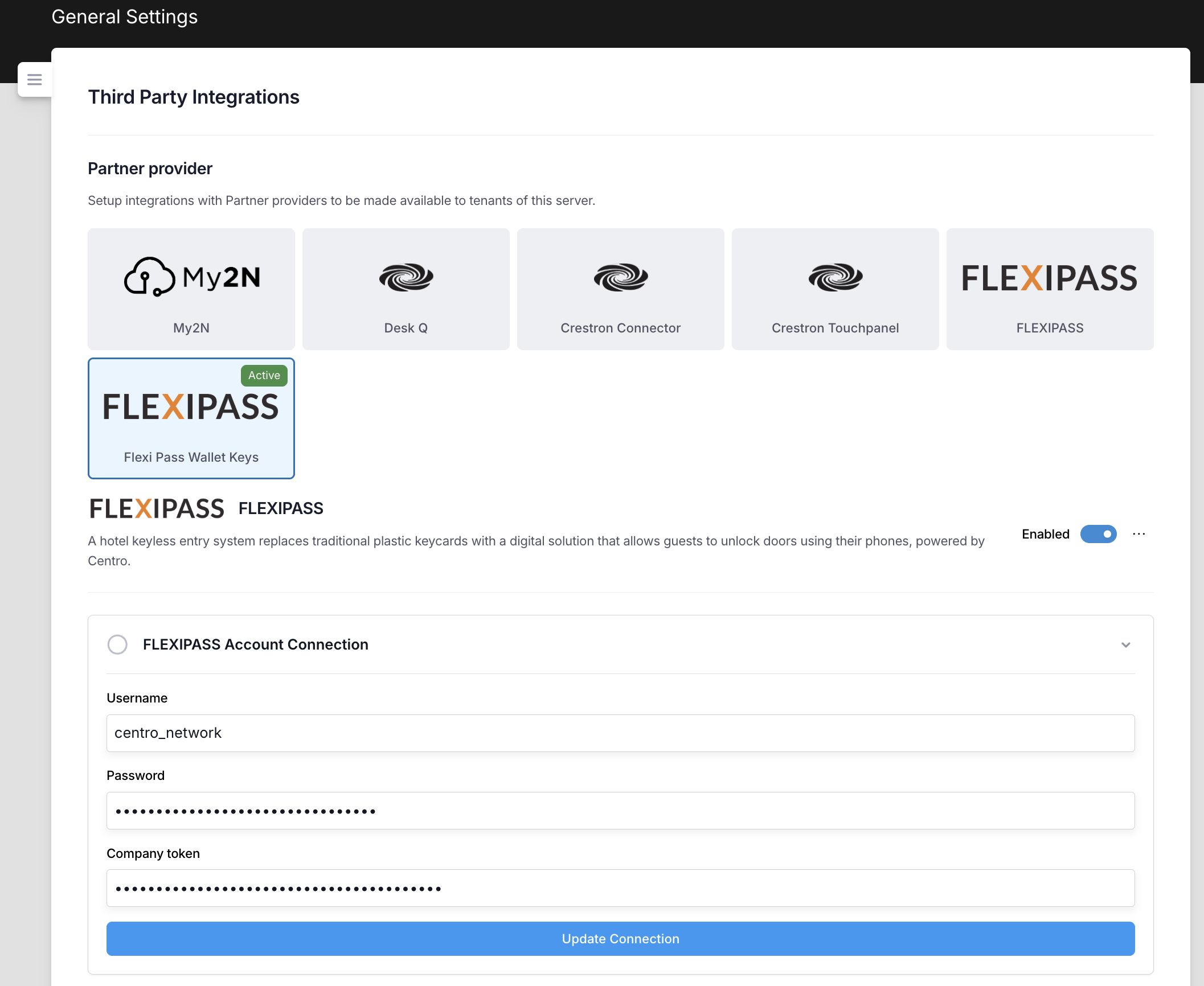
Go to General Settings → Third Party Integrations. Under Partner provider, select the Flexi Pass Wallet Keys tile and switch it to Enabled. Then, in FLEXIPASS Account Connection, enter the Username, Password and Company token provided during onboarding with the Centro team, and select Update Connection.
Wallet Keys is a separate integration from Webkeys. You can run both, but each has its own credentials and its own set of enabled doors.
2. Map your doors
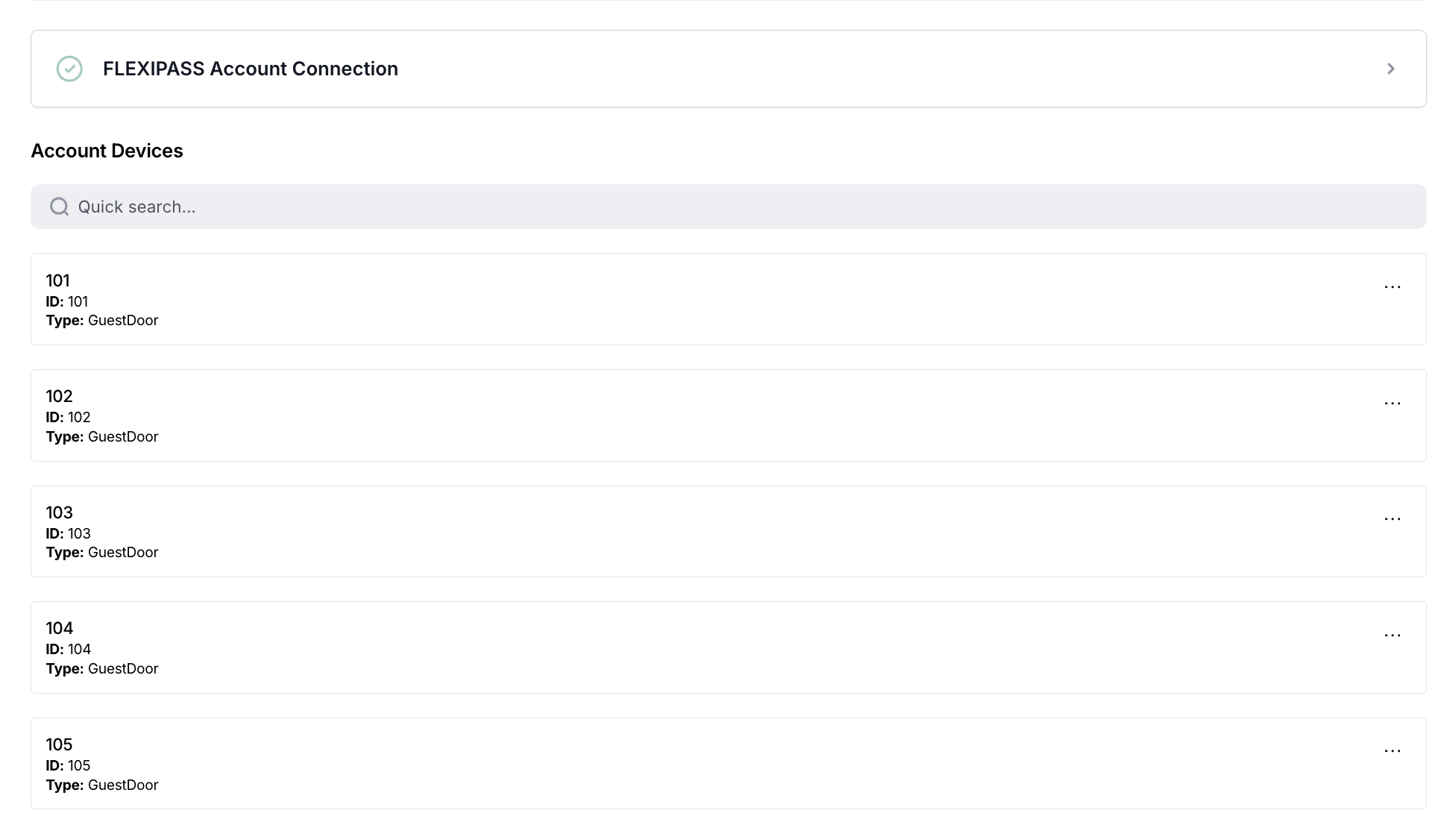
On a successful connection the FLEXIPASS Account Connection shows a green check and Centro lists the doors from your Flexipass account under Account Devices (each with an ID and a type such as GuestDoor). Create the doors you want to use, give each a friendly name and associate a location to each door — this is what tells Centro which doors a guest of that location should receive access to.
3. Let provisioning run
With doors mapped, no further action is needed per stay — reservations, access, and wallet passes are created automatically as stays are made and guests check in (see How it works above).
4. (Optional) Style the wallet pass
On a stay type, use the Stay Wallet Pass Template setting to choose how the wallet pass looks for
guests on that stay type. The booking code renders as a QR code, and you can use {Stay.*} properties in
the template fields for dynamic values.

Issuing a physical key card (admin)
As well as mobile wallet passes, staff can encode a physical key card for a stay.
- Open the stay and edit it.
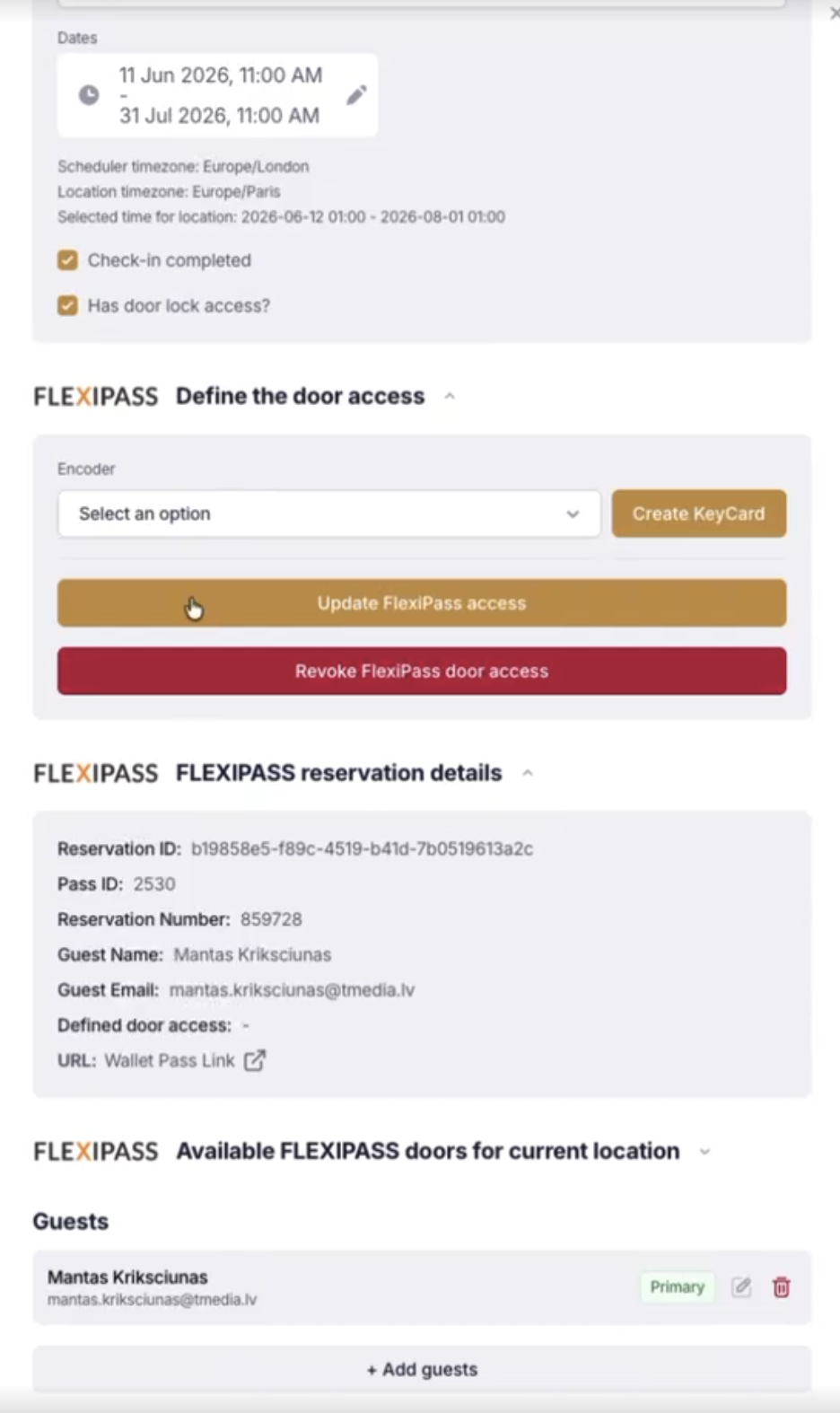
- In the FLEXIPASS — Define the door access section, choose an Encoder from the dropdown (the list shows the encoders connected to your Flexipass account).
- Select Create KeyCard.
Centro encodes a card for the stay's doors on the chosen encoder and confirms success. The existing wallet-key actions — Update FlexiPass access and Revoke FlexiPass door access — remain available in the same section, and FLEXIPASS reservation details below it shows the reservation number, guest and a Wallet Pass Link for the stay.
Key card issuing needs the stay to be ready:
- the FLEXIPASS Wallet Keys integration is enabled,
- the stay's location has doors configured,
- a reservation exists for the stay and
- the guest has completed check-in.
If any of these are missing, Centro shows the reason instead of encoding a card.
The guest experience
For guests using the Centro app, Wallet Keys appears during and after check-in:
- Email is required at check-in. The identification step now asks for the guest's email, which is used to set up their wallet pass.
- Get FlexiPass after check-in. On the check-in summary, once check-in completes, the guest sees a Get FlexiPass button that opens their wallet pass.
- Available from the stay. The guest's stay also shows a wallet pass link, so they can reach their key again at any time during the stay.
- Check-in comes first. Guests with an incomplete check-in are guided to finish it before continuing into their location home.