Setting up Apaleo
Setting up the Apaleo integration
Connecting Apaleo is an admin task. You do it once per property: enable the provider, connect the account, import your existing reservations, then map your Apaleo units to Centro locations. After that the integration runs on its own — see How syncing works.
You'll need your Apaleo property ID (for example MUC) and an Apaleo account with permission to
authorize an app for that property. Connecting opens Apaleo's sign-in in a pop-up, so allow pop-ups for
Centro.
1. Open the Apaleo provider
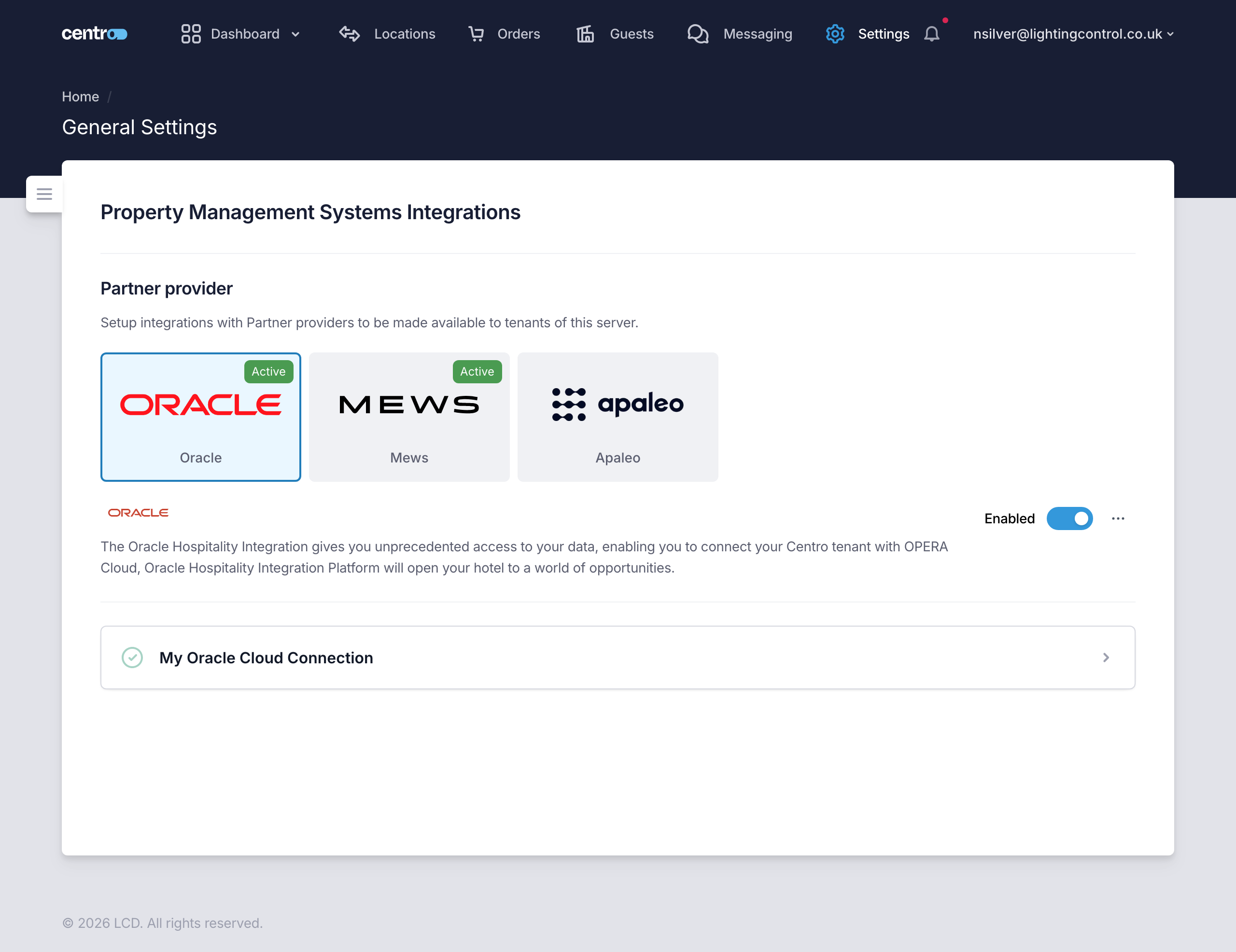
Go to Settings → General Settings → Property Management Systems Integrations and select the Apaleo provider, then turn on the Enabled toggle.
2. Connect your Apaleo property
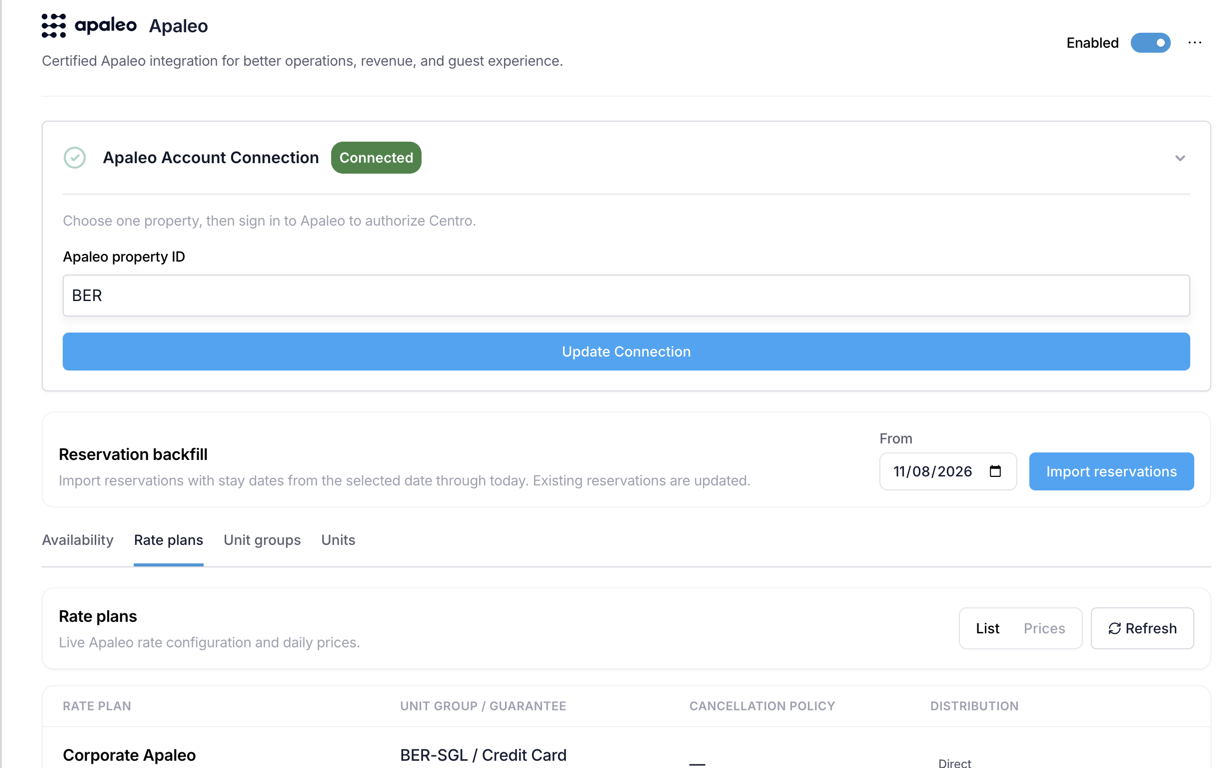
Under Apaleo Account Connection, enter your Apaleo property ID and select Update Connection. Sign in to Apaleo in the pop-up and authorize Centro. When it succeeds, the connection status changes to Connected.
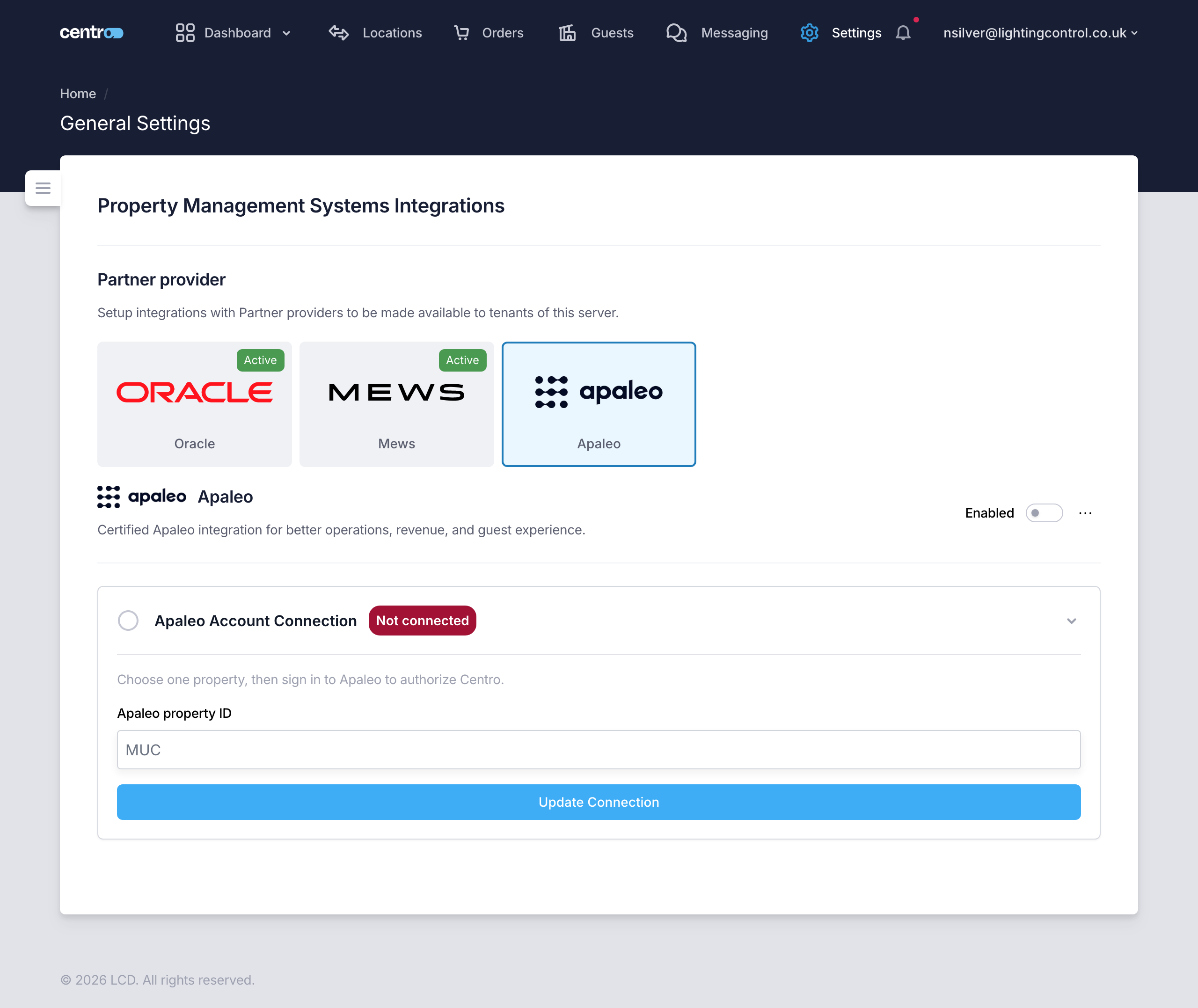
If the pop-up is blocked, or sign-in takes too long, Centro shows an error and the status stays Not connected. Allow pop-ups and select Update Connection to try again.
You can connect the same Apaleo account again later, for example after Reset Integration. Centro picks up its existing subscription to the property's booking events in Apaleo instead of adding a second one.
3. Import existing reservations (backfill)
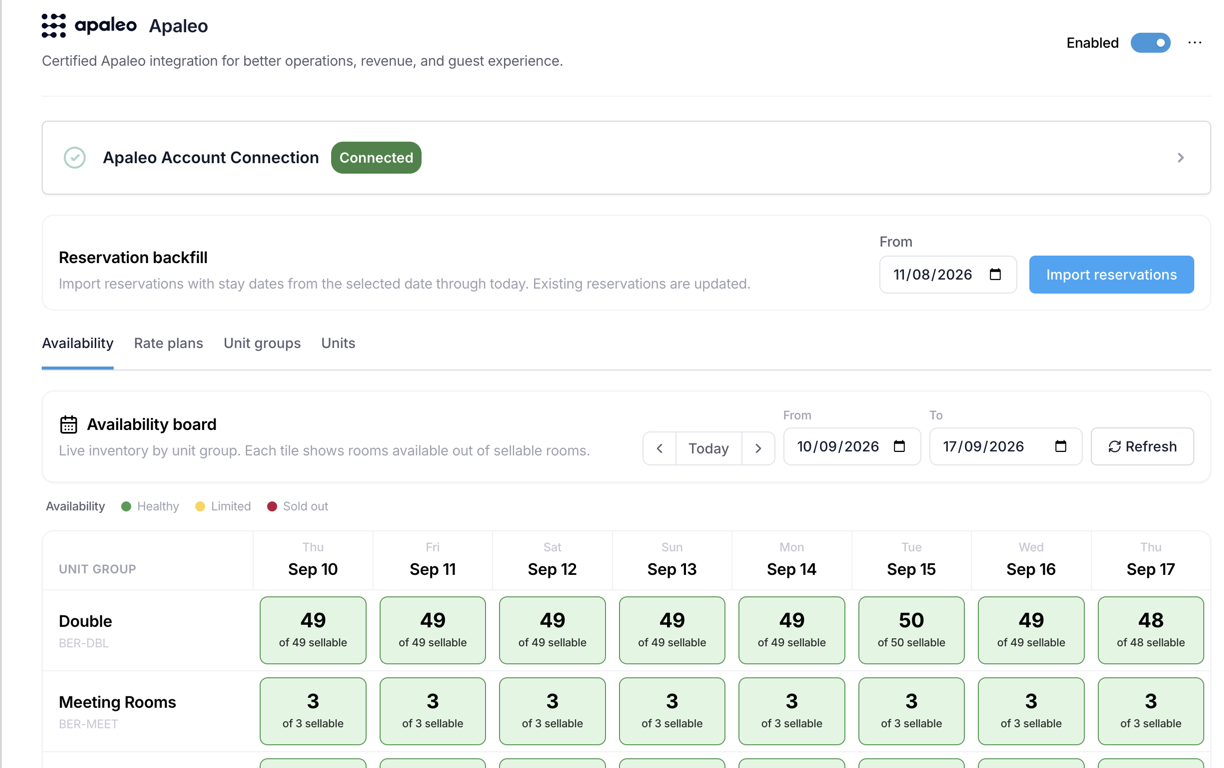
New reservations sync from the moment you connect. To bring in bookings that already exist in Apaleo, use Reservation backfill: choose a From date and Centro imports reservations with stay dates from that date through today, then reports how many it imported. Reservations already in Centro are updated, not duplicated.

4. Map units to Centro locations
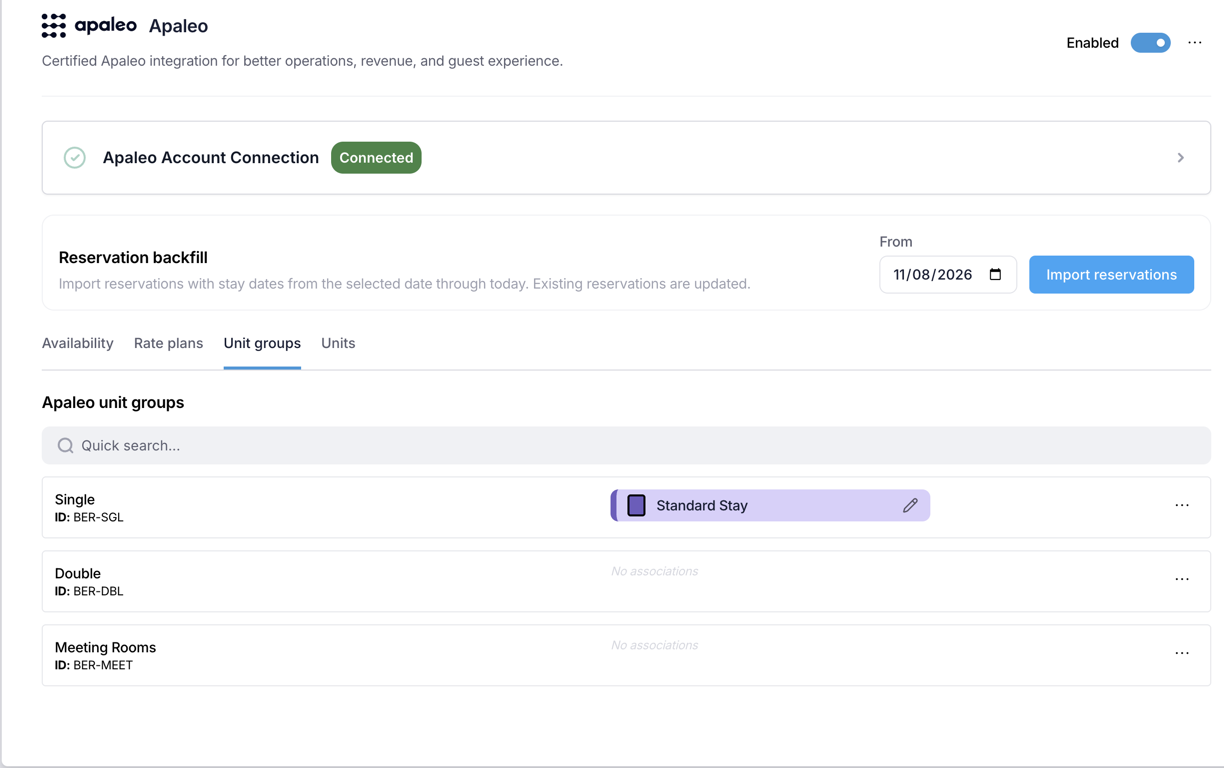
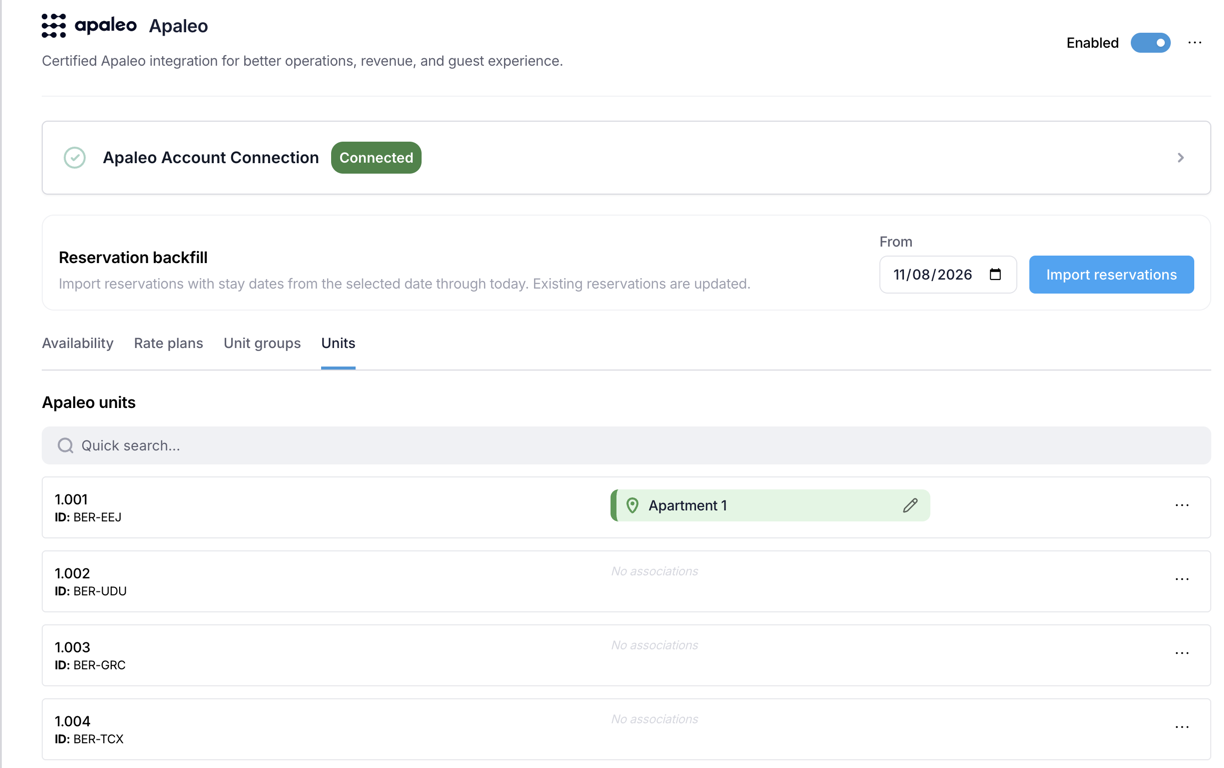
Open the Unit groups and Units tabs to see your Apaleo inventory. Link each Apaleo unit, or unit group, to the Centro location and stay type it corresponds to. You can search the list, see existing associations and add new ones from the sidebar.
This mapping is what lets Centro place each synced reservation in the right room and stay type, so guest check-in, keys and the Centro app all point at the correct location.
5. Check availability and rates (optional)
The Availability and Rate plans tabs show read-only Apaleo data for a date range you choose, with a refresh control. Rate plans can be viewed as a configuration list or as prices. Use these to confirm Centro is reading the property you expect.
Once your units are mapped, no further action is needed per booking. New and changed reservations sync automatically — see How syncing works. To disconnect, use Reset Integration from the ⋯ menu on the Apaleo provider.