Add & Manage Signage Players
This guide walks through connecting BrightSign to Centro, adding a signage player, and managing it day to day. If you're new to signage in Centro, read the Digital Signage overview first.
Before you start
You'll need:
- A BSN.cloud account (BrightSign's cloud service) with API credentials — a client ID, client secret, and your network name.
- One or more BrightSign players, and their serial numbers.
- At least one Location and a piece of content (an HTML Template) ready to show.
Step 1 — Connect your BSN.cloud account
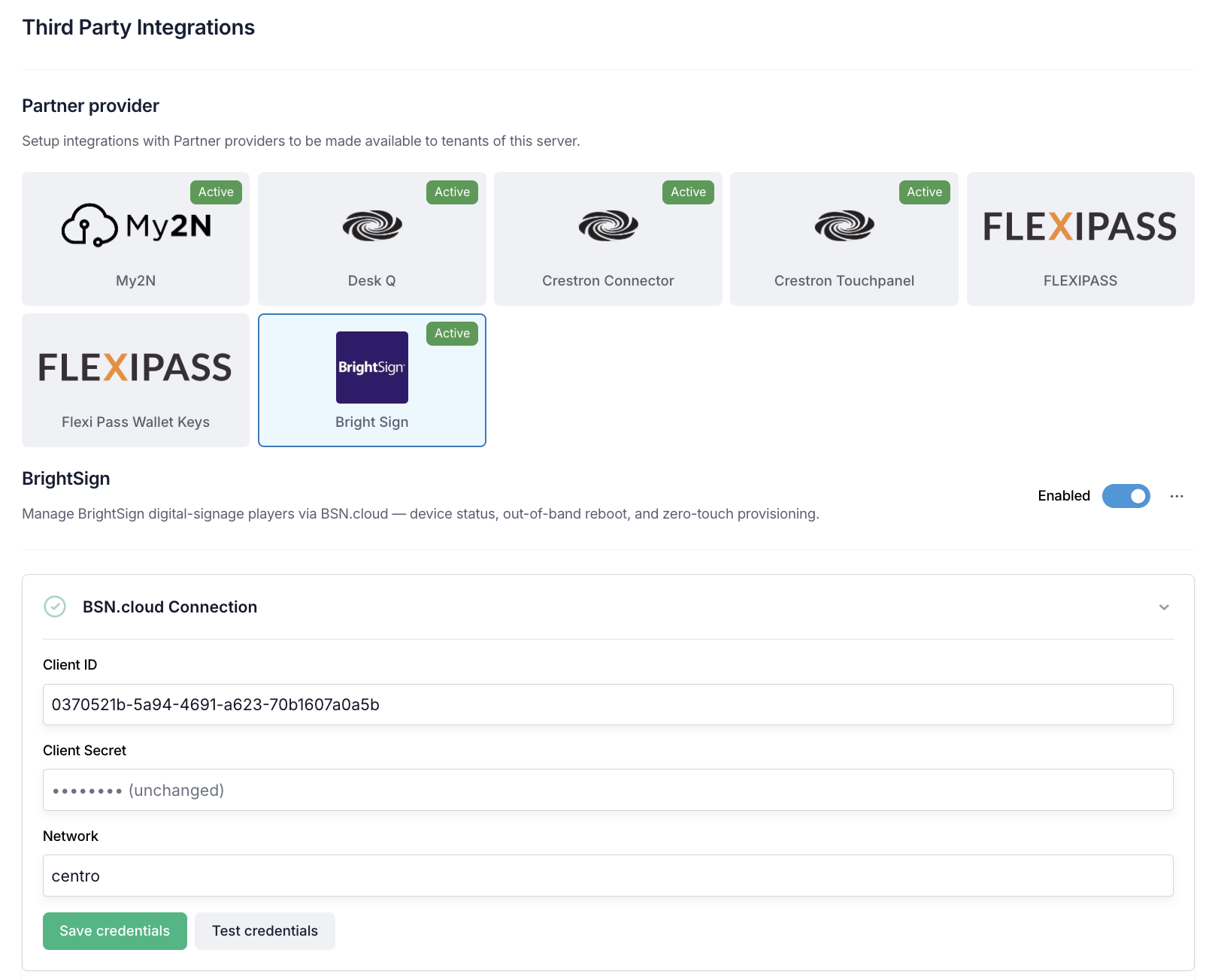
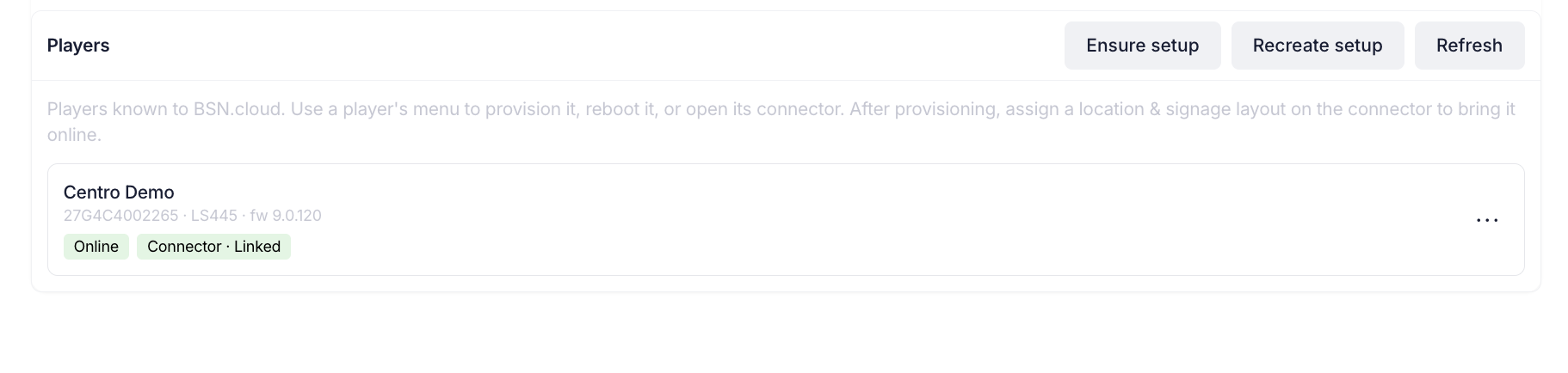
Go to General Settings → Integrations and open BrightSign. Enter your BSN.cloud client ID, client secret and network, then save. Use Test credentials to confirm Centro can reach your account, and Ensure setup to prepare your BSN.cloud network for Centro-managed players.
Step 2 — Add a signage player
Open General Settings → Signage Players and click Add player.
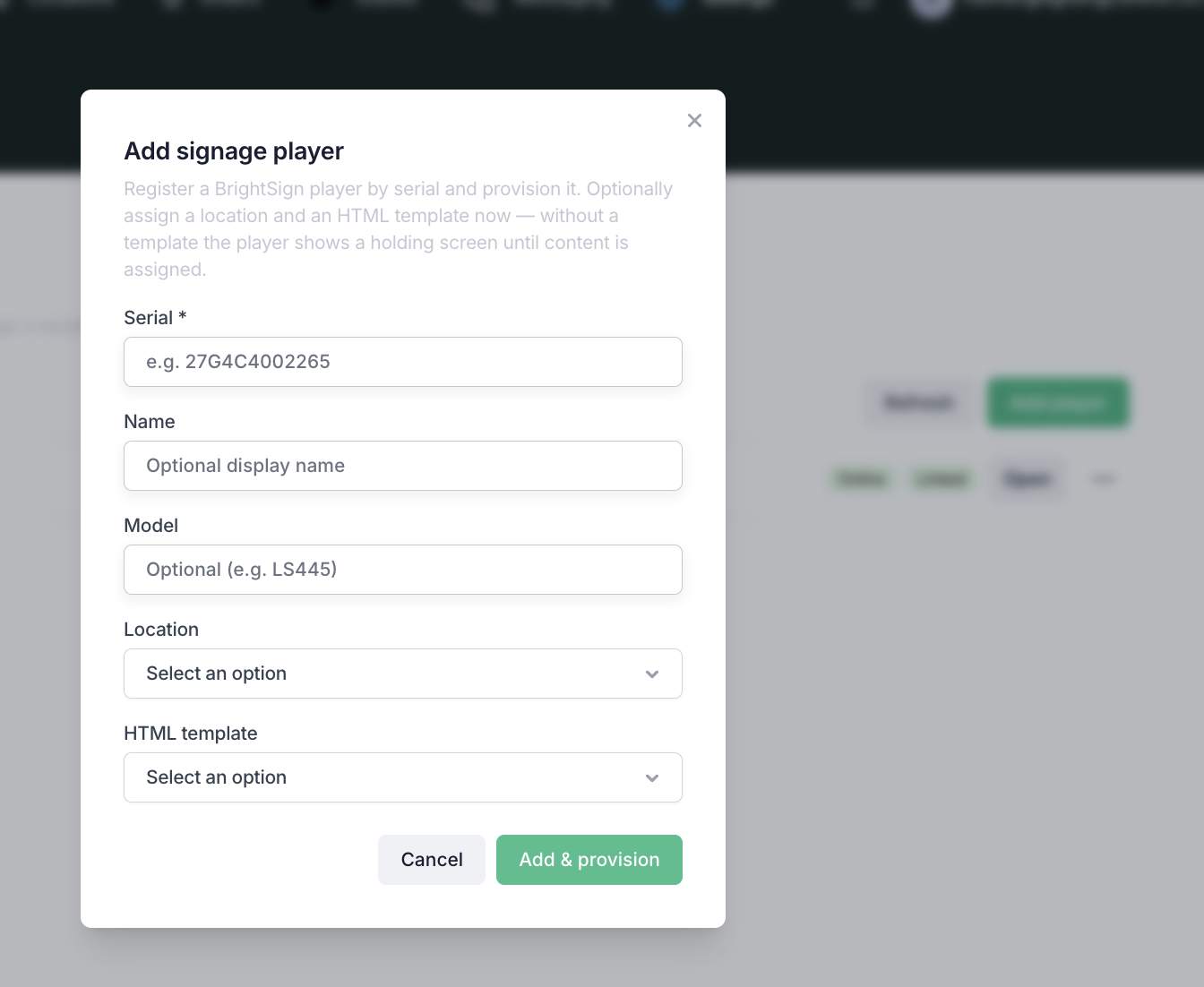
In the Add player dialog:
- Enter the player's Serial (required). Optionally give it a Name and Model.
- Choose a Location — the room the screen belongs to.
- Choose an HTML Template — the content the screen will show.
- Click Add & provision.
Centro registers the player, provisions it, and creates the location and content assignments in one step. You can add a player before it's powered on — provisioning still succeeds, and the player links itself the next time it comes online.
BrightSign players self-link by serial — there's no code to type on the screen. Once the player is online it appears in the list and picks up its assigned content automatically.
Step 3 — Confirm it's live
The new player appears in the Signage Players list with an Online / Offline and Linked / Unlinked indicator. Open the player and check the Status tab to confirm it's reporting normally, and the screen should show your assigned content shortly after it comes online.
Managing a player
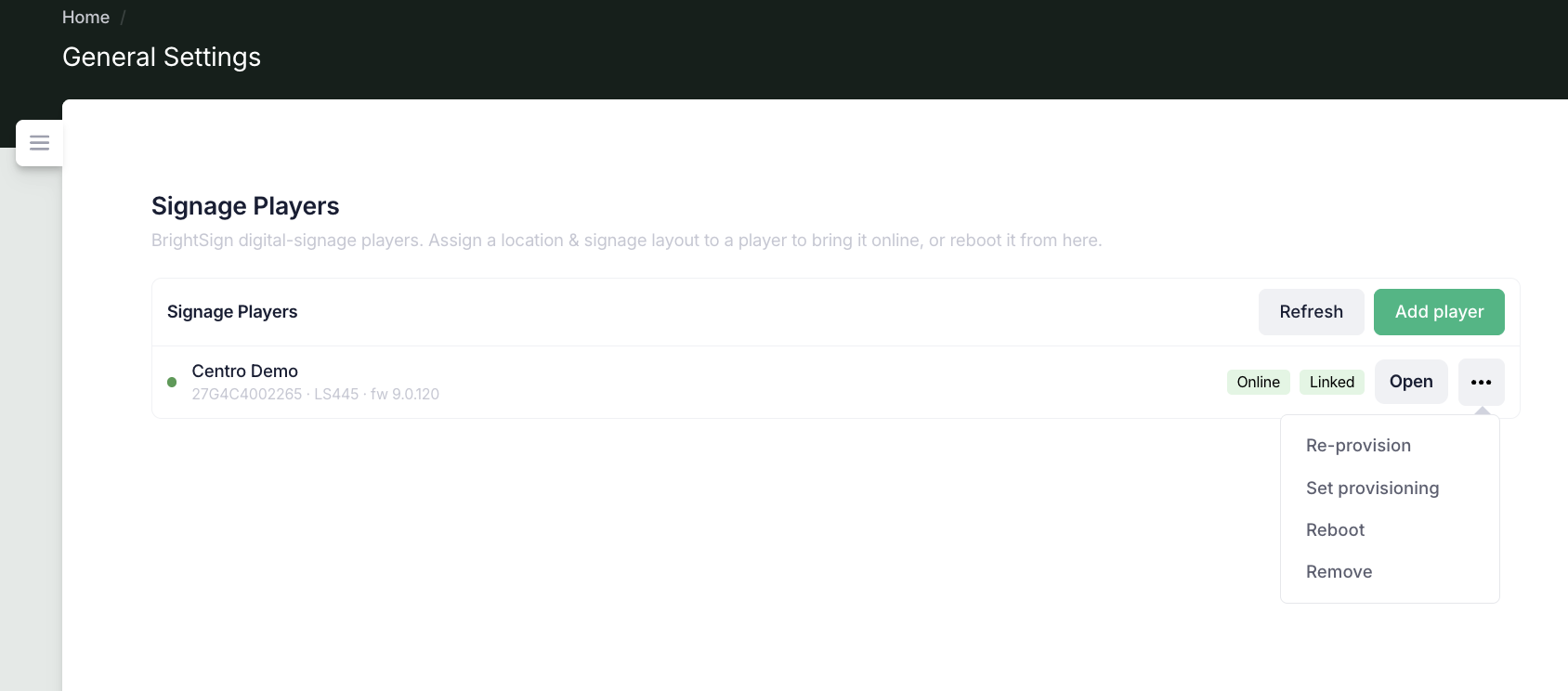
Each player row has a ⋯ menu with the following actions:
| Action | What it does |
|---|---|
| Re-Provision | Re-registers the player against the current setup. Use this after changing your BSN.cloud setup. (Does not restart the screen on its own.) |
| Set provisioning | Points the player at Centro and restarts it so it re-links and fetches the latest app. |
| Reboot | Restarts the player. |
| Remove | Removes the player from Centro and cleans up its BSN.cloud registration. |
You can also change a player's name, location and content at any time from its detail page (the Player and Associations tabs) — content changes apply live.
Rebooting a player
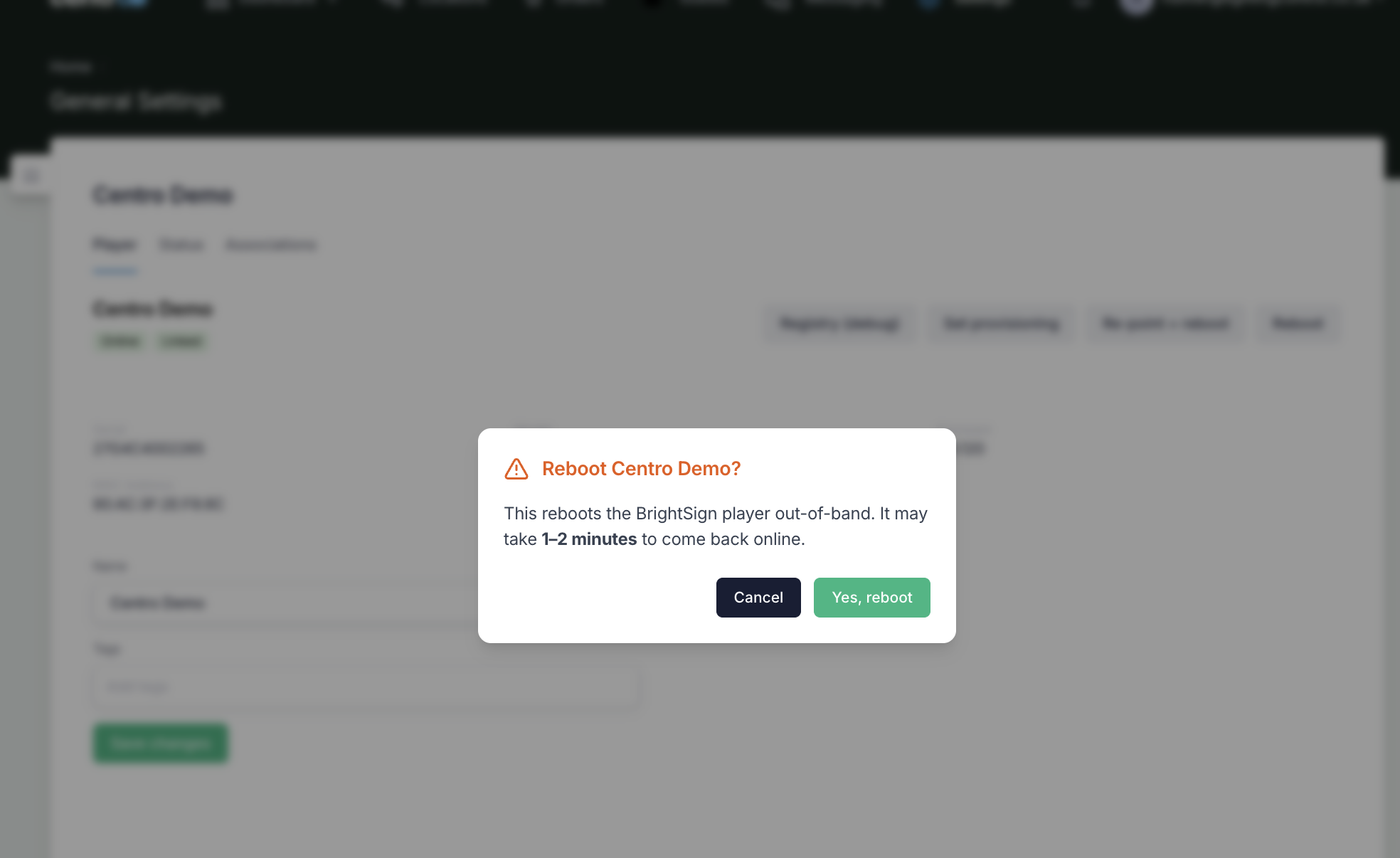
Choosing Reboot — from a player's ⋯ menu or from its detail page — always asks you to confirm before restarting the screen, so it can't be triggered by accident. A reboot is safe to run remotely: the player restarts and comes back online on its own, typically within a minute or two.
Status
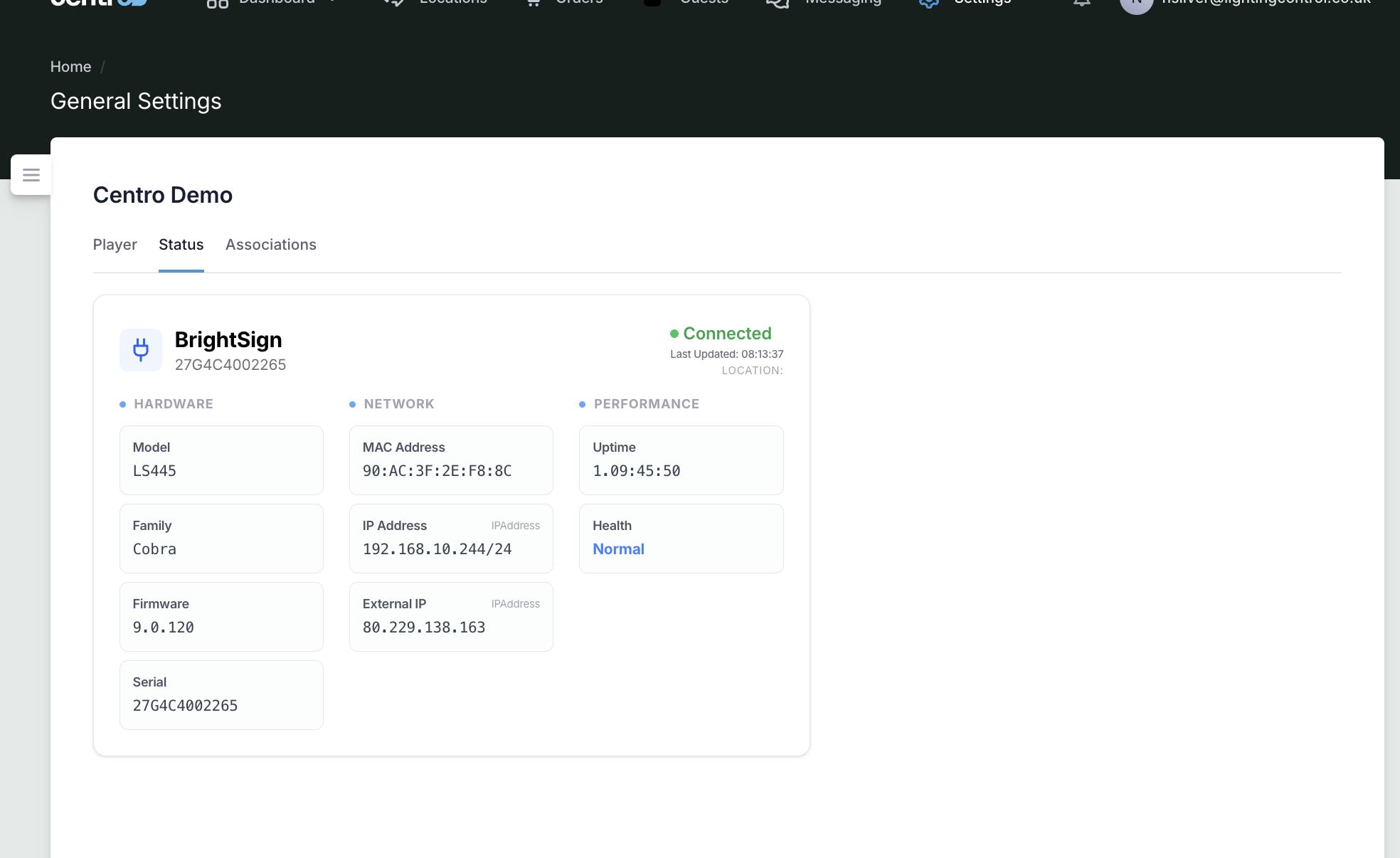
The Status tab shows the player's live system data — Online, Health, Last reported, Model, Firmware, Serial, MAC / IP and Uptime — refreshed automatically while the tab is open. See Player Status Monitoring for what each field means.
Troubleshooting
- Player stays Offline — check the screen has power and network. Centro marks a player offline when it stops reporting; it returns to online automatically once it checks back in.
- Screen is blank / holding screen — make sure the player has an HTML Template (or UI Layout) assigned on its Associations tab. Without content assigned, the player shows a holding screen.
- Credentials rejected — re-check the BSN.cloud client ID, secret and network in Integrations → BrightSign, and use Test credentials.