Working with Locations
Working with locations
This is the service manager side of locations — using them day to day. Locations are configured by an administrator first (see Managing locations); this page covers working with locations that are already set up.
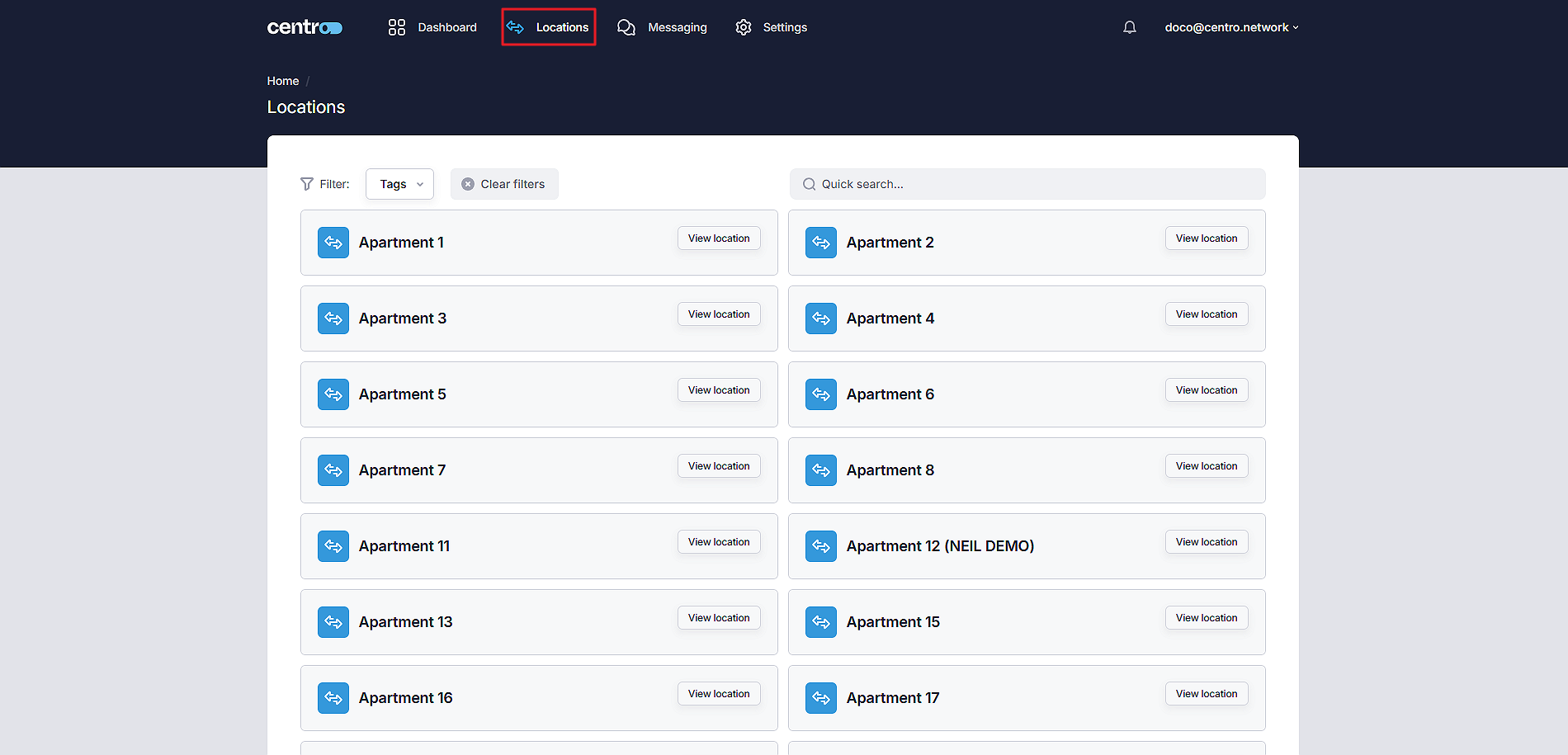
On the Locations page you'll find a list of all the locations set up in your tenant, where you can view and search them, check a location's at-a-glance dashboard, and adjust its property values.
Location micro-dashboards
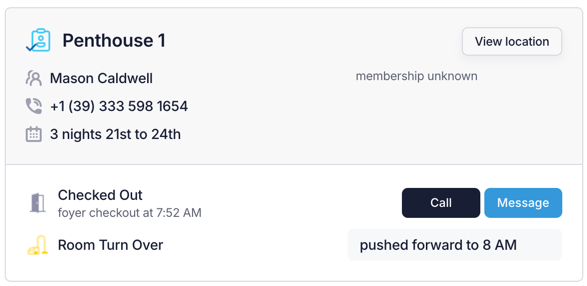
If configured by your system administrator, a location shows a micro-dashboard — a snapshot of the important information for that space at a glance.
View a location
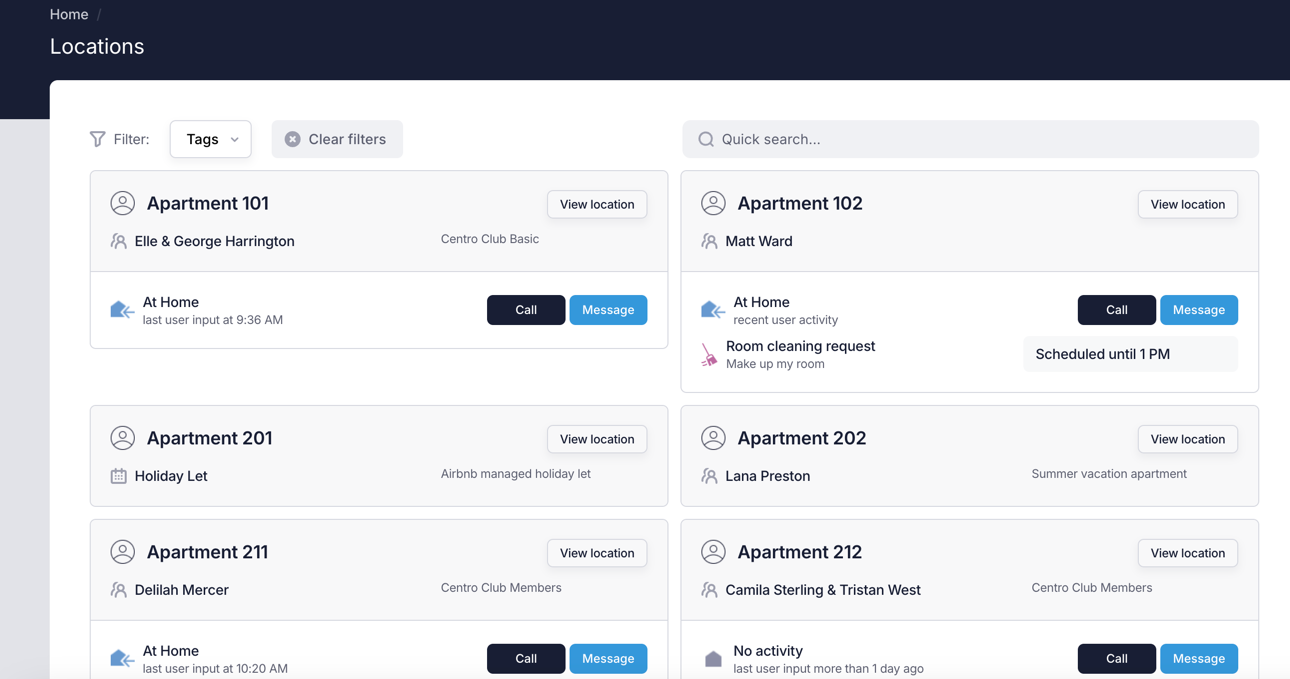
To see a location's details, select View Location.
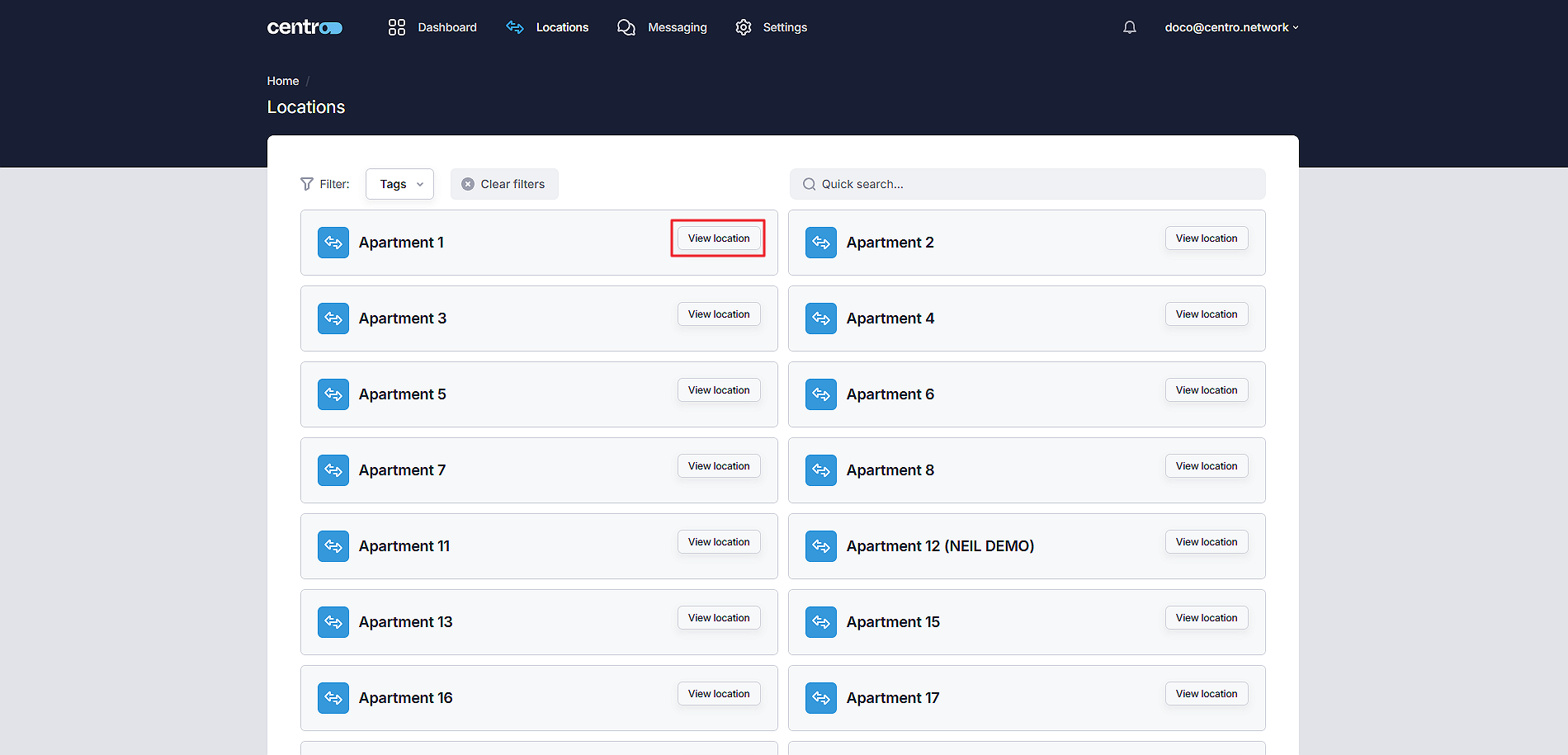
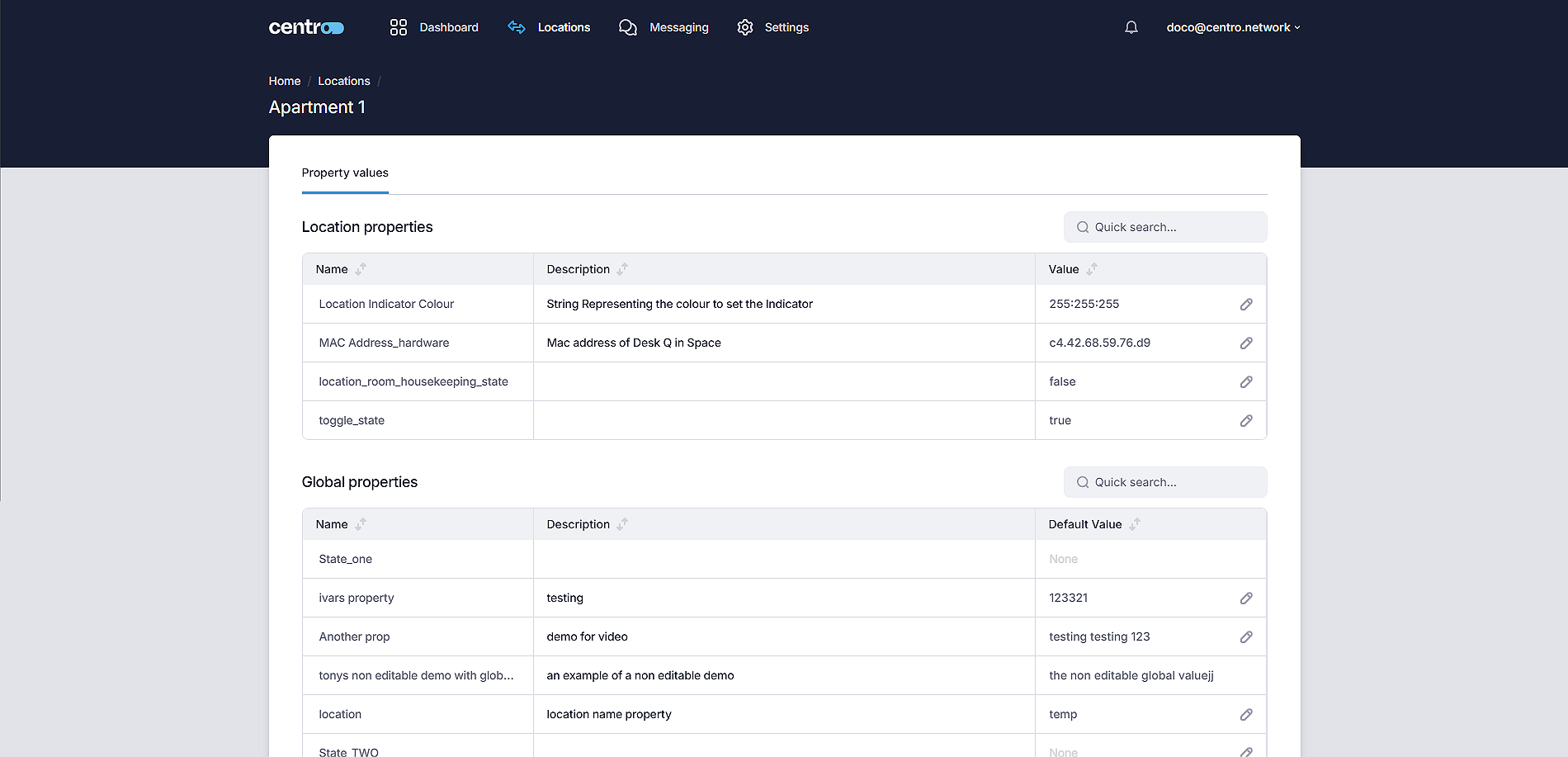
Service managers can edit the values of a location's Centro properties. The location's own properties and the global properties, with their descriptions and values, appear on screen.
Edit a location property
-
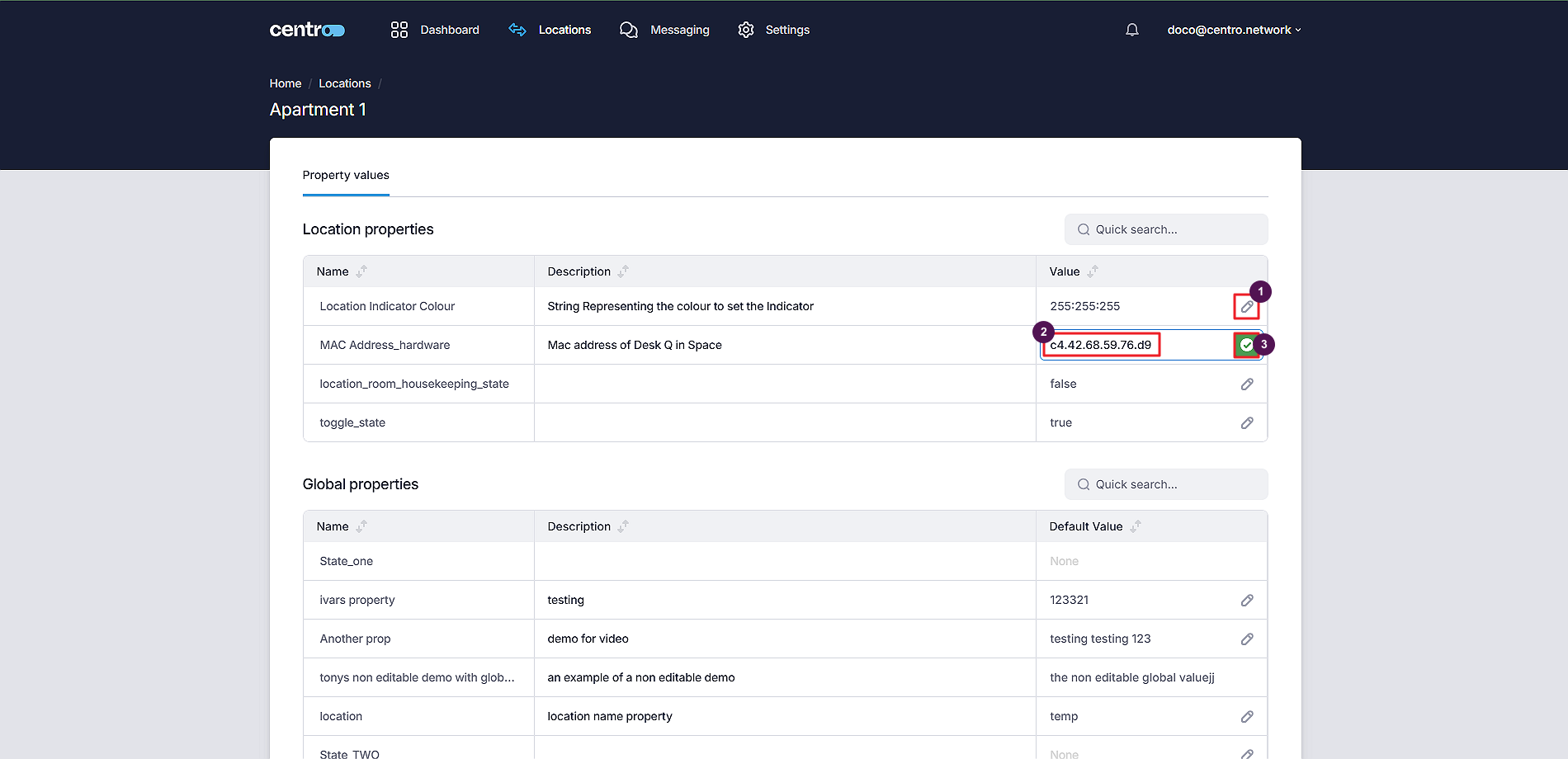
Select the pencil icon.
-
Change the value.
-
Select the green tick to save.
Search locations
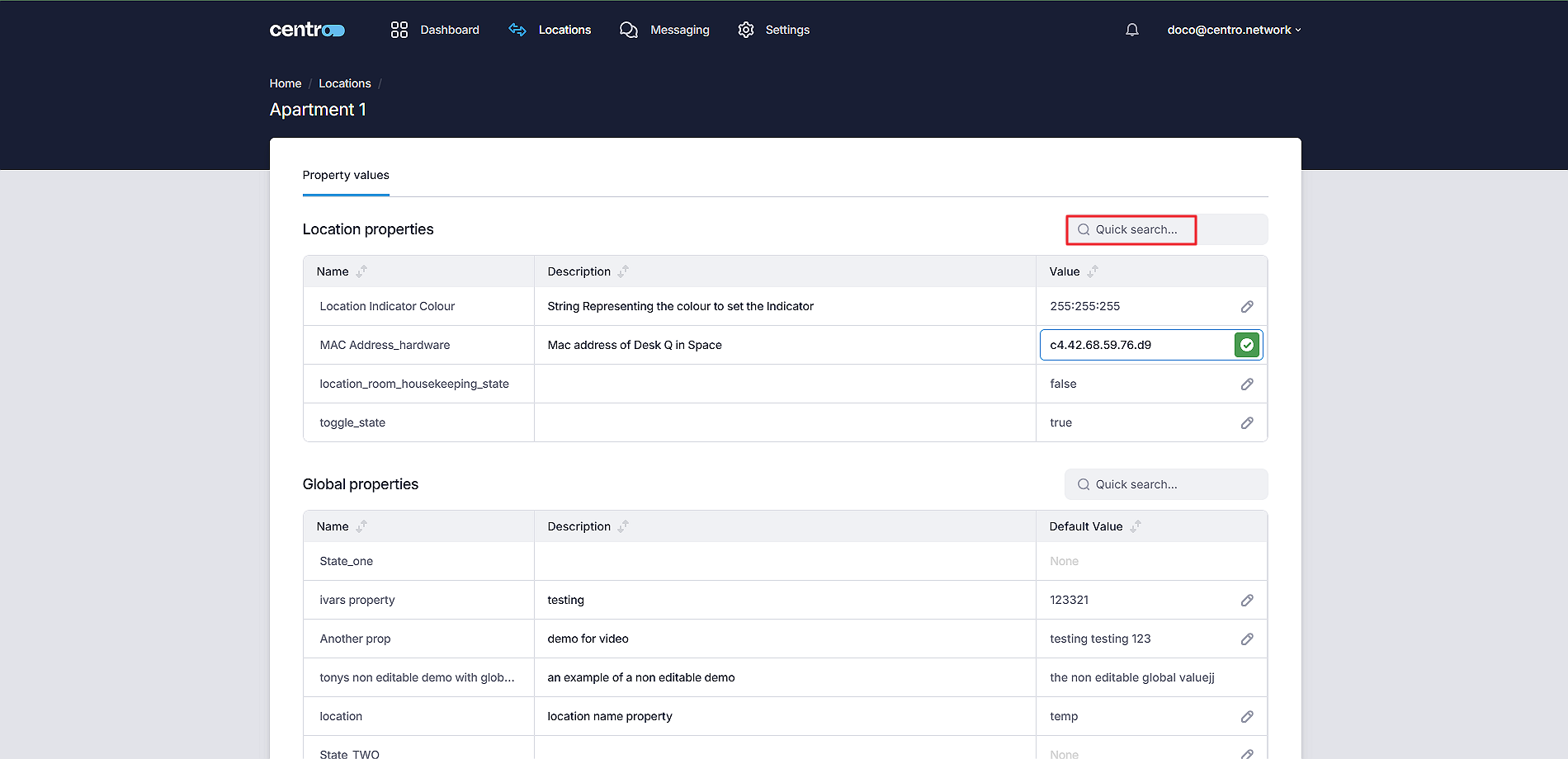
To find a location, type its title into the Quick Search box.
Filter locations
You can also filter to find the locations you want quickly:
- Select Tags.
- Select a filter.
- Select Save.
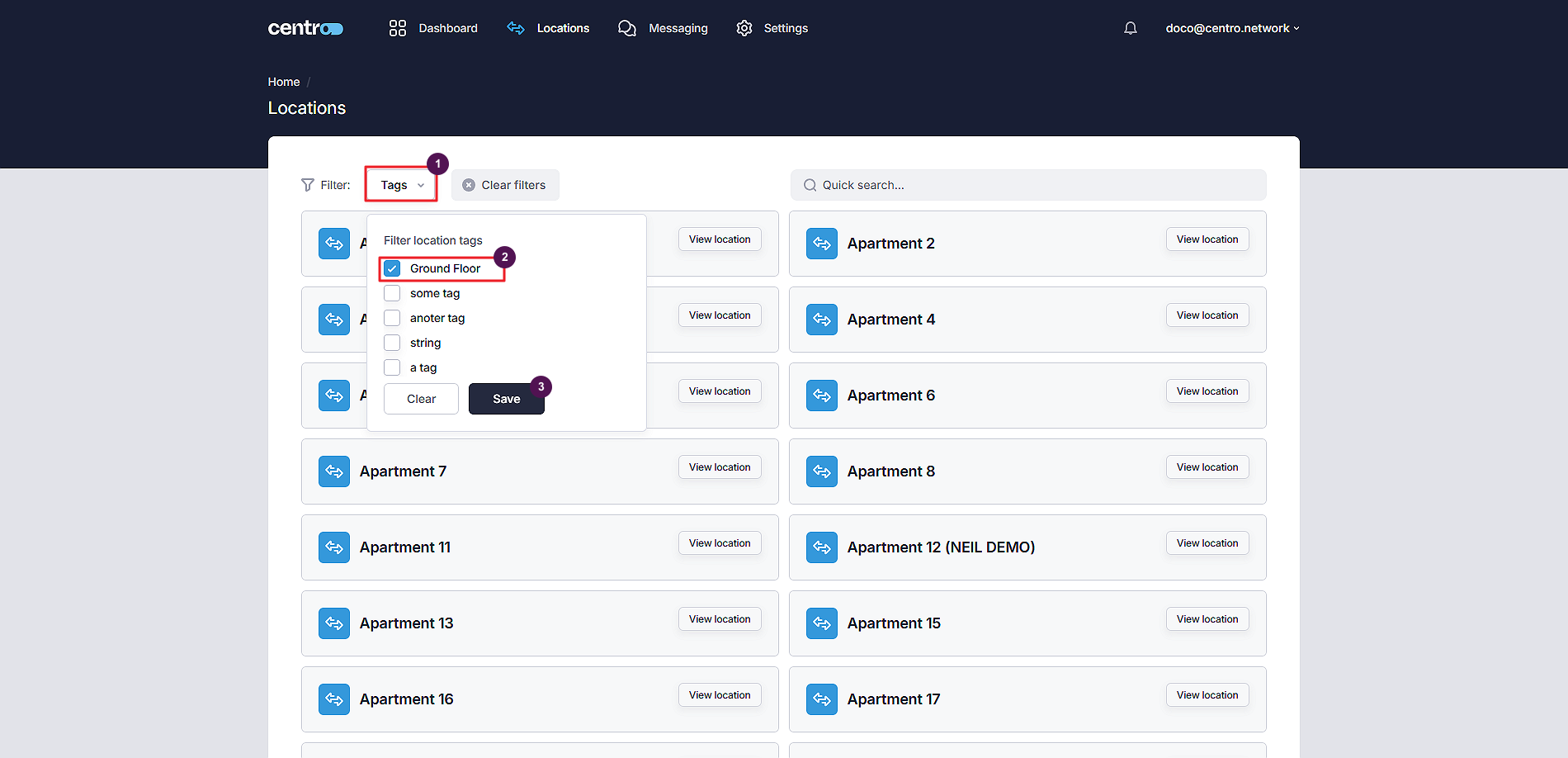
Filters use a location's tags, so consistent tagging makes day-to-day filtering much faster.