Getting support
Support is included with each Manager Licence and User App Licence. This page says how to reach it and what to send, so the first reply can be an answer.
Try Troubleshooting first: it covers the faults installers and site staff meet most often.
If you're setting up a new site, the licence's onboarding hours cover that — booked through a separate form. See Onboarding support.
What support a site has
Settings → Settings → Licence shows it on the Support line, under What this processor has.
| Keys | The Support line | What you get |
|---|---|---|
| A Manager Licence key or a User App Licence key | 6 hours of support included with each licence — and a contact LCD link | Support from LCD, included with the licence. |
| An API Licence key only, or no key | Community support: with an LCD Docs link | These pages. |
A site on trial holds no key, so it has community support until you add one. See Licensing and editions.
LCD support also moves a licence key to another processor or program slot. See Licensing and editions.
Contact support
- Go to Settings → Settings → Licence.
- On the Support line, select contact LCD. It opens Centro System Manager support in LCD's knowledge base, in a new tab.
- Under Something isn't working, select Report a problem with Centro System Manager, then open the support form from it. For Category, pick Centro System Manager: I have a problem.
- Send your request with the details below. The form has a field for the logs zip file.
You don't need an account. One is made for you when you send the form, and replies come by email.
The link opens in your own browser, so the device you're using needs an internet connection, not the processor. On a site with none, open the support page from a device that has one.
What to send
A request with these four things can usually be answered without a second round of questions.
| Send | Where to find it |
|---|---|
| The version | Settings → Settings → Upgrade, under This processor: the Centro System Manager for Crestron version. The System page shows it too, as Version under This processor. |
| What you were doing | The screen you were on, what you selected and what happened instead of what you expected. Copy any message word for word. |
| When it happened | The date and time, as the site's clocks showed it. The logs are in the site's time zone, so this is what points to the right entries. |
| The logs | The zip file from Download logs — see below. |
It also helps to say:
- which location, connection or processor is affected, and whether it's one or many
- whether it worked before, and what changed since — an upgrade, a restore, a new certificate or a change on the network
- the model of the processor Centro System Manager for Crestron runs on.
Don't send passwords, API keys or the backup passphrase.
Logs Centro already has
While Send this processor's logs to Centro is on under Settings → Settings → Logs, a copy of the processor's log reaches Centro by itself, with the errors the admin app and the User App report. It's on by default. Support can then look at a fault without visiting the site, so say in your request that sending is on.
Send the downloaded logs as well. They cover what happened before sending was turned on, and anything that couldn't be sent while the site was offline. On a site where sending is turned off, the download is the only copy support gets.
Download the logs
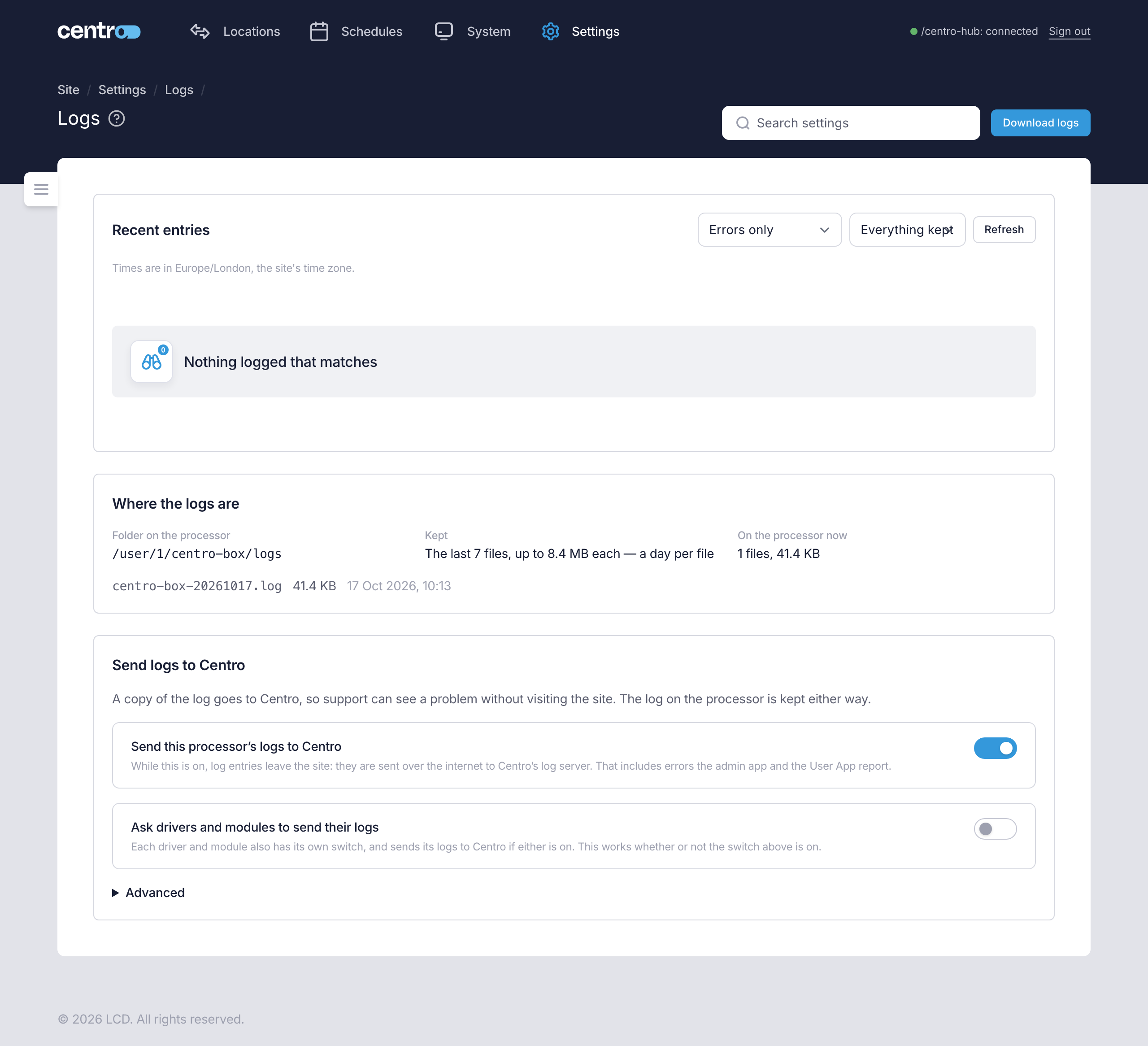
The download is the support bundle: a zip file of every log file kept, with the version and licence state.
- Sign in as an Administrator.
- Go to Settings → Settings → Logs.
- Select Download logs. The button reads Preparing… while the file is built.
- Attach the zip file to your request.
Download the logs as soon as you can after the fault. One log file is written a day and the oldest is dropped automatically, so an old fault may no longer be in them.
A factory reset erases the logs, and a backup doesn't include them. Download the logs before a reset if you need support.
Look at the logs yourself
The same page lists the newest entries, which is often enough to see what went wrong.
- Set Show to Warnings and errors.
- Set From to cover the time of the fault: Last hour, Last 24 hours, Last 7 days or Everything kept.
- Select Details on an entry to read the rest of it.
If entries look wrongly dated, check the processor's clock under Settings → Deployment → Setup.
See Logs.
If you can't sign in
The logs can only be downloaded by an Administrator who is signed in. If the fault is that nobody can sign in, send the rest: the version if you know it, the exact message on the sign-in page and the time. If sending logs to Centro is on, say so: support may find the fault in the logs already sent.
If nothing answers at all, check that the processor is powered and on the network, and check the program in the processor's console. See Load the program.