User App
The User App lets a user control their own location from their phone. They scan a QR code and the location's controls open in the phone's browser — there's no app to install and nothing to sign in to.
User App access needs the User App Licence. See Licensing and editions.
What a user sees
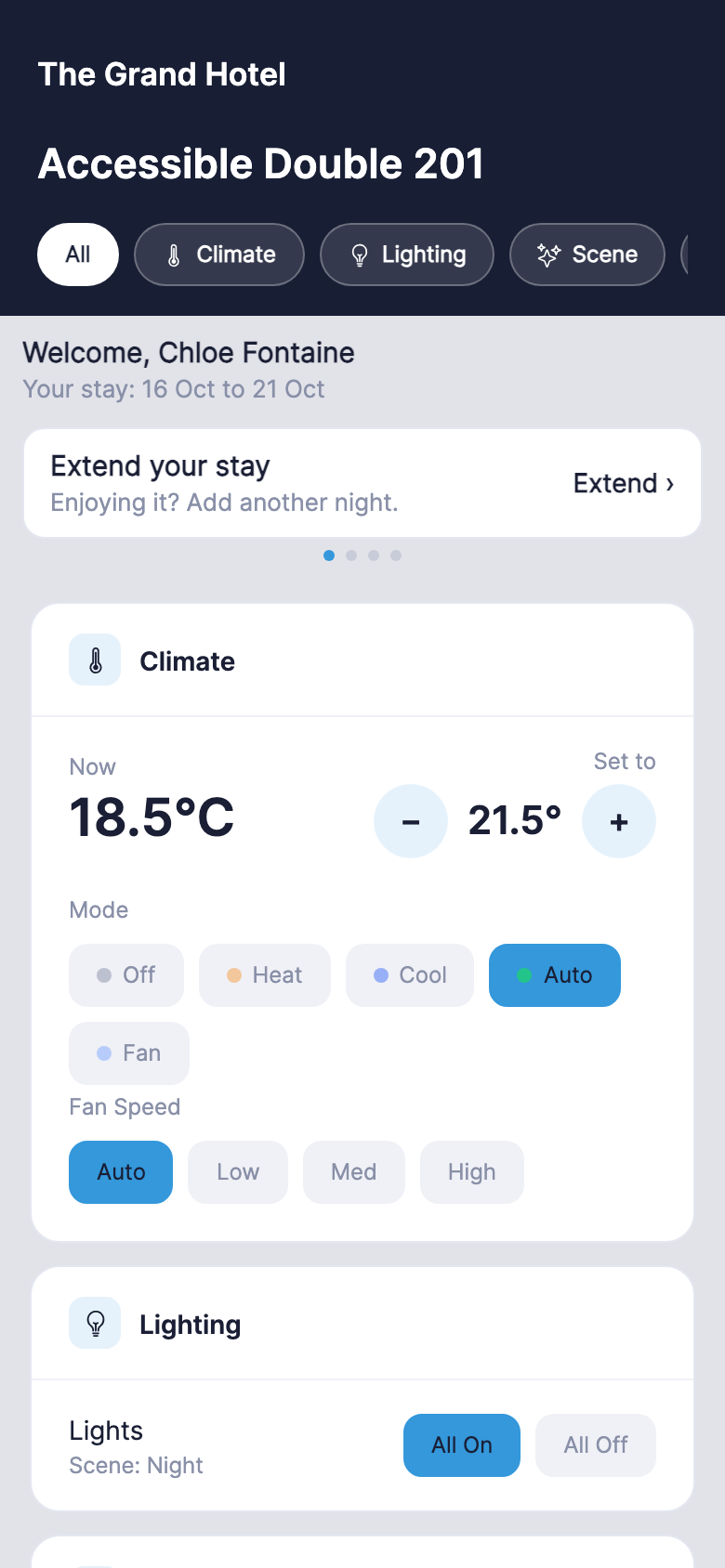
- A header in your site's colours, with your logo, the site name and the location's name. The header takes the Header background colour, and the controls take the Primary colour and Page background. All of them come from Appearance, so the User App looks as the location's touch screen does. With no site name and no logo set, the User App keeps its standard look.
- The location's name, in the header, so a user can tell which location they're controlling. It's the location's name on the Locations settings page. Rename the location and users see the new name the next time they open the page.
- The user's stay, under the header, while stays are on. See The stay.
- An offer, between the header and the cards, if value propositions are turned on. See General.
- A card for each thing the location offers: climate, lighting, scenes, shades and the do not disturb and make up room requests. The buttons along the top jump to one card. Each shade has open, stop and close buttons, and reads Open, Closed or how far it's closed, such as 40% closed.
- A language switch, on a phone. See Language.
The browser tab is titled with the site name. The messages a user can see, such as the prompt to scan a code, carry the logo and site name too.
A user sees one location only: the one their code was for. There's no way to move to another location, and nothing else is reachable from the User App.
The User App controls the location and nothing more. Ordering, in-location service and bookings aren't part of it.
Language
A phone shows the User App in the first of these that's set:
- The language the user chose on the phone, with the language switch: English, Español, Français or Italiano. The phone keeps the choice.
- The location's language, set on the location's page under Locations.
- The processor's Default language, set under General.
A touch screen has no language switch: it shows the location's language, or the Default language. The pages a user sees before their code is checked, such as Scan the QR code, are in the Default language.
The stay
While stays are on, a user's phone shows their stay in a strip under the header, in two lines at most:
| The strip reads | When |
|---|---|
| Welcome, and the name | The stay has a name, and Show the name in the User App is on. |
| Your stay: and the dates, for example Your stay: 10 Oct to 13 Oct | The user is checked in. The year is added only when the two dates are in different years. |
| Check-out today | It's the departure day, after the morning time. |
A phone shows nothing for a user who is expected today but not yet checked in, and nothing when the location has no current stay. The strip changes by itself when staff check a user in or out, or change the stay: the user doesn't need to reload the page.
The name is shown only to a user who scanned the Session code, and on the location's touch screen. It's never shown to a user who scanned the Fixed code, since anyone holding that card could see it.
A user sees their stay only while all of these hold:
- Stays is on under General, and the Manager Licence is active.
- The User App Licence is active.
- A stay source is ticked under Settings → Settings → Stays.
When End sessions at check-out is on, checking a user out signs their phone out of the User App, and the phone shows Your access has ended. Touch screens stay signed in. See Stays settings.
For how staff check users in and out, see Stays.
When a user presses something
The button shows that it's working until the location confirms the change. If the change doesn't happen, a line appears under the card:
| The user sees | What happened |
|---|---|
| There was no response. | The location's Crestron system didn't confirm the change within 10 seconds. The control goes back to what it showed before. |
| That couldn't be done. | The location's system refused the change. Where the system gives a reason in plain words, the user sees that reason instead — for example Crestron Home gives this driver no way to stop a shade when Stop is pressed on a Crestron Home shade. |
| The controls aren't responding right now. | Contact with the location has been lost, so the change wasn't sent at all. |
The line clears at the next press, or after 15 seconds.
When a device is offline
A location can be online while one of its devices isn't. The User App then shows the device as offline and doesn't let the user change it:
- The thermostat is offline, on the climate card, with the last reading and when it was taken — for example Last reading 21.5° at 09:00. The climate controls are dimmed.
- The lights are offline, on the lighting card, when every light in the location is offline. The lighting and scene controls are dimmed.
- Offline, on the row of a shade that is offline. The other shades can still be moved.
The card goes back to normal by itself when the device is back.
When the location stops responding
If the location's connection goes quiet, the user sees a notice above the cards: The controls aren't responding right now, with the time the location was last heard from and The settings below may be out of date. The cards are dimmed and can't be pressed. They keep showing the last values known.
The notice appears a few minutes after the connection goes quiet. It clears by itself when the location is back — the user doesn't need to reload the page.
To find out why a location has gone quiet, open the location's page: see Control a location and Connection detail.
Other messages a user can see
| The user sees | Why |
|---|---|
| Scan the QR code | They opened the User App address without scanning a code. |
| This QR code is no longer valid | The code has been replaced. See what stops a code working. |
| Your access has ended | The page gives the reason: This location's code has been changed. Ask staff for the new one. (a newer code was made for the location), Your stay has ended. (their time ran out, or they were checked out while End sessions at check-out is on) or Staff have ended access to this location. (staff signed the location's users out). Scanning a current code lets them back in. |
| The controls aren't available — Please contact reception. | The User App Licence isn't active on this processor. |
| Too many attempts | Too many scans from one phone, or for one location, within a minute. It clears after a minute. |
| Couldn't connect | The phone can't reach the processor. It's usually on mobile data or the wrong Wi-Fi network. |
| Reconnecting… | The phone has lost its live link to the processor and is restoring it by itself. |
| Something went wrong — Trying again shortly. | The page hit an error. It tries again by itself, and Retry now tries at once. |
How users reach it
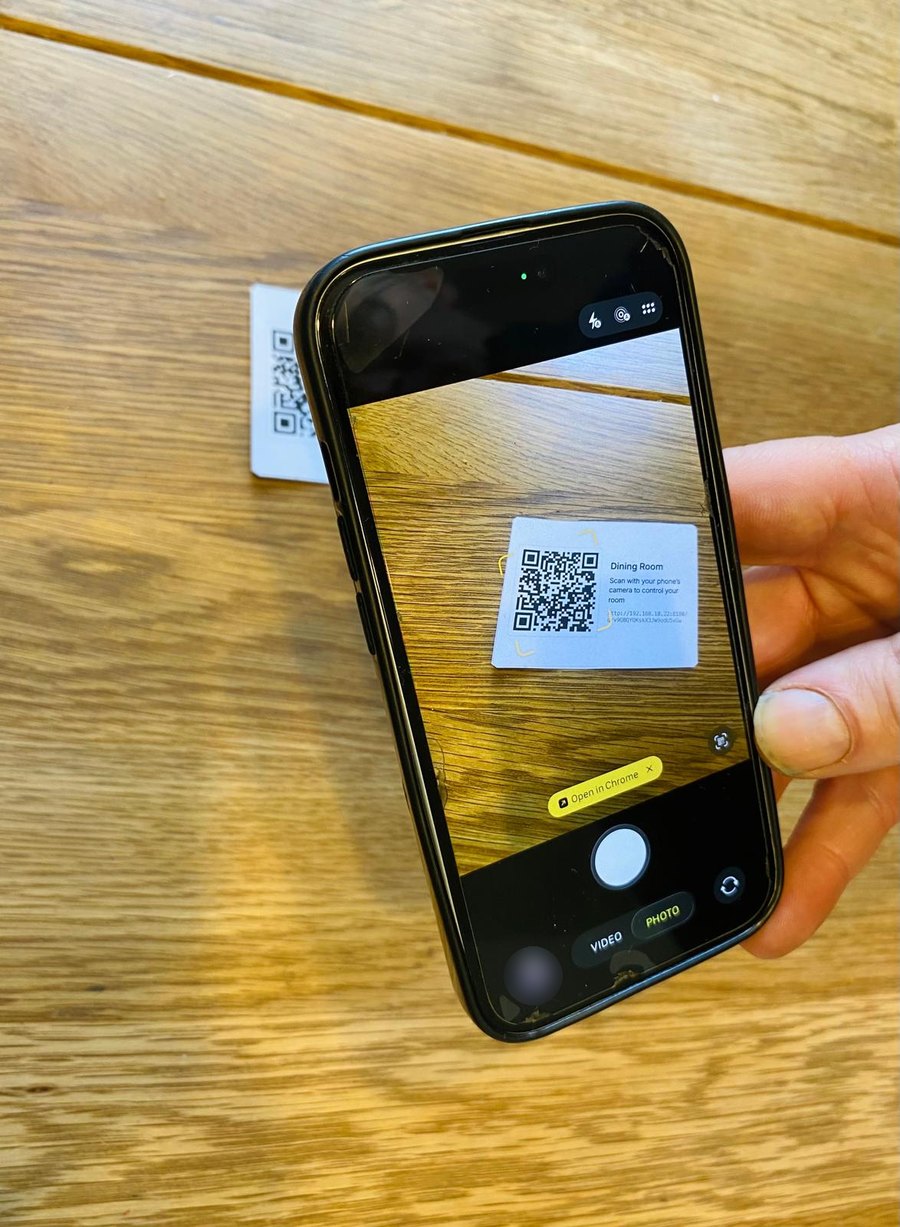
A user scans one of the location's User App QR codes with their phone's camera. The code holds a link to the processor, so the phone must be on a network that can reach the processor — in practice, the Wi-Fi the site gives its users. A phone on mobile data can't open it.
The app is small, so it loads quickly on the site's Wi-Fi.
The User App comes with the program. A newer User App can also be uploaded on its own, without loading a program: see Upgrade. Phones get it the next time they open the page.
Set up the network
The User App port
Users reach the processor on a port of its own, 8180 unless it was changed when the program was installed. A user's link looks like http://192.168.1.50:8180/q/….
Only the User App answers on this port. The admin app and the connections use other ports, which a user's phone has no need to reach. Ports and network lists them all.
The User App port uses plain HTTP, not HTTPS. The processor makes its own certificate, which a user's phone wouldn't trust, so over HTTPS every user would meet a security warning before reaching their location. For that reason:
- Put users on their own network, separate from the one you manage the processor on, with client isolation turned on so one user's phone can't see another's.
- Let that network reach the processor on the User App port only.
Give the processor a fixed address
Printed QR codes hold the processor's address. If the address changes, every printed code stops working.
Give the processor a fixed IP address or a DHCP reservation before you print anything.
Check the User App address
- Go to Settings → Settings → General and find User App access.
- Check User App address. Left blank, the processor uses the address it detects for itself, which is shown under the field.
- If users reach the processor by a different address — a hostname, for example — enter it as
http://hostorhttp://host:port, with no path, and select Save. Use detected goes back to the detected address. - Check the last line reads User App port: on. If it reads User App port: off, users can't reach the User App until the port is turned on in the program's start-up configuration. See Ports and network.
The User App access section shows only while the User App Licence is active.
If the address changes after codes have been printed, the location's User App access tab warns you with the old and new addresses. Reprint the codes, or put the processor back on its old address.
Choose what users can control
Each location has two lists of switches, on its Location tab under Settings → System → Locations:
- What this location shows — what staff see and control in the admin app.
- What the User App shows — what users see and control in the User App.
To change what a location's users get:
- Go to Settings → System → Locations and open the location.
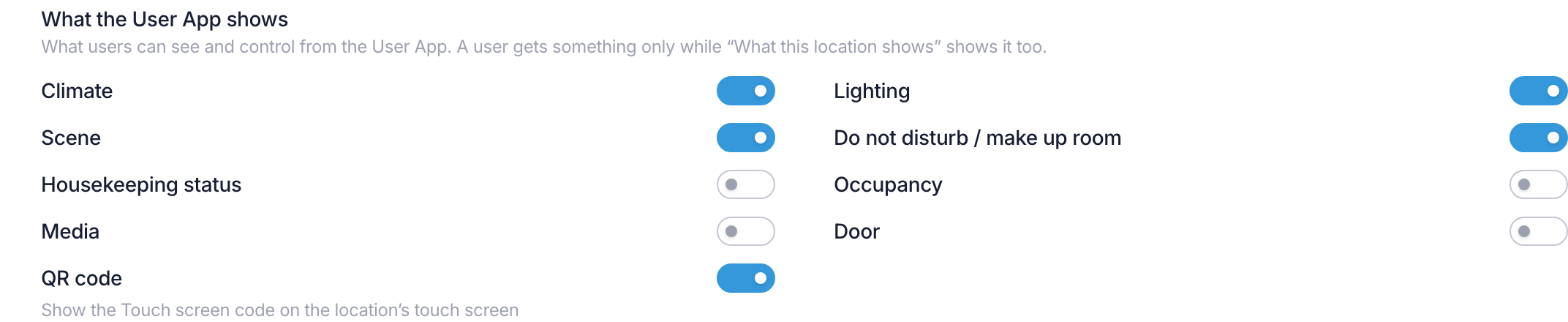
- Under What the User App shows, turn each item on or off.
- Select Save.
A few things to know:
- A user only gets what the location shows too. If an item is off under What this location shows, its switch here is locked and reads Off in "What this location shows", so users don't get it either.
- Housekeeping status, Occupancy, Media and Door start switched off for users. The rest start switched on.
- QR code in this list decides whether the location's touch screen shows the Touch screen code. QR code under What this location shows decides whether staff are offered the location's QR code on the Locations page and in prints.
- The list appears once a connection has reported what the location has, and only while the User App Licence is active.
Locations covers the rest of a location's settings.
See who's using a location
- The location's Location tab shows Users now under Connections serving this location — for example, Users now: 2 phones, 1 touch screen. Only counts are shown, never who the users are.
- The location's User App access tab shows how many users are signed in with each code.
To end every user's access to a location at once, see Sign out a location's users.
Without the User App Licence
User App access is on while the User App Licence is active, which includes the trial. When it isn't, the QR buttons, Print QR codes… and What the User App shows don't appear, and the location's User App access tab reads one of:
- User App — needs a licence, with links to buy one and to the Licence page. There's no User App Licence and the trial is over.
- User App — licence lapsed. Users can't sign in or control locations until the licence is active again. The QR codes come back when it is.
Demo mode opens User App access for the demo locations without a licence, so you can show it to someone.