Connection detail
A connection's page gathers everything about one connection: what it is, whether it's healthy, which location it serves and what you can do about it. Open it when a location is offline or isn't doing what you ask.
To open a connection's page, select the connection:
- on the System page (see System dashboard)
- in System status on a location's page (see Control a location)
- under Settings → System → Connections (see Connections).
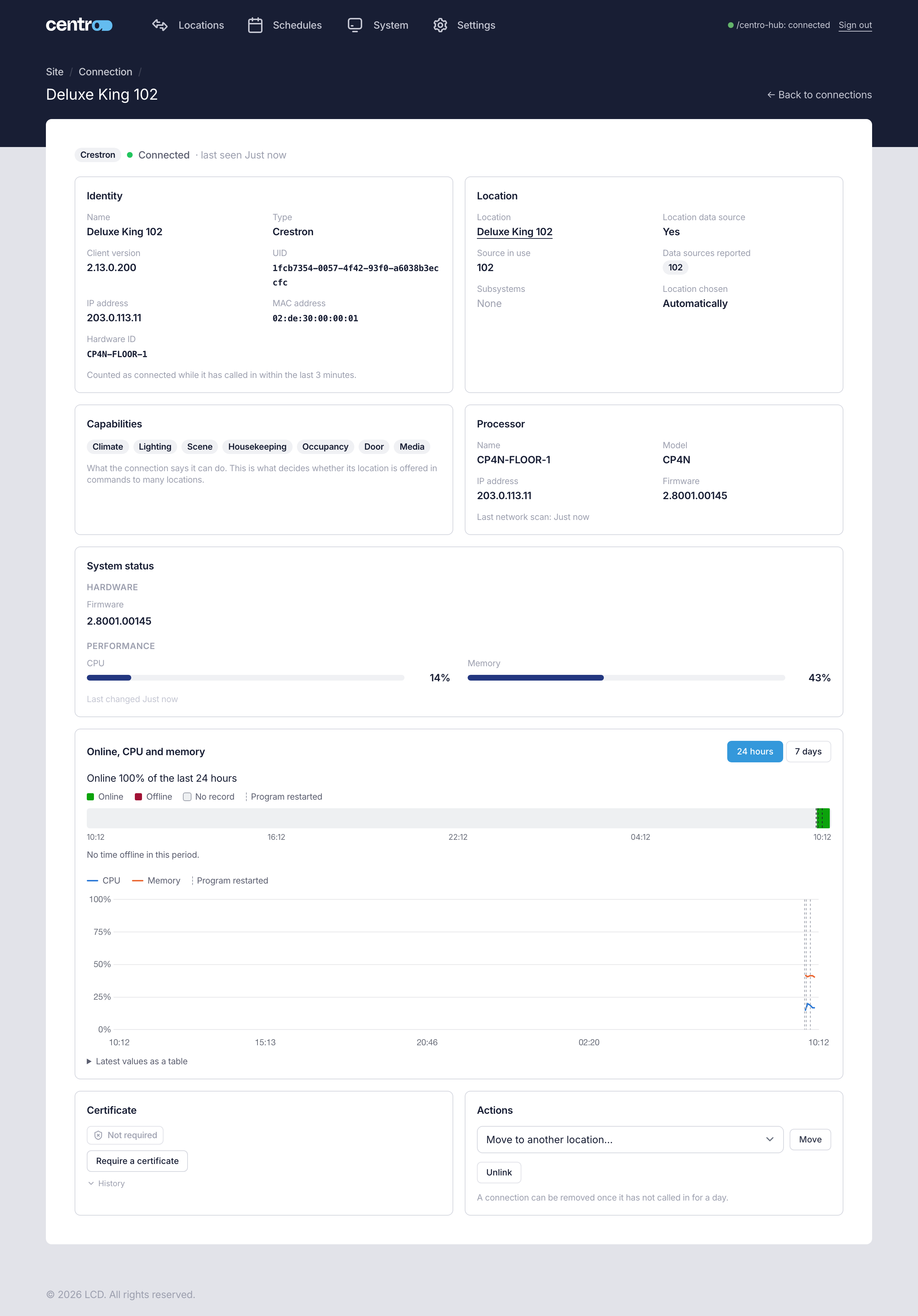
Administrators always see connection pages. Managers see them only if Managers can see connection information is on under Settings → Settings → General (see General), and never see the Certificate and Actions panels.
Check that it's connected
The line at the top shows the connection's type, whether it's Connected or Not connected and when it was last seen.
A connection counts as connected while it has called in within the last 3 minutes. One that hasn't called in for a day is marked Stale.
The page refreshes itself every 30 seconds.
Identity
Identity says which connection this is: its Name, Type, Client version, UID, IP address, MAC address and Hardware ID. For a Crestron Home driver it also shows the Crestron Home version its processor runs, such as 4.012.0194, once that has been read.
Location
Location shows the location the connection serves. Select the location to open its page.
It also shows whether this connection is the Location data source, the one that supplies the location's state, the Source in use, the Data sources reported and its Subsystems. Location chosen says whether the location was chosen Automatically, when the connection first called in, or By an Administrator.
Without a Manager Licence, selecting the location opens its settings under Settings → System → Locations for an Administrator, and a Manager sees its name only.
Two messages can appear here:
- Not linked to a location. The connection sends nothing to the Locations page until an Administrator links it.
- A warning that the data source the location uses is missing from what the connection reports. The connection's data for the location is ignored until the data source comes back.
Capabilities
Capabilities lists what the connection says it can be sent, such as Climate, Lighting, Scene and Housekeeping. This list decides which controls the location's page shows, and whether the location is offered in bulk commands and schedules.
A connection that has never said what it can do is credited with what its location's state shows, and the page says so.
Processor
Processor shows the local processor the connection calls in from: its Name, Model, IP address and Firmware. Under them is when Centro System Manager for Crestron last scanned the network.
If the page warns that the processor's address changed, the connection is calling in from an address or MAC address that no longer matches the processor. Check the processor before you trust its locations.
System status and history
System status shows what the connection reports about itself, grouped under headings such as Hardware, Network and Performance, with when it last changed. A connection that hasn't reported yet says so.
Online, CPU and memory draws the connection's history over 24 hours or 7 days. A strip at the top shows when the connection was online and offline, and how much of the time it was online. Under it, a graph draws its CPU and memory. To read them, and for what a gap means, see Read the graphs.
Certificate
Certificate shows whether the connection's link to Centro System Manager for Crestron is secured with a certificate, and lets an Administrator require, re-enrol or revoke it. See Connection certificates.
Link, move or unlink a connection
Administrators use Actions to change which location a connection serves.
| To | Do this |
|---|---|
| Link a connection that has no location | Choose the location under Link to a location and select Link |
| Move a connection to another location | Choose the location and select Move, then confirm. The old location stops receiving the connection's data and the new location receives it instead |
| Unlink a connection | Select Unlink and confirm. The location stops receiving the connection's data, and the connection isn't given a new location automatically |
Remove a connection
Remove a connection when it has gone for good — a local processor that was replaced, or a location that was taken out of service.
A connection can be removed once it hasn't called in for a day. Until then there's no Remove button.
- Open the connection's page.
- Under Actions, select Remove.
- Read the confirmation, then select Remove.
The confirmation tells you what removing the connection does:
- The connection is removed from this processor. Its location is kept and only unlinked, so the location's name, group and settings stay.
- Commands that are waiting are dropped. If commands are still waiting for the connection, the confirmation says how many, for example "3 commands waiting for this connection will be dropped." They're never sent. Send them again once the location has a working connection.
- Its certificate is kept or revoked. If the connection has been silent for a week or more, its certificate is revoked, and it must enrol for a new one if it calls in again. Otherwise the certificate is kept.
- A removed connection that calls in again shows up as a new one, and isn't linked back to its location.
Removing a connection can't be undone. If the connection is only offline for a while, leave it. Its location shows Offline and picks up again when the connection returns.
To remove several stale connections at once, use Settings → System → Connections (see Connections).