Connection certificates
Start with the Quick guide: Check your locations are online.
A connection certificate lets a location's connection prove that it is the connection it claims to be. Each connection has its own certificate, issued by Centro System Manager for Crestron, and one that can't present the right certificate is refused.
Certificates are optional and off to start with: connections then call in on the plain HTTP port and nothing is asked of them. Turn them on once the site's connections are in and working.
How a connection gets its certificate
When a certificate is required of a connection, it:
- asks for a certificate — this is enrolment — on this processor's connection port (8543 by default; see Ports and network),
- receives a certificate that only it can use, and
- presents it every time it calls in from then on.
The connection renews its certificate by itself before it runs out. You don't handle certificate files at any point.
A Crestron Home driver installed in one click is given this processor's own certificate at the same time, so it can check it's talking to the right place. A driver loaded by hand picks it up the first time it connects. Connections need a driver that can enrol; the driver Centro System Manager for Crestron carries can.
Require certificates
From every connection
- Go to Settings → Settings → General.
- Under Connections, turn on Require a client certificate from every connection.
- The dialog tells you what will happen: how many connections will be moved to the connection port now, and how many will be refused until someone moves them, with a link to them on the Connections page. Select Require certificates to confirm, then save.
A connection can only enrol on the connection port. Once you save, Centro System Manager for Crestron points each Crestron Home driver that calls its plain HTTP port at the connection port, one processor at a time, and shows the run under the switch. Connections enrol by themselves once their driver has moved. If a batch run or a driver install was already in progress, nothing is moved and the page says so: run Point all Crestron Home drivers at this processor from Batch actions when it has finished.
Connections without a certificate are refused until they enrol, which a connection does by itself the next time it calls in on the connection port. Turning the switch off again returns every connection to how it connected before, except those you required one of individually.
The top of Settings → System → Connections shows the setting — "Client certificates required" or "Client certificates not required" — with a Change in Settings link.
From one connection
To try it on one location first, go to Settings → System → Connections, find the connection and select Require a certificate in its Certificate column.
Read the Certificate column
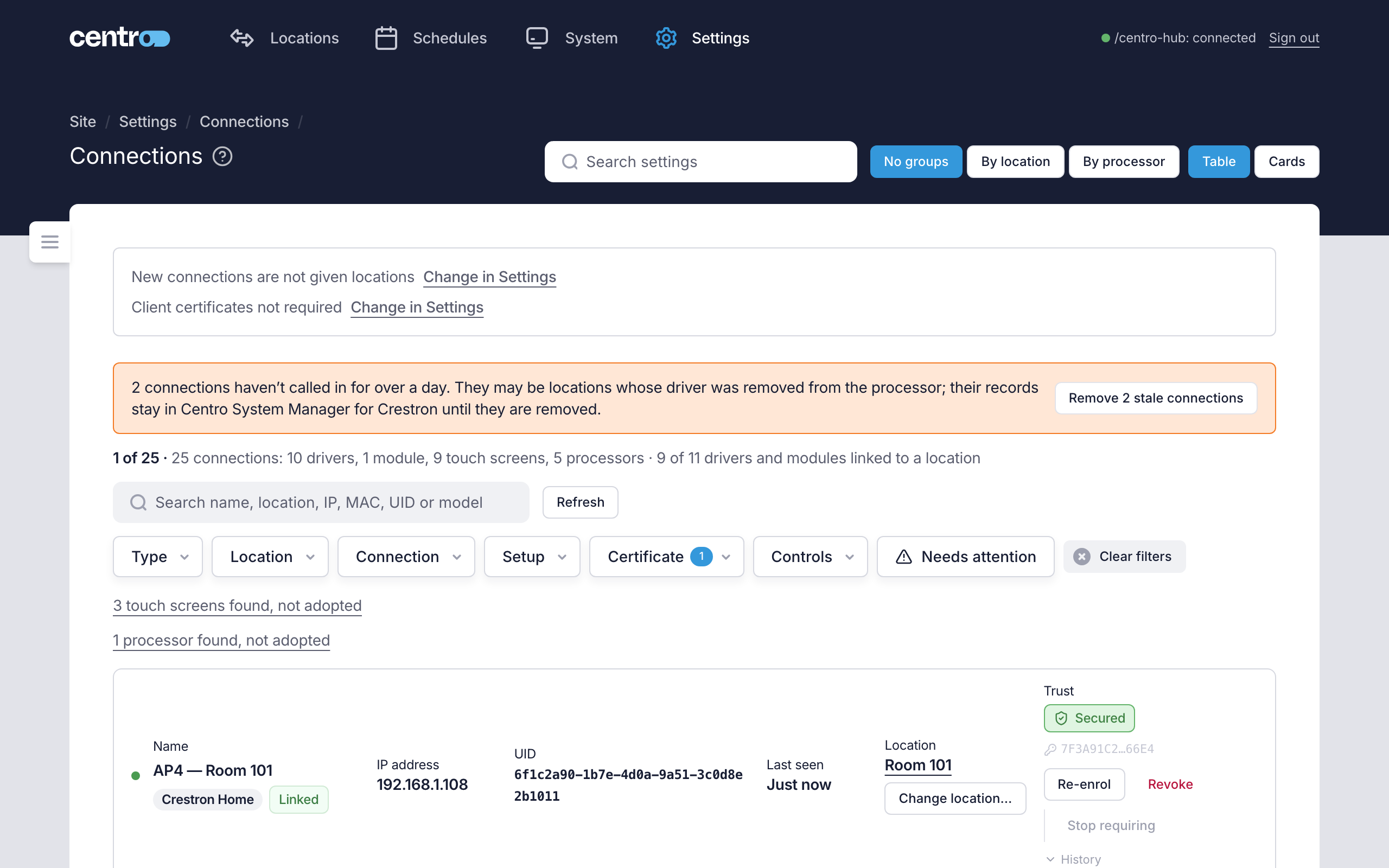
Each driver's or module's row on the Connections page shows where its certificate stands. The Certificate filter narrows the list to Secured, Not required, In progress (on its way to secured) or Problem (failed, blocked, expiring soon or expired), and a certificate problem also counts under Needs attention.
| Badge | What it means |
|---|---|
| Not required | No certificate is asked of this connection. |
| Certificate required | One is required, and the connection hasn't asked for it yet. |
| Waiting for enrolment | The connection hasn't enrolled yet. |
| Securing connection | A certificate has been issued and the connection hasn't used it yet. |
| Secured | The connection is calling in with its certificate. This is the state to aim for. |
| Waiting for the connection | The connection has a certificate but isn't connected with it at the moment. |
| Recovery in progress | You chose Re-enrol, and the connection hasn't enrolled again yet. |
| Authentication failed | Enrolment failed. Check the driver's or module's log and History. |
| Blocked | You blocked this connection. It's refused until you Unblock it. |
A warning above the badge appears when a certificate is about to run out and the connection hasn't renewed it — "The certificate runs out on … and the connection has not renewed it" — and again once it has run out. "About to run out" follows the Connection certificate expiring alert rule: 14 days before, to start with, and you can set it from 1 to 14 days (see Alert rules). The alert is raised by the same rule. Under the badge, the short code is the certificate's fingerprint; select it to copy the full value. History lists what happened to the connection's certificate: issued, renewed, refused, revoked and each change an administrator made.
Actions on a connection
| Action | Shown when | What it does |
|---|---|---|
| Require a certificate | Nothing is required of the connection | Requires one of this connection only. |
| Re-enrol | A certificate is required | Lets the connection enrol for a new certificate. See below. |
| Revoke | The connection has a certificate | Refuses the certificate from now on and disconnects the connection. It can enrol again for a new one, unless you tick Also block this connection until I unblock it. |
| Unblock | The connection is blocked | Lets it connect and enrol again. |
| Stop requiring | You required a certificate of this connection | Stops asking this connection for a certificate. Not available while the switch for every connection is on: each one needs a certificate then. |
Re-enrol a connection
A connection that has lost its certificate doesn't get a new one by itself. That happens when its driver was removed from the processor and added again, or its files were cleared. It's held off on purpose: anything on the network could otherwise claim to be that connection and take its place.
To let it back in:
- Go to Settings → System → Connections and find the connection.
- Select Re-enrol.
- Read the confirmation and confirm. The connection's current certificate stops working at once, and the connection must enrol for a new one.
The badge reads Recovery in progress until the connection enrols, then Secured.
If the connection calls this processor on plain HTTP or the admin port, Re-enrol is refused with "This connection calls this processor on a port where it can't enrol", and a link, Point Crestron Home drivers at this processor, that opens Batch actions with Point all Crestron Home drivers at this processor ready to preview. Point its driver first, then re-enrol.
A certificate stays required of the connection throughout. If what you want is to stop requiring one, use Stop requiring instead. Re-enrol isn't offered, and is refused, for a connection that nothing is required of.
When this processor's own certificate changes
This processor's own certificate — the one browsers are asked to trust — can be replaced. An upgrade does this once where the site was set up with an earlier program.
- Crestron Home drivers follow by themselves. A driver at version 0.9.0 or later accepts this processor's new certificate and reconnects. Nobody has to visit each processor.
- Connection certificates already issued keep working. Nothing has to enrol again.
- Browsers don't follow. Each computer, tablet and phone warns again until you trust the new certificate — see First sign-in.
A driver that couldn't follow, such as one on an older version, stays offline. The app shows it:
- After a few minutes, the local processor's row on Connections and on Discovered devices says "Its Centro driver still trusts this processor's old certificate, so its locations are offline", with a Re-provision button.
- After about 10 minutes, an alert is raised naming the drivers that haven't reconnected.
The fix is to re-provision the local processor. It gives the driver the current certificate and leaves the driver and its locations in place.
A local processor's row on the Connections page saying its Centro driver still trusts this processor's old certificate, with the Re-provision button.
Stale connections
A connection's record is kept after its driver is removed from a local processor. A connection that hasn't called in for over a day is marked Stale, and a notice at the top of the Connections page counts them.
To clear them, select Remove stale connection (or Remove n stale connections) on the notice and confirm. What happens to each connection's certificate depends on how long it has been silent:
| Silent for | Its certificate |
|---|---|
| Under 7 days | Kept. If the connection calls in again it carries on with it. |
| 7 days or more | Revoked. If the connection calls in again it must enrol for a new one. |
Removing a connection also:
- keeps the location it served, and only unlinks it,
- drops any commands still waiting for that connection, and
- means that if the connection does call in again, it shows up as a new connection and isn't linked back to its location.