Activate a licence
Start with the Quick guide: Add your licence.
Centro System Manager for Crestron starts on a trial, so you can commission a site before any key is added. To keep its licensed features after the trial, add a licence key for each one under Settings → Settings → Licence.
There are two ways to add a key: online, where the processor activates the key itself, and with a licence file, for a processor with no internet access.
What each licence unlocks
| Licence | What it covers | Without it |
|---|---|---|
| Manager Licence | The Locations page, location control, schedules and location alerts. | During the trial everything works. When the trial ends, locations are read-only for 30 days — they can be seen but not controlled, and schedules don't run. After that locations are hidden until a Manager Licence key is added. Connections keep reporting meanwhile, so the locations appear as soon as a key is added. |
| User App Licence | Users control their location from their own phone by scanning a QR code, and touch screens show the User App. | It runs on a trial too. When the trial ends, users can't sign in, and 30 days later the User App is off until a User App Licence key is added. |
| API Licence | API keys, which let another system — a property management system, for example, or an AI assistant through the MCP endpoint — reach this processor. See API keys. | API keys are refused. It has no trial, and it works only together with a Manager Licence or a User App Licence. |
The System page, Settings, the connections list and Settings → System → Locations work without any licence, so a site's locations can be set up before a key is added. On a processor with a User App Licence and no Manager Licence, the Locations page is a plain list of the locations with their User App QR codes.
Each licence has its own key. A Manager Licence and a User App Licence each include 6 hours of support from LCD; an API Licence doesn't.
The trial lasts 30 days and there's one per processor. It covers the Manager Licence and the User App Licence. Licensing and editions explains the model; the Licence page describes every part of the screen.
How a key is tied to the processor
A key activates one copy of Centro System Manager for Crestron: one processor and program slot — the processor's MAC address and the slot Centro System Manager for Crestron runs in.
- A key already in use on another processor or slot is refused here.
- To move a key to another slot or processor, contact LCD support. Once they have moved it, the key stops applying on the old processor: its licence is read-only for 30 days, then off.
- A licence keeps working on every release of Centro System Manager for Crestron. Loading a newer program never needs a new key, and a key without an end date shows "The licence never expires."
Add a key online
Use this when the processor can reach the internet.
Step 1 — Open the Licence page
Go to Settings → Settings → Licence and find the Add a key panel. Only an Administrator can add keys.
To get there, select Settings in the top navigation, then select the tab at the left edge of the page to open the settings menu. Open the Settings group and select Licence. The menu closes when you select anywhere else on the page. On a phone, select the Settings menu bar above the page instead.
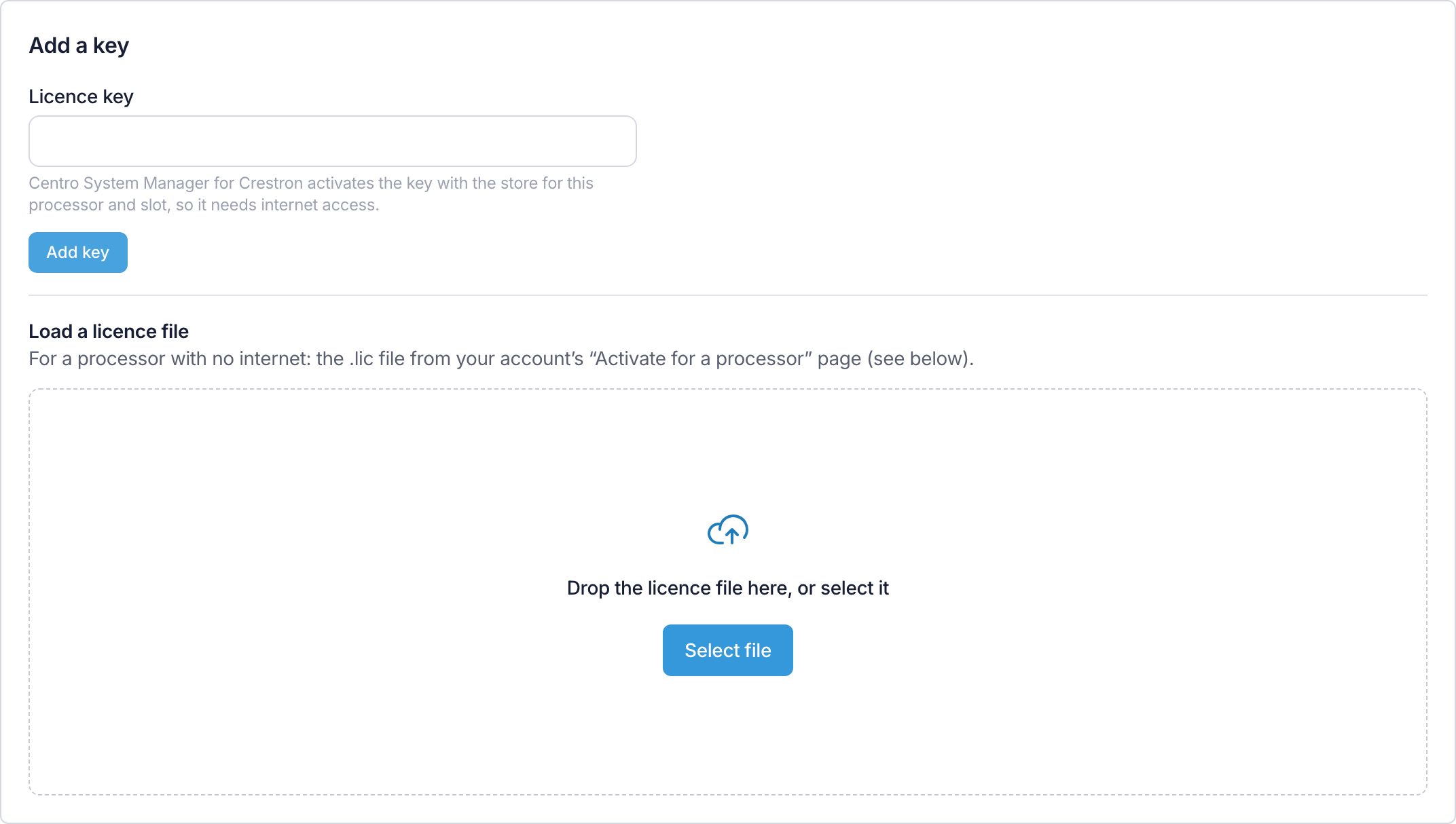
Step 2 — Add the key
- Type or paste the key into Licence key.
- Select Add key.
The processor activates the key with the store for this processor and slot. When it's done, the licence shows Active under What this processor has, and the key is listed under Keys with Online in the Added column.
Step 3 — Repeat for each licence
Add the Manager Licence key and, if the site has them, the User App Licence key and the API Licence key.
The page says "This processor can't reach the licensing service" and points you to the licence file. Use the offline steps below.
Activate offline with a licence file
Use this when the processor has no internet access. You activate the key on another device and carry the file to the processor.
Step 1 — Note the MAC address and slot
On the Licence page, the No internet on this processor? panel shows the two values the store asks for:
- Processor MAC address — select Copy.
- Program slot.
Step 2 — Get the licence file
- On a device with internet access, open Activate for a processor in your account at lightingcontrol.co.uk. The panel's Open "Activate for a processor" link goes there.
- Enter the key with the MAC address and slot exactly as the processor shows them.
- Download the licence file (
.lic).
Step 3 — Load the file
- Back on the processor's Licence page, under Load a licence file, drop the file or select it.
- Select Activate with this file.
The key is listed under Keys with Licence file in the Added column.
A file made for another processor is refused, and the page shows both MAC addresses so you can see the mismatch.
Check the keys
The Keys panel lists each key with its Product, the Licence key, how it was Added and when it was Activated.
Check now asks the store about the online keys straight away. The processor also does this once a day. Keys added from a licence file aren't checked.
A key can't be removed from the processor. To move a licence, contact LCD support — see How a key is tied to the processor.
Locations on this processor
The Locations on this processor panel shows how many locations are set up and how many are recommended for the processor. Above the recommended number everything keeps working, but the processor may respond more slowly.