Connect Crestron Home
Start with the Quick guide: Connect Crestron Home.
The locations of a Crestron Home system reach Centro System Manager for Crestron through the Centro driver, which runs on the Crestron Home processor and calls in. Centro System Manager for Crestron carries the driver with it and can install it for you in one click. Where it can't, you load the driver by hand.
Before you start
You'll need:
- The Crestron Home processor on the same network as this processor, powered and showing on Discovered devices. Centro System Manager for Crestron recognises Crestron Home on the DIN-AP4-R, CP4-R, MC4-R and PC4-R. If the processor doesn't show, add it by its IP address on Manual devices.
- A Crestron administrator's username and password for the processor.
- For the manual route only: the Crestron Home setup app.
Step 1 — Add a service account
Centro System Manager for Crestron signs in to the Crestron Home processor to install the driver. It does that with a service account.
- Go to Settings → Access → Service accounts and select Add service account. Enter a Name for the account and the Crestron administrator's Username and Password, then select Save. One account usually serves every processor. See Service accounts.
- Go to Settings → Settings → General. Under Crestron Home, choose the account as the Default service account. It saves as soon as you choose it.
A processor that needs a different account can have its own: on Discovered devices, open the processor's row with the arrow and change Signs in with.
A Crestron processor locks an account after 5 refused sign-ins. An install stops at 3 refusals from one processor, and once any processor has refused an account it isn't used again until you edit it. If a processor's row says the account was refused, correct it on the Service accounts page first.
Step 2 — Decide whether locations are created for you
Go to Settings → Settings → General. Under Connections, Create a location for each new connection decides what happens when a Crestron Home room's driver first calls in:
- On — the connection gets a location of its own, named after the Crestron Home room it reports.
- Off — the connection appears on Settings → System → Connections as Not linked, and you link it to a location yourself.
The switch is off to start with. Turn it on before you install the driver if you want the locations to appear on the Locations page by themselves, and select Save: the page holds the change until you do.
Turning the switch off later stops new locations being made; existing ones are kept. A connection you unlink, or whose location you delete, is never given a new one.
Step 3 — Install the driver in one click
-
Go to Settings → Deployment → Discovered devices and find the processor's row. Its name shows Crestron Home V2; choose V2 under the Crestron Home filter to list only those.
-
Select One-click install on the row. Centro System Manager for Crestron checks the processor and shows its plan:
Line What it tells you Installs into The Crestron Home room the driver is added to. Signs in as The service account that will be used. Driver calls The address of this processor that the driver will be set to call. Crestron Home The local processor's Crestron Home version, and the oldest version that works. -
Select Install.
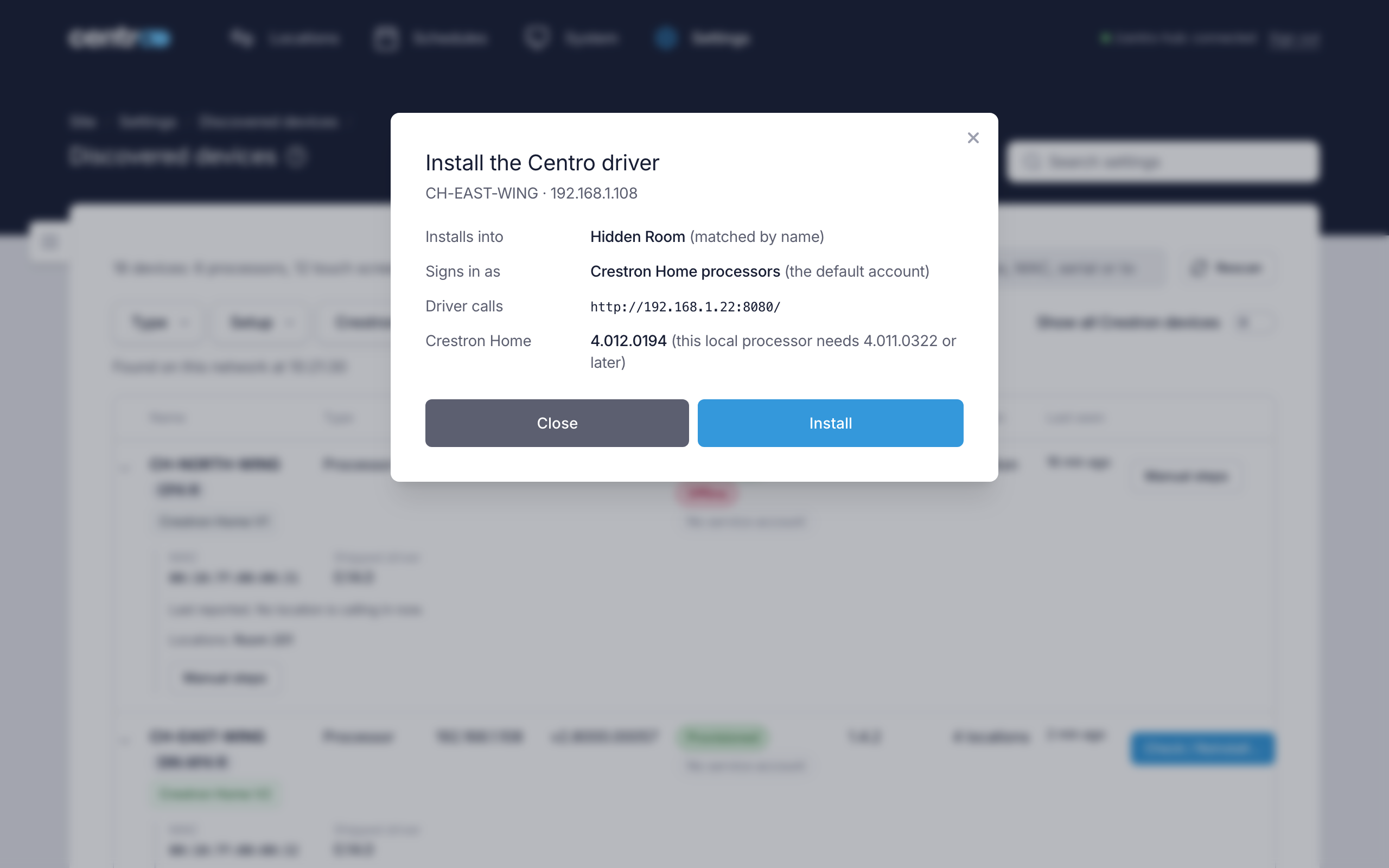
The dialog then shows each step as it happens: the driver is copied to the local processor, added to its driver list, added to the Crestron Home room and pointed at this processor, and then the dialog waits for it to connect. You can hide the dialog; the install keeps running, and the row's Installing… show progress button brings it back.
When it finishes, the local processor's locations appear on the page as they connect — within about a minute of the driver starting.
Where the driver is added
The driver is added to one Crestron Home room, chosen in this order:
- One named
Hidden Room - One named
Rack Room - One named
Centro - Failing all three, the first Crestron Home room
The plan's Installs into line says which it found before you confirm.
If the Crestron Home version is too old
The driver can be installed, updated and pointed on Crestron Home 4.011.0322 or later. The plan shows the local processor's version, followed by the version that's needed.
On an older version, or one that can't be read, the install is refused and the dialog says which version is needed. Update the processor's firmware first, then try again.
If the install stops part-way
The dialog says which step failed, where the processor is now — for example, that the driver is in the processor's driver list but not in a Crestron Home room — and the steps to finish by hand from that point. Nothing that already happened is repeated.
Install the driver by hand
Load the driver by hand when:
- the processor's row shows Crestron Home V1 — an older Crestron Home install mode that Centro System Manager for Crestron can't drive, listed as V1 (manual only) under the Crestron Home filter,
- one-click install is turned off, or
- a one-click install stopped part-way.
Settings → Deployment → Downloads has the driver and the steps. On Discovered devices, the Manual steps button in a processor's row shows the same steps for that processor.
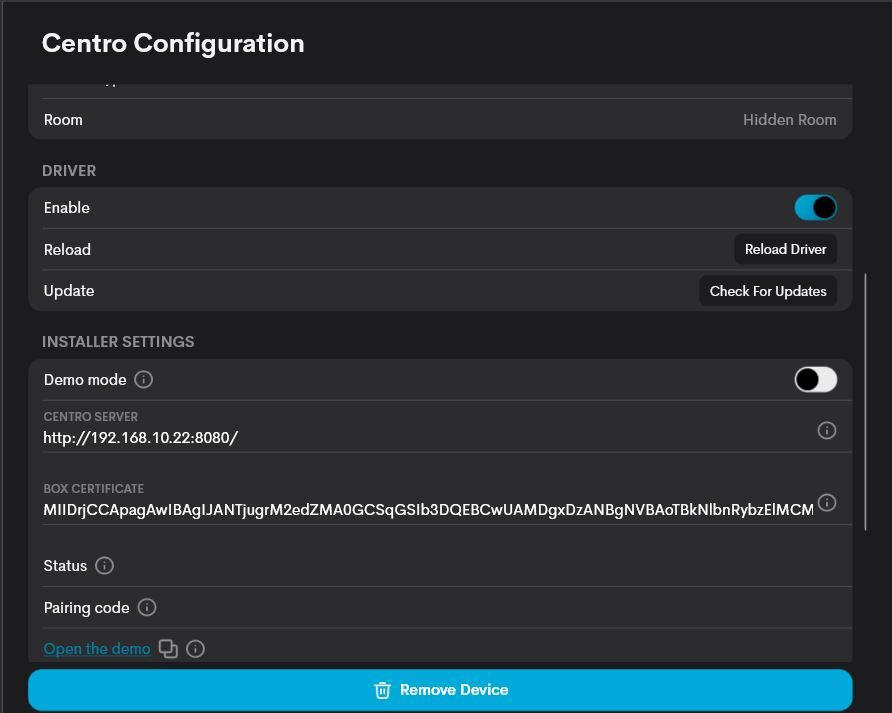
There are two ways to do it. Both end with the driver added to a Crestron Home room and its Centro server setting set to this processor's address. The steps in the app call that setting the Server Address.
Option 1 — Use the latest version
If the Centro driver is already published to the processor, there's nothing to download or import:
- In the Crestron Home setup app, find the Centro driver under Custom Device / Centro / Centro Room Connector.
- Add the Centro driver to a Crestron Home room —
Hidden Roomif there is one. - In the driver's settings, set Centro server to this processor's address.
- Wait for the locations to appear on Discovered devices. They call in within a minute of the driver starting.
Option 2 — Sideload
Use this when you need a different version from the published one, such as the driver Centro System Manager for Crestron ships.
- On Settings → Deployment → Downloads, select Download driver. The page shows the driver's version.
- Upload the driver to the processor's sideload folder.
- In the Crestron Home setup app, import the file from the drivers screen.
- Carry on from step 1 of Option 1.
The Centro server address
The steps on Downloads show this processor's own address under the Server Address step. Where this processor has more than one network address, get the value for the local processor instead: on Discovered devices, open the processor's row, select Manual steps, then Show the address and copy it. The address depends on how this processor is set up, so copy it rather than typing it.
The driver's settings also hold Centro certificate, which Centro System Manager for Crestron fills in when it installs the driver and a driver loaded by hand fetches the first time it connects, and Send logs to Centro, which is on to start with and sends the driver's own logs to Centro's log server for support.
Update a driver loaded by hand
A V1 processor's driver is updated by hand too:
- Download the driver from Settings → Deployment → Downloads.
- Upload it to the sideload folder and import it in the Crestron Home setup app.
- Update the Centro driver in the setup app. Every Crestron Home room that uses it is updated together.
- Wait for the locations to report the new version on Discovered devices.
Update the driver
When Centro System Manager for Crestron ships a newer driver than a processor runs, the processor's Driver column reads Out of date and its row offers Update driver. Select it, check the plan and select Update every Crestron Home room. Crestron Home updates everything that uses the driver together.
To update every processor in one run, use Update all Crestron Home drivers. See Batch actions.
Some updates need the processor restarted afterwards, and the dialog says so. Centro System Manager for Crestron never restarts a local processor: restart it yourself from the Crestron Home setup app when the update is done.
A newer driver than the program ships
A newer Centro driver can be put on this processor without loading a new program. Upload the driver package (.pkg) on Settings → Settings → Upgrade, under Crestron Home driver: once you select Use this driver, it becomes the one this processor installs, and nothing restarts. The page then offers Update all Crestron Home drivers to move the processors on to it. An older driver is refused, and a processor is never given an older driver than it has. See Upgrade.
What a processor's row tells you
| The row says | What it means | What to do |
|---|---|---|
| Up to date | Every location runs the current driver and is calling in. | Nothing. |
| Out of date | At least one location runs an older driver. | Update driver. |
| Not installed | No location calls in from this processor. | One-click install, or the manual steps. |
| Not confirmed | No location has called in for a day. The driver may have been removed. | Check the processor, then install again if needed. |
| Not reporting | The locations were up to date but have stopped calling in. See below. | Check / Reinstall… |
| "Rescan first" | Centro System Manager for Crestron couldn't tell which Crestron Home this is. | Rescan, then try again. |
| "This processor's address changed" | A location calls in from an address or MAC that no longer matches the processor. | Check the processor before trusting these locations. |
| "Its Centro driver still trusts this processor's old certificate, so its locations are offline." | This processor's certificate changed and this driver didn't follow. | Re-provision — see below. |
The driver states are in the Driver column; the messages are in the row's details, which open by themselves when something needs attention.
A removed driver: "Not reporting"
If the Centro driver is removed from a processor in the Crestron Home setup app, its locations stop calling in. Within about two minutes the processor's row reads Not reporting: "Its locations have stopped calling in. The driver may have been removed from the processor."
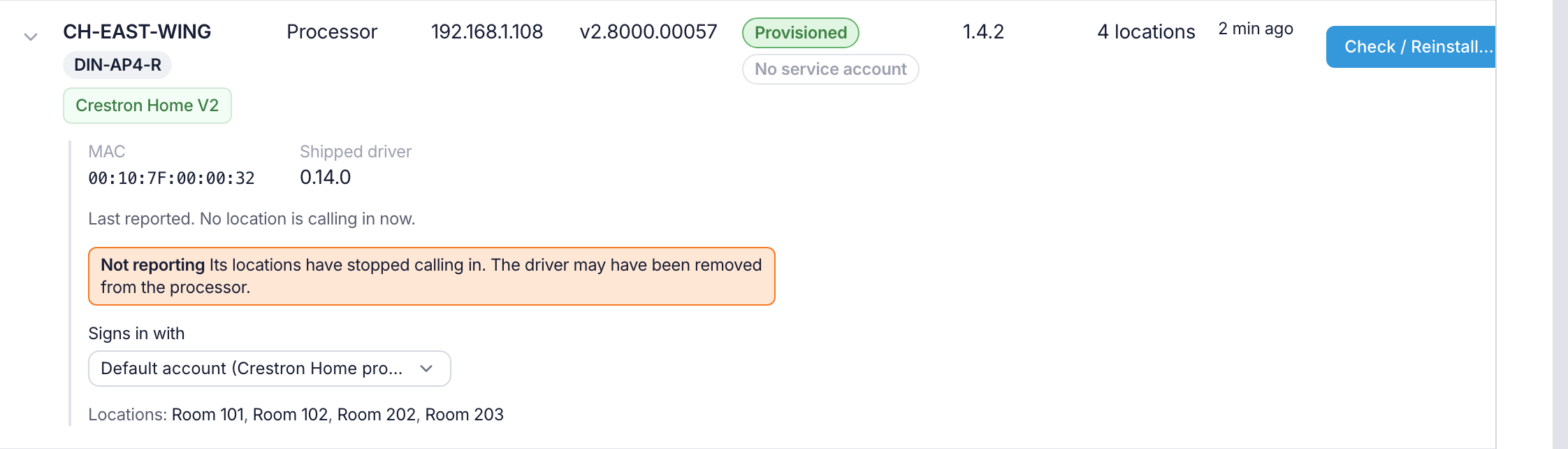
Select Check / Reinstall…. Centro System Manager for Crestron asks the local processor what is really installed and shows a plan:
- If the driver is gone, the plan is an install. Select Install to put it back.
- If the driver is still there and its locations are only slow to call in, the plan says there's nothing to do.
The locations are kept while the driver is away. Their connections show as Stale after a day without calling in — see Connection certificates.
Re-provision a processor
Re-provisioning points a local processor's Centro driver at this processor again. It rewrites the driver's address and certificate settings. It doesn't remove the driver or its locations.
The Re-provision button shows on a local processor only when it's needed: its row says its driver still trusts this processor's old certificate, and its locations are offline. The message appears a few minutes after this processor's certificate changed, once the driver has had time to reconnect by itself.
The same fix applies when a driver has been set to call another address, for example after this processor's address changed. In that case open the driver dialog from the row's install button: it says "The driver calls … not this processor, so its locations don't connect here" and offers Point at this processor.
Step 1 — Open the dialog
Select Re-provision on the processor's row on Discovered devices, or on its row on Settings → System → Connections. The button only shows where it's needed.
Step 2 — Point the driver at this processor
The dialog is titled Point the Centro driver at this processor and says what's wrong and what address the driver will be set to call. Select Point at this processor.
Centro System Manager for Crestron updates the driver's settings and waits for its locations to connect. When it's done the dialog says "The driver now calls this processor, and its locations are connecting." The driver's other settings, such as Send logs to Centro, are kept. If one of them changes anyway, the processor's log has a warning naming it: set it again in the Crestron Home setup app.
On a V1 processor
Centro System Manager for Crestron can't change the driver's settings on a V1 (manual only) processor, so the dialog gives you the certificate to paste instead:
- Under Give the driver this processor's certificate, select the copy button.
- In the Crestron Home setup app, open the Centro driver's settings and paste the value into Centro certificate (the dialog calls it ServerCa), then save.
The driver reconnects with this processor's current certificate, and its locations stay where they are. The same certificate can be downloaded from http://<processor-ip>:8080/box-ca.crt.
Connection certificates explains when this processor's certificate changes and why most drivers follow by themselves.