Connect Crestron Home
The locations of a Crestron Home system reach Centro System Manager for Crestron through the Centro driver, which runs on the Crestron Home processor. Centro System Manager for Crestron carries the driver with it and can install it for you in one click.
You need: the Crestron Home processor powered and on the same network as the processor running Centro System Manager for Crestron, and a Crestron administrator's username and password for it.
- Go to Settings → Access → Service accounts and select Add service account. Enter a Name and the Crestron administrator's Username and Password, then select Save.
- Go to Settings → Settings → General. Under Crestron Home, choose the account as the Default service account. It saves as soon as you choose it.
- On the same page, under Connections, turn on Create a location for each new connection and select Save. It's off to start with. With it on, each new connection gets a location of its own, and the location appears on the Locations page.
- Go to Settings → Deployment → Discovered devices and find the Crestron Home processor's row. Its name shows Crestron Home V2.
- Select One-click install on the row. Centro System Manager for Crestron checks the Crestron Home processor and shows its plan.
- Select Install.
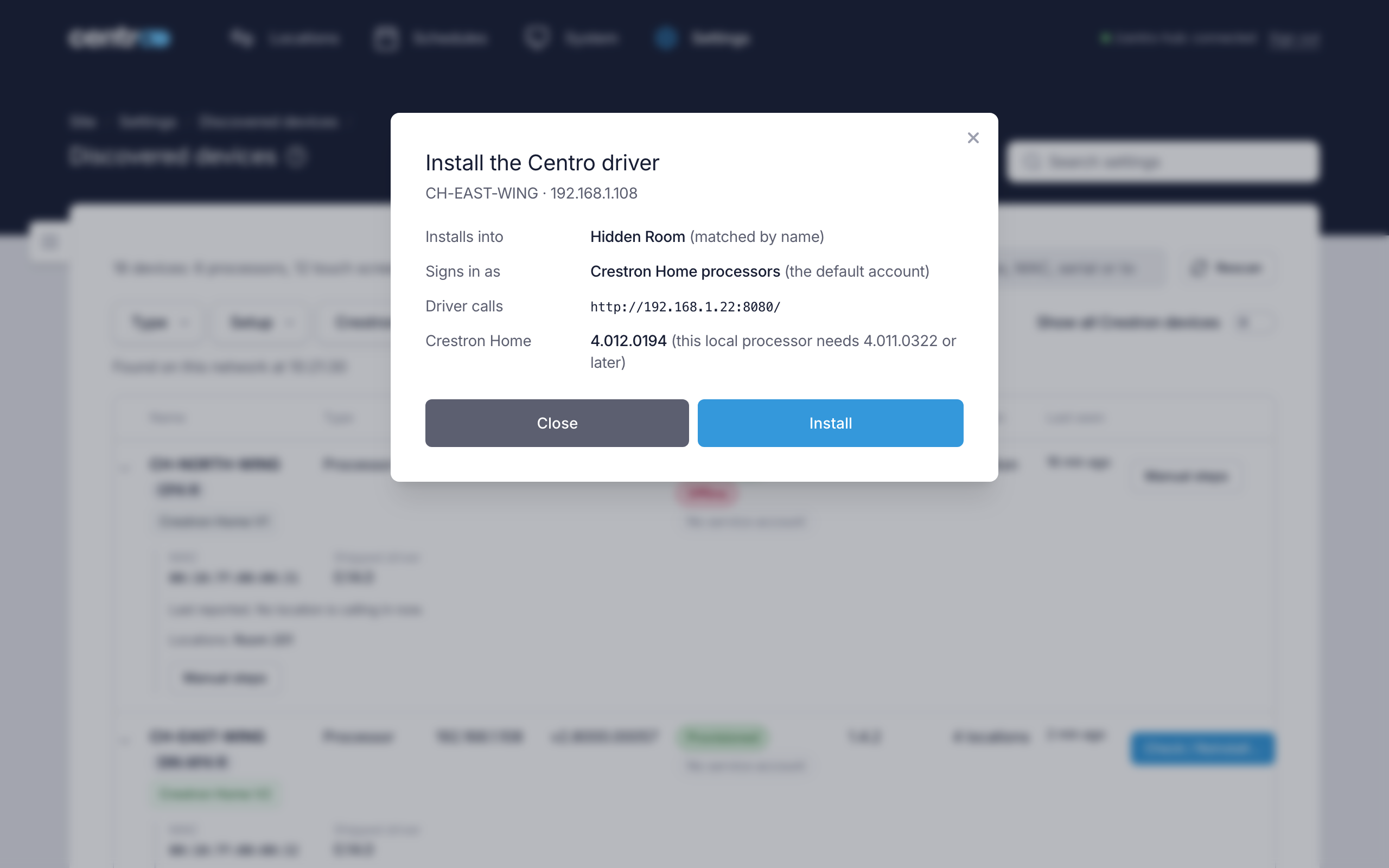
You should now see the dialog show each step as it happens. When it finishes, the Crestron Home processor's locations appear on the page as they connect — within about a minute of the driver starting.
If the row shows Crestron Home V1, or the install stops part-way, see Install the driver by hand. If the processor isn't in the table, check it's powered and on this network and select Rescan, or add it by its IP address on Manual devices. If the site's locations run Crestron Custom, not Crestron Home, see Connect Crestron Custom.
Next: Check your locations are online.
More detail: Discover devices and Connect Crestron Home, which also covers Re-provision a processor.