Run the setup wizard
Until it has been set up, Centro System Manager for Crestron opens a wizard the first time an Administrator signs in. This page takes you through it once, leaving the licence and the locations for the next two pages.
You need: to be signed in as an Administrator on a processor nobody has set up yet.
- On the first screen, under Set up as new, select Start.
- Site name — type the site's name and select Continue.
- Clock — check the time, time zone and time server the processor reports. There's nothing to do unless it says Needs a look. Select Continue.
- Licence — select Continue to carry on with the trial.
- Certificate and Administrators — select Continue on each. Until a group is mapped, anyone with Administrator access on the processor is an Administrator.
- Processors and locations — select Continue without locations.
- Email and Backup — select Skip for now on each. You come back to both once the locations are in.
- On the summary, select Go to the Locations page.
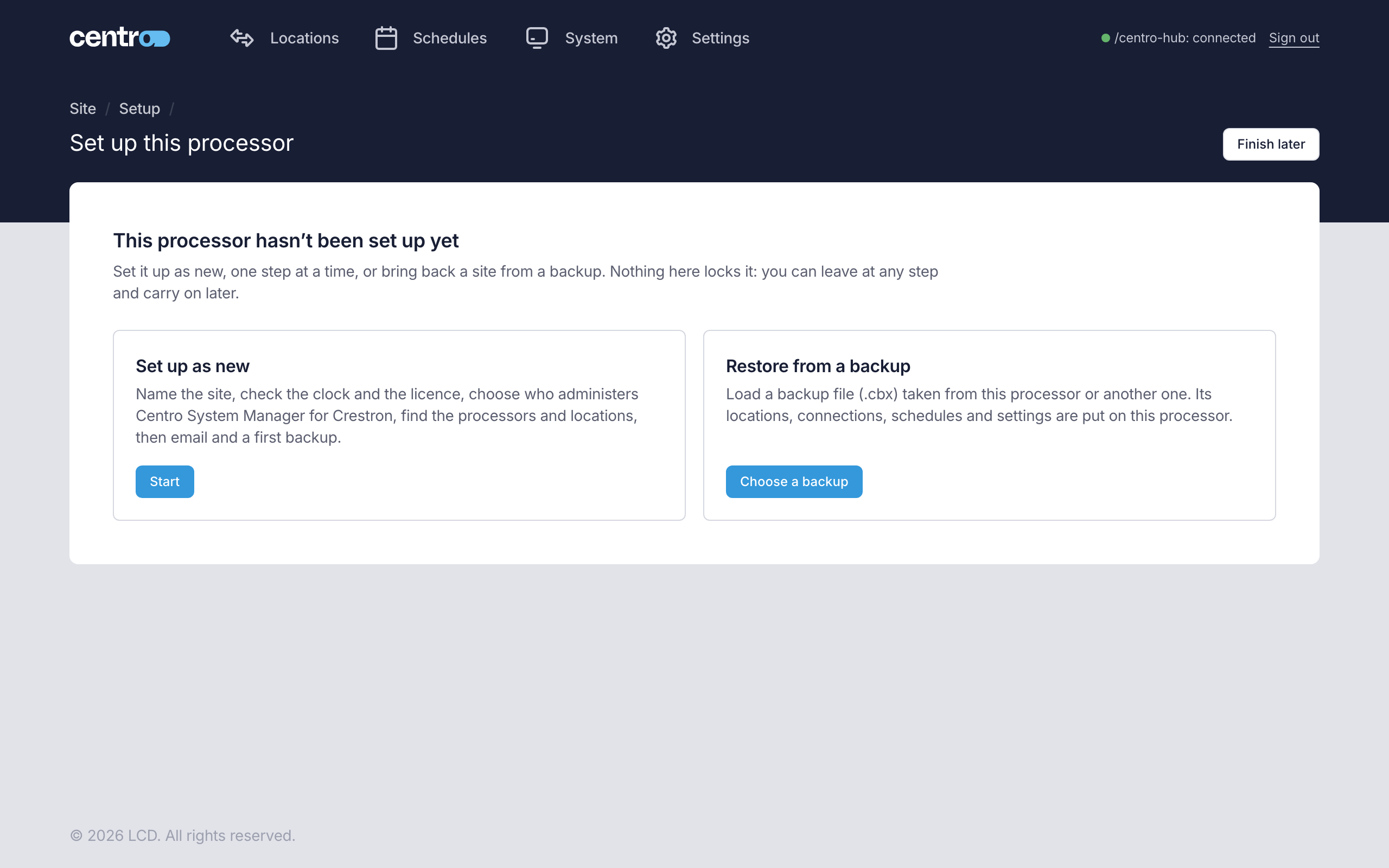
You should now see the Locations page, with a Setup incomplete banner at the top. It has no locations yet. The steps you left are kept as a checklist under Settings → Deployment → Setup.
Next: Add your licence.
More detail: Setup wizard.