Check your locations are online
The Locations page — the site dashboard — shows every location on the site and what it's doing now. Use it to check that every location is there and calling in.
You need: the Centro driver installed, as in Connect Crestron Home.
- Select Locations in the top navigation, or in the bar at the bottom of the screen on a phone or tablet. The heading counts the locations, for example Site dashboard · 100 locations.
- Check the count against the number of locations on the site.
- Select Status and, under Connection, tick Offline. No location should be shown.
- Select Clear filters to see every location again.
- Select a location to open its page, and try a control — see Control a location.
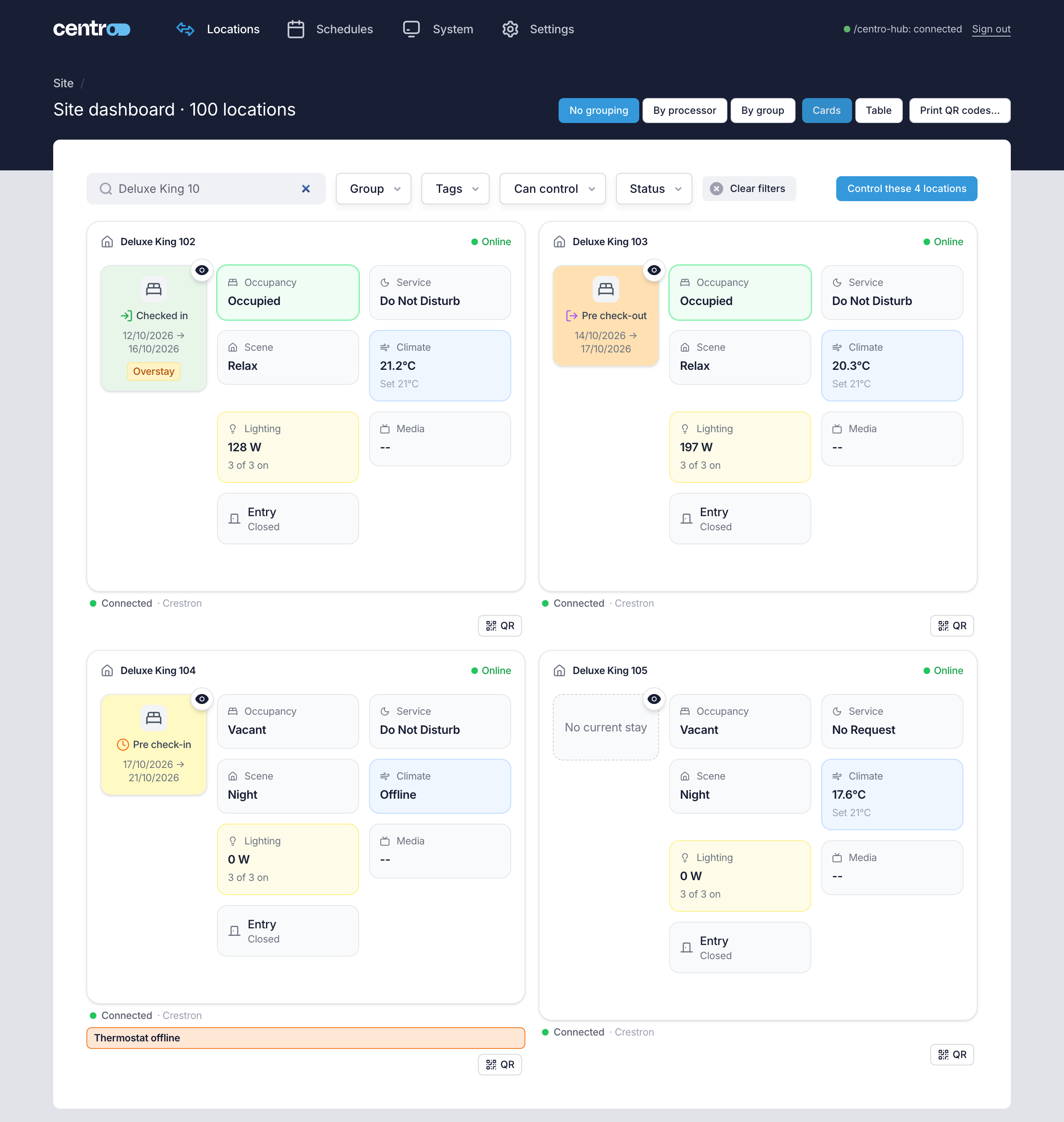
You should now see a card for each location, each reading Online. Under each card, a line shows the location's connection and that it's Connected.
If the page has no locations, check that Create a location for each new connection is on — step 3 of Connect Crestron Home. If a location is missing or reads Offline, see Troubleshooting.
Before you leave site, finish the steps you skipped in the wizard — email and a backup kept off the processor — from the checklist under Settings → Deployment → Setup. See The setup checklist. Connection certificates are optional and off to start with; turn them on once the site's connections are in and working — see Connection certificates.
More detail: Site dashboard.