Control a location
A location's page shows the location as it is now and lets you change its climate, lighting, shades, scene, the user's request and its housekeeping status.
You need: to be signed in, and the location Online. A command to an offline location waits for its connection for 5 minutes at most, then fails.
- On the site dashboard, select the location.
- In Climate, select a mode: Off, Cool, Heat or Auto.
- Use − and + to change the setpoint. It moves in steps of 0.5° between 16° and 28°.
- Select Apply. Nothing is sent until you do.
- In Lighting, use the switch beside a light to turn it on or off, or the All switch for every light.
- In Shades, use the open, stop and close buttons beside a shade. A Crestron Home shade can't be stopped.
- In Scene, select the scene you want.
- In Service, select Do not disturb, Make up room or None.
- In Housekeeping status, select Clean, Dirty or In progress.
- Select ← Back to site to return to the dashboard.
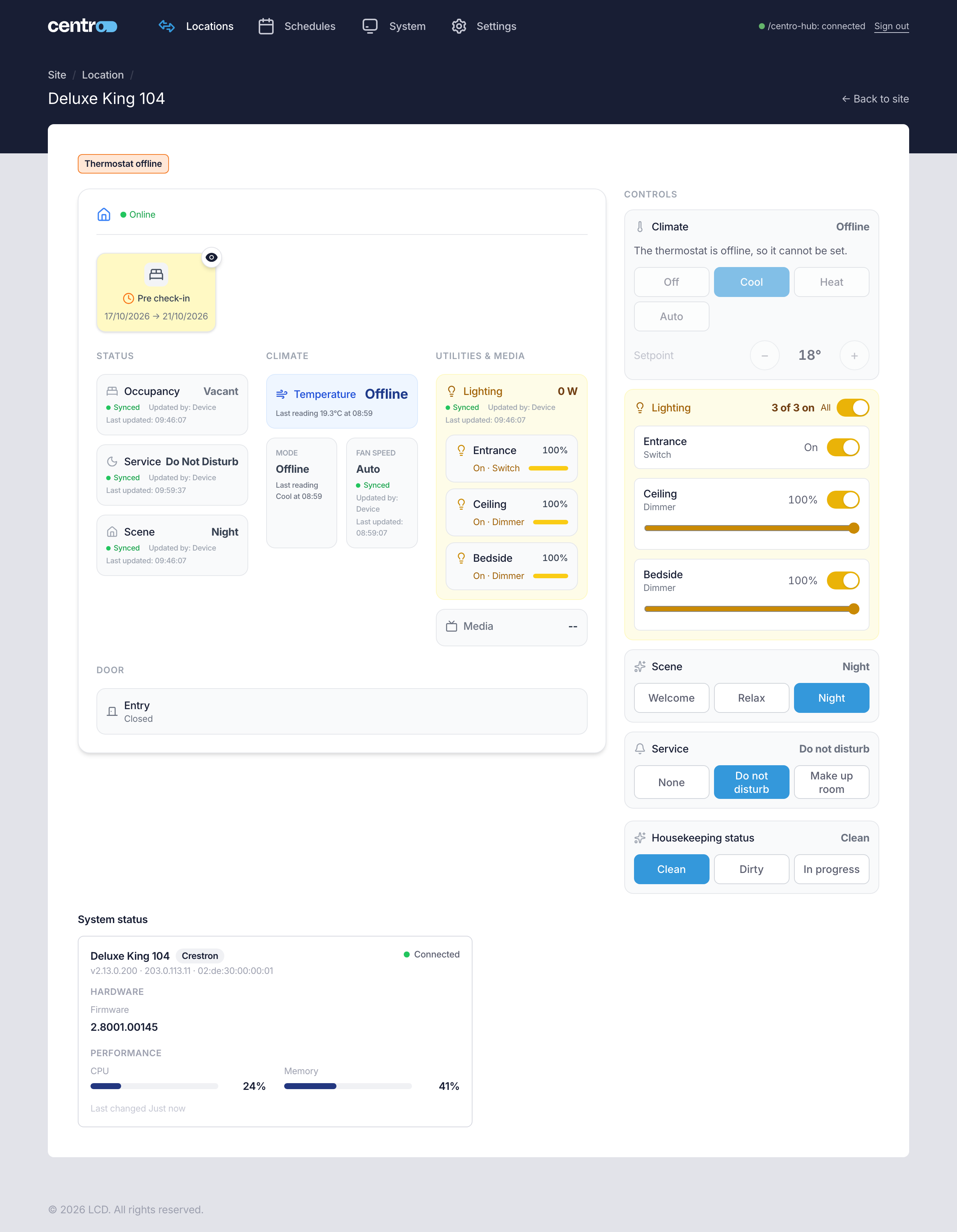
You should now see the location's state, on the left of the page, change to match what you sent.
A device that's offline can't be set: the page says so, for example The thermostat is offline, so it cannot be set. If a control isn't there, see If a control is missing and If there are no controls.
Next: Send one command to many locations.
More detail: Control a location.