Control a location
Start with the Quick guide: Control a location.
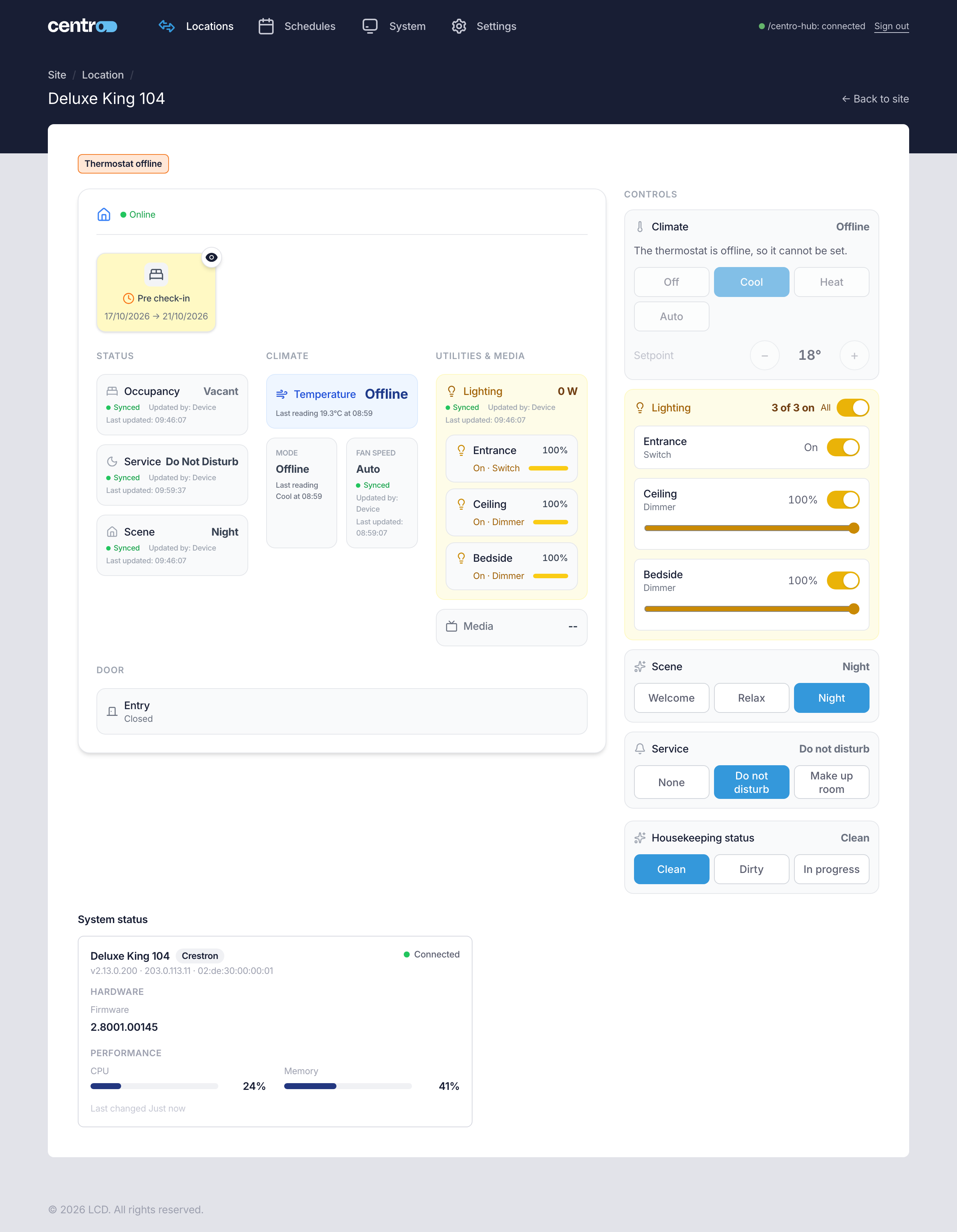
A location's page shows everything Centro System Manager for Crestron knows about the location and lets you change its climate, lighting, shades, scene, the user's request and its housekeeping status.
To open it, select the location on the site dashboard. Select ← Back to site to return.
Read the location's state
The left of the page is the location as it is now.
- Status — Occupancy, the user's Service request and the active Scene.
- Climate — the temperature with its target, the Mode and the Fan Speed.
- Utilities & Media — Lighting, Shades and Media. Lighting lists every light in the location with its level and whether it's on. Shades lists each shade as Open, Closed or how far it's closed, such as 40% closed.
- Door — whether each door is open or closed.
Each value shows where it came from and when it last changed. Any alerts for the location appear at the top of the page. When stays are switched on, the location's stay tile sits above the status (see Stays).
The badge at the top says Online while the location's connections are calling in, and Offline when they aren't. You can still read an offline location's last known state. A command sent to it waits for its connection to return, for 5 minutes at most (see If a command doesn't arrive).
A device that's offline
A location can be online while one of its devices isn't. The amber line at the top of the page names each device that's offline, for example Thermostat offline. On the left, the device's value reads Offline, with its last reading and when it was taken. The controls for that device can't be used until it's back:
- The thermostat is offline, so it cannot be set. — Climate reads Offline, and its mode, setpoint and Apply are greyed out.
- The lights are offline, so they cannot be switched. — every light is offline, so the All switch is greyed out too.
- Offline, cannot be switched — beside one light that's offline. The other lights still work.
- Offline, cannot be moved — beside a shade that's offline.
Change the climate
To set the temperature or mode:
- In Climate, select a mode: Off, Cool, Heat or Auto.
- Use − and + to change the setpoint. It moves in steps of 0.5° between 16° and 28°.
- Select Apply.
Nothing is sent until you select Apply, so a stray tap doesn't change the location. Apply shows only when the mode or setpoint differs from the location's. Select Reset to go back to what the location has now.
Change the lighting
Lighting lists every light in the location, with its type.
- To turn one light on or off, use the switch beside it.
- To dim a light, drag its slider. Only dimmers have a slider, and the level is sent when you let go.
- To turn every light on or off, use the All switch at the top.
The heading counts the lights that are on, for example 3 of 3 on.
A light shows what you sent straight away and says Sending… until the location reports the new level. If the processor can't send the command, or the location hasn't reported the new level after 10 seconds, the light goes back to what the location last reported.
Open or close the shades
Shades lists each shade by name.
- Use the open, stop and close buttons beside a shade.
- To set how far a shade is closed, drag its position slider.
A shade says Sending… while its command is on its way.
A shade on Crestron Home can't be stopped: Crestron Home gives the Centro driver no way to do it, so Stop is refused and the shade shows the reason, Crestron Home gives this driver no way to stop a shade. Use open, close or the slider instead.
Recall a scene
In Scene, select the scene you want. The scenes are the location's own, as its Crestron system reports them, so different locations can offer different scenes.
The scene you select stays selected while the location carries it out. If the location refuses it, the selection goes back to the scene that's active.
Set Do not disturb or Make up room
In Service, select the request:
- Do not disturb
- Make up room
- None, to clear the request
Service shows only when one of the location's connections takes these requests. To set the request in every location in a group at once, see Bulk commands.
Set the housekeeping status
Housekeeping status sets whether the location is Clean, Dirty or In progress. Select one: it's sent at once.
The processor keeps the housekeeping status itself, so the card is there for every location, with or without a connection that takes housekeeping. A location with such a connection is also sent the status. If that connection is offline, the processor passes the status on when the connection is next heard from.
To hide the card for a location, an Administrator turns off Housekeeping status in its What this location shows list (see Locations).
If a control is missing
The page shows only the controls that work for the location. A control is missing for one of two reasons:
- An Administrator has switched it off for the location. Each location has a What this location shows list under Settings → System → Locations (see Locations). A switch that's off there hides both the state and the control.
- None of the location's connections accepts that command. A location whose connection doesn't report lighting, for example, has no Lighting control.
If no connection in the location accepts any command, the page says Nothing in this location takes commands yet: none of its connections has said what it can control.
If there are no controls
In place of Controls, the page tells you why you can't control the location:
| Message | What it means |
|---|---|
| An Administrator has switched off running commands for Managers on this processor. | You're signed in as a Manager, and Managers can run commands is off under Settings → Settings → General. See General |
| Location control is off: this processor has no Manager Licence. | The Manager Licence trial has ended, or the licence has lapsed. See Licensing and editions |
| Your role cannot control locations. | Your account isn't allowed to send commands. Ask an Administrator |
Check the location's connection
System status, at the foot of the page, shows each connection that serves the location: its type, its version, its address and whether it's Connected. Under that is what the connection reports about its hardware and performance. Select a connection's name to open its page (see Connection detail).
Administrators always see System status. Managers see it only if Managers can see connection information is on.
If a command doesn't arrive
A command is held for the location until the location confirms it. If commands have been waiting for more than 30 seconds, the location's card on the site dashboard shows a warning with the number waiting and the state of the connection. See Commands that are waiting.
A command waits for 5 minutes at most. A location that comes back within that time runs it then. If the location hasn't confirmed it after 5 minutes, the command fails and the processor stops trying, so a command to an offline location can't run hours later. Send it again once the location is online.
See who is using a location
Administrators can see how many users have the User App open for a location. Open the location under Settings → System → Locations. The Users now line counts the phones and touch screens with a session in the location, for example Users now: 2 phones, 1 touch screen. See Locations and User App.