System dashboard
The System page answers one question: is everything healthy? It shows this processor itself, then every connection, touch screen and local processor in one list, with a warning beside anything that needs attention. Select System in the top navigation to open it.
Administrators always see the System page. Managers see it only if Managers can see connection information is on under Settings → Settings → General (see General).
The page refreshes itself every 30 seconds.
Check this processor
This processor, at the top, describes the processor that runs Centro System Manager for Crestron.
| Field | What it shows |
|---|---|
| Version | The version of the program that's running |
| Up for | How long the program has been running, and how long the processor has |
| Licence | Licensed, Trial with the days left, Read-only or Locked |
| Free space | The free storage, as a percentage and a size |
| CPU | How busy the processor is now |
| Memory | How much of the processor's memory is in use now, and how much the program itself uses |
Warnings for this processor appear above these fields:
| Level | When |
|---|---|
| Critical | The trial has ended and there's no licence |
| Critical | Less than 5% of the storage is free |
| Warning | Less than 10% of the storage is free |
| Warning | Memory has been at 90% or more for fifteen minutes |
| Warning | The trial ends in less than 7 days |
| Info | The program restarted in the last hour |
A notice at the top of the page also appears if this processor has more locations than are recommended for it. Everything keeps working, but it may respond more slowly.
This processor's history
CPU and memory draws both for this processor over 1 hour, 24 hours or 7 days.
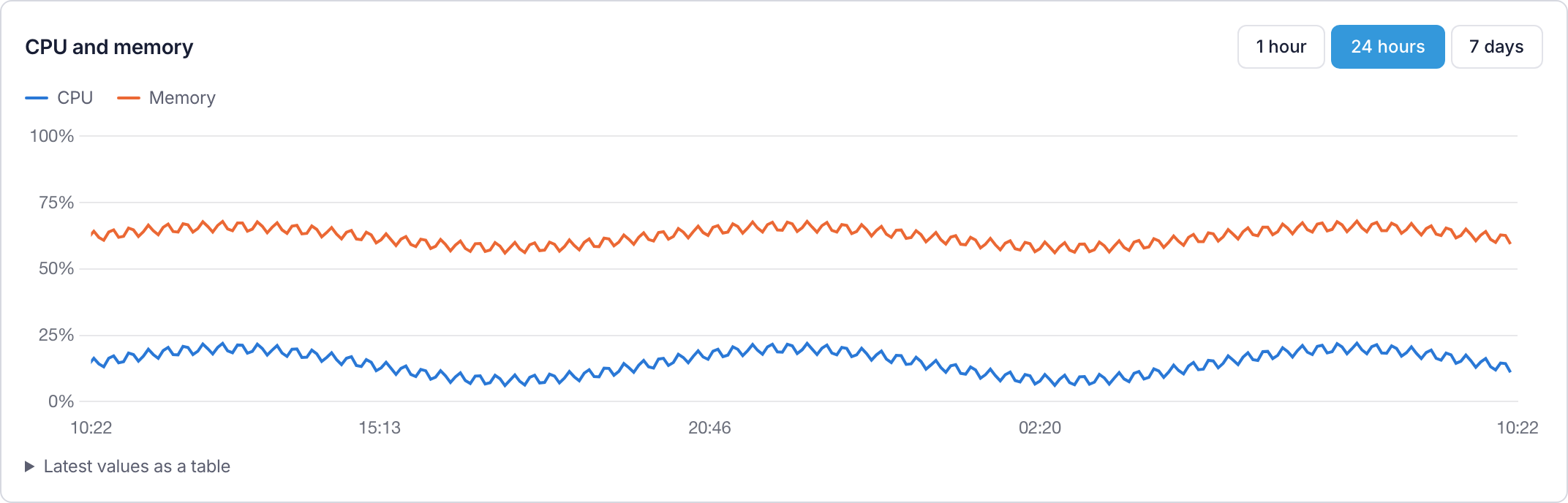
Hover over the graph to read the values at a moment. Latest values as a table shows the same readings as numbers.
Check the connections
Connections lists everything that calls in to this processor or was adopted on it: the Crestron Home drivers and Centro modules that serve the locations, the touch screens and the local processors. The heading counts them, for example Connections · 112, and says how many need attention, for example 3 need attention.
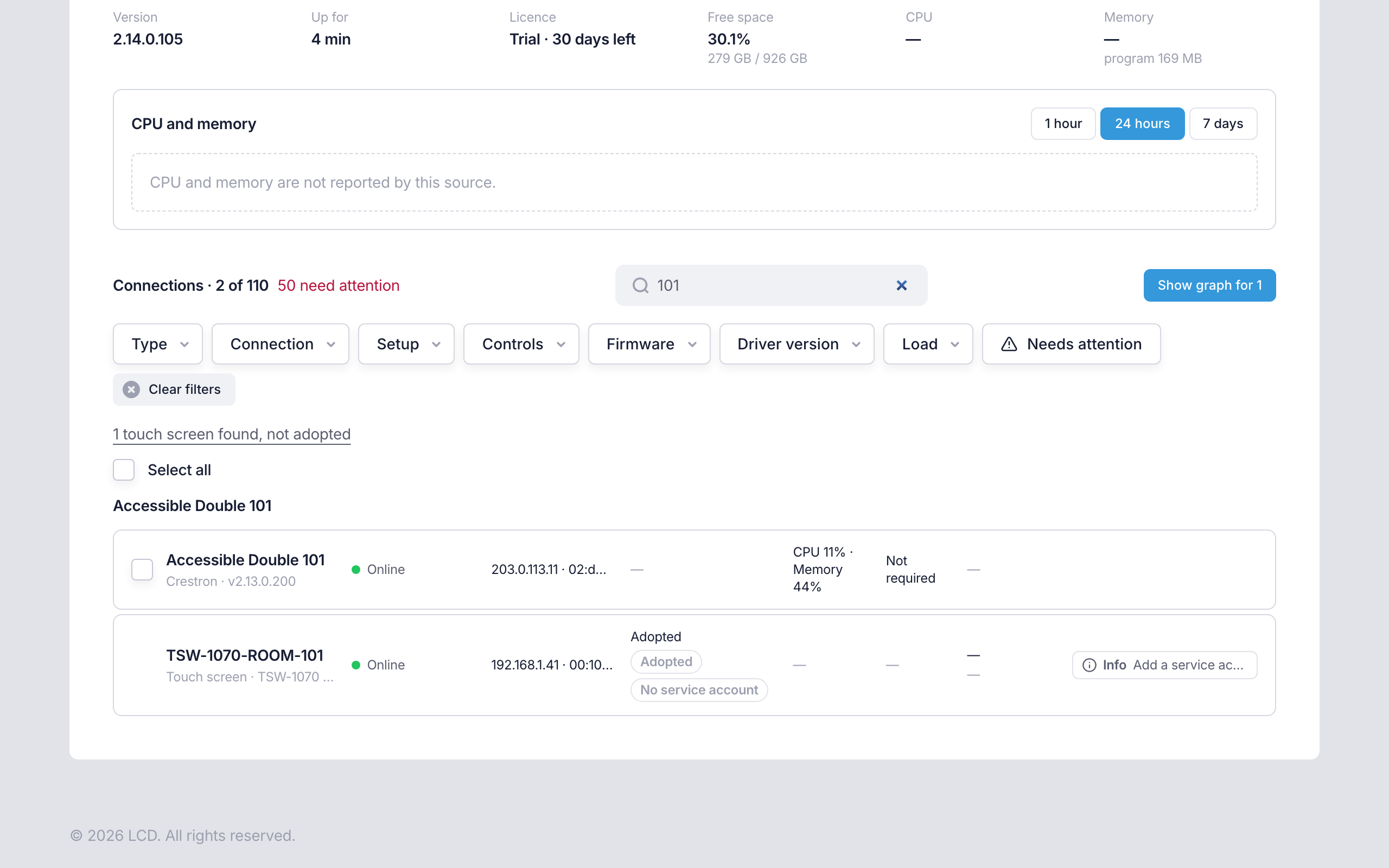
A driver or module shows:
- its name, its type and its version
- Connected or Not connected, with when it was last seen
- its IP address and MAC address
- its CPU and memory, if it reports them
- its certificate state, such as Secured or Not required (see Connection certificates)
- its most serious warning.
A touch screen shows its state — Online, Standby while its display sleeps, Offline or Not found — with its IP address, its serial number, whether it shows the User App and its display settings. See Touch screens.
Select a connection to open its page. See Connection detail.
A line under the filters says how many local processors or touch screens have been found on the network that nobody has adopted, for example 2 touch screens found, not adopted. Administrators can select it to open them on Discovered devices (see Discovered devices and Touch screens).
Warnings on a connection
| Level | When |
|---|---|
| Critical | The connection is linked to a location and hasn't called in for three minutes |
| Critical | Its certificate is blocked, refused or has run out |
| Critical | It no longer reports the data source its location uses |
| Warning | It isn't linked to a location and hasn't called in for over a day |
| Warning | Its memory has been at 90% or more, or its CPU at 85% or more, for fifteen minutes |
| Warning | Its certificate runs out within the time set for the Connection certificate expiring alert, 14 days to start with (see Alert rules) |
| Warning | It's a Crestron Home driver older than the one this processor installs |
| Warning | It calls in from an address that no longer matches its processor |
| Info | It has never reported its system status |
Arrange the list
At the top of the page:
- By location or By processor groups the connections. By processor shows each local processor's model, firmware and address, with a strip under its heading that shows when it was online and offline over the last 24 hours. It also says when the local processors were last found on the network.
- Cards or Table changes the layout. Cards suit a wall display, and the table suits finding one connection.
The page remembers both choices for your username in the browser you're using.
Find a connection
- Search name, location, IP or MAC finds connections by any of those.
- Type shows one kind of connection, such as Crestron Home driver, Crestron Custom module, Touch screen or Processor.
- Connection shows connections that are Online, in Standby or Offline, or Not found on the network.
- Setup shows touch screens and local processors by how far they've been set up (see Connections).
- Controls shows the drivers and modules that can control what you tick.
- Firmware and Driver version show connections by firmware or by driver version, to find the ones left behind by an update.
- Load shows the drivers and modules using more than the CPU or Memory percentage you enter.
- Needs attention shows only the connections with a Critical or Warning.
Select Clear filters to see everything again.
Graph the connections
To see how the connections have been running, select Show graph for N. The graph covers the connections the search and filters show.
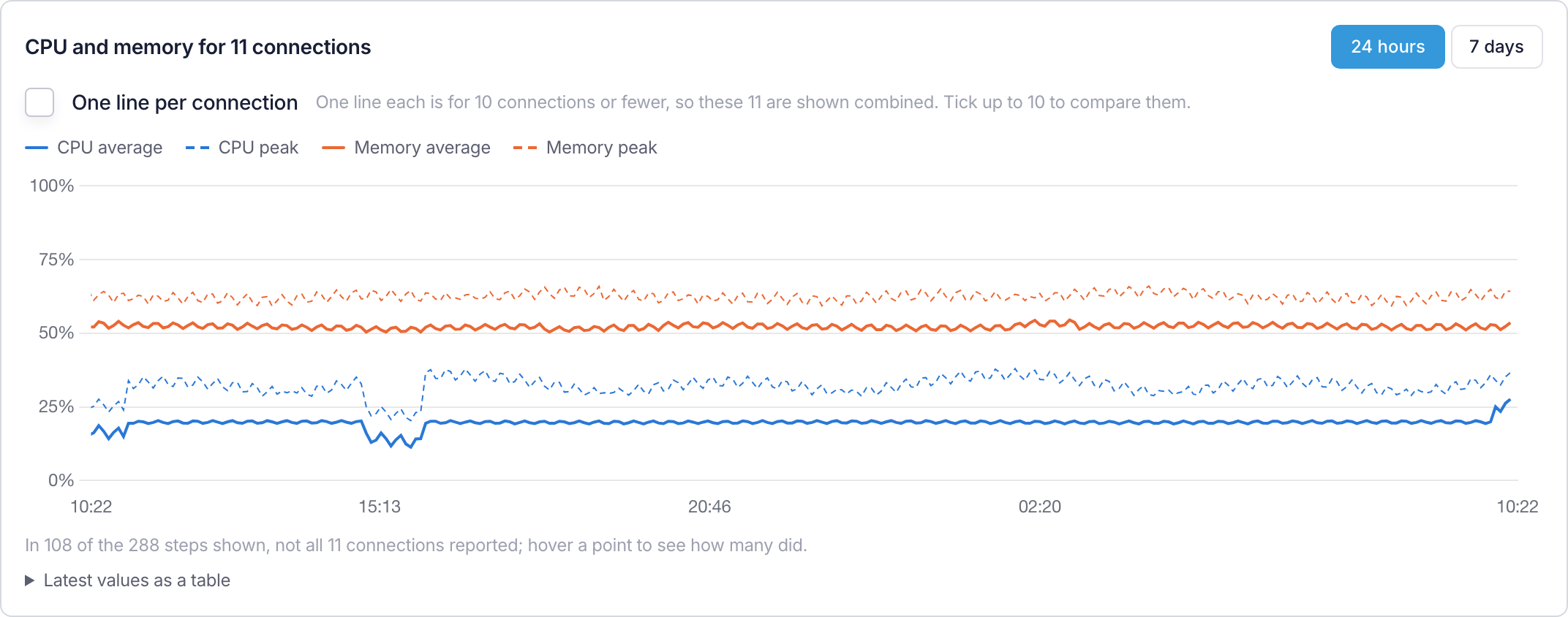
The combined graph has four lines:
- CPU average and Memory average — the average across the connections that reported.
- CPU peak and Memory peak — the highest value any one of them reached.
A peak well above the average means one connection is working much harder than the rest. Choose 24 hours or 7 days. Select Hide graph to close it.
If some connections didn't report for part of the time, a note under the graph says for how many steps. Hover over a point to see how many connections reported then.
Tick connections to compare them
To compare a few connections side by side:
- Tick each connection you want, up to 10. The button changes to count them.
- Select Show graph for N, if the graph isn't open already.
- Tick One line per connection.
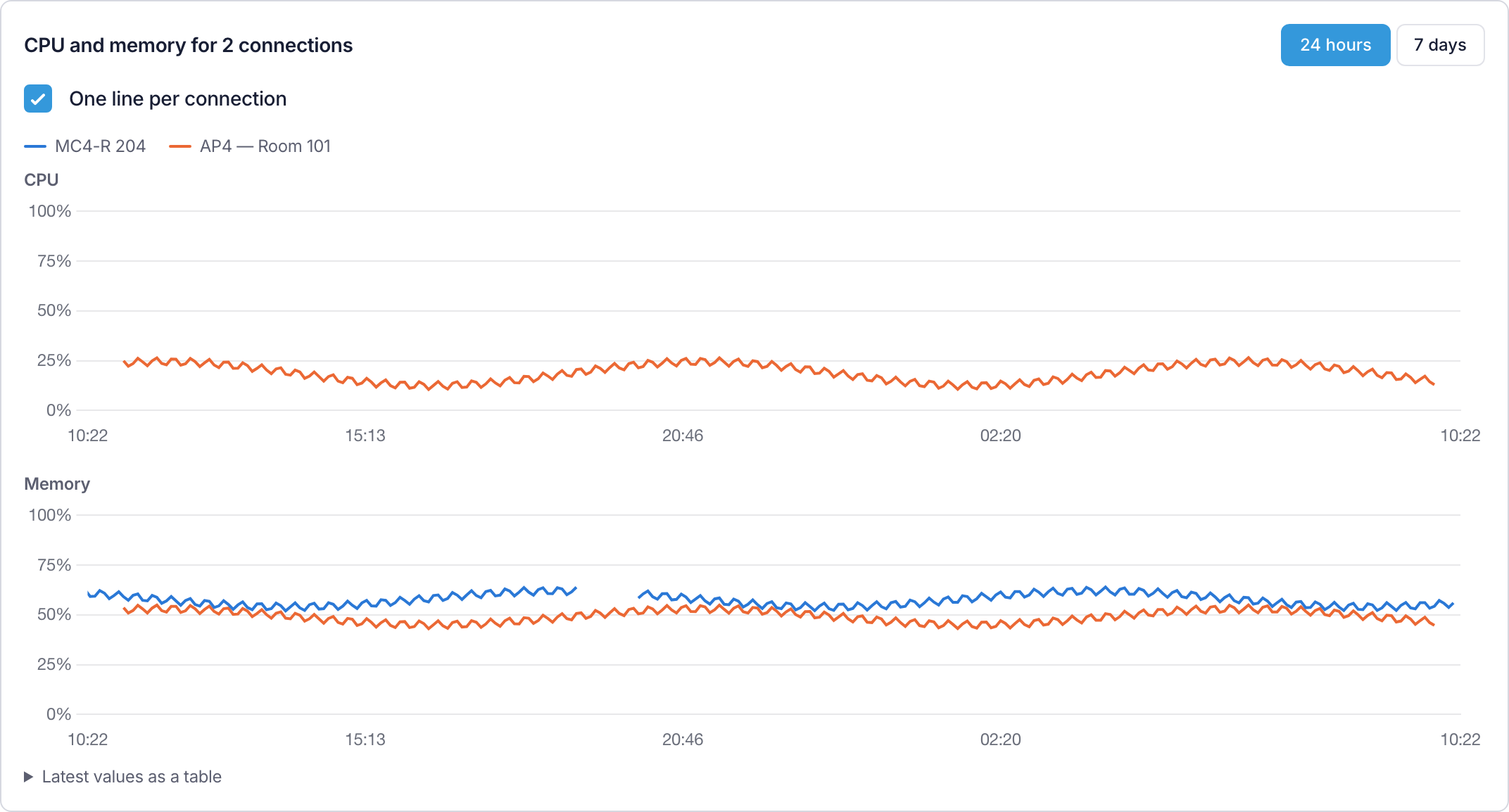
Each connection gets its own line and keeps its colour while you tick and untick others. CPU and memory are drawn as two graphs so that the lines stay readable.
With nothing ticked, the graph covers every connection shown. Select all ticks every connection shown, and Clear selection unticks them. With more than 10 connections, the graph stays combined. Ticks aren't remembered when you leave the page.
Read the graphs
- Readings are five minutes apart. This processor's 1 hour view is the exception, with a reading every minute.
- History goes back 7 days. A new site's graph starts empty and fills from the right. The first point appears five minutes after recording starts.
- A gap means there was no reading. For a connection, it was offline. For this processor, the program wasn't running. A gap is never drawn as zero, so a line at 0% is a real reading.
- A dashed vertical line marks a restart of the program. A gap beside one means it wasn't running, not that something broke.
- A connection that doesn't report a value has no line for it. Some connections report memory but not CPU, and the graph says so.
- An online strip shows when something was online and offline, with how much of the time it was online, for example Online 98% of the last 24 hours. A connection's page and a local processor's heading have one.