Schedules
Start with the Quick guide: Set up a schedule.
A schedule sends commands to locations at a set time — the corridor lights off every night, a setback temperature in vacant hours, a housekeeping reset every morning. Select Schedules in the top navigation to see them.
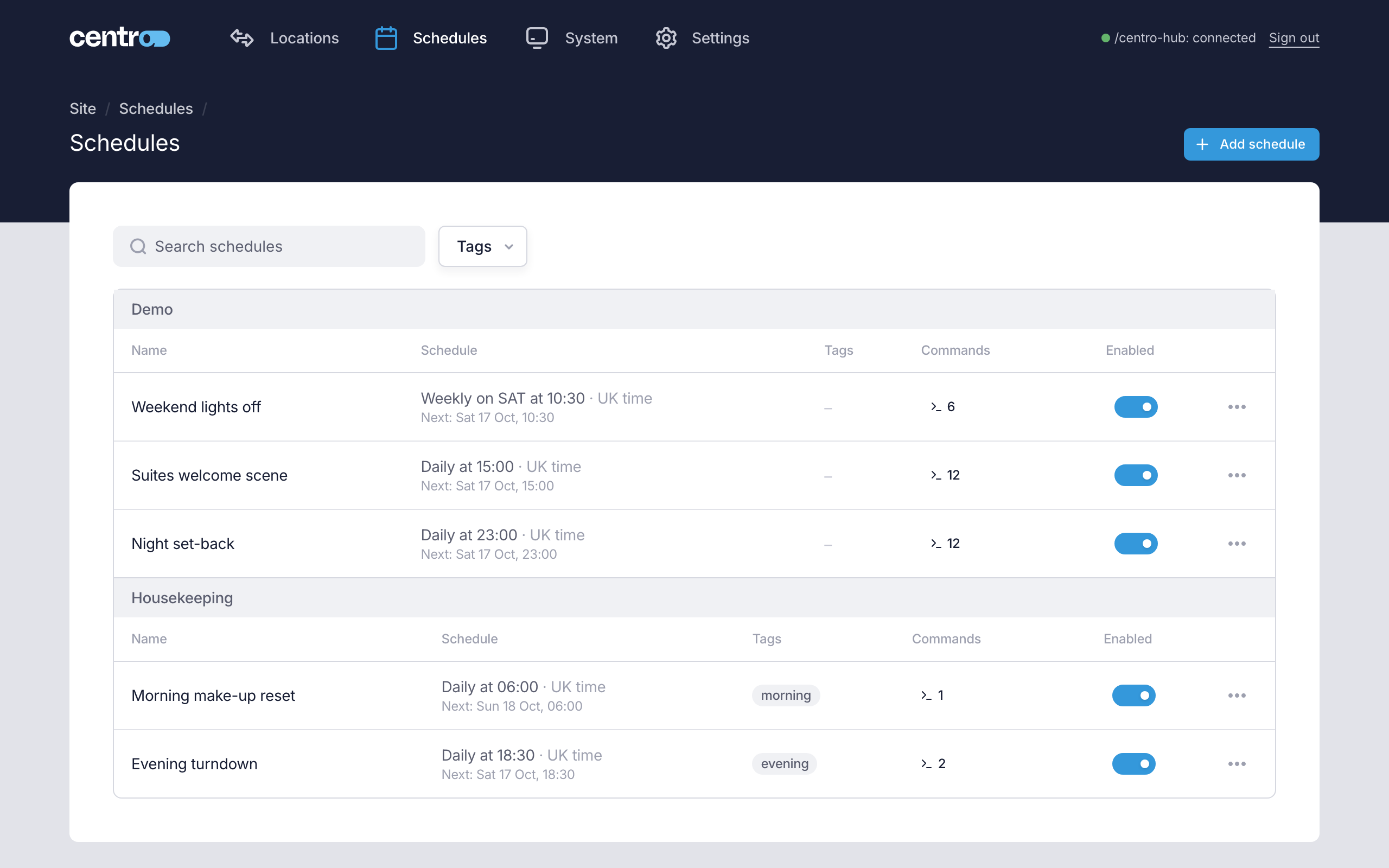
Each row shows the schedule's name, when it runs and in which time zone, its next run, its labels and how many commands it sends. A schedule set up in cron style is said in words where it can be. Use Search schedules or the Tags filter to find one.
Schedules need a Manager Licence. When the Manager Licence trial has ended or the licence has lapsed, the list is read-only and each enabled schedule reads Not firing — this processor has no Manager Licence (see Licensing and editions).
Add a schedule
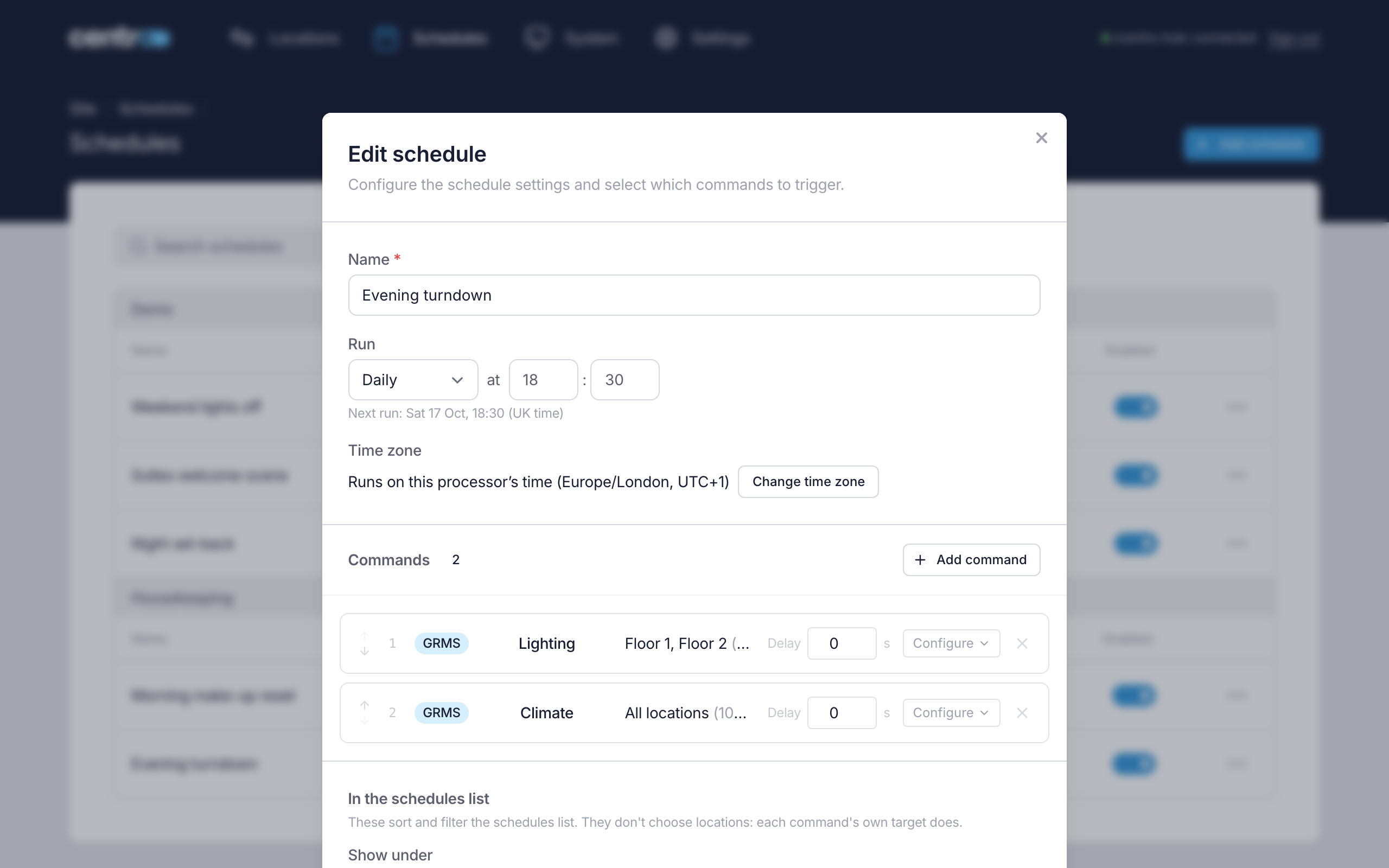
To turn on the lights on two floors at 18:30 every day:
- Select Add schedule.
- Enter a Name, such as "Evening turndown".
- Under Run, choose Daily and enter the time, 18 and 30.
- Select Add command.
- Under What, select Lighting and tick Power on.
- Under Where, select Groups and choose the two floors.
- Select Add to schedule.
- Select Add schedule.
The new schedule is enabled straight away.
When it runs
| Run | What you set |
|---|---|
| Hourly | The minute of each hour |
| Daily | The time |
| Weekly | The day of the week and the time |
| Monthly | The day of the month and the time |
| Yearly | The month, the day and the time |
| Cron style | A cron expression in the form "minute hour day-of-month month day-of-week". For example, 0 22 * * 1-5 runs at 22:00 from Monday to Friday |
Times use the 24-hour clock. Once a schedule is saved, the editor shows its Next run, with the time zone it runs on.
What it sends
A schedule can send several commands. Each one is a line under Commands, and each has its own locations.
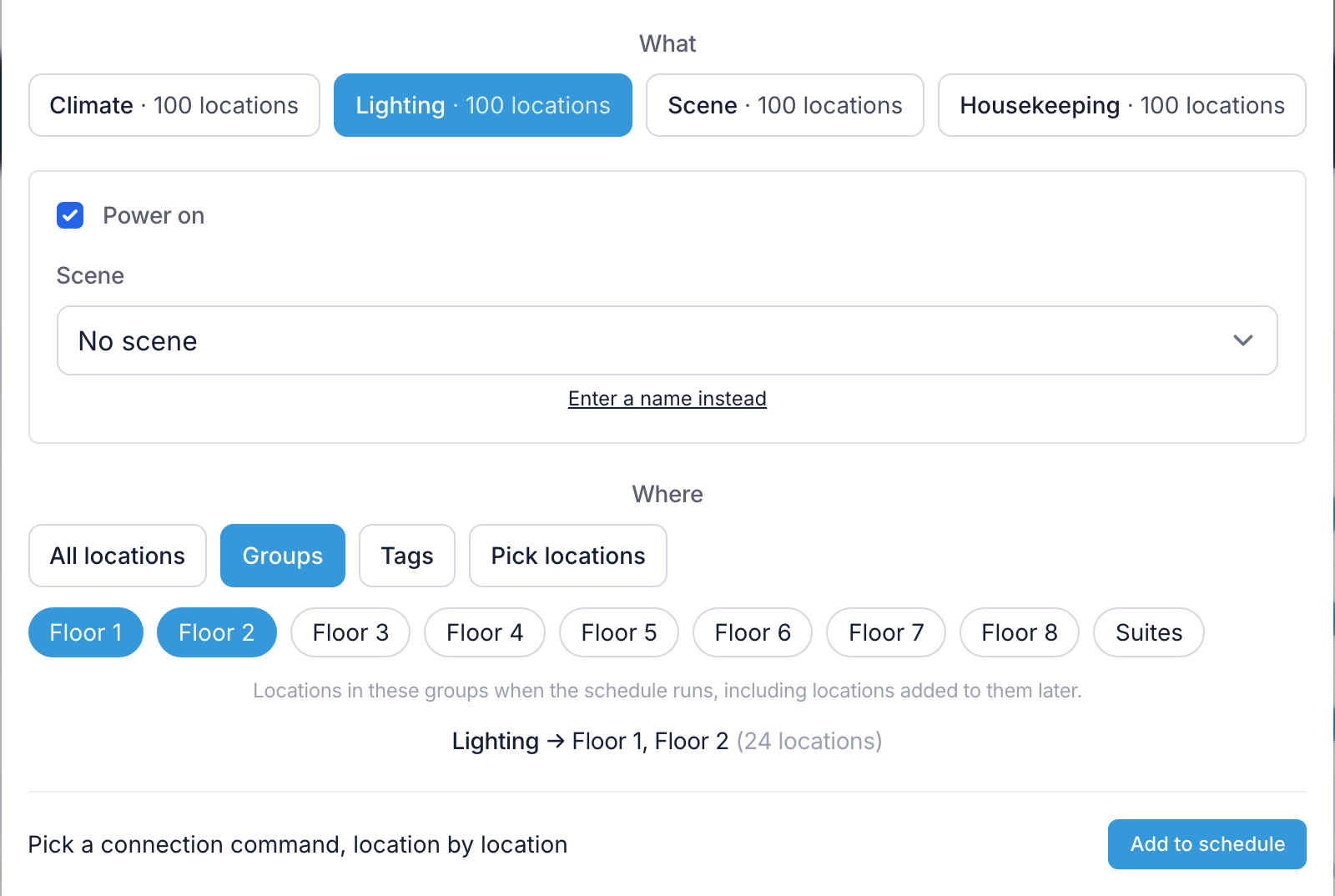
Under What, choose the kind of command and its value:
| Choice | What you set |
|---|---|
| Climate | Temperature setpoint, Temperature unit, Mode and Fan speed |
| Lighting | Power on, ticked for on and unticked for off, and optionally a Scene |
| Scene | The Scene to recall |
| Housekeeping | Location request (None, Do not disturb, Make up room) and Housekeeping status (Clean, Dirty, In progress) |
Scenes are chosen from the scenes the locations report, as in Bulk commands. A scheduled Housekeeping command sets both the request and the status, so choose both. The processor sets the status itself on every location the command reaches, as a bulk command does (see Bulk commands).
The commands are sent in the order shown. To change the order, use the arrows at the start of a line. Delay makes a command wait that many seconds before it's sent, for example to bring the lights up a minute after the climate. Select Configure to change a command's value or locations, and Remove command to take it out.
Where it goes
Under Where, choose the locations the command goes to.
| Where | Locations the command goes to |
|---|---|
| All locations | Every location on this processor when the schedule runs, including locations added later. A location with Control in all locations schedule off is left out |
| Groups | Locations in the groups you choose when the schedule runs, including locations added to those groups later |
| Tags | Locations with any of the tags you choose when the schedule runs, including locations tagged later |
| Pick locations | Only the locations you tick. A location added later isn't included |
Centro System Manager for Crestron works out the locations each time the schedule runs, not when you save it. A schedule for a floor's group picks up a location you add to that group next month, and drops a location you move out of it, with no change to the schedule. Only Pick locations is a fixed list.
To keep a location out of every All locations schedule — a back office or a store, say — turn off Control in all locations schedule on its location. A schedule that names the location, its group or one of its tags still reaches it. The switch is separate from Show on the Locations page: a location kept off the dashboard is still reached by an All locations schedule until you turn this switch off too.
The line under the choices shows what the command would reach today, for example Lighting → Floor 1, Floor 2 (24 locations). It also warns you about locations the command will miss:
- 3 skipped: no Lighting — three of the locations don't accept that kind of command.
- 2 left out — two locations have Control in all locations schedule off, so an All locations command doesn't reach them. With one, the line names it.
- 1 chosen location no longer exists — a location you ticked has been deleted.
- No location matches this today, so nothing would be sent.
Groups and tags are set on each location under Settings → System → Locations (see Locations).
Pick a connection command, location by location opens a list of the commands each location's connection offers by name. Use it for a command that the four choices under What don't cover. Commands added this way go to one location each.
How it's listed
In the schedules list, at the foot of the editor, has two fields that only organise the Schedules page:
- Show under — the heading the schedule sits under. Schedules with none sit under Other.
- Labels — tags you can filter the list by.
Neither chooses locations. Each command's own Where does that.
Time zones
A schedule runs on the processor's own time, which is the time zone of the processor Centro System Manager for Crestron runs on. The editor says so under Time zone, for example Runs on this processor's time (Europe/London). For most sites there's nothing to set.
To run a schedule on another time zone:
- Open the schedule and select Change time zone.
- Choose the time zone. The processor's own is marked — this processor.
- Select Save changes.

A schedule on another time zone always shows its time zone, with a note such as "This schedule runs on UTC time, not this processor's UK time." Select the Use UK time button — it's named after the processor's own time zone — to put the schedule back on the processor's time. The Schedules page shows each schedule's time zone beside its time.
A schedule keeps its clock time when the clocks change. A daily 07:00 schedule runs at 07:00 in summer and in winter. A schedule set for a time the clocks skip or repeat runs once that night.
If the processor's clock or time zone is wrong, every schedule runs at the wrong time. An Administrator can check both in the Clock panel under Settings → Deployment → Setup (see Setup). The time zone itself is set on the processor.
If the processor was off
If Centro System Manager for Crestron is restarting when a schedule is due, the schedule runs when it comes back, as long as it's less than five minutes late. A run that's missed by more than five minutes is skipped, and the schedule runs again at its next time.
Turn a schedule off or on
Use the switch in the Enabled column. A schedule that's off keeps its settings and shows no next run.
Change or delete a schedule
Select the menu at the end of the schedule's row.
- Edit opens the editor. Select Save changes when you've finished.
- Delete asks you to confirm. A deleted schedule stops running and can't be brought back.
See what a schedule did
To check that last night's schedule reached every location:
- Open the schedule with Edit, or View if you can't edit schedules.
- Select Recent runs at the foot of the editor.
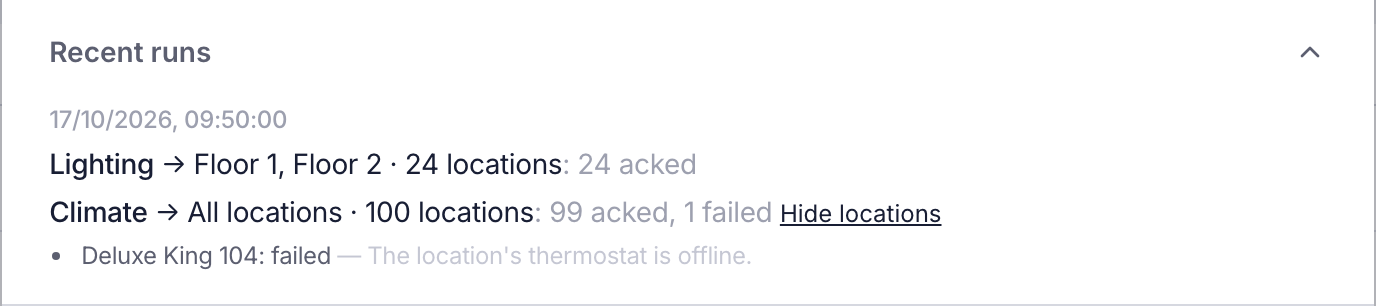
Recent runs lists the schedule's last 10 runs, newest first. Each run has a line for each command, with where it went, how many locations that was on the day and what happened:
| Count | Meaning |
|---|---|
| acked | The location confirmed the command |
| waiting | The command is still waiting for the location's connection |
| sent directly | The processor carried the command out itself, as it does for a housekeeping status |
| failed | The location didn't confirm the command |
| skipped | The location doesn't accept that kind of command |
| no longer exist | The location has been deleted since the schedule was made |
When any location did something other than confirm, select Which locations? to see them by name. A location whose command is no longer followed reads queued (no longer tracked).
A scheduled command waits for its location for 5 minutes at most. A location that comes back within that time still runs it. After 5 minutes the command counts as failed, and Which locations? shows "failed — Command expired before delivery or acknowledgement." The processor stops trying, so a location that comes back later doesn't run the command; it gets the schedule's next run.
The counts keep moving after a run while locations are still confirming. A schedule that hasn't run yet shows "This schedule hasn't run since location-by-location history began."
Who can change schedules
Everyone who signs in can see the schedules and what they do.
Administrators can always add, change, turn on or off and delete them. Managers can only if Managers can edit schedules is on under Settings → Settings → General (see General). It's off to start with.
A Manager who can't change schedules sees the note "An Administrator manages the schedules on this processor. You can see them and what they do, but not change them." There's no Add schedule button, the Enabled column reads On or Off, and View opens a schedule to read, including its Recent runs.
Schedules made location by location
A schedule can hold a run of commands that each go to one location. The editor folds them into one line, such as Lighting · 42 locations:
- Set value for all sets the same value on every location in the line.
- Show locations opens the line so that you can change one location's value or delay.
- Combine into one line replaces them with a single command for the same locations. It's available once every location has the same value and delay.