Locations
Settings → System → Locations lists every location. A location is one place that Centro System Manager for Crestron controls, such as a bedroom, an apartment or an office. Open one to change its name, group and tags, choose what it shows, link its connections and manage its User App QR codes.
This page works with or without a Manager Licence, so a processor with only the User App Licence can still have its locations set up.
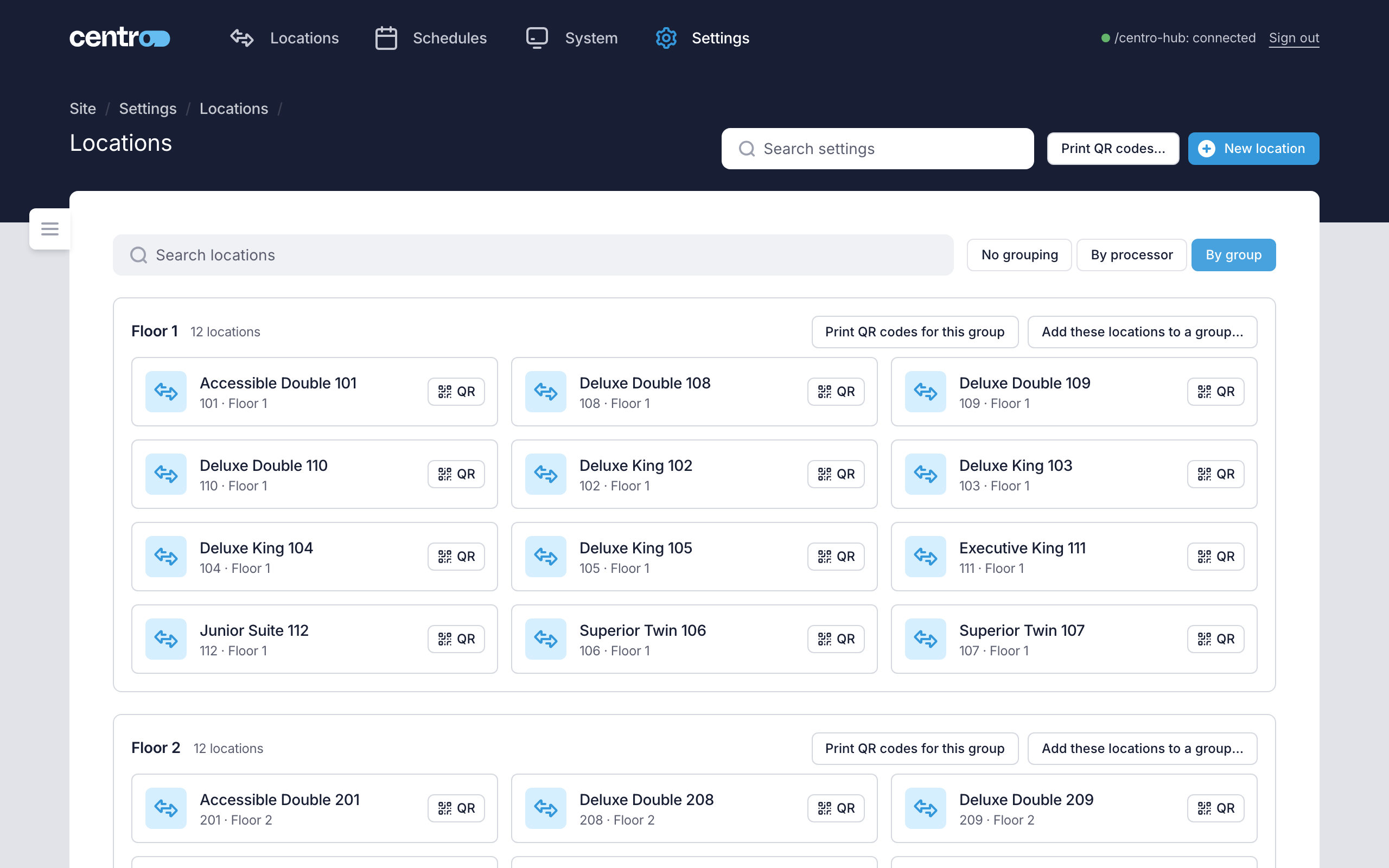
The list
| Control | What it does |
|---|---|
| Search locations | Filters the list as you type. |
| No grouping, By processor, By group | Lays the list out flat, under the local processor each location's connection comes from, or under each group. Locations with no group sit under No group. |
| New location | Adds a location by hand, for connections to be linked to. |
| QR on a location | Opens that location's Fixed code, to copy or print. |
| Print QR codes… | Prints User App QR cards for every location. A grouped list also has Print QR codes for this group. See Print QR codes. |
| Add these locations to a group… | Sets the group of every location under a heading in one go. See Set the group of several locations. |
Locations usually arrive by themselves: with Create a location for each new connection on, a connection that calls in without a location gets one of its own. The switch is under Settings → Settings → General. See General. With it off, New location is how a location comes to exist.
Set the group of several locations
A group is a name shared by several locations, typically a floor. The site dashboard filters and groups by it, and the locations that share a group are shown together as a suite.
- On Settings → System → Locations, select By group or By processor.
- On the heading that holds the locations, select Add these locations to a group….
- Enter the Group name. The dialog lists the locations that will change, and where each one moves from.
- Select Save.
Under By group, the dialog starts with the heading's own name, so saving a different name renames the group, or merges it into another. To take the locations out of their group, leave the name empty and select Remove from their group.
Groups and tags
A group and a tag both sort locations, and they're two separate features.
| Group | Tag | |
|---|---|---|
| What it is | One name shared by several locations, typically a floor. | A free label of your own, such as "accessible" or "back of house". |
| How many | A location has one group, or none. | A location can have several tags. |
| Where it's set | Group on the Location tab, or Add these locations to a group… for several at once. | Tags on the Location tab. |
| Site dashboard | The Group filter, and By group to lay the dashboard out under each group. Locations that share a group are shown together as a suite. | The Tags filter, and the search finds a tag too. |
| Schedules | Groups under Where. | Tags under Where. |
| Bulk commands | Filter the dashboard by the group, then send to the locations it shows. | Filter the dashboard by the tag, then send to the locations it shows. |
| QR codes | Print QR codes for this group. | — |
A schedule that names a group or a tag reaches whichever locations hold it when the schedule runs, including ones added later.
See Site dashboard, Bulk commands and Schedules.
The Location tab
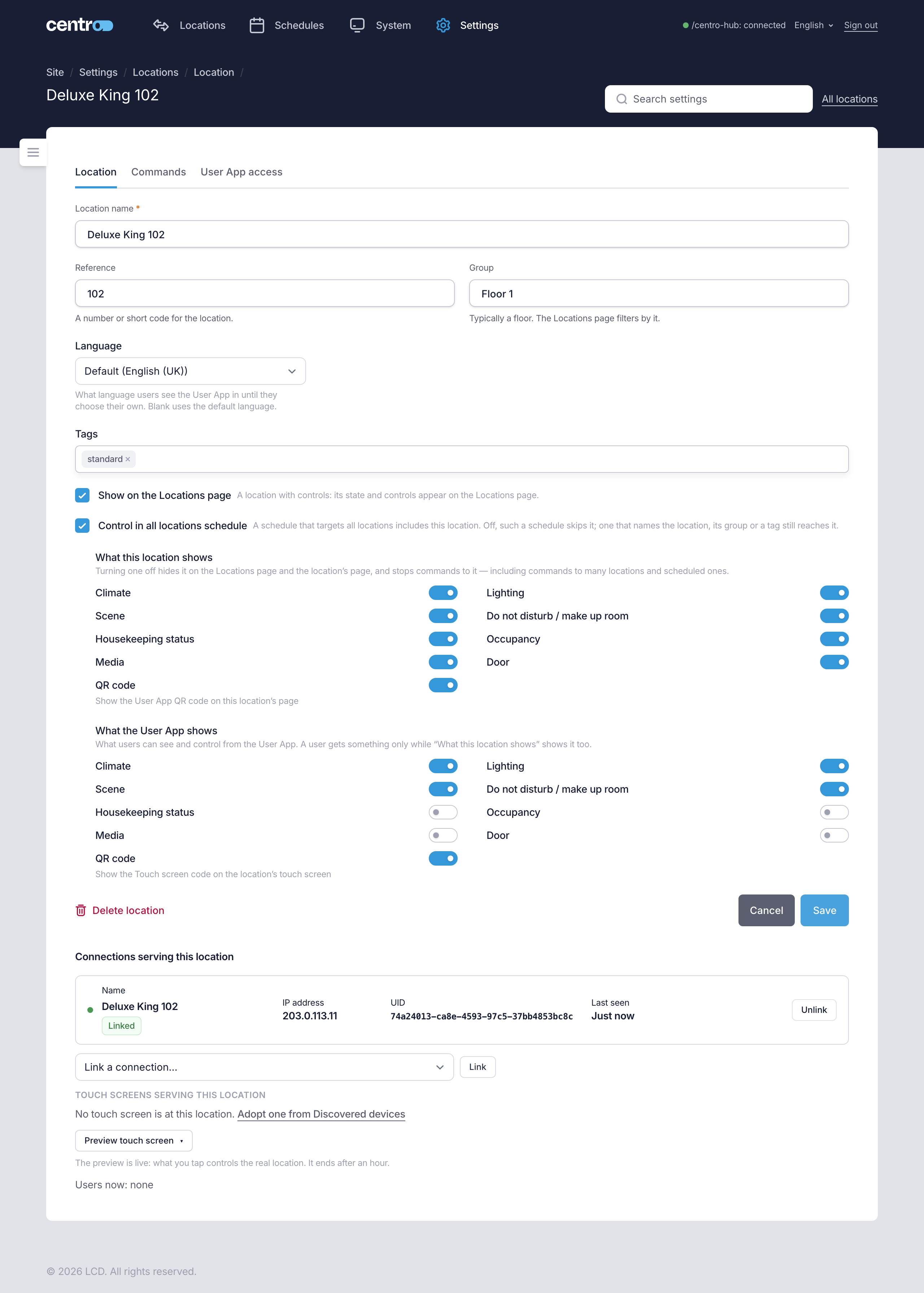
| Field | What it's for |
|---|---|
| Location name | The location's name everywhere in the app. |
| Reference | A number or short code for the location. |
| Group | Typically a floor. |
| Language | The language of the User App on the location's touch screen. On a user's phone, it's used until they choose their own. Default (…) uses the Default language set under General. |
| Tags | Free labels of your own. A location can have several. See Groups and tags. |
| Show on the Locations page | Shows the location's state and controls on the Locations page (the site dashboard). Off, the location has no card there, isn't counted in its heading and isn't sent the commands you send to many locations from it. |
| Control in all locations schedule | On to start with. A schedule that targets All locations includes this location. Off, such a schedule skips it. A schedule that names the location, its group or one of its tags still reaches it. See Schedules. |
| What this location shows | One switch for each thing the location's connections report, such as Climate, Lighting, Scene and Do not disturb / make up room. Housekeeping status is there for every location, because the processor keeps the status itself. Turning one off hides it on the Locations page and the location's page, and stops commands to it — including commands to many locations and scheduled ones. QR code shows or hides the User App QR code on the location's page. |
| What the User App shows | What users can see and control from the User App. A user gets something only while it's also on under What this location shows. QR code here shows the Touch screen code on the location's touch screen. |
Switches appear once a connection reports what the location has. A switch for something the connection no longer reports reads Not reported by its connection.
Select Save to keep changes to the fields and switches.
Connections serving this location
Below the fields, the page lists the connections linked to the location, with each one's IP address, UID and when it was last seen.
- Unlink takes a connection off the location. The connection itself is kept.
- Link a connection… then Link puts a connection on the location. A connection serves one location, so linking one that already serves another location moves it, and the list says where from.
The page also lists the touch screens at the location, under Touch screens serving this location, with whether each is online, offline or in standby. A touch screen in standby has a switched-off display and wakes when touched. See Touch screens.
Preview the touch screen
Preview touch screen opens what the location's touch screen shows, in a browser on your own computer. Use it to check a location's controls, branding and User App QR code without walking to the location. It works for any location, whether or not a touch screen is in it.
- Open the location and select Preview touch screen.
- Choose Touch screen-sized window (1280×800), or Open in a new tab.
The page opens with a Preview ribbon across its corner, so it can't be mistaken for the touch screen itself.
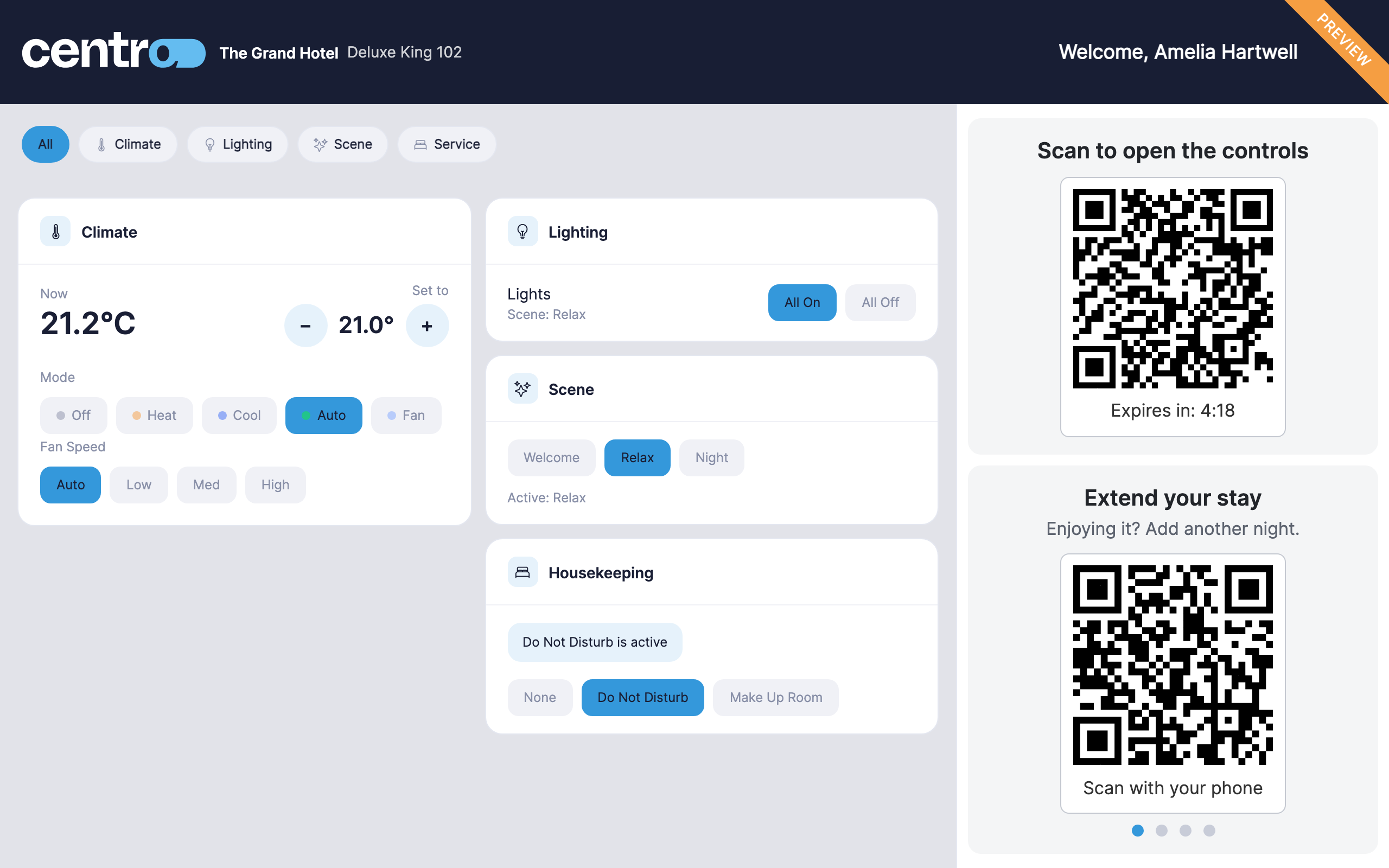
The preview is live: what you tap controls the real location.
- The preview ends after an hour. The page then says the preview has ended; open it again from the location.
- A preview isn't counted in Users now. Sign out all users on the User App access tab ends it.
- The preview opens on the User App port, so your computer must be able to reach it. See The User App port.
- If nothing opens, the browser blocked the window. Allow pop-ups for the page, then try again.
The button is there for Administrators, while the User App Licence is active or on its trial.
Users now
The last line on the tab, Users now, says who is using the location at this moment: how many phones are signed in to the User App, how many of those came by the location's Fixed code, and how many touch screens. It reads Users now: none when nobody is.
Delete a location
Delete location removes the location with its state and notifications. Its connections are unlinked, not deleted, and aren't given a new location automatically.
A location that a schedule names can't be deleted. That is a schedule with the location in its Pick locations list, or with a connection command picked for that location. The message lists those schedules; change them on the Schedules page first.
A schedule that reaches the location through All locations, Groups or Tags doesn't stop the delete. The location is just no longer included the next time the schedule runs. If it was the only location in a group or with a tag, that schedule then has no locations to send to, so check your schedules after deleting.
The Commands tab
The tab is there only while the processor has a Manager Licence. It lists every command the location accepts, with its type, capability and the connection it comes from. The commands come from the connections serving the location, so a location with no connection has none.
The User App access tab
Shows the location's three User App QR codes — Fixed code, Session code and Touch screen code — each with its link, how many users are signed in and when it was last printed.
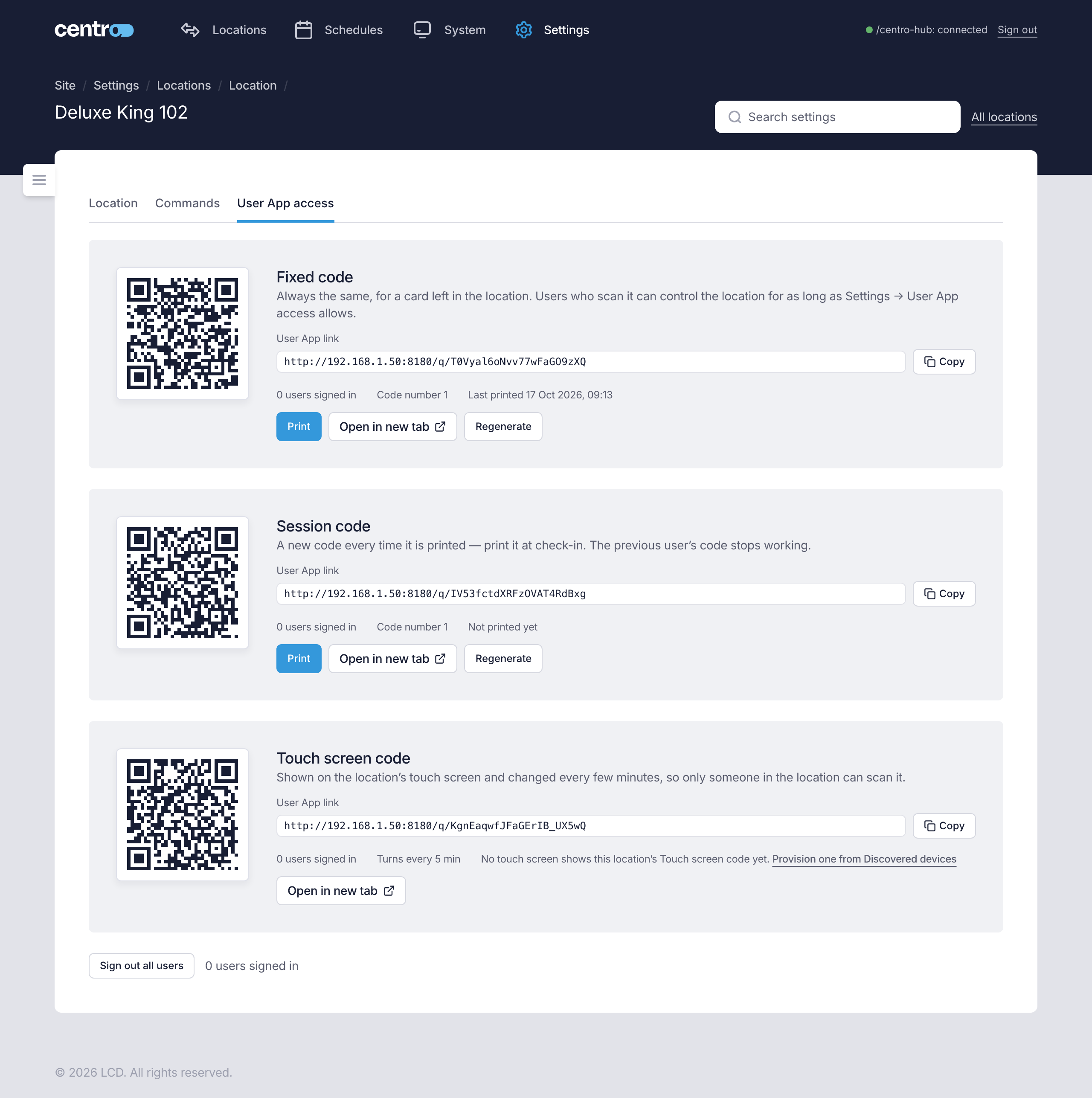
| Action | What it does |
|---|---|
| Copy | Copies the User App link. |
| Prints the code as a card. Printing a Session code makes a new code, and the previous user loses access. | |
| Open in new tab | Opens the User App for this location, as a user would see it. |
| Regenerate | Makes a new code. Users of the old one lose access. |
| Sign out all users | Signs out everyone using the location from the User App. The codes don't change, so they can scan again. |
If the processor's address has changed since codes were printed, the tab says so: reprint the codes, or give the processor a fixed address.
The tab needs a User App Licence. Without one it says so and links to the Licence page.
For when to use each kind of code, see User App QR codes. The settings that apply to every location — the User App address and how long users stay signed in — are under General.