Settings → Notifications → Email sets up the mail relay Centro System Manager for Crestron sends through, and who is emailed about alerts. The screen's own heading is Email settings.
Centro System Manager for Crestron has no mail provider of its own: it sends through the site's SMTP relay. There is no separate switch for email. It sends whenever a relay is active and there is at least one recipient, and everyone still sees every alert in the app either way.
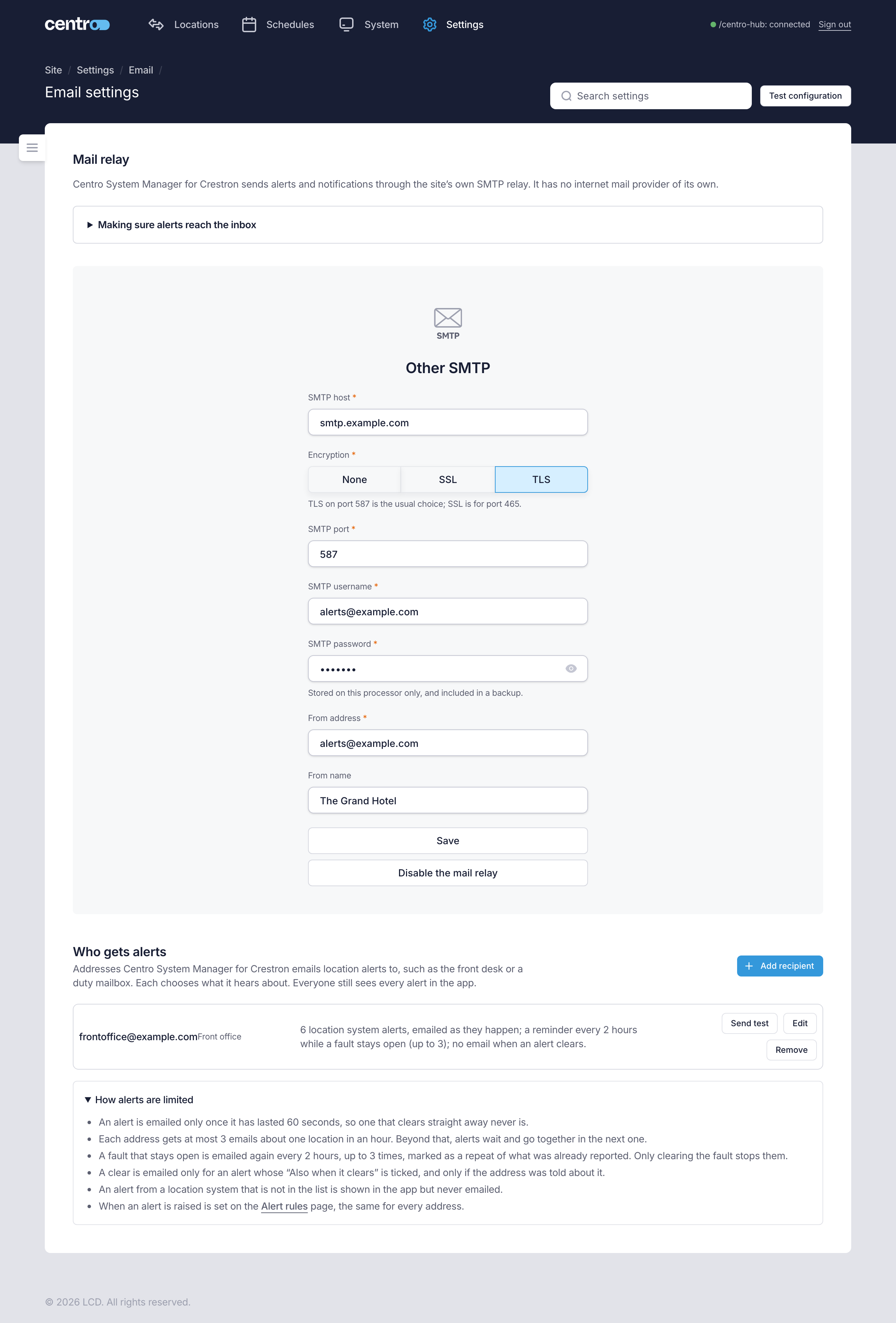
Mail relay
| Field | What to enter |
|---|---|
| SMTP host | The relay's name or address, such as smtp.example.com. |
| Encryption | None, SSL or TLS. Use TLS with the relay's STARTTLS port, usually 587. SSL and TLS both start the secure connection the same way, after connecting, so a relay that expects encryption from the start, usually on port 465, can't be used. |
| SMTP port | The relay's port. |
| SMTP username and SMTP password | The account used to send. The password is stored encrypted on the processor and is included in a backup. |
| From address | The address the emails come from, such as [email protected]. Use an address at a domain the relay is allowed to send for. |
| From name | The name shown beside the address. |
| Action | What it does |
|---|---|
| Save | Keeps the settings without changing whether the relay is active. |
| Set as the active mail relay | Saves the settings and starts sending through the relay. |
| Disable the mail relay | Stops email being sent. The settings are kept. |
| Test configuration | Sends a test email to an address you enter, with the settings on the page, saved or not. It needs the host, port and from address, and a password if you gave a username. See Send a test email. |
Send a test email
Test configuration opens Test email configuration. Enter a Recipient name and a Recipient email, then select Send test email. Test email sent means the relay accepted the email.
If the relay refuses it, the dialog shows the relay's own reason, or Could not send the test email. If the relay takes the connection but doesn't answer within 15 seconds, the dialog says the relay didn't answer in time, and names its address and port. This is what a port 465 relay gives: use its STARTTLS port, usually 587. If nothing comes back within 30 seconds, the dialog stops waiting and reads Centro System Manager for Crestron did not answer in time. Check the connection to it, then try again.
Making sure alerts reach the inbox
Whether mail is trusted is decided by DNS records for the from address's domain, which the site owns. They can't be checked from here, and a test that sends only proves the relay accepted it. Send a test to a mailbox outside the site and check it arrives in the inbox, not junk.
Ask the site's IT team:
- SPF — does the domain's SPF record include the relay? For Microsoft 365 that is
include:spf.protection.outlook.com. - DKIM — does the relay sign mail for the domain, with its key published in the domain's DNS?
- DMARC — what do receivers do when SPF and DKIM don't match the from address?
If none of that can be arranged, use a from address at the relay provider's own domain instead of the site's.
When the from address and the relay's host look unrelated, the page shows a warning under From address with what to ask for. It is advice only: it never stops a save or a test. When the relay refuses a test for one of these reasons, the result says so in plain words.
Who gets alerts
Recipients are the addresses alerts are emailed to, such as the front desk or a duty mailbox. Each chooses what it hears about.
Select Add recipient, or Edit on a row.
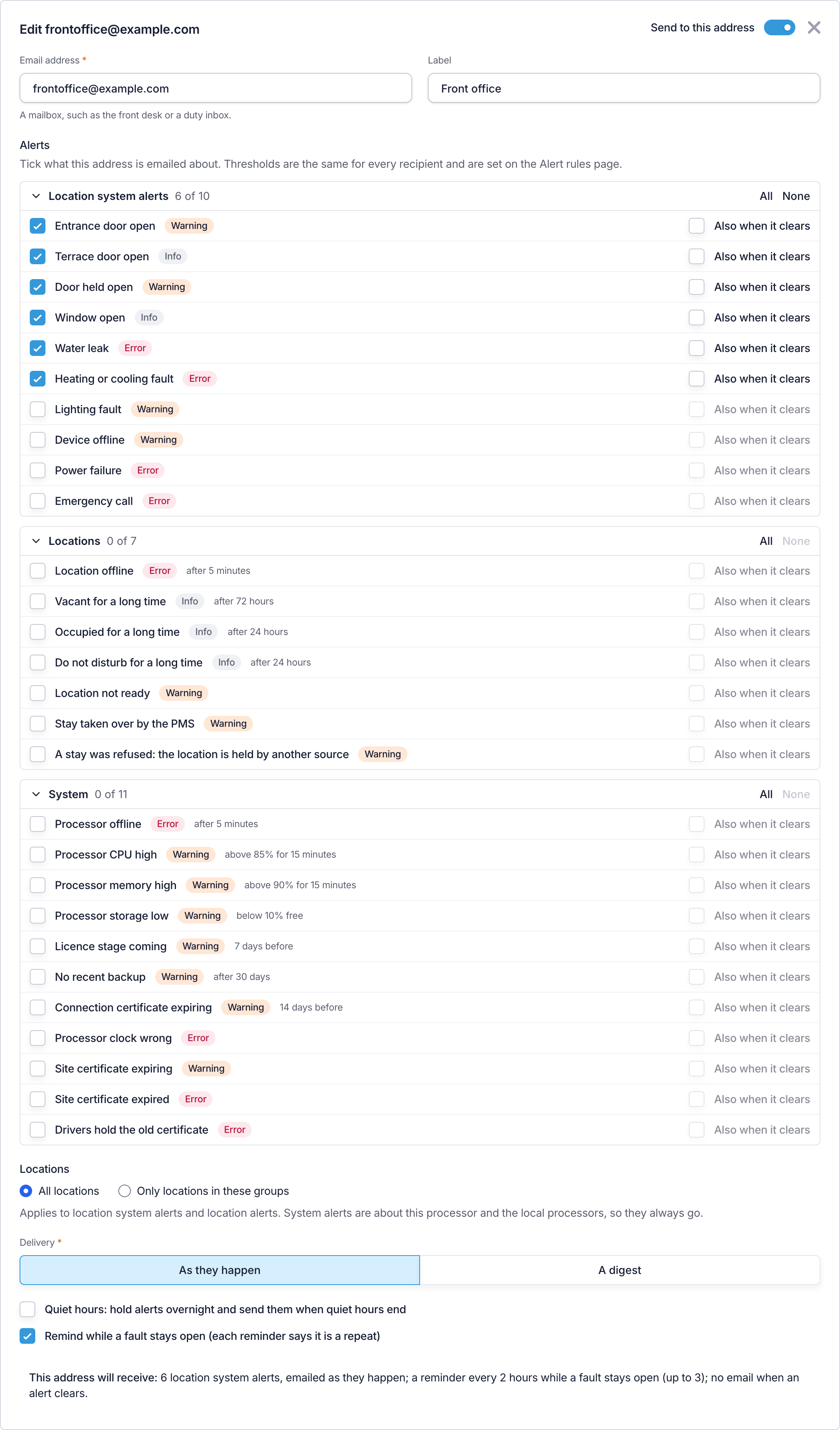
| Setting | What it does |
|---|---|
| Send to this address | Turns the recipient off without removing it. The row then shows Off. |
| Email address | The mailbox. An address can be a recipient only once. |
| Label | Your own name for it, such as "Front desk". |
| Alerts | Tick what the address is emailed about, in three sections: Location system alerts (reported by the location's own system, such as Water leak, Window open or Entrance door open), Locations (such as Location offline, and the stay alerts below) and System (the processor and the local processors, such as Processor offline or No recent backup). All and None tick or clear a section. Each alert shows its severity — Info, Warning or Error — and, where it has one, its threshold. |
| Also when it clears | Beside each alert. Ticked, the address is also emailed when that alert clears. |
| Locations | All locations, or Only locations in these groups. It applies to location system alerts and location alerts. System alerts are about the processor and the local processors, so they always go. |
| Delivery | As they happen, or A digest. |
| Quiet hours | For As they happen: holds alerts between two times on the processor's clock and sends them when quiet hours end. |
| Remind while a fault stays open | For As they happen: emails again while a fault stays open. Each reminder says it is a repeat. |
The line at the foot of the editor, This address will receive, says in words what the choices add up to. The same summary shows on the recipient's row.
Thresholds are the same for every recipient and are set under Alert rules.
| Row action | What it does |
|---|---|
| Send test | Sends a sample alert to the address. It needs an active relay. |
| Send digest now | For a digest recipient: sends a digest of the period up to now. |
| Edit | Opens the recipient. |
| Remove | Stops emailing the address. |
A row marked Last send failed means the last email to that address couldn't be sent.
Stay alerts
The Locations section also lists three alerts about stays. The processor raises them only while stays are on. See Stays.
| Alert | Raised when | A new recipient |
|---|---|---|
| Location not ready | Somebody arrives today and the location isn't clean. It clears when the location is. | Isn't emailed about it. |
| Stay taken over by the PMS | The PMS checked somebody in on a location where a stay entered by staff was checked in, and that stay was ended. | Is emailed about it. |
| A stay was refused: the location is held by another source | The PMS sent a stay for a location whose current stay came from another source, and the processor kept the one it had. | Is emailed about it. |
None of the three has a threshold under Alert rules.
The digest
A digest is one email summarising a period: alerts still open and cleared, locations not reporting, schedules and commands. It goes even when nothing happened, so you know everything is still running.
Choose A digest under Delivery, then:
| Setting | Choices |
|---|---|
| How often | Daily or Weekly. |
| On | For a weekly digest, the day of the week. |
| at | The time, on the processor's clock. |
If the program isn't running at the digest's time, that digest is skipped and the next one covers both periods. The recipient's row shows when the last digest was sent.
How alerts are limited
Email is held back so a noisy location doesn't flood a mailbox. The page lists the limits under How alerts are limited:
- An alert is emailed only once it has lasted 60 seconds, so one that clears straight away never is.
- Each address gets at most 3 emails about one location in an hour. Beyond that, alerts wait and go together in the next one.
- A fault that stays open is emailed again every 2 hours, up to 3 times, marked as a repeat of what was already reported. Only clearing the fault stops the reminders.
- A clear is emailed only for an alert whose Also when it clears is ticked, and only if the address was told about the alert.
- An alert from a location system that isn't in the list is shown in the app but never emailed.
Things to know
- Nothing is emailed until a relay is active. With recipients but no active relay, the page says so.
- An address is never removed automatically. Every email says who to ask to stop receiving it: the Administrator email under General. An administrator then changes the list here.
- Times are on the processor's clock. Check the clock under Setup.