Discovered devices
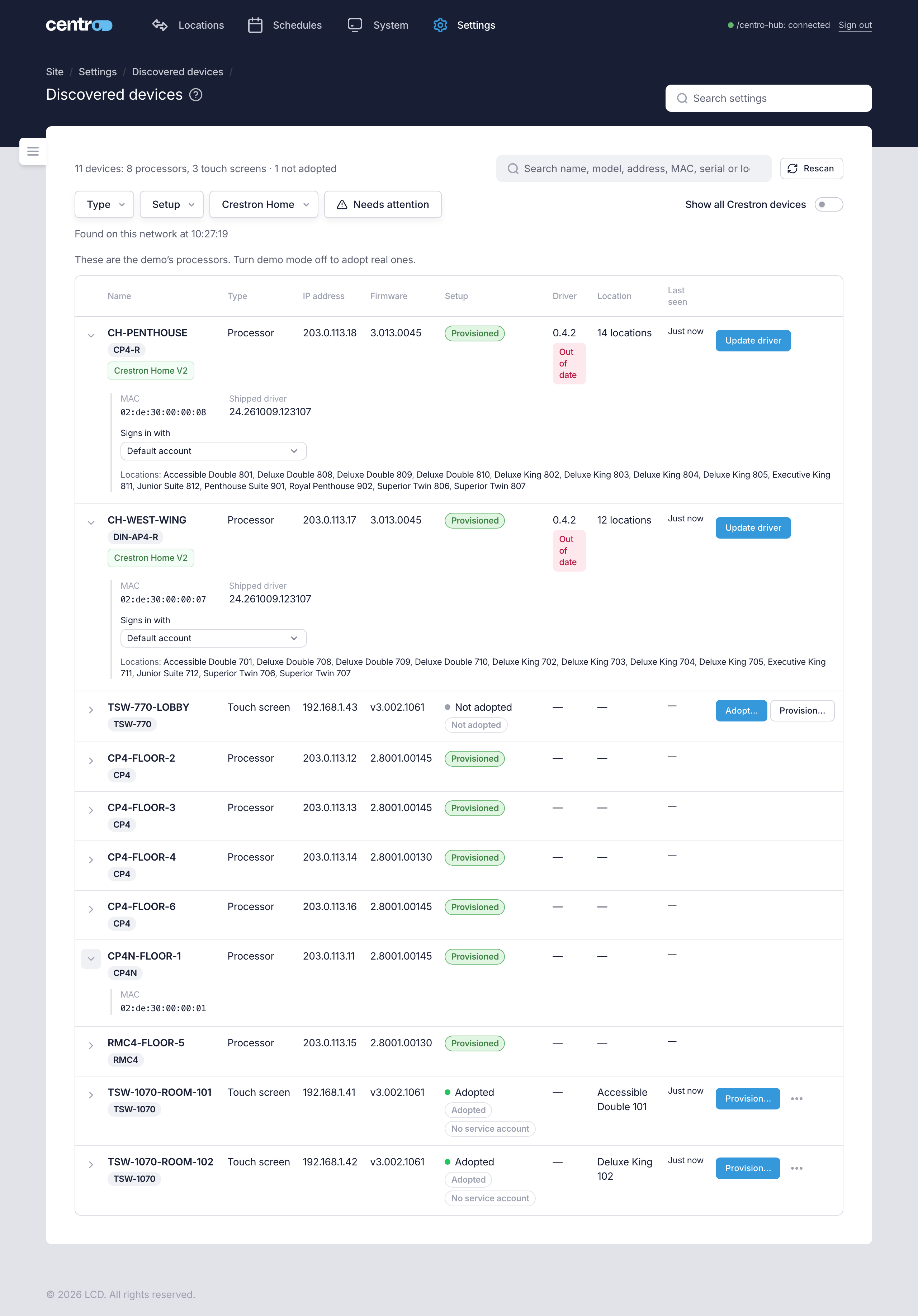
Settings → Deployment → Discovered devices lists the Crestron processors and touch screens on this processor's network, in one table, one row for each device. They're looked for when you open the page, and Rescan looks again.
From here you:
- adopt a processor or touch screen, so a record of it is kept and it shows on the System and Connections pages — nothing is changed on the device
- install or update the Centro driver on a Crestron Home processor
- provision a touch screen to show its location.
The table
The line above the table counts what was found: how many devices, how many of them are processors, touch screens and other Crestron devices, and how many aren't adopted yet. Under it, Found on this network at gives the time of the last scan.
| Column | What it shows |
|---|---|
| Name | The device's name and model. A device added by its IP address is tagged Added by hand. |
| Type | Processor, touch screen or another Crestron device. |
| IP address | Where it answered. |
| Firmware | The firmware it runs. |
| Setup | How far it has been set up: adopted, signed in or provisioned. |
| Driver | For a Crestron Home processor, the Centro driver it runs, such as Up to date, Out of date, Not installed or Not reporting. |
| Location | The location it's in, or its locations. |
| Last seen | When it last answered. |
| Actions | What can be done with it now, such as Adopt… or Provision…, and the rest in its menu. |
The arrow at the start of a row opens Details for the device, under the row: its MAC, Serial number, the driver Centro System Manager for Crestron ships and the certificate it has pinned. For a Crestron Home processor the details also hold the driver's actions — One-click install, Update driver, Check / Reinstall… and Manual steps — and the locations that call in from it.
A Crestron Home processor is badged Crestron Home V2 or Crestron Home V1. Once Centro System Manager for Crestron has read the Crestron Home version the processor runs — it does so when it plans a driver install — the badge adds it, for example Crestron Home V2 · 4.012.0194.
Find a device
Search by name, model, address, MAC address, serial number or location.
| Filter | Choices |
|---|---|
| Type | Processor, Touch screen and Other Crestron device. |
| Setup | For touch screens and processors: Adopted, Signed in and Provisioned. |
| Crestron Home | For processors: V2, V1 (manual only) and Not Crestron Home. |
| Needs attention | Only the devices with something to fix. |
Clear filters turns them all off. Crestron devices that are neither processors nor touch screens are left out unless Show all Crestron devices is on.
Links from other pages, such as Open in Discovered devices on a touch screen's page or a count of devices not adopted on Connections, open this page already filtered to what they point at.
If a device isn't listed
The scan finds Crestron devices on the same network as this processor. A device on another network, or one where discovery is blocked, isn't found. Check it's powered and on the network, then select Rescan. If it still isn't found, add it by its IP address on Manual devices.
The steps
The full steps are in these pages:
- Discover devices — finding and adopting devices.
- Connect Crestron Home — installing the driver, and what to do when a driver reads Not reporting.
- Touch screens — provisioning a touch screen.
To act on every touch screen or every Crestron Home processor in one run, see Batch actions.
Once a device is adopted, its row on Connections shows how far it has been set up.