Manual devices
Settings → Deployment → Manual devices adds a Crestron processor or touch screen by its IP address, for a device Centro System Manager for Crestron can't find on its own — for example where discovery is blocked on the network, or the device is on another network the processor can reach.
Devices that are found by themselves are on Discovered devices. Add a device here only when it isn't listed there after a Rescan.
Only an Administrator sees this page.
Before you start
- The device's IP address. Host names aren't taken.
- A service account holding a username and password for the device, under Service accounts. A Crestron Home processor still needs one chosen, though it isn't signed in to.
- The processor can reach the device's address. The device is asked what it is over the network, and its details are read over HTTPS. See Ports and network.
Add a device
- Select Add device.
- Enter the device's IP address.
- Choose the Service account to sign in with.
- Optionally choose a Location for the device.
- Select Add device.
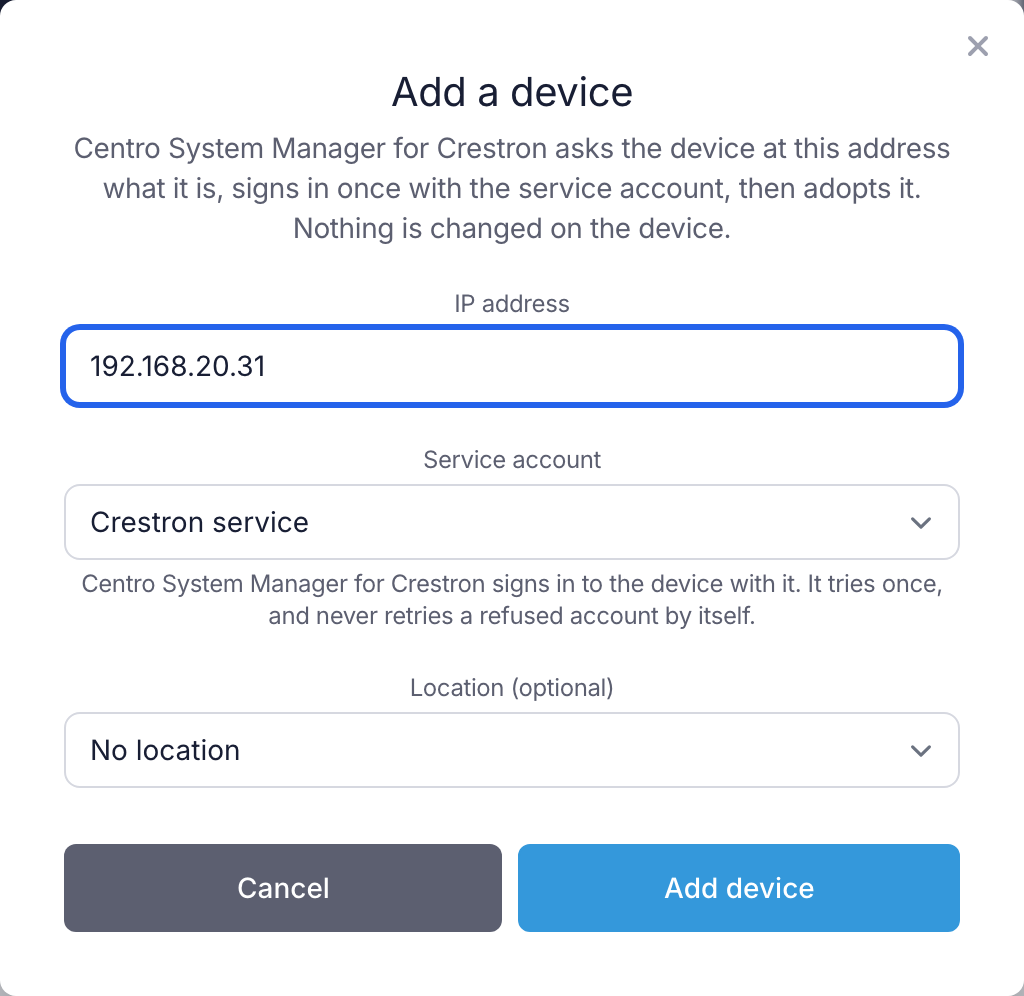
Centro System Manager for Crestron asks the device at that address what it is, signs in once with the service account, then adopts it. Nothing is changed on the device. A Crestron Home processor is known by its answer alone, so it isn't signed in to. When it's done, the device is on Discovered devices, Connections and the System page, tagged Added by hand.
It signs in once only. Crestron locks an account after repeated failed sign-ins, so a refused account is never tried again by itself: correct the account, then try again.
If the device can't be identified
When the device answers but doesn't say what it is, the dialog asks for two more things:
- MAC address — it's on the device's label and on its network page.
- Kind — Touch screen, Processor or Crestron Home.
Enter them and select Add device again.
If the device isn't added
| The dialog says | What to do |
|---|---|
| Nothing answered at this address. | Check the address, and that the device is powered and the processor can reach it. |
| The device refused the service account. | Correct the username or password under Service accounts, then add the device again. |
| This device is already a manual device. | It's in the list already. |
| A different device answers at this address. | Another device has this address now. Check the address. |
While demo mode is on, manual devices can't be added, checked or changed.
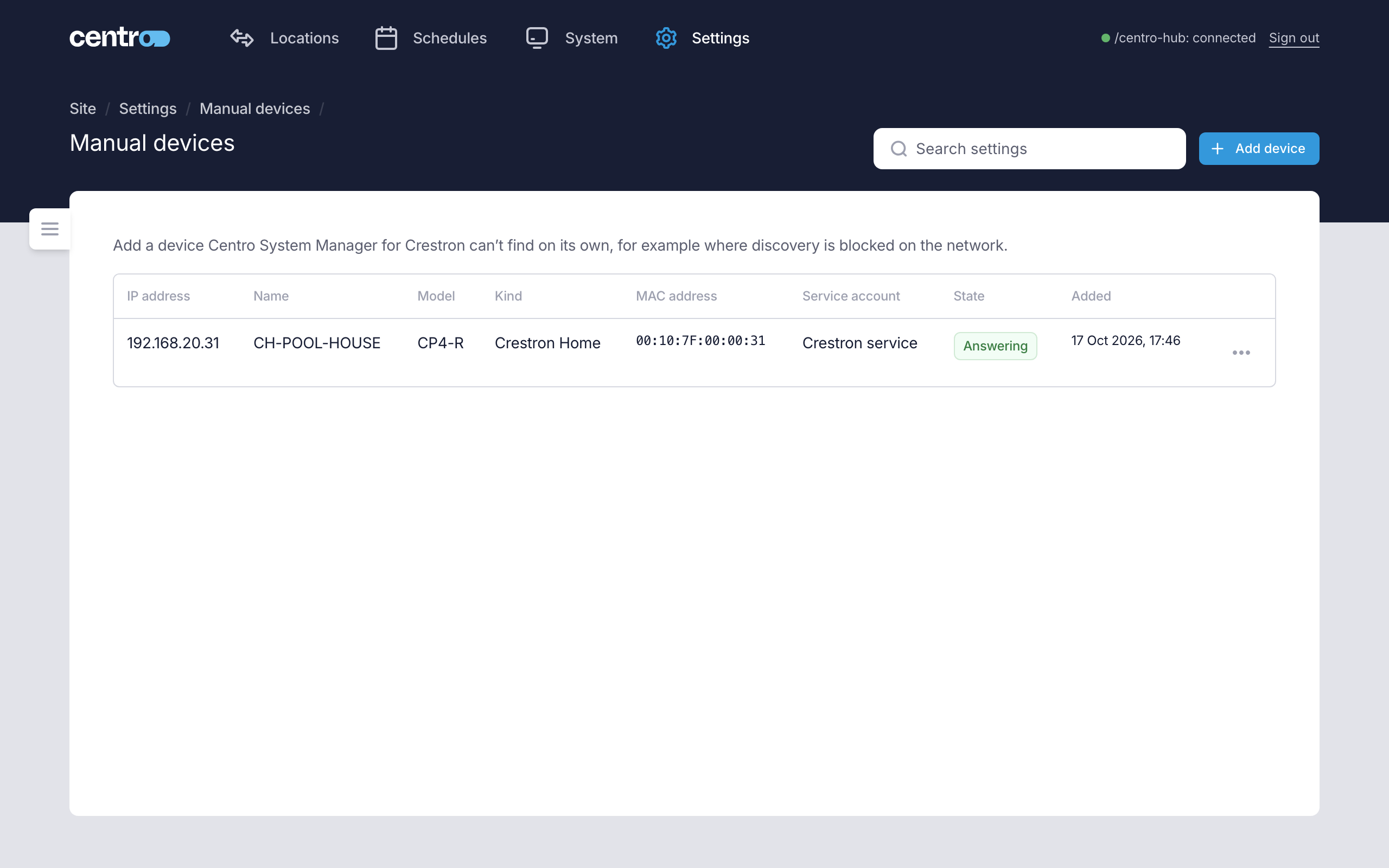
The list
| Column | What it shows |
|---|---|
| IP address | The address the device was added at. |
| Name | The device's name. |
| Model and Kind | What the device is: Processor, Touch screen or Crestron Home. |
| MAC address | The device's MAC address. |
| Service account | The account it signs in with, or Service account deleted. |
| State | Answering or Not answering, with when it was last checked. Not checked yet for a device not checked since it was added. |
| Added | When it was added. |
Check, edit or remove a device
Open the actions on the device's row.
| Action | What it does |
|---|---|
| Check now | Asks the device at the address now, and says whether it's answering. It signs in once at most. |
| Edit | Changes the address, when the device has moved. The processor checks that the same device answers at the new address. |
| Remove | Removes the manual entry only: Centro System Manager for Crestron stops looking for the device at this address. The adopted device stays. To remove it altogether, remove it on Connections. |
Once added, a device is set up like any other: provision a touch screen from Discovered devices (see Touch screens), or install the Centro driver on a Crestron Home processor (see Connect Crestron Home).