Downloads
Settings → Deployment → Downloads holds the files an installer takes away: the Crestron Home driver, with how to load it on a processor by hand, and this processor's certificate, for browsers to trust.
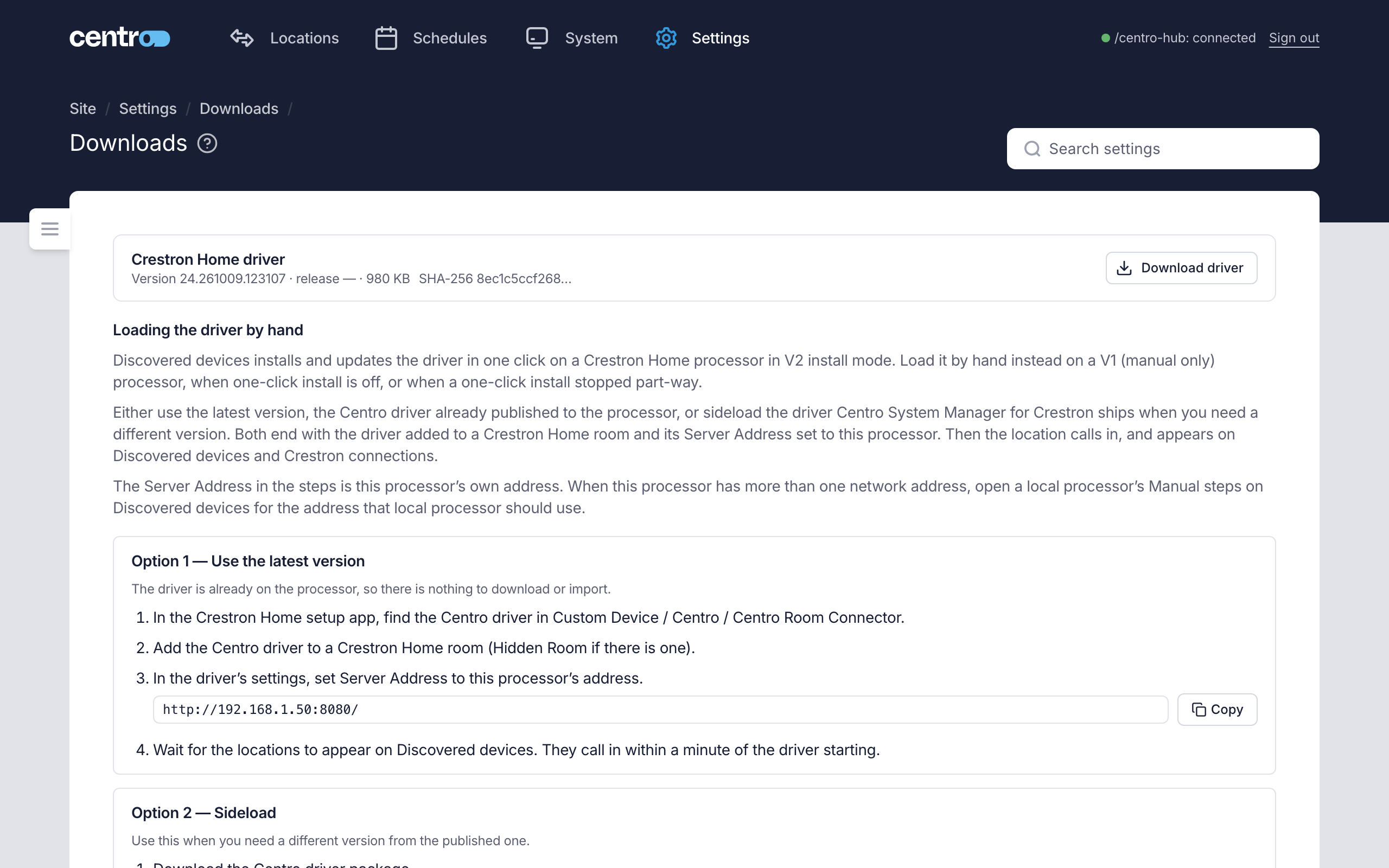
Crestron Home driver
Download driver saves the Centro driver for Crestron Home that this processor installs. The card shows the driver's version, release and size. Where there's no driver, the card says so.
You need the file only when loading the driver by hand. On a Crestron Home processor in V2 install mode, Discovered devices installs and updates the driver for you in one click.
Loading the driver by hand
Load the driver by hand on a V1 (manual only) processor, when one-click install is off, or when a one-click install stopped part-way. The page gives the steps for two ways:
| Section | When to use it |
|---|---|
| Option 1 — Use the latest version | The Centro driver is already published to the processor, so there is nothing to download or import. In the Crestron Home setup app, find it under Custom Device → Centro → Centro Room Connector. |
| Option 2 — Sideload | Use this when you need a different version from the published one: download the driver, upload it to the local processor's sideload folder and import it in the Crestron Home setup app. |
Both end with the driver added to a Crestron Home room and its Server Address set to this processor's address. In the Crestron Home setup app the setting is named Centro server. The location then calls in within a minute, and appears on Discovered devices and Connections.
The steps show this processor's own address under the Server Address step, with Copy. Where this processor has more than one network address, open a local processor's Manual steps on Discovered devices for the address that processor should use.
For the whole procedure, with the one-click install, see Connect Crestron Home.
Processor certificate
Download certificate saves centro-box-ca.crt, the certificate authority that signs this processor's own HTTPS certificate. Install it on a device and that device's browser stops warning when it opens the admin app.
The card gives the short version of the steps for Windows, macOS, iPad, iPhone and Android. The full steps for each device are under Certificate.