Certificate
Settings → System → Certificate is about the certificate the processor shows browsers when you open the admin app. By default it is the processor's own, which each device trusts once. A site with its own certificate authority can use its own certificate instead.
The page changes the admin port only. Connections keep using the processor's own certificate, whatever you choose here.
Trust the processor's certificate
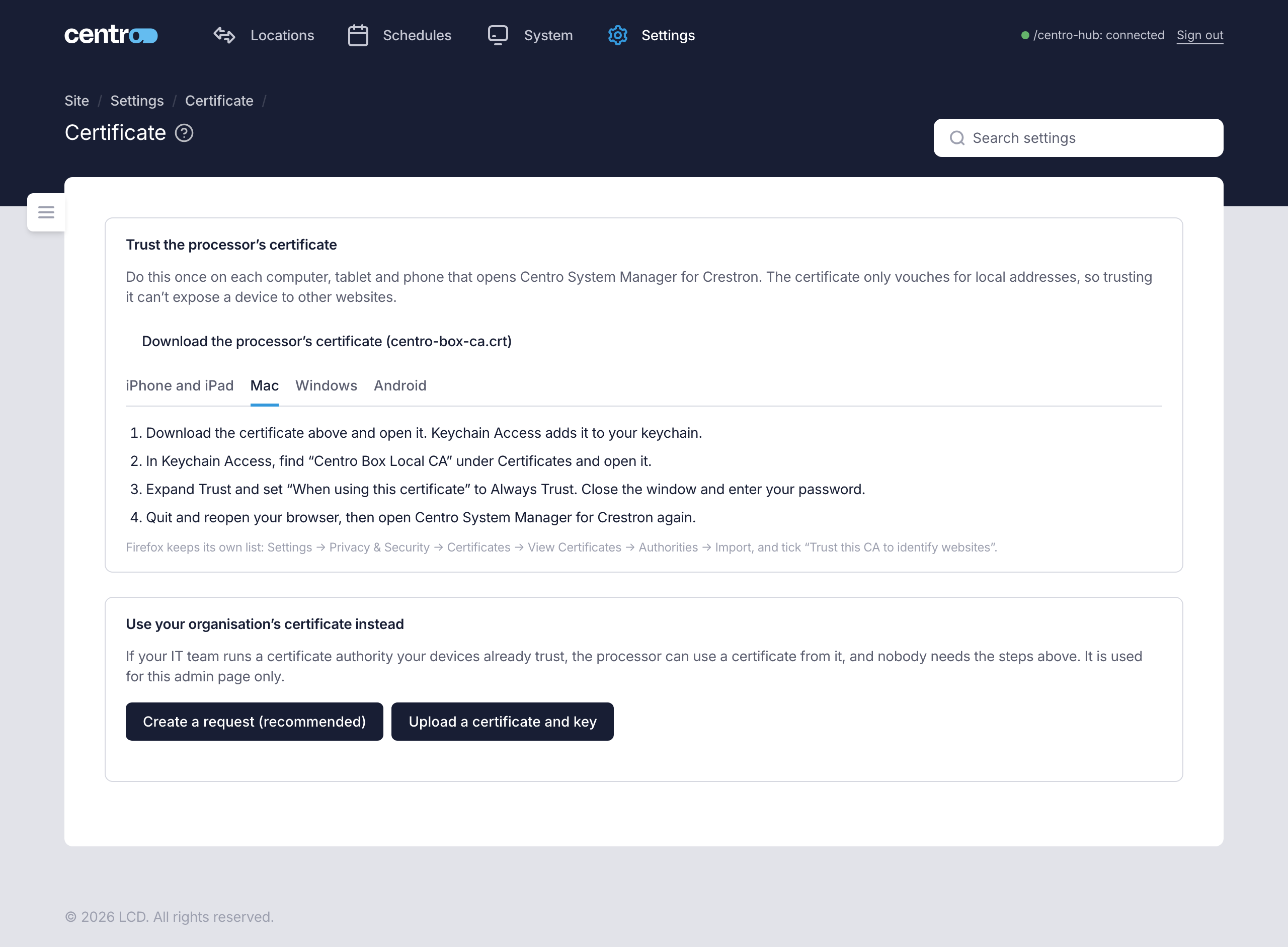
Until a device trusts the processor's certificate, its browser shows a security warning when it opens the admin app. Do this once on each computer, tablet and phone that opens it. The certificate only vouches for local addresses, so trusting it can't expose a device to other websites.
Select Download the processor's certificate (centro-box-ca.crt), then follow the steps for the device. The page opens on the tab for the device you're using.
iPhone and iPad
- In Safari, tap the download link, then Allow. The phone says "Profile Downloaded".
- Open Settings → General → VPN & Device Management, tap the Centro Box profile and tap Install.
- Turn on full trust: Settings → General → About → Certificate Trust Settings, and switch on the Centro Box certificate. Without this second switch Safari still warns.
- Open the address again.
Mac
- Download the certificate and open it. Keychain Access adds it to your keychain.
- In Keychain Access, find "Centro Box Local CA" under Certificates and open it.
- Expand Trust and set When using this certificate to Always Trust. Close the window and enter your password.
- Quit and reopen your browser, then open the address again.
Windows
- Download the certificate and open it. Choose Install Certificate.
- Choose Local Machine, then Next. Windows asks for an administrator.
- Choose Place all certificates in the following store, Browse, and pick Trusted Root Certification Authorities. Then Next and Finish.
- Close every browser window and open the address again.
Android
- Download the certificate.
- Open Settings → Security → Install a certificate → CA certificate. On some phones the path is Security & privacy → More security settings → Encryption & credentials.
- Tap Install anyway, and choose
centro-box-ca.crtfrom Downloads. - Open the address again in Chrome.
Firefox keeps its own list: Settings → Privacy & Security → Certificates → View Certificates → Authorities → Import, and tick Trust this CA to identify websites. On Android, Chrome trusts a certificate added this way, and some other apps ignore certificates you add yourself.
The same certificate is on Settings → Deployment → Downloads. For the warning itself, see First sign-in.
Use your organisation's certificate instead
If your IT team runs a certificate authority your devices already trust, the processor can use a certificate from it, and nobody needs the steps above. There are two ways to supply one.
Create a request (recommended)
The processor makes the private key itself, so the key never leaves the processor.
- Select Create a request (recommended).
- Enter the names and addresses staff use to open the admin app, one per line, and select Create.
- Select Download the request (.csr) and send the file to your IT team. They sign it with your organisation's certificate authority and send back a certificate.
- When it comes back, choose the Signed certificate (
.crt,.pemor.cer) and, if they sent one, the Chain (intermediate and root). - Select Use this certificate.
Start a new request discards the waiting request and begins again.
Upload a certificate and key
Use this when your IT team gives you a finished certificate with its key.
- Select Upload a certificate and key.
- Choose the kind of file:
- PFX or P12 file — choose the file and enter its password. The password is used once to open the file, and the processor doesn't keep it.
- Certificate and key (PEM) — choose the certificate (
.crtor.pem), the private key (.keyor.pem, without a password) and, optionally, the chain.
- Select Use this certificate.
If what you gave can't be used, the page says why.
While the site's certificate is in use
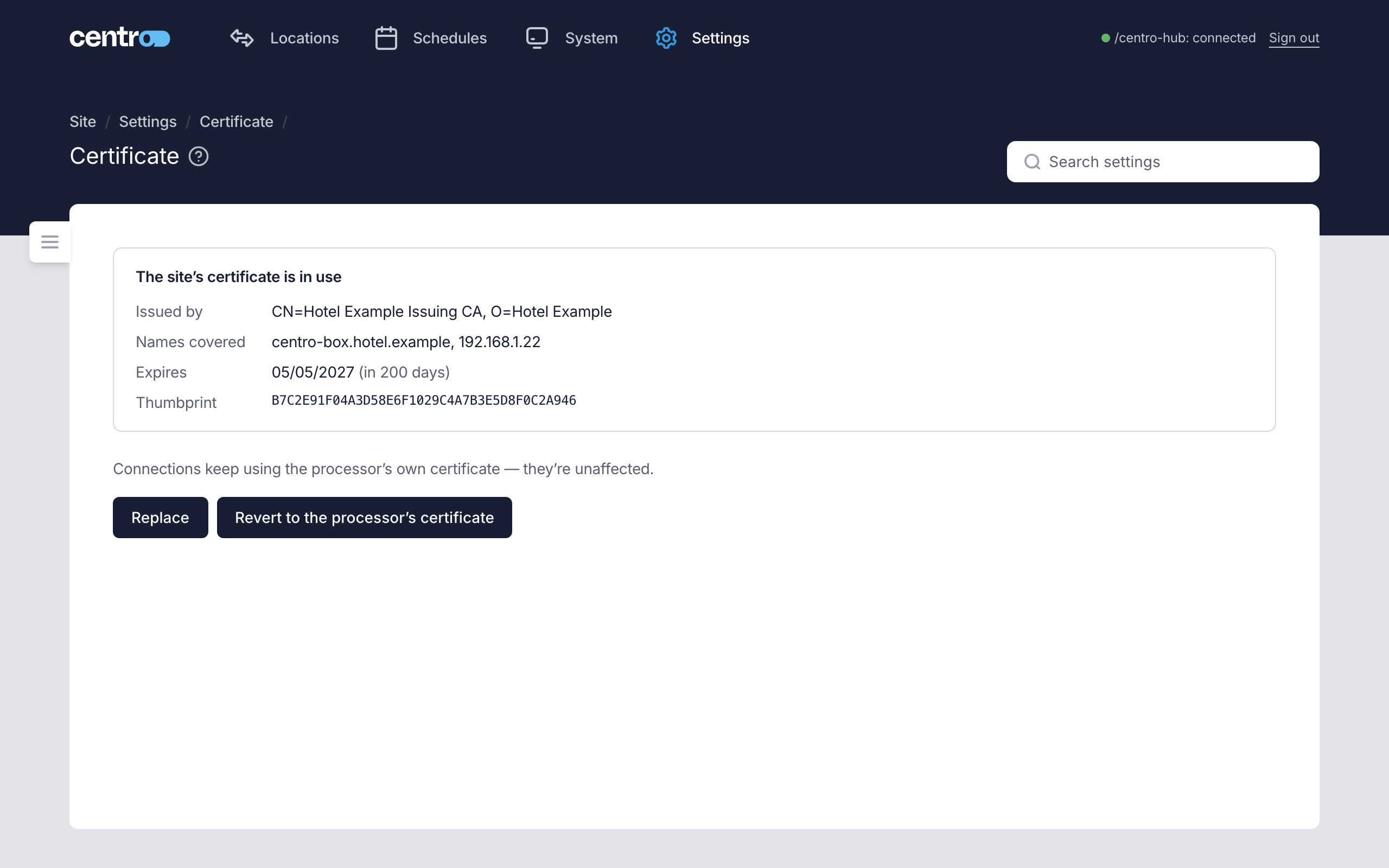
The page shows who issued the certificate, the names it covers, when it expires and its thumbprint.
| Action | What it does |
|---|---|
| Replace | Opens the request and upload choices again, to put a new certificate in. |
| Revert to the processor's certificate | The admin port shows the processor's own certificate from the next connection. Browsers that don't trust the processor's certificate will warn. The site certificate is kept, and Use the site certificate again brings it back. |
A site certificate that expires stops being used: the processor switches back to its own certificate, and browsers that don't trust that one show a warning. The page warns when the certificate is close to expiring. Replace it before then.
The processor also raises the Site certificate expiring and Site certificate expired alerts, which a recipient can be emailed about. See Email.