Site dashboard
Start with the Quick guide: Find a location and see its state.
The site dashboard shows every location on the site and what it's doing now. It's the first page you see after signing in. To come back to it from anywhere, select Locations in the top navigation. On a screen narrower than a laptop's, the navigation is a bar along the bottom of the screen instead, with the same items.
The heading counts the locations on the dashboard, for example Site dashboard · 100 locations.
A location with Show on the Locations page turned off isn't on the dashboard at all. It has no card or row, the heading doesn't count it and Control these N locations doesn't reach it. See Locations.
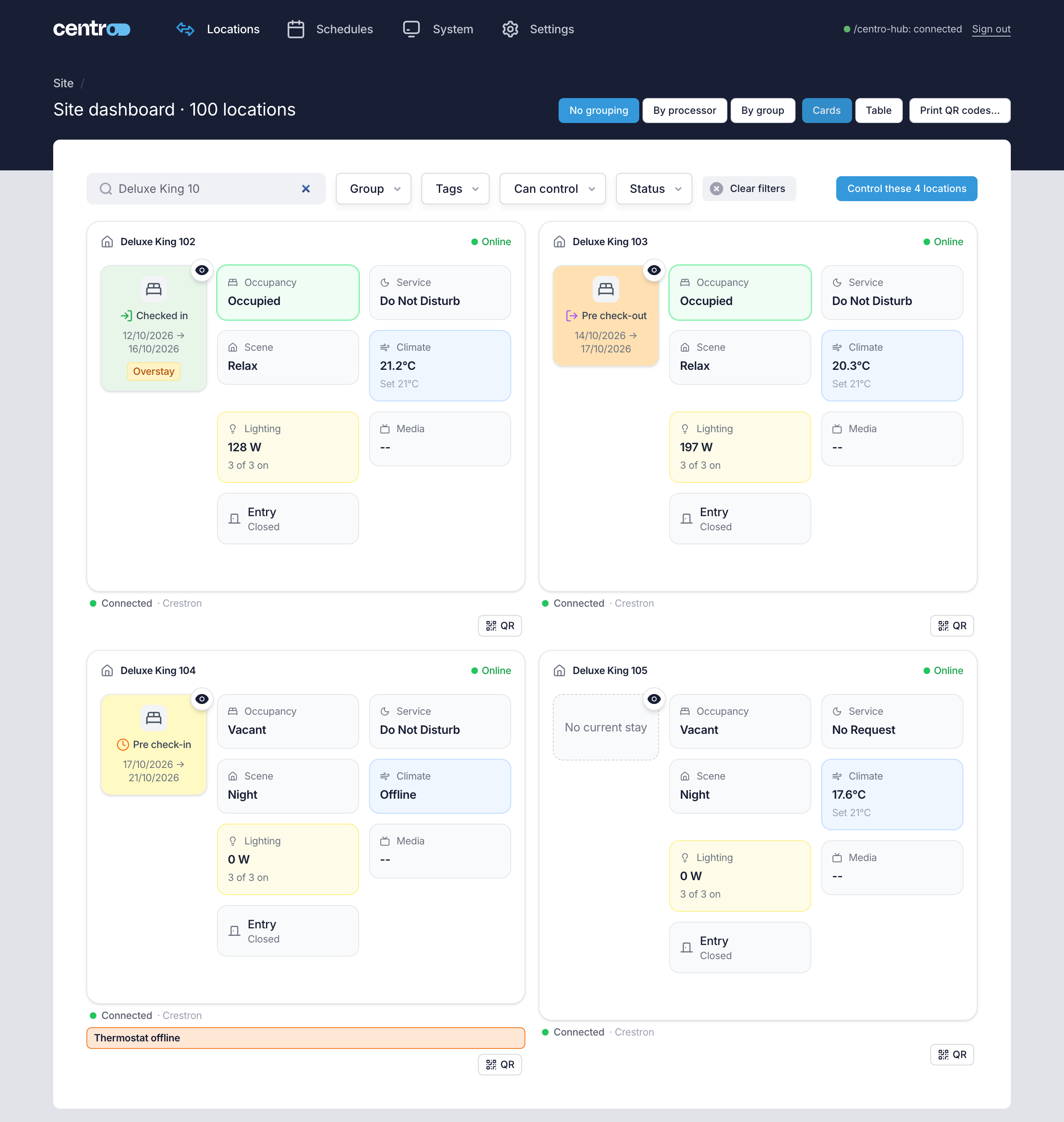
Read a location card
Each card is one location. It updates by itself as the location changes.
| On the card | What it tells you |
|---|---|
| Online or Offline | Whether the location's connections are calling in. Hover over Offline to see when the location was last seen. A location with no connection shows neither |
| Occupancy | Occupied or Vacant |
| Service | The user's request: Do Not Disturb, Make Up Room or No Request |
| Scene | The scene that's active in the location |
| Climate | The temperature, with the setpoint under it |
| Lighting | The lighting load in watts and how many lights are on |
| Shades | Open, Closed, Partially open or how many are open, such as 2 of 3 open |
| Media | Whether the TV is in use |
| The door | Whether the door is open or closed |
Under the card, a line shows the location's connection and whether it's Connected. Administrators always see this line. Managers see it only if an Administrator allows it (see Who can do what).
A location doesn't have to show everything. An Administrator chooses what each location shows under Settings → System → Locations (see Locations), so a location without a TV can be set to show no Media block.
When stays are switched on, each card also has a stay tile on the left, and the cards are wider, two to a row. See Stays.
With a User App Licence, Administrators and Managers also see a QR button under each location and Print QR codes… at the top of the page. See User App QR codes and Print QR codes.
Devices that are offline
A location can be online while one of its devices isn't, such as a thermostat that has lost power. An amber line under the card names each device that's offline, for example Thermostat offline · Light offline. It can name a Thermostat, an Occupancy sensor, a Shade or a Light.
On the card, a value whose device is offline reads Offline, with its last reading and when it was taken. The line goes by itself when the device comes back.
This is different from the Offline badge, which means the location's connection has stopped calling in.
Commands that are waiting
If a command has been waiting for a location for more than 30 seconds, a warning line appears under the location's card. It shows how many commands are waiting, for example 1 command waiting, and why:
- connection online, not acknowledging — the connection is calling in but hasn't confirmed the command.
- connection last seen with a time — the connection has stopped calling in.
- no connection serves this location — nothing is linked to the location to carry the command.
A command waits for 5 minutes at most, whether it came from the location's page, a bulk command, a schedule or the User App. A location that comes back within that time runs it then. After 5 minutes the command fails and the processor stops trying, so a location that comes back later doesn't run old commands. A housekeeping status is the exception: the processor keeps the status it set and passes it on when the location is back.
The dashboard checks every 15 seconds, so you don't need to reload the page. To see what's wrong with the connection, open it from the System page (see Connection detail).
Switch between cards and a table
Select Cards or Table at the top of the page.
The table has one row per location: the location's name, with its group under it, its alerts, a summary of its state and its connection. Use it to scan a long list or to tick the locations you want to command together. When stays are switched on, a stay column follows the name (see Stays).
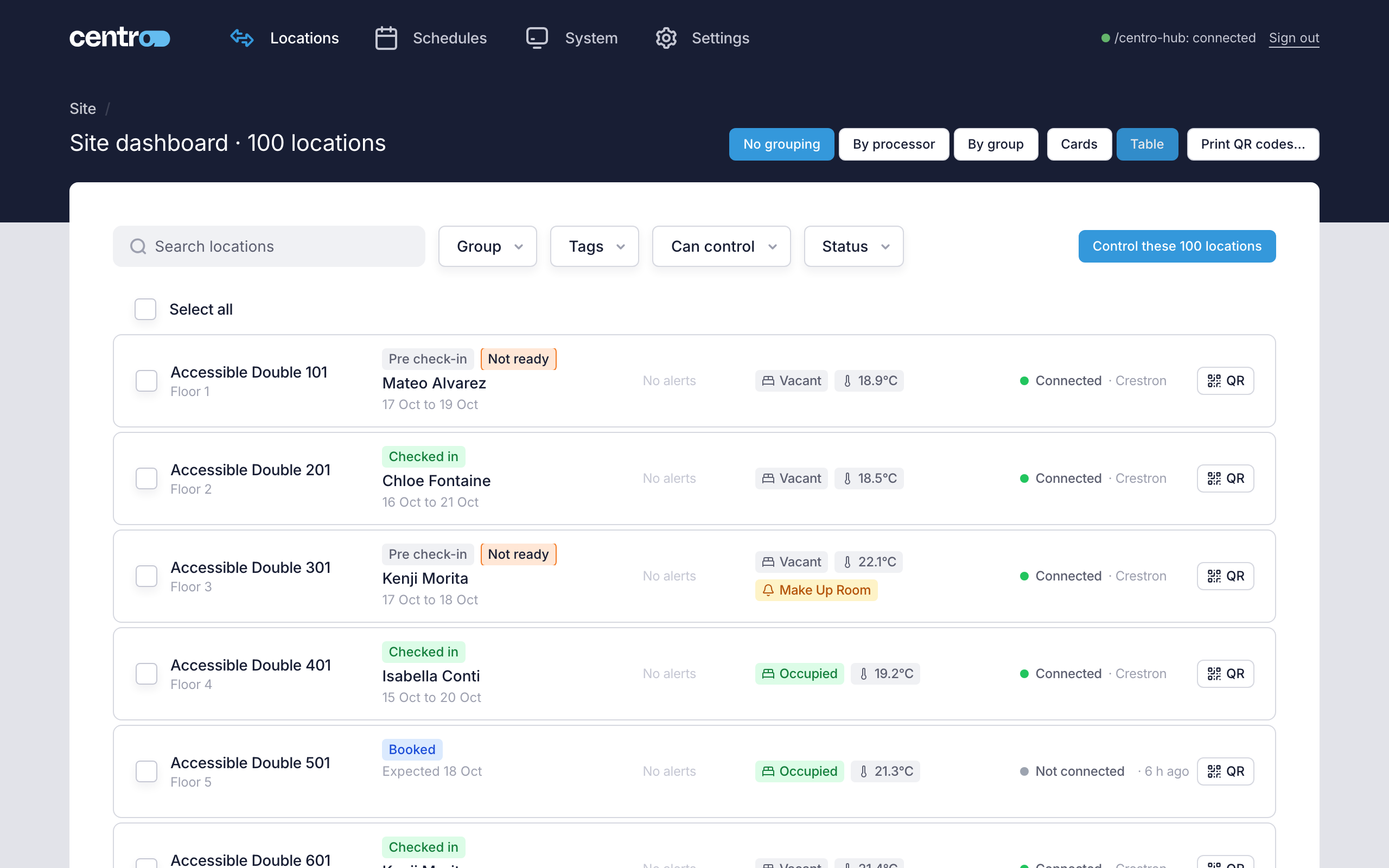
To open a location, select its card, or its name or summary in the table. See Control a location.
Group the locations
Select No grouping, By processor or By group at the top of the page. Grouping works in both the card and the table view.
By group
By group puts the locations that share a group together — a floor or a suite. Groups are listed in name order, and locations without a group come last under No group. Each heading shows how many locations the group has and how many are offline.
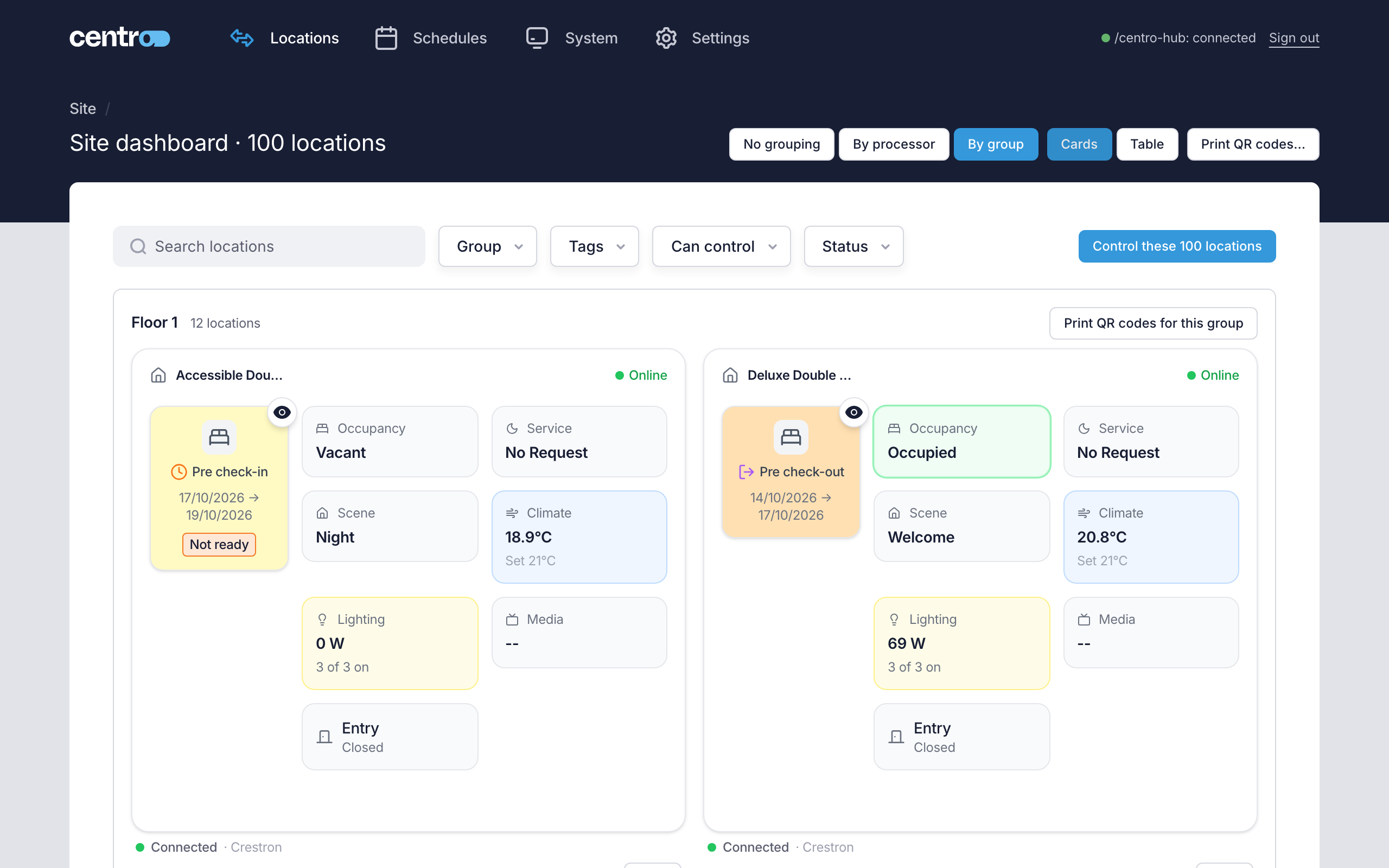
A location's group is set under Settings → System → Locations.
By processor
By processor puts each location under the local processor its connection runs on. Use it when several locations go offline together, to see whether they share a processor.
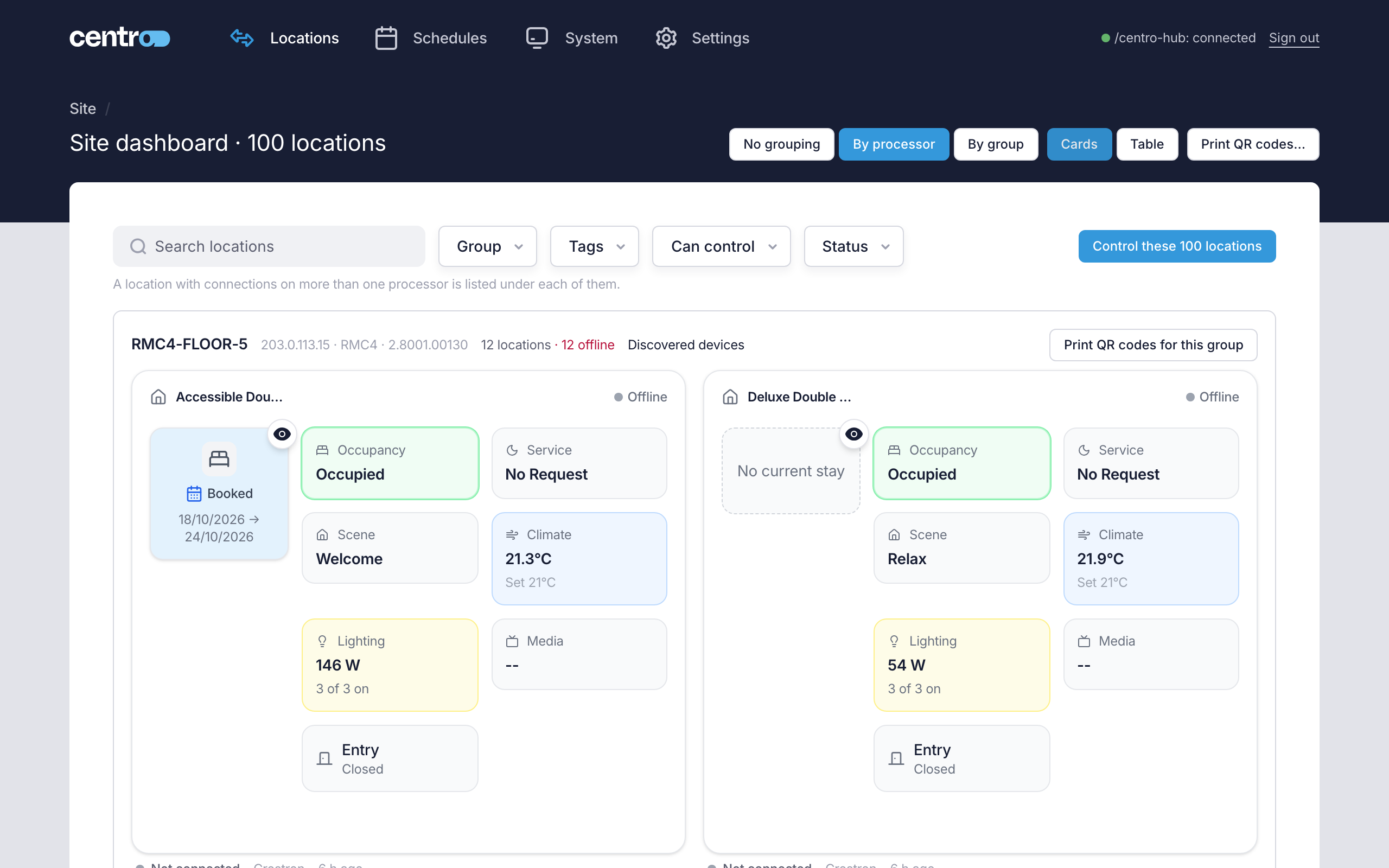
- The heading shows the processor's name, address, model and firmware, how many locations it has and how many are offline. For a Crestron Home processor it also shows the driver version.
- The processor with the most locations offline comes first.
- A location with connections on more than one processor is listed under each of them.
- A connection on a processor that Centro System Manager for Crestron didn't find on the network is listed under Not matched to a processor, with its address.
- Locations without a connection come last under No connection.
- Administrators get a Discovered devices link in the heading (see Discovered devices).
By processor is offered only to people who can see connection information.
Find locations
Use the search field and the filters above the locations. They work together: a location is shown only if it passes all of them.
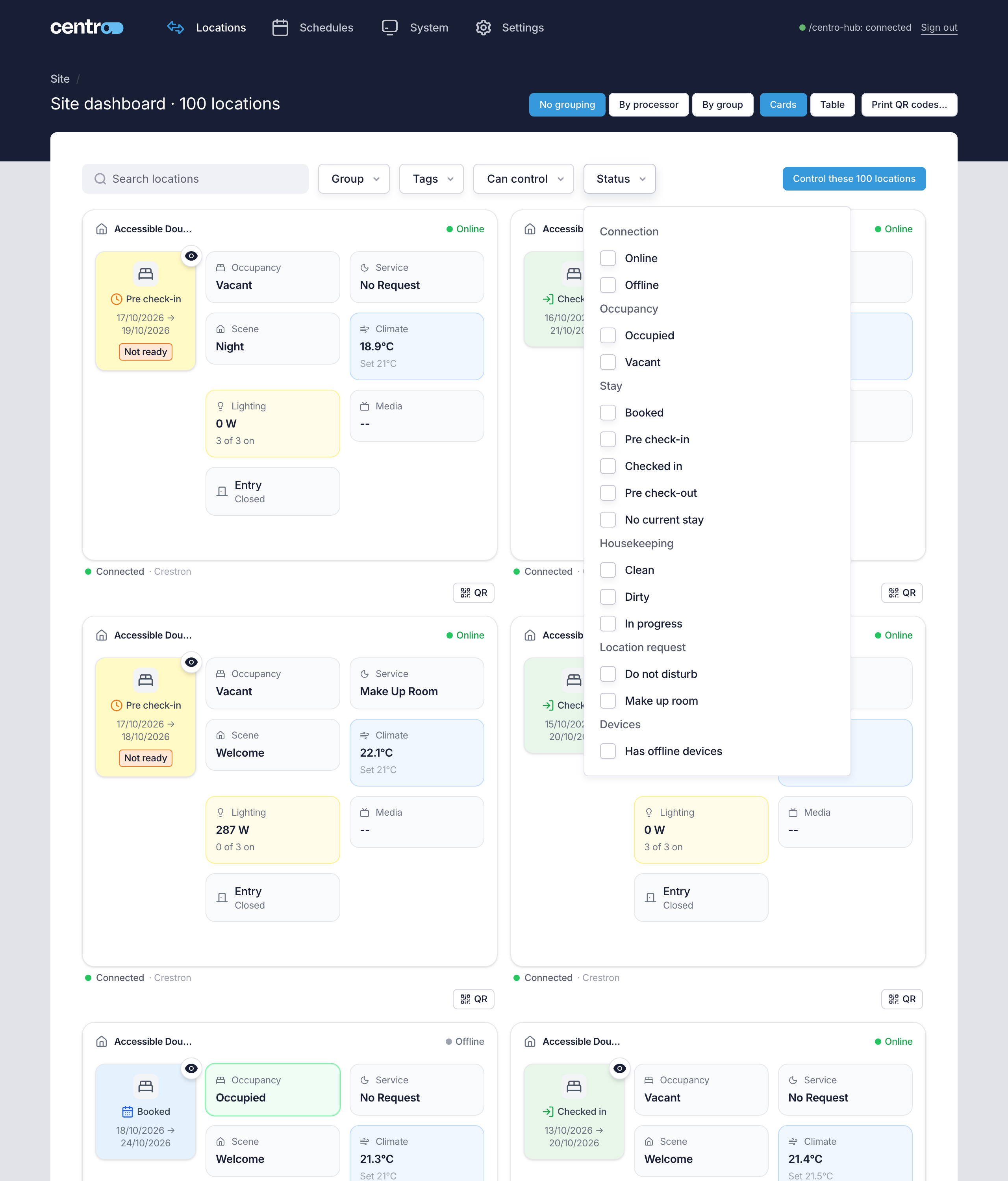
| Filter | Shows |
|---|---|
| Search locations | Locations whose name, group, reference or tags contain what you type |
| Group | Locations in any of the groups you tick |
| Tags | Locations with any of the tags you tick |
| Can control | Locations that accept any of the commands you tick: Climate, Lighting, Shades, Scene or Housekeeping |
| Status | Locations by Connection (Online, Offline), Occupancy (Occupied, Vacant), Housekeeping (Clean, Dirty, In progress), Location request (Do not disturb, Make up room) or Devices (Has offline devices). When stays are switched on, it offers Stay too |
To find every location that has asked to be made up, select Status and tick Make up room. To find every location with a device offline, tick Has offline devices.
When you filter by occupancy, housekeeping or location request, the dashboard reads every location's state first, which takes a moment on a large site.
Select Clear filters to see every location again.
Send a command to the locations you've found
Control these N locations sends one command to every location the filters show, or to the rows you tick in the table. See Bulk commands.
What the dashboard remembers
The dashboard remembers your choice of cards or table and your grouping. It keeps them for your username in the browser you're using, so a shared front-desk computer opens in each person's own view. Filters and ticked rows aren't remembered.
Who can do what
People sign in as an Administrator or as a Manager (see Administrators). An Administrator can do everything. What a Manager can do depends on four switches under Settings → Settings → General, in What Managers can do (see General).
| Task | Administrator | Manager |
|---|---|---|
| See the dashboard and open a location | Yes | Yes |
| Control a location | Yes | Yes, unless Managers can run commands is off |
| Send a command to many locations | Yes | Yes, unless Managers can run group commands is off |
| See connection information: the connection line, By processor, the System page and connection pages | Yes | Only if Managers can see connection information is on. It's off to start with |
| See schedules | Yes | Yes |
| Add, change, turn on or off and delete schedules | Yes | Only if Managers can edit schedules is on. It's off to start with |
| See and print User App QR codes | Yes, with a User App Licence | Yes, with a User App Licence |
| See stays, and check users in and out | Yes, while stays are switched on | As an Administrator sets under Settings → Settings → Stays. See Stays |
| Open Settings | Yes | No |
Without a Manager Licence
The dashboard, location control, schedules and location alerts need a Manager Licence. Centro System Manager for Crestron starts with a 30-day trial, and a banner on every page counts the days down.
- During the trial everything on these pages works.
- When the trial ends the locations become read-only for 30 days. You can still see every location, but the controls and Control these N locations are gone, and schedules don't run.
- After that the dashboard is hidden. Schedules leaves the navigation, and the dashboard's pages show Locations needs a Manager Licence. The System page and Settings keep working, and connections keep reporting, so the locations come back as soon as an Administrator adds a licence key.
The locations themselves don't need a licence. An Administrator can create and change them under Settings → System → Locations without one.
With only a User App Licence
A processor with a User App Licence and no Manager Licence keeps Locations in the navigation. It opens a plain list, Locations · N, in place of the dashboard: each location with its QR button, a search field, the locations by group and Print QR codes…. It shows no state and has no controls. Administrators also see Add a Manager Licence, which opens the Licence page.