Print QR codes
Start with the Quick guide: Give users a QR code.
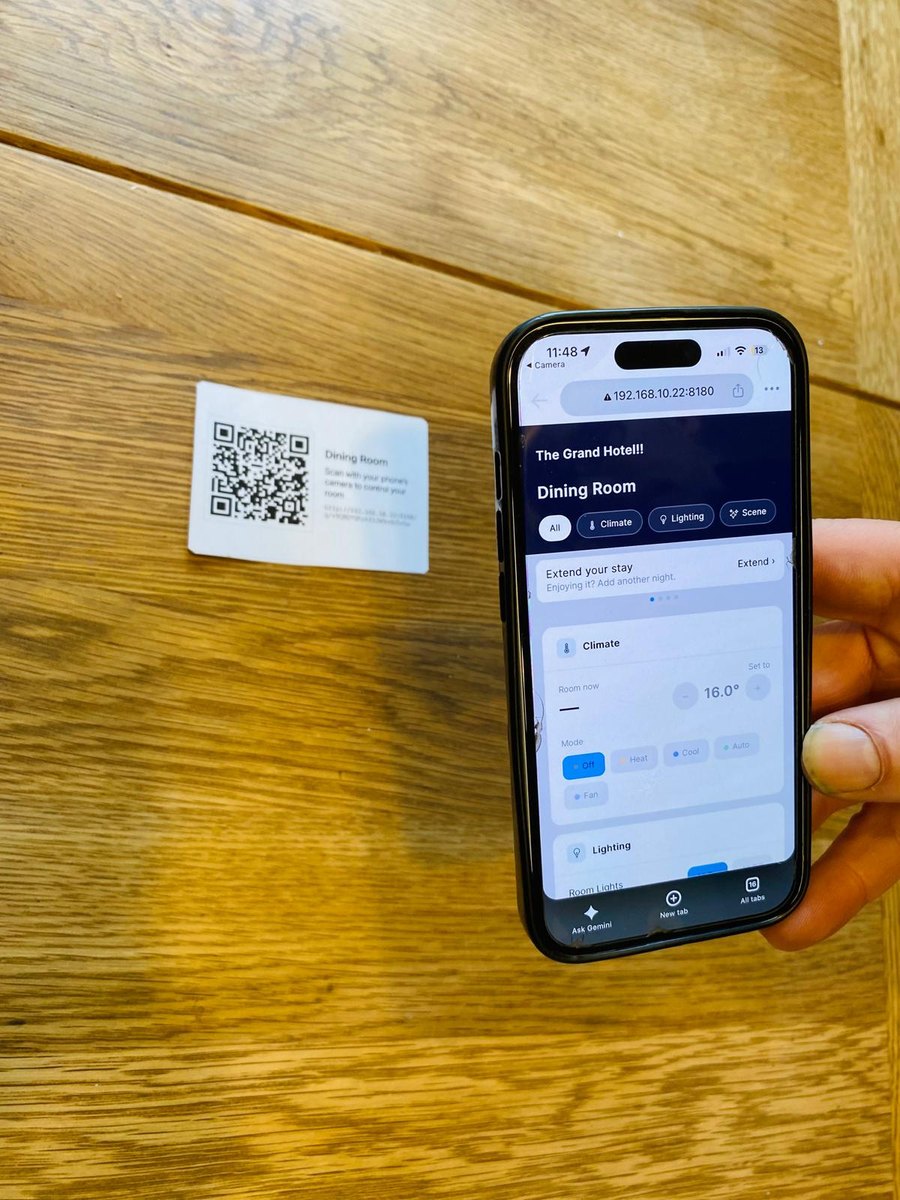
Print a card for each location that a user scans to open the User App. You can print one location, a group of locations or the whole site, download the codes for a designer or print shop, and copy a location's link to send to a user who can't scan.
User App access needs the User App Licence. See Licensing and editions.
Administrators and Managers can both print. Replacing a code and signing users out are for Administrators only. See Who can see and print the codes.
Before you print
- Give the processor a fixed address. Printed codes hold the processor's address and stop working if it changes. See Give the processor a fixed address.
- Decide which code to print. The Fixed code stays the same, for a card left in the location. The Session code is replaced every time it's printed, for a card handed over at check-in. See User App QR codes.
- Set up the card's look. The card takes your logo, site name and colours from Appearance. See What the card shows.
Print many locations
- Open the Locations page (Locations in the top navigation).
- To print only some locations, switch to the Table view and tick them first.
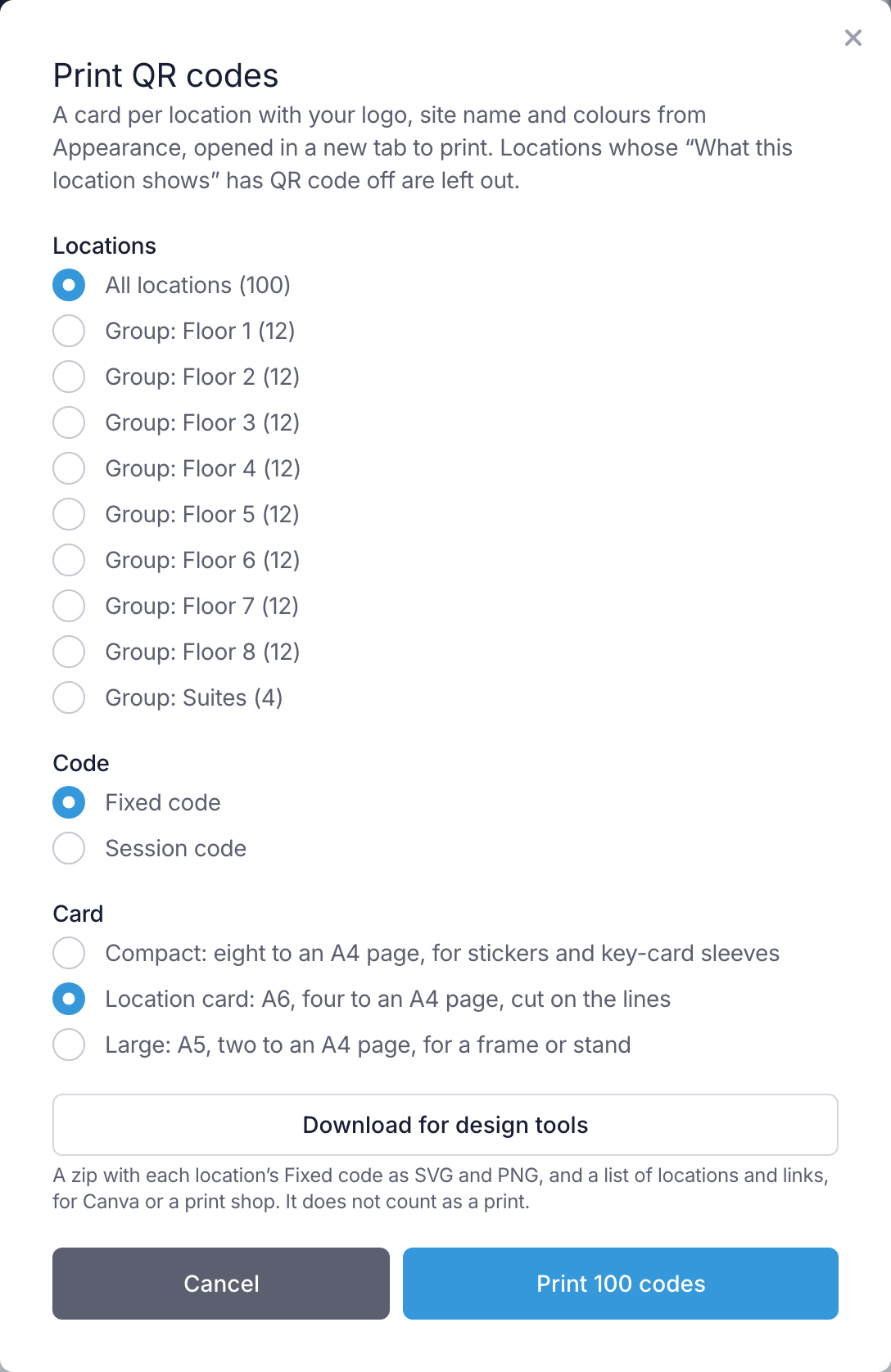
- Select Print QR codes….
- Under Locations, choose All locations, Selected locations or one group. The number beside each choice is how many cards it prints.
- Under Code, choose Fixed code or Session code.
- Under Card, choose the size. See Card sizes.
- Select Print n codes.
The cards open in a new browser tab and the browser's print dialog opens over them.
Other places to start from:
- One group. With the Locations page grouped, select Print QR codes for this group on the group's heading.
- Settings → System → Locations has the same Print QR codes… button, and the same button on each group.
One print takes up to 500 locations. For a larger site, print a group at a time.
When you choose Session code, the dialog warns: Printing makes a new code for each location; the previous user loses access. Every location in the print gets a new code, the cards printed before stop working and the users holding them are signed out. Print it for the locations that are changing user, not for the whole site.
Locations that are left out
A location isn't printed, and has no QR button, when:
- QR code is off under What this location shows on the location, or
- Show on the Locations page is off on the location.
If no location offers a QR code, Print QR codes… doesn't appear.
Card sizes
| Card | Size | For |
|---|---|---|
| Compact | Eight to an A4 page | Stickers and key-card sleeves. |
| Location card | A6, four to an A4 page, cut on the lines | The usual card. This is the size you start with. |
| Large | A5, two to an A4 page turned sideways | A frame or a stand. |
The size you choose is remembered in this browser. You can also change it on the print tab, without making the codes again.
Choose A4 paper in the browser's print dialog.
What the card shows
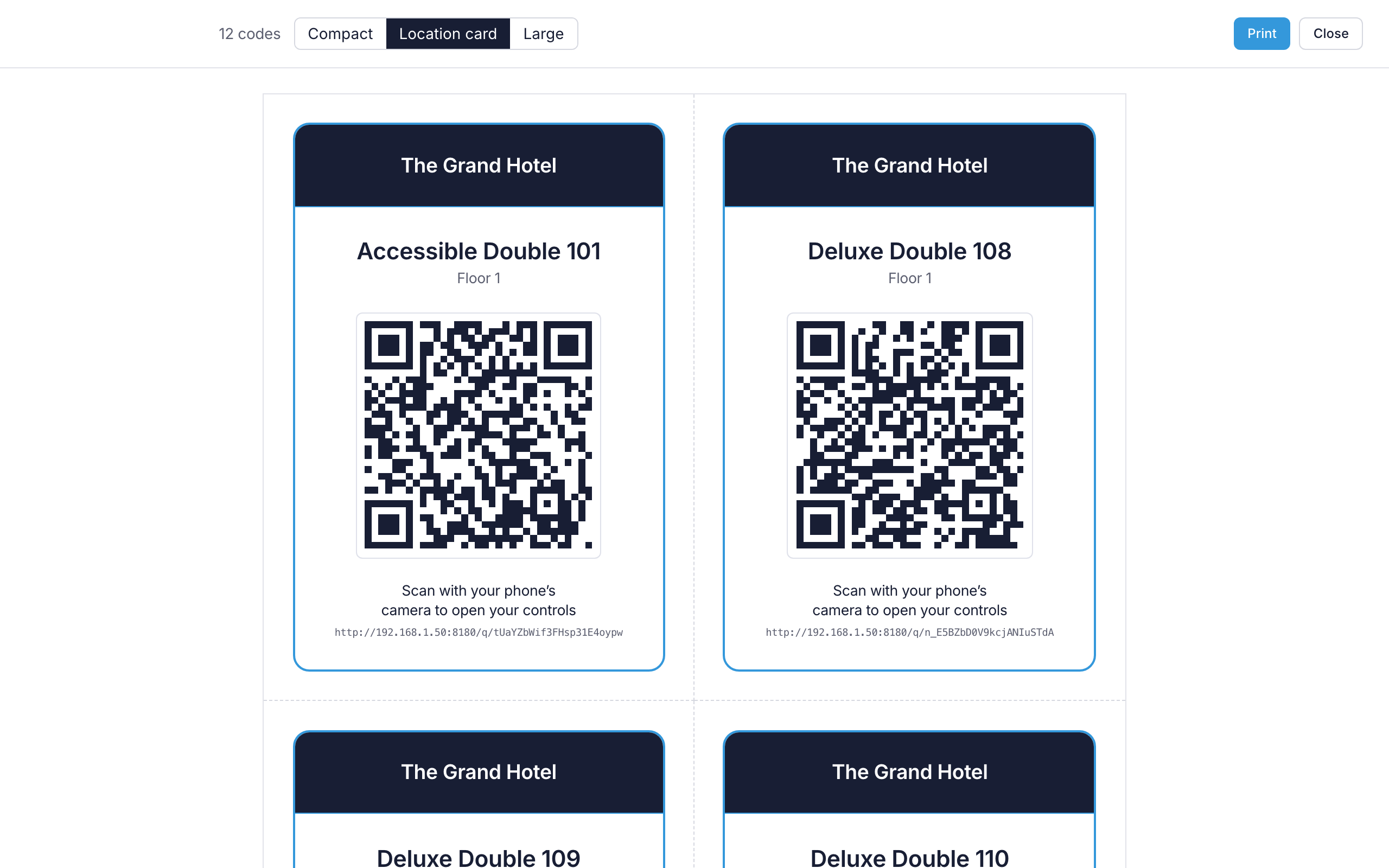
Each card has:
- A band across the top in the Header background colour, with your logo. The site name sits under the logo, or in the band when there's no logo. With neither, the card has no band.
- the location's name, and its group underneath
- the QR code, with the QR code logo in the middle if you uploaded one
- Scan with your phone's camera to open your controls
- the User App link written out, for a phone that can't scan
- a border in the Primary colour. A colour too pale to show on white paper prints grey.
All of these come from Settings → Settings → Appearance. See Appearance.
You don't need to reprint after adding or changing the QR code logo. The logo is drawn over the code and doesn't change what the code holds, so cards already printed keep working. Reprint only if you want the new look on the cards.
The print tab
The tab is titled User App QR codes, with the number of codes. The bar at the top isn't printed. Its Print button opens the print dialog again, and Close closes the tab.
Things to know about the tab:
- Reloading it shows the same codes. It doesn't make new ones, so it's safe to reload if the printer jams.
- After printing the Session code, the tab reminds you that the codes printed before for these locations no longer work.
- If the tab doesn't open, the browser has blocked it as a pop-up. The page says so. Allow pop-ups for the processor's address, then print again.
- If it reads "There is nothing to print here", the tab was opened by hand or the print was already made in another tab. Close it and use Print again.
Download for design tools
To have cards designed and printed elsewhere, select Download for design tools in the Print QR codes dialog. It downloads a zip with:
- each location's Fixed code as an SVG file and as a PNG file
- a list of the locations, with each one's group, link and file names, as a CSV file.
It's for Canva or a print shop. The download only reads the codes: it doesn't count as a print, and nothing changes for users.
It's offered for the Fixed code only, since a Session code changes every time it's printed. A location whose code couldn't be read is left out, and the dialog names it.
Print or copy one location's code
On the Locations page, select QR on the location's card or its row in the table.
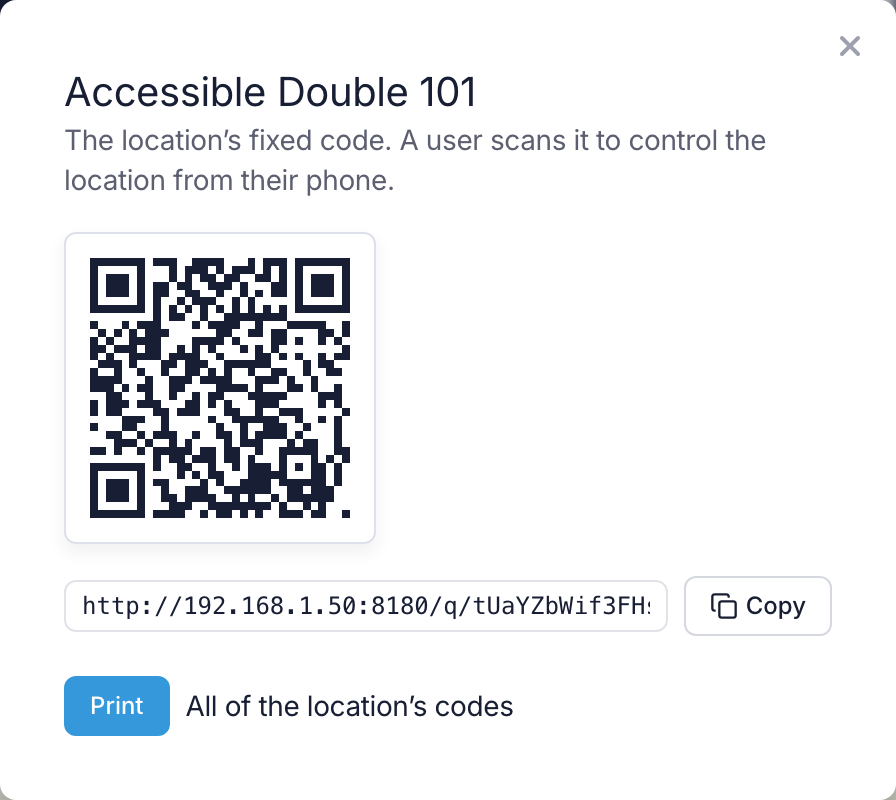
The dialog shows the location's Fixed code. From here:
- Print prints a single card.
- Copy copies the User App link, to send to a user by message or email. The user's phone still has to be on the site's network to open it.
- All of the location's codes opens the location's settings, where the User App access tab has all three codes. Only an Administrator sees this link.
To print one location's Session code, an Administrator opens the location's User App access tab and selects Print beside Session code. A confirmation comes first — Print a Session code? — because the previous user loses access.
After printing
The location's User App access tab shows when each code was last printed, and the Session code's Code number goes up by one with each print. Use them to check which card is the current one.