Give users a QR code
A user opens the User App by scanning a QR code for their location. This page prints one location's card to leave in the location.
You need: to be signed in, as an Administrator or a Manager, on a processor with a User App Licence. The processor should have a fixed address: printed codes stop working if it changes.
- Open the site dashboard (Locations in the top navigation).
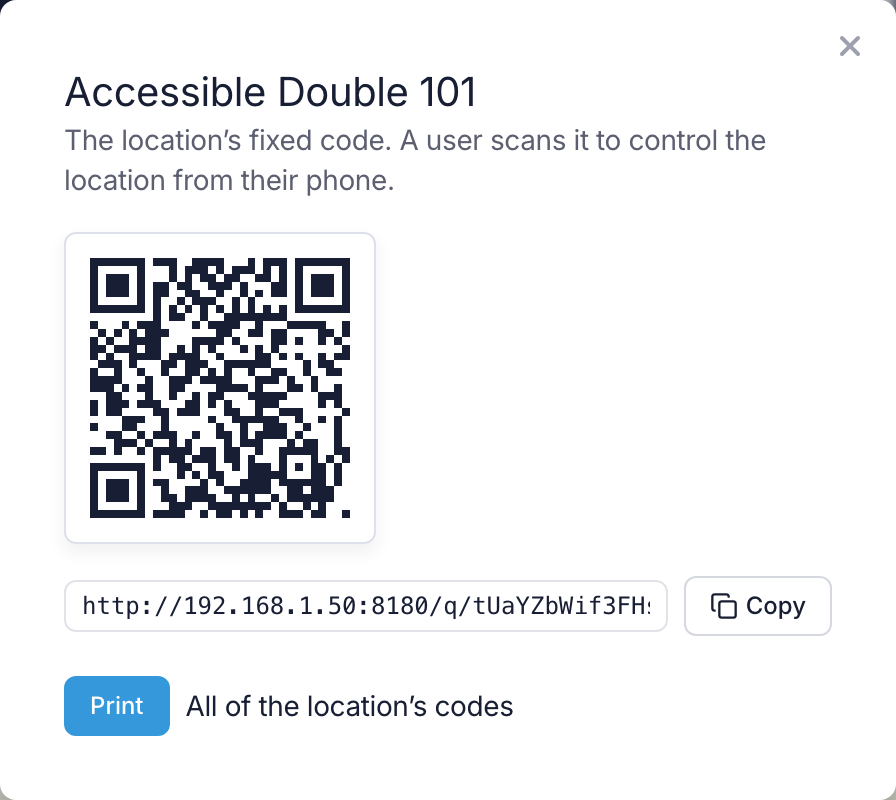
- Select QR on the location's card. The dialog shows the location's Fixed code.
- Select Print. The card opens in a new browser tab and the browser's print dialog opens over it.
- In the browser's print dialog, choose A4 paper and print.
- Cut out the card and leave it in the location.
You should now see a printed card with your logo or site name in a band at the top, the location's name, the QR code, "Scan with your phone's camera to open your controls" and the link written out. The card is A6, four to an A4 page, unless you chose another size in this browser before. A user who scans it stays signed in for 24 hours from the scan.
The user's phone has to be on a network that can reach the processor. If the tab doesn't open, the browser has blocked it as a pop-up: allow pop-ups for the processor's address, then print again.
More detail: User App QR codes — the three kinds of code and what stops one working — and Print QR codes — printing a group or the whole site, and the other card sizes.