Find a location and see its state
The site dashboard shows every location on the site and what it's doing now. It's the first page you see after signing in.
You need: to be signed in.
- Select Locations in the top navigation.
- Type the location's name in Search locations. The dashboard shows the locations whose name, group, reference or tags contain what you type.
- Read the location's card. It shows whether the location is Online or Offline, its Occupancy, the user's Service request, the Scene, the Climate, the Lighting and the Shades. An amber line under the card names any device that's offline, such as Thermostat offline.
- To find locations by what they're doing, select Status and tick a choice. Tick Make up room to find every location that has asked to be made up, Dirty to find every location waiting to be cleaned, or Has offline devices to find every location with a device offline.
- Select Clear filters to see every location again.
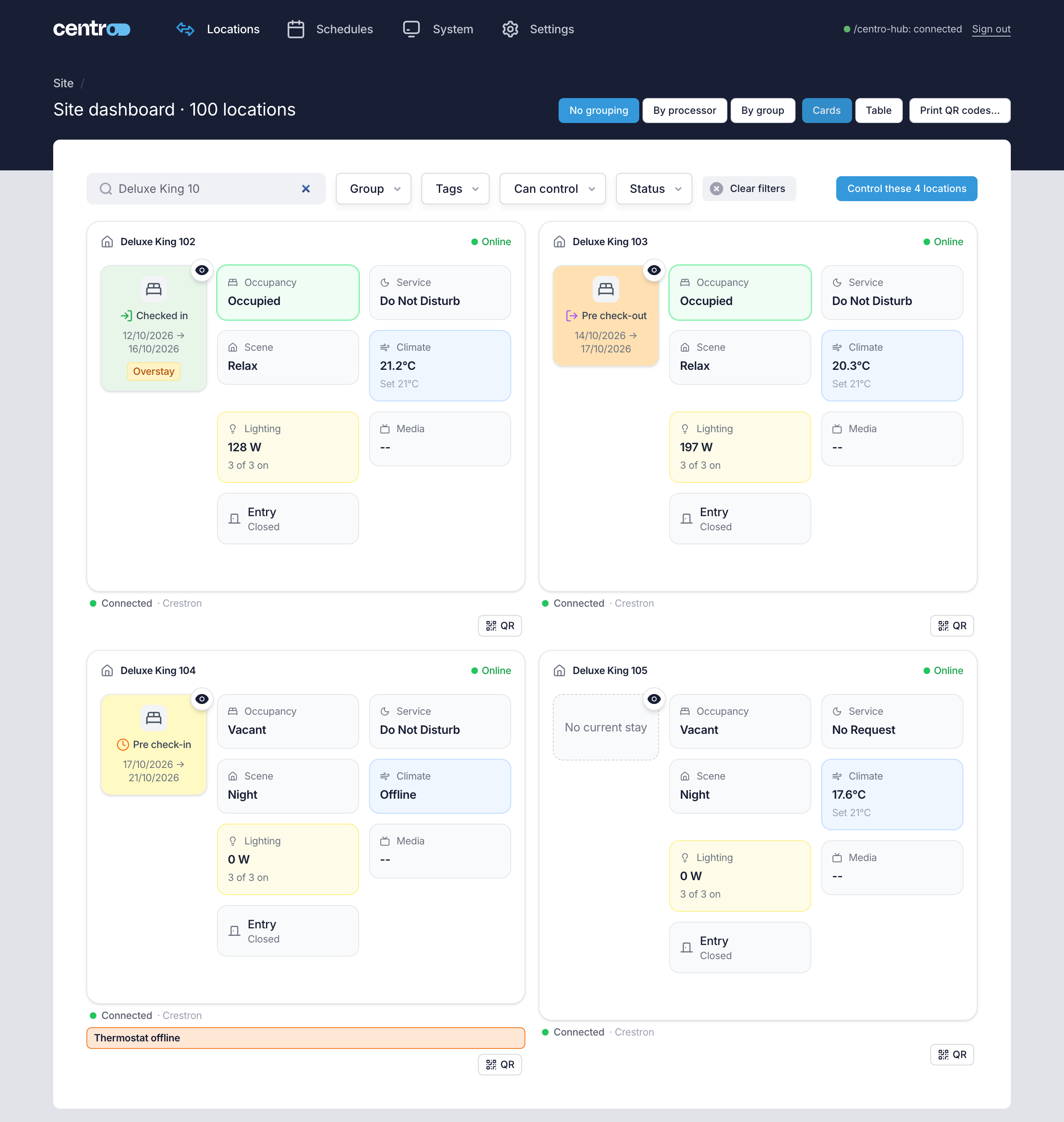
You should now see only the locations that match your search and filters, each card updating by itself as the location changes.
When stays are switched on, each card also shows the location's stay, and Status can find locations by their stay. See Stays.
Next: Control a location.
More detail: Site dashboard — the table view, grouping by floor or processor and every filter.