Set up a schedule
A schedule sends commands to locations at a set time. This page turns the lights off in every location at 23:30 every day.
You need: to be signed in as an Administrator. Managers can add schedules only if an Administrator allows it — see Who can change schedules.
- Select Schedules in the top navigation.
- Select Add schedule.
- Enter a Name, such as "Lights off".
- Under Run, choose Daily and enter the time, 23 and 30.
- Select Add command.
- Under What, select Lighting and untick Power on.
- Under Where, select All locations.
- Select Add to schedule, then Add schedule.
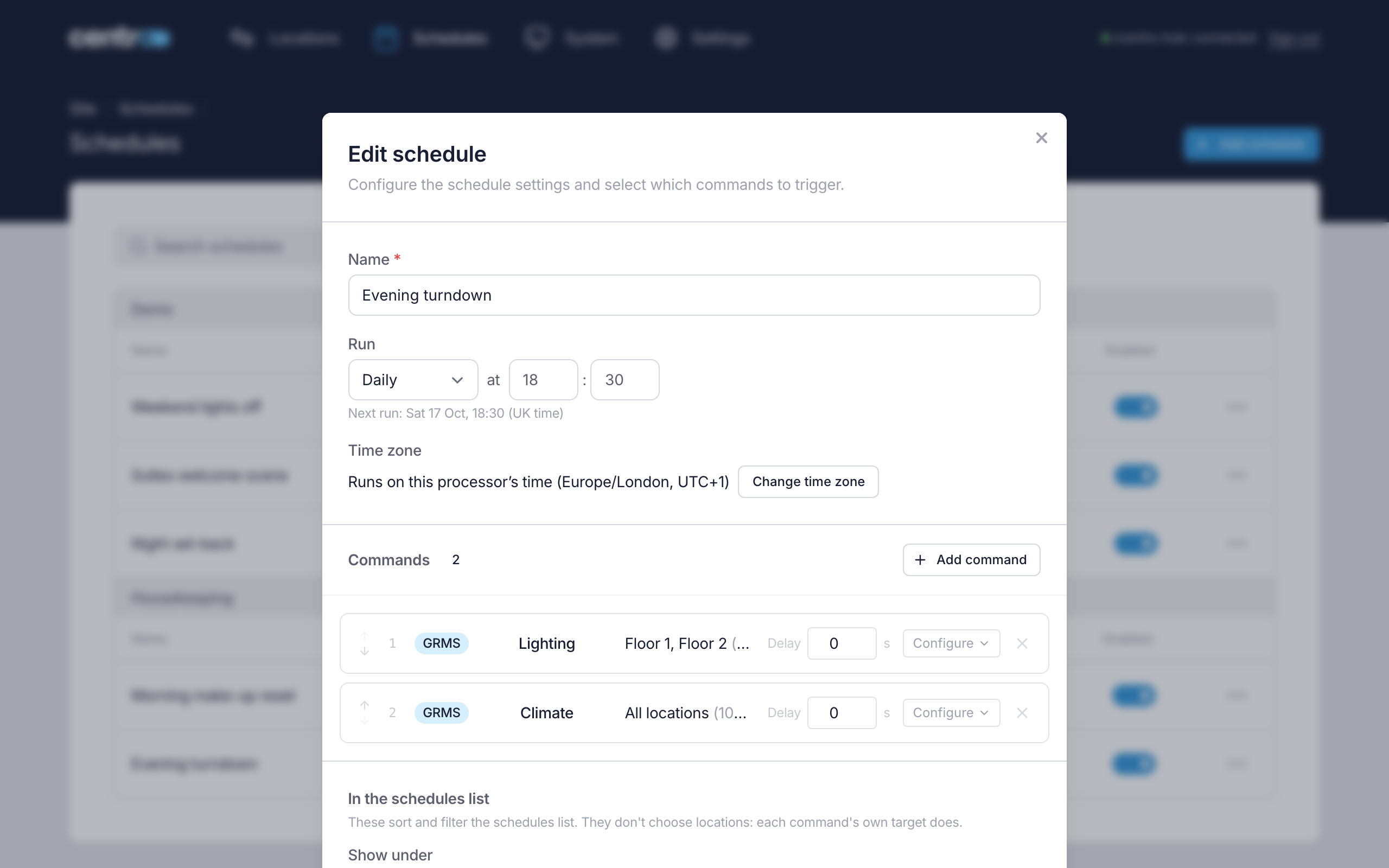
You should now see the schedule in the list, with when it runs and its next run. The new schedule is enabled straight away. To turn it off, use the switch in the Enabled column.
All locations means every location on the processor when the schedule runs, including locations added later. A location with Control in all locations schedule turned off is left out.
Next: Give users a QR code.
More detail: Schedules — other times, groups and tags, time zones and what a schedule did when it ran.