Stays
A stay is one user's time in a location, from check-in to check-out. With stays switched on, the site dashboard and each location's page show who is in each location, who is expected and when they leave, and staff can check users in and out.
Stays come from staff, from a property management system (PMS) through the stay API, or from Centro cloud, which LCD sets up on a site's behalf. An Administrator chooses which under Settings → Settings → Stays.
Before you start
Stays are off on a new processor. To use them you need:
- A Manager Licence, during its trial or licensed. Stays need no licence of their own.
- Stays switched on under Settings → Settings → General. See General.
- A source ticked under Where stays come from on Settings → Settings → Stays. Until one is ticked, no stays are shown. To check users in and out on this processor, tick Staff. See Where stays come from.
The stays a PMS sends through the stay API also need an API Licence and an API key. See Stay API.
What a stay can be
Each location shows one of five states. The same words are used on the tile, in the table, in the pop-up and in the Stay filter.
| State | What it means |
|---|---|
| Booked | Nobody is in the location today. A user is expected on a later day |
| Pre check-in | A user is expected today and hasn't checked in yet |
| Checked in | A user is in the location |
| Pre check-out | The user is due to leave today |
| No current stay | Nobody is in the location and nobody is expected |
Two badges can appear with the state:
- Not ready — a user arrives today and the location isn't clean.
- Overstay — the user should have left and hasn't been checked out.
Read a stay
On the dashboard
Each location's card has a stay tile on the left. It shows the state and the dates, for example "14/10/2026 → 17/10/2026". A location with nothing current or expected shows a dashed No current stay tile.
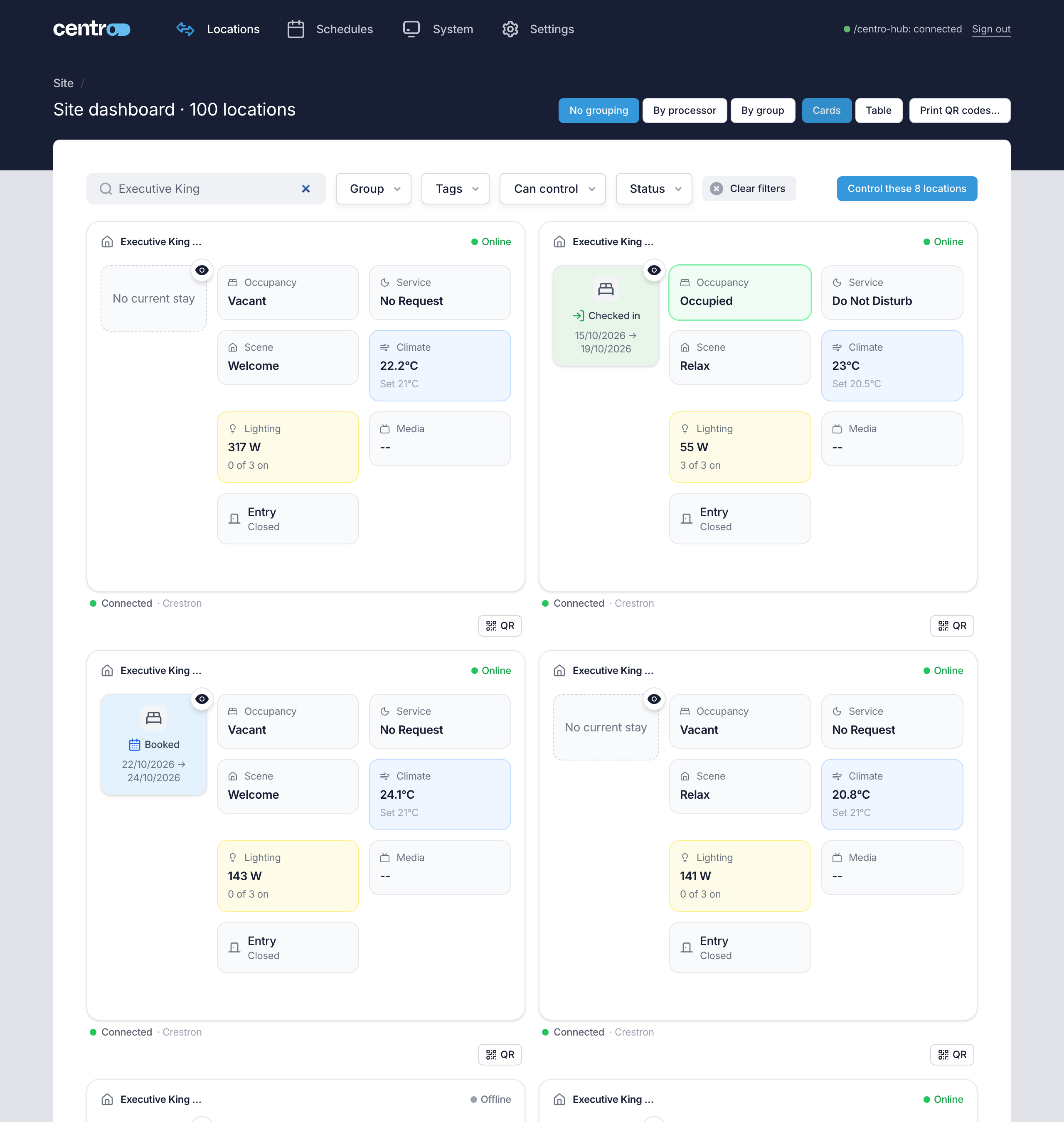
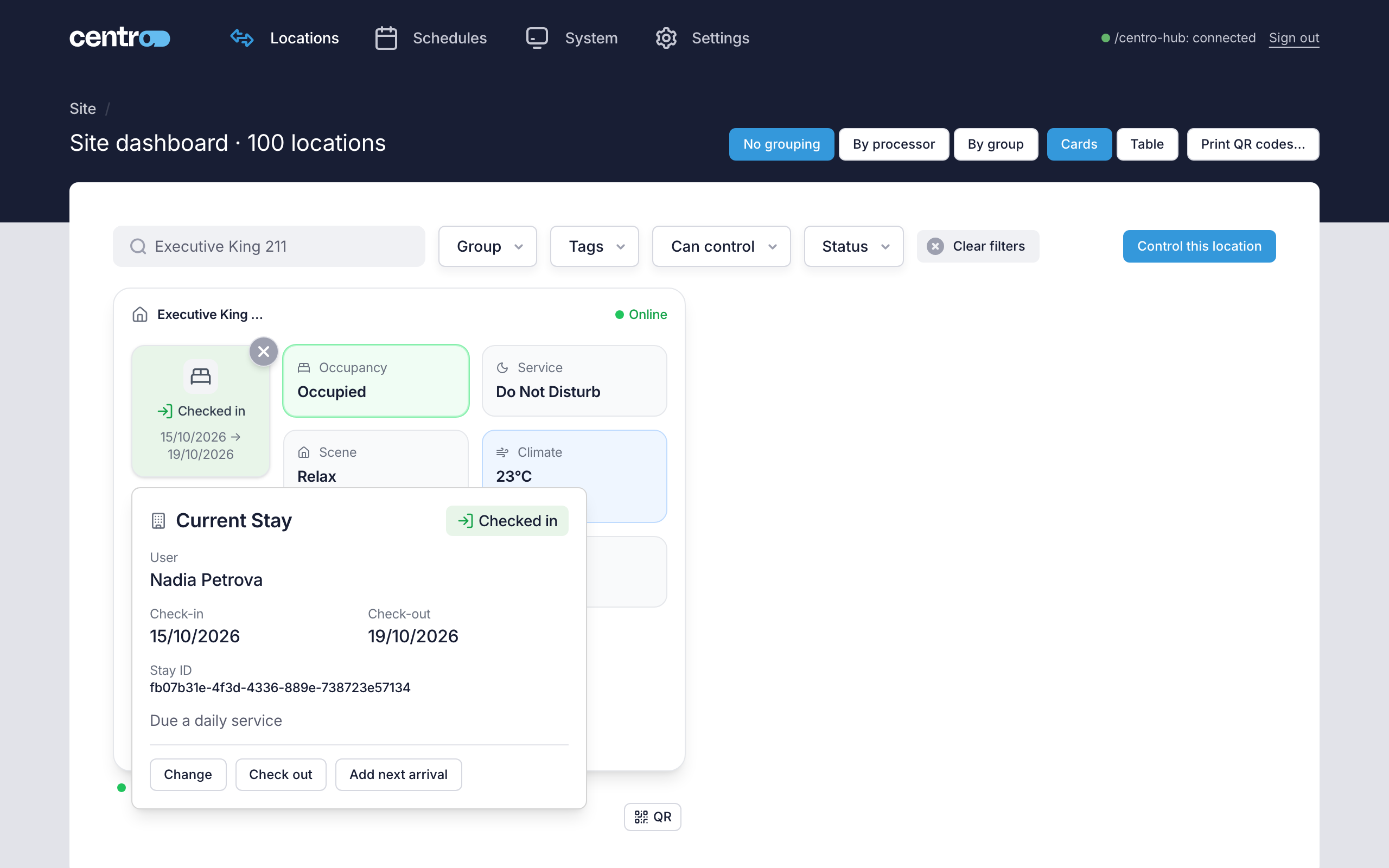
To see more, select the eye button in the corner of the tile. It opens the Current Stay pop-up. Selecting the tile itself never opens the location. The eye button is there only when there's something to show or do.
The location's own page has the same tile, above its status.
In the table
In the table view, the stay column follows the location's name. Each cell has the state, with Not ready or Overstay, the user's name and the dates, such as "14/10/2026 to 17/10/2026", "Until 17/10/2026" or, for a booked location, "Expected 20/10/2026".
Select the cell to open the stay inside the row. Only one row is open at a time. Select the cell again, or press Escape, to close it.
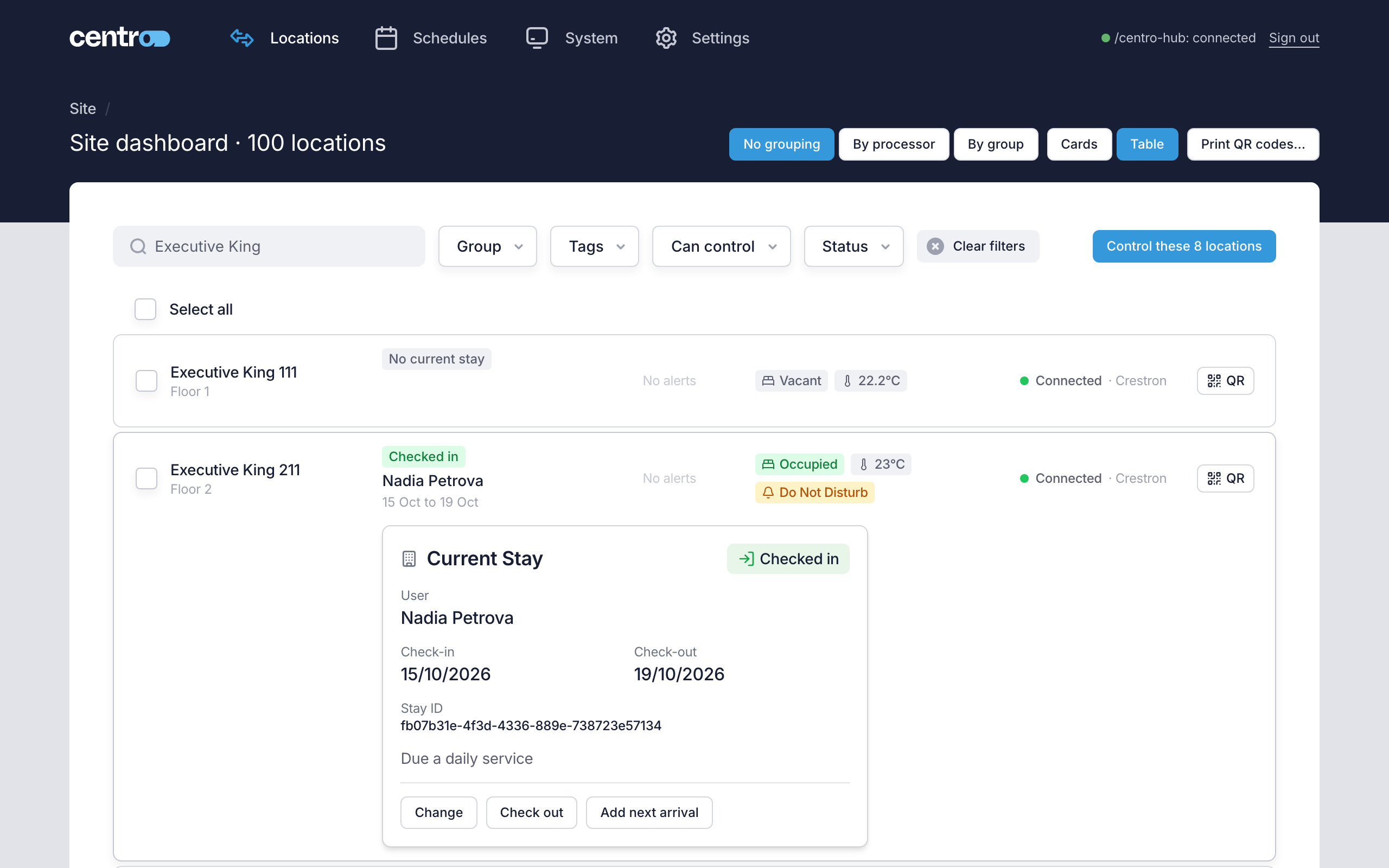
The Current Stay pop-up
Current Stay shows:
- the state, with Not ready or Overstay
- User, the user's name
- Check-in and Check-out, the dates
- From the PMS, when the stay came from the stay API or Centro cloud
- Stay ID, the PMS's own reference when it has one
- the next arrival, if there is one, for example "Next: Ann Lee, arriving 18/10/2026"
- a line that says whether the location is ready:
| Line | When |
|---|---|
| Ready to let | Nobody is in the location and it's Clean |
| To be cleaned | Nobody is in the location and it's Dirty |
| Ready for the user | A user is expected today and the location is Clean |
| Due a daily service | A user is checked in and the location is Dirty, from the day after check-in |
Under them are the buttons you're allowed to use.
Check a user in
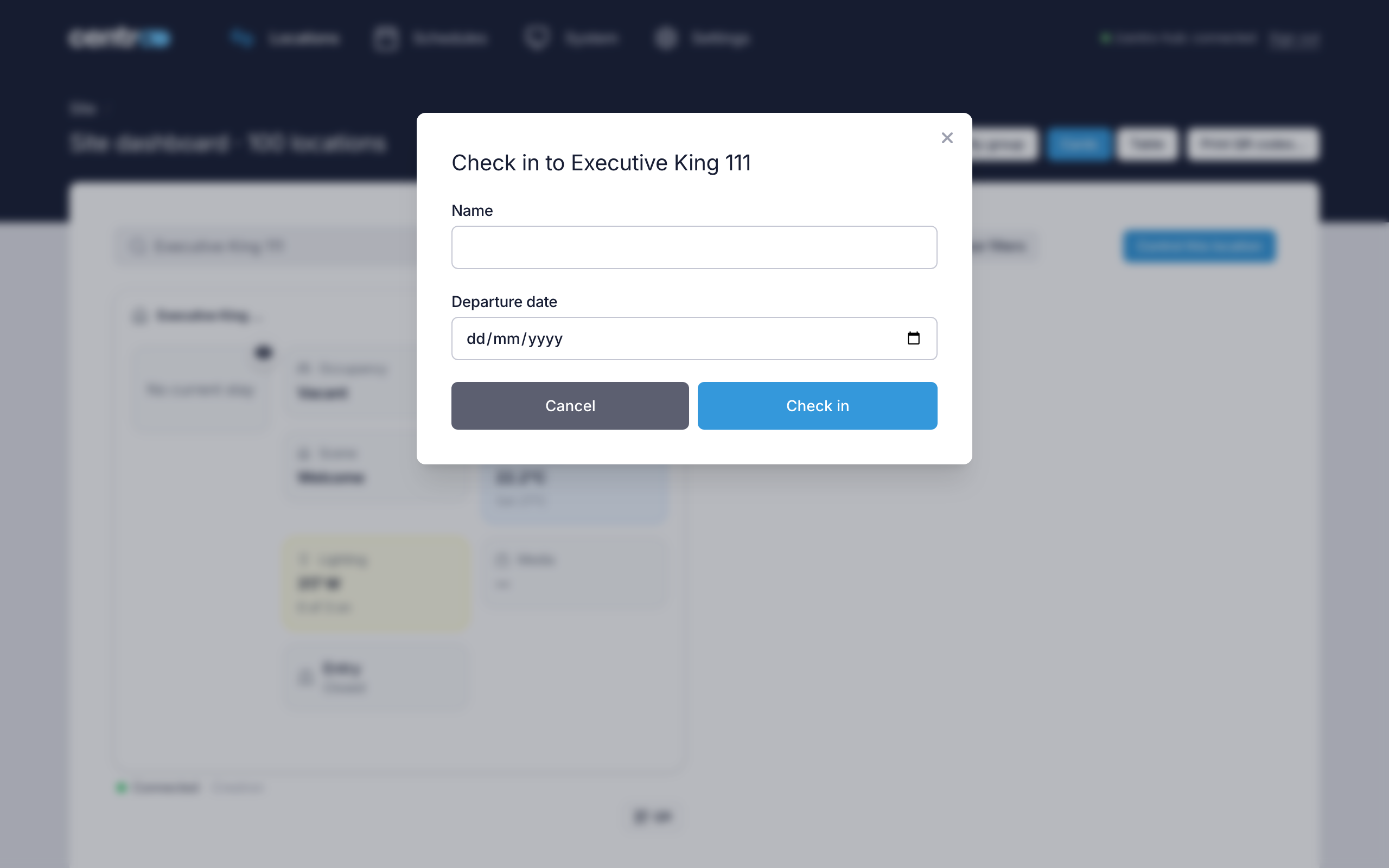
To check in a user who has just arrived:
- Open the location's Current Stay pop-up.
- Select Check in.
- Enter the user's Name and the Departure date.
- Select Check in.
The arrival is today. The location shows Checked in.
If the location already has an expected arrival for today, Check in checks in that user. Leave the name blank to keep the one already entered.
A stay the PMS reserved is never checked in here: the PMS checks the user in.
Change a stay
To change the name or the departure date of a user who is checked in, select Change, make the change, then select Save changes.
If a later departure would run into the location's next booking from another source, the dialog says so, for example "This stay would run into a booking from the stay API arriving 20/10/2026. Change or cancel that booking first." Save changes stays greyed out until you choose an earlier date. Leaving on the day the next user arrives is allowed.
Check a user out
- Select Check out.
- Read what will happen, then select Check out.
The dialog lists what happens with the settings this site uses: the stay ends now and, depending on Settings → Settings → Stays, the location is marked Dirty, Do not disturb and Make up room are cleared, and the user is signed out of the User App. Touch screens stay signed in.
Expected arrivals
An expected arrival tells staff and the location who is coming before they check in.
- Select Add expected arrival. On a location with a user checked in, the button reads Add next arrival.
- Enter the Arrival date and the Departure date, and the user's name if you know it.
- Select Add.
An arrival today makes the location Pre check-in. An arrival on a later day shows as Booked, with "Expected" and the date. On a location with a user checked in, it becomes the next arrival.
An expected arrival can't be changed. To change one, select Cancel expected arrival (or Cancel next arrival), select Cancel it, then add it again.
Stays the PMS holds
A stay belongs to the source that sent it. While a stay from the PMS is current, the location is held by the PMS until check-out, and staff can't change it here. The pop-up reads The PMS holds this location. Change the stay in the PMS. in place of the buttons. When the next arrival comes from the PMS, it reads The next arrival comes from the PMS. Cancel it in the PMS.
On a held location, staff can still add a next arrival behind a PMS stay that's checked in, and check in or cancel an expected arrival they entered themselves.
When the PMS can't be reached, an Administrator can turn on Staff can change stays sent by the PMS under Settings → Settings → Stays. Staff then get the usual buttons on the PMS's stays too.
The holding works the other way as well. While Staff is ticked, a stay that staff entered holds its location in the same way: when the PMS sends a stay for that location, it's refused, and the A stay was refused: the location is held by another source alert is raised for the location.
A source that isn't ticked holds nothing. If Staff is unticked and the PMS then checks a user in where staff had checked someone in, the PMS's stay takes over: the staff's stay ends, with no check-out rules run, and the Stay taken over by the PMS alert is raised.
Find locations by stay
On the site dashboard, select Status and tick a state under Stay, for example Pre check-in to see every arrival today. Combine it with Housekeeping to find the arrivals whose location isn't Clean yet. See Find locations.
Stay alerts
Three alerts come from stays. They show on the location's page and the dashboard like any other alert, and can be emailed (see Email).
| Alert | When | Emailed to start with |
|---|---|---|
| Location not ready | A user arrives today and the location isn't clean. It clears when the location is | No |
| Stay taken over by the PMS | The PMS checked a user in where staff had checked someone in, while Staff wasn't ticked. It goes after 24 hours, or when the PMS's stay ends | Yes |
| A stay was refused: the location is held by another source | A source sent a stay for a location another source holds. It goes after 24 hours, or when the stay that holds the location ends | Yes |
Who can do what
Nobody, Administrators included, can check users in or out, change a stay or enter an expected arrival unless Staff is ticked under Settings → Settings → Stays. Nobody can while the Manager Licence is read-only.
| Task | Administrator | Manager |
|---|---|---|
| See stays | Yes | Only if Managers can see stays is on |
| See users' names | Yes | Only if Managers can see names is on. Otherwise the pop-up reads "Names are shown to Administrators only." |
| Check in, change a stay, check out | Yes | Only if Managers can check in and out is on |
| Add and cancel expected arrivals | Yes | Only if Managers can enter expected arrivals is on |
These switches are under Settings → Settings → Stays. See Manager role.
Stays in the User App
With a User App Licence, the User App shows the user their stay dates, and on the day they leave says so. It shows their name only when Show the name in the User App is on under Settings → Settings → Stays, and never to a user who scanned a Fixed code. When End sessions at check-out is on, checking a user out signs their phone out of the User App. See User App.
If something goes wrong
| Message | What to do |
|---|---|
| Stays are switched off in General Settings. | An Administrator turns Stays on under Settings → Settings → General |
| Staff can't enter stays: Staff is not ticked in Settings → Stays. | An Administrator ticks Staff under Where stays come from |
| This stay was sent by the stay API and can't be changed here. | The location is held by another source. Change the stay where it came from |
| This location already has someone checked in. | Check the current user out first, or select Change |
| Your role cannot check users in or out. | Ask an Administrator to turn on Managers can check in and out |
| The licences on this processor do not allow this. See the Licence page. | Stays need the Manager Licence, during its trial or licensed. See Licensing and editions |
In Demo mode, the demo locations always show stays, whatever the Stays switch says.