Load the program
Start with the Quick guide: Load the program.
Centro System Manager for Crestron is one Crestron program. You load it into a program slot on a 4-Series processor from the processor's own web pages, in a browser, the same way you load any other program. Nothing is compiled on site.
This section then takes you through the rest of commissioning, in this order:
- Load the program (this page).
- First sign-in — open Centro System Manager for Crestron in a browser and deal with the certificate warning.
- Setup wizard — the steps the wizard walks you through.
- Activate a licence.
- Discover devices — find the local processors and touch screens on the network.
- Connect Crestron Home or Connect Crestron Custom — bring the locations in.
- Connection certificates — optional: make every location's connection prove who it is.
Before you start
You'll need:
- A supported Crestron 4-Series processor with a free program slot, on the same network as the local processors — see Requirements.
- A browser on a computer that can reach the processor.
- The program file, a
.cpz. Each release is on the Centro System Manager for Crestron downloads page, which the Download button on the Centro System Manager for Crestron pages at centro.network opens. - An administrator account on the processor. Authentication must be switched on at the processor: you sign in to Centro System Manager for Crestron with the processor's own accounts, and with authentication off nobody can sign in.
- The ports the program uses left free on the processor — see Ports and network.
Step 1 — Choose a slot
Pick the program slot the program will live in and keep to it.
- A licence is activated for the processor and the slot together. If you move the program to another slot later, the licence has to be moved too, and LCD support does that — see Activate a licence.
- The site's locations, schedules and settings are kept with the slot, separately from the program, so loading a newer program into the same slot keeps them.
Step 2 — Load the .cpz from the processor's web pages
- In a browser, go to the processor's address, for example
https://192.168.1.50, and sign in with the processor's administrator account. These are the processor's own pages, headed Device Administration, not Centro System Manager for Crestron. - Select Settings, then open Programs.
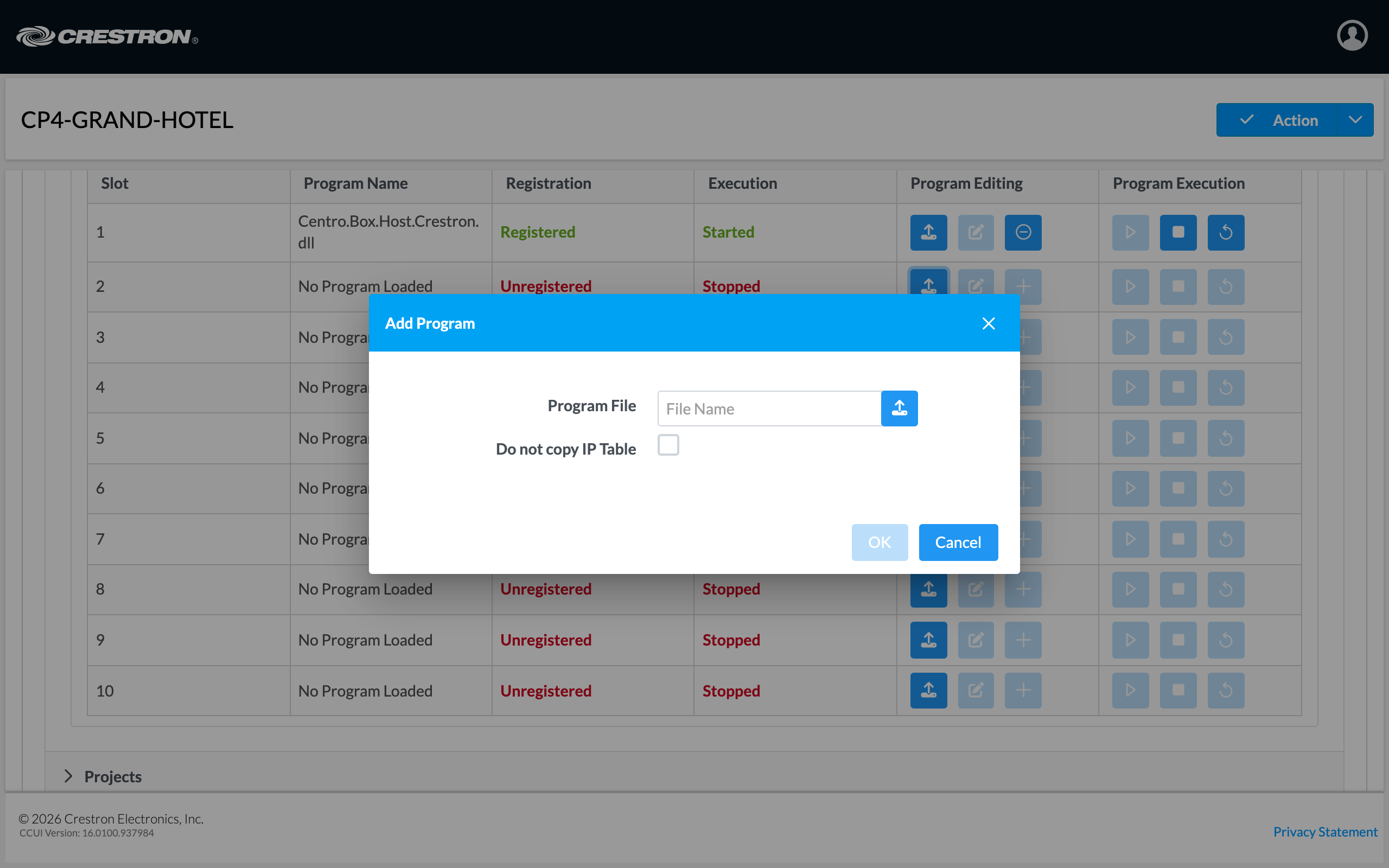
- Under Programs Slot Management, find the row for the slot you chose and select the upload button in the Program Editing column.
- In Add Program, select the upload button beside Program File and choose the
.cpz. - Select OK, and wait for the processor to load the program and start it.
Step 3 — Confirm it's running
On Programs Slot Management, the slot's row names the program, Centro.Box.Host.Crestron.dll, and reads Registered and Started. If it reads Stopped, select the start button in the Program Execution column.
To check from the processor's console instead, over SSH:
progcomments:1
Replace 1 with your slot number. The answer names the program and when it was built.
As the program starts it also prints one line to the console, and writes the same line to its log, that tells you where to find it:
Centro System Manager for Crestron ports: HTTPS 8443 (admin app, API, …) at https://192.168.1.50:8443/; …
The address after at is the one you open in a browser. The same line lists the other ports in use and where to download the processor's certificate.
Now carry on to First sign-in.
Later versions
You only need the processor's web pages for the first load. After that, load a newer program from the app itself:
- Go to Settings → Settings → Upgrade.
- Under Load a new version, drop the new
.cpzor select it. The processor checks the file first; checking changes nothing. - Enter a processor administrator's username and password. They're used once, to load the program into this slot, and aren't stored.
- Select Upgrade.
The processor takes a restore point, loads the program and restarts. Locations can't be controlled for about a minute.
Updates are free, and your licences keep working on every release. The same page also takes a newer Crestron Home driver or User App on its own, without loading a program or restarting anything. The Upgrade page covers the checks, the driver and User App uploads, going back to the previous version and what to do if the processor says it can't load programs itself.