Discover devices
Start with the Quick guide: Connect Crestron Home.
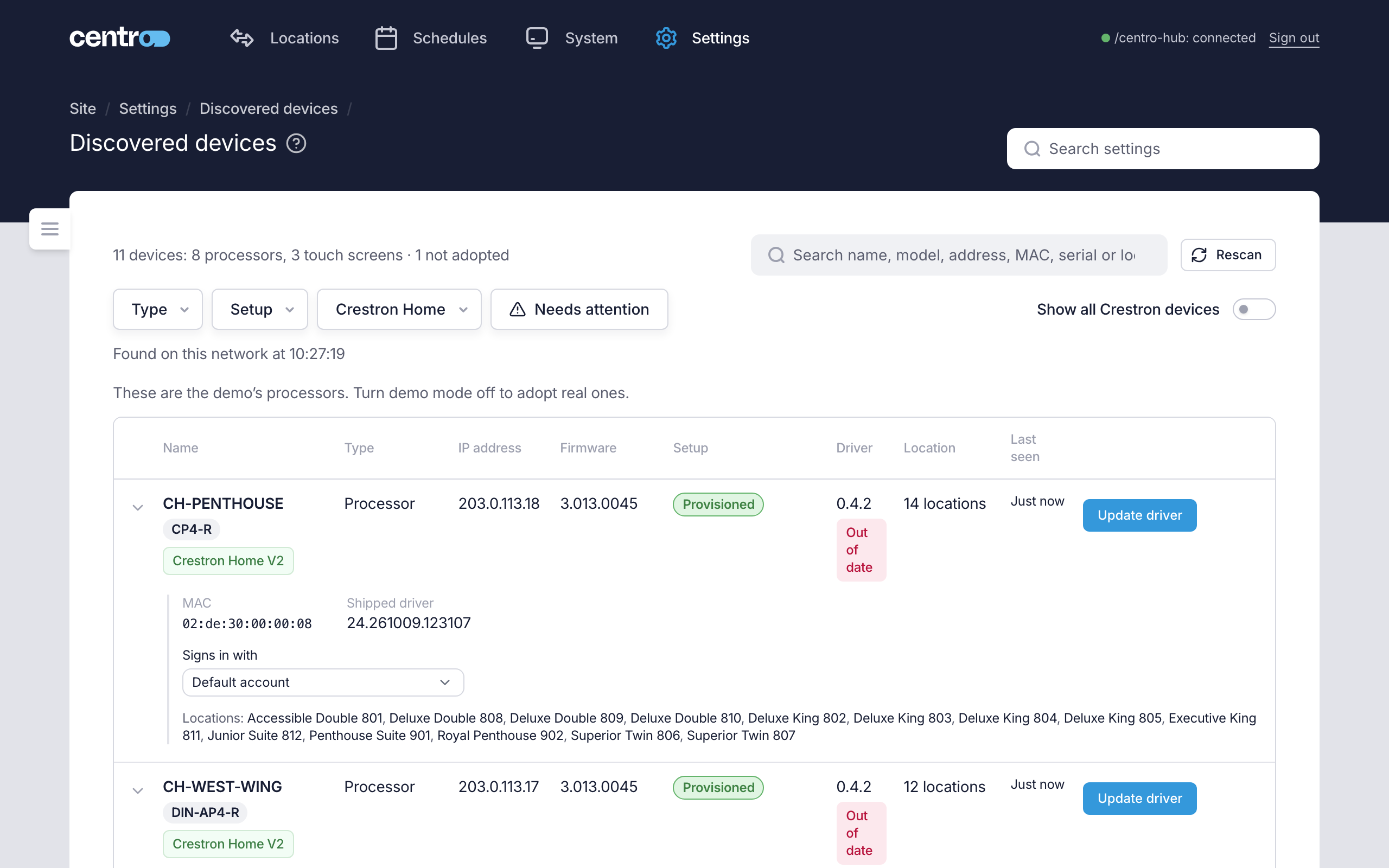
Settings → Deployment → Discovered devices lists the Crestron processors and touch screens on this processor's network, in one table. From here you adopt the ones the site uses, install the Centro driver on Crestron Home processors and set up touch screens. Only an Administrator sees the page.
Centro System Manager for Crestron looks for devices when you open the page. Rescan looks again. A scan asks every Crestron device on the network to answer and takes a few seconds. The line under the filters says when the devices were found, for example "Found on this network at 10:42:15".
A device only appears if it's powered and on the same network as this processor. If something is missing, check that and select Rescan. A device that discovery can't find — for example where the network blocks it — can be added by its IP address on Manual devices. It then shows here with an Added by hand tag.
What the table shows
Every device is one row — one row per MAC address, whatever the device is. The line above the table counts them, for example "12 devices: 4 processors, 8 touch screens · 3 not adopted". While filters are on, it starts with how many are shown, such as "5 of 12 ·".
| Column | What's in it |
|---|---|
| Name | The device's name, with its model. A Crestron Home processor also shows Crestron Home V2 or Crestron Home V1. |
| Type | Processor, Touch screen or Other Crestron device. |
| IP address | Where the device is now. If the scan found it at a different address from the one on record, the old one shows under it as "was …". |
| Firmware | The firmware the device reports. |
| Setup | How far it is set up — see The four stages — and, for a touch screen, its state, such as Online or Standby. |
| Driver | For a Crestron Home processor: the Centro driver version its locations report, or Not installed or Not confirmed, with Up to date or Out of date. |
| Location | The location a processor or touch screen is set to, or, for a Crestron Home processor, how many locations call in from it. |
| Last seen | When the touch screen, or the locations on a Crestron Home processor, were last heard from. |
The rows that need attention come first, then the ones not adopted, then the rest.
The details under a row
The arrow at the start of a row opens its details, labelled Details for and the device's name. A row that needs attention, or that a link opened the page on, starts open.
The details show the device's MAC and, where it was read, its Serial number. For a Crestron Home processor they also show:
- Shipped driver — the driver version Centro System Manager for Crestron would install.
- Pinned certificate — the short fingerprint of the certificate Centro System Manager for Crestron saw on the processor.
- Signs in with — the service account used for this processor. See Connect Crestron Home.
- Locations: — each location that calls in from it, linked to its connection's page.
- Any warning, such as Not reporting, and the Manual steps button where the driver has to be loaded by hand.
Search and filters
| Control | What it does |
|---|---|
| Search | Name, model, address, MAC, serial number or location. A MAC matches with or without : or -. |
| Type | Processor, Touch screen or Other Crestron device. |
| Setup | How far a touch screen or processor is set up: Not adopted, Adopted, Signed in or Provisioned. |
| Crestron Home | V2, V1 (manual only) or Not Crestron Home. A V2 processor takes the one-click driver install; a V1 processor needs the manual steps. |
| Needs attention | Only the devices someone should look at: a sign-in problem, a driver that is out of date or has stopped reporting, a driver still holding this processor's old certificate, a changed address, a deleted location, or a device that couldn't be read. |
| Clear filters | Shows every device again. |
| Show all Crestron devices | Off, the table holds processors and touch screens, and a line says how many other Crestron devices answered. Turn it on to see them all. |
A filter only appears when it has more than one choice to offer.
Other pages link here for one device — for example Open in Discovered devices on a touch screen's page. The page then opens with that device's MAC in the search and its row highlighted.
The four stages
Processors and touch screens move through the same four stages. The Setup column shows where a device is.
| Badge | Meaning for a processor | Meaning for a touch screen |
|---|---|---|
| Not adopted | It was found on the network and no record of it is kept. | The same. |
| Adopted | A record of it is kept, and it shows on the System and Connections pages. Nothing has been changed on the device. | The same. |
| Signed in | Centro System Manager for Crestron has signed in to it with a service account and read its details. | The same. |
| Provisioned | The Centro driver runs on it and its locations call in. | It shows its location's controls and User App QR code. |
A device doesn't have to pass through every stage. A Crestron Home processor whose locations already call in is Provisioned without ever being adopted by hand.
Extra badges beside the stage say what needs attention:
| Badge | What it means |
|---|---|
| Offline | The device isn't answering, or its locations have stopped calling in. |
| Standby | A touch screen whose display is asleep. It's still connected, and nothing is wrong. |
| No service account | There's no account to sign in to it with. |
| Sign-in not tried | Centro System Manager for Crestron hasn't signed in with this account yet. |
| Sign-in refused | The device refused the service account. It isn't tried again automatically, so the account isn't locked out. Check the account, then Refresh. |
| Account on hold | Another processor refused this service account, so it isn't used anywhere until it's edited. |
| Not reachable | The last sign-in didn't reach the device. |
| Address changed | The network scan found the device at a different address from the one on record. |
| No location | The device's location was deleted. |
| Not in User App mode | A touch screen is running a project or another app. Provisioning switches it to the User App and restarts it, after you confirm. |
| Install incomplete | The last driver install stopped, or finished and the driver hasn't called in yet. |
| Update available | A location on a Crestron Home processor runs an older Centro driver than the one Centro System Manager for Crestron carries. |
Adopt a processor
Adopting keeps a record of a local processor. Nothing is changed on that processor, and no licence is needed.
Step 1 — Find it
Find the processor's row. To see only the ones still to adopt, choose Processor under Type and Not adopted under Setup. Select Adopt on its row.
Step 2 — Fill in the dialog
| Field | What to enter |
|---|---|
| Location (optional) | Where the processor is, so it can be shown by location. |
| Service account (optional) | The account used to sign in to it. For a 4-Series processor, it's used to read the model, serial number, firmware and uptime; it only reads, and a refused account is never retried by itself. Leave it at No API access for none. A Crestron Home processor doesn't share those details: its account is used when the driver is installed or updated, and The Crestron Home account uses the default one. |
Service accounts are created under Settings → Access → Service accounts — see Service accounts.
Step 3 — Adopt
Select Adopt. The processor's row now reads Adopted, and the processor appears on the System and Connections pages.
Adopt a touch screen
- Find the touch screen's row and select Adopt….
- Optionally choose its Location and a Service account. With an account, Centro System Manager for Crestron reads the touch screen's name, serial number, firmware and the processor it talks to.
- Select Adopt.
Adopting changes nothing on the touch screen. To make a touch screen show a location, use Provision… on its row. That needs a User App Licence and the User App port turned on, and the page says so when either is missing. It's covered in Touch screens.
What you can do with a device
The buttons on a row depend on the device and how far it's set up. The rest are in the row's … menu.
| Device | Action | What it does |
|---|---|---|
| Processor | Adopt | Keep a record of it — see above. |
| Processor | Edit… | Change its service account or location. |
| Processor | Refresh | Read a 4-Series processor's model, serial number and firmware again. It only reads, and needs a service account. |
| Processor | Forget | Drop the processor's own account and what was read with it. The processor stays adopted. Not offered while the Centro driver runs on it. |
| Processor | Remove | Delete the record of it. The processor leaves the System and Connections pages. Nothing is changed or uninstalled on the processor. |
| Crestron Home processor | One-click install, Update driver, Check / Reinstall…, Manual steps | Install, update or check the Centro driver — see Connect Crestron Home. |
| Crestron Home processor | Re-provision | Shown only when its Centro driver needs pointing at this processor again — see Re-provision a processor. |
| Touch screen | Adopt…, Edit… | Keep a record of it, or change its location and account. |
| Touch screen | Provision… or Re-provision… | Make it show its location in the User App — see Touch screens. |
| Touch screen | Refresh | Read its name, firmware and processor again. It only reads. |
| Touch screen | Re-link | Issue the touch screen a new token. It reconnects by itself. |
| Touch screen | Reboot | Restart the touch screen. |
| Touch screen | Skip SSL errors | Only needed when the User App is served over HTTPS with a certificate the touch screen doesn't trust. It's served over plain HTTP by default. |
| Touch screen | Forget | Stop showing the User App on the touch screen. It stays adopted. |
| Touch screen | Remove | Delete the record of the touch screen. |
Adopted devices also have a row on Settings → System → Connections, beside the other connections — see Connections.
What to do next
- For a Crestron Home processor, install the Centro driver.
- For a processor running Crestron Custom with the Centro module, point the module at this processor.
- For a touch screen, provision it.
- For a device that isn't in the table, add it by hand.