Touch screens
Centro System Manager for Crestron can set up a Crestron touch screen in a location to show that location's controls and its User App QR code. A user controls the location on the touch screen itself, or scans the code on it to carry on from their phone.
Showing a location on a touch screen needs the User App Licence. See Licensing and editions. Adopting a touch screen doesn't.
Adopt or provision
There are two things you can do with a touch screen found on the network, and they're very different:
| Adopt | Provision | |
|---|---|---|
| What it does | Keeps a record of the touch screen, so it shows on the System page and on its location. | Sets the touch screen to open its location's controls. |
| Changes the touch screen | No. Nothing is written to it. | Yes. It changes the page the touch screen opens, and may switch the touch screen to User App mode and reboot it. |
| Needs the User App Licence | No. | Yes. |
| Needs a service account | Optional. With one, the touch screen's details are read. | Yes: an administrator account on the touch screen. |
| Needs a location | Optional. | Yes. |
Adopt a touch screen to keep track of it. Provision a touch screen to put a location on its screen. You can provision without adopting first: provisioning adopts the touch screen as well.
Before you start
- The touch screen is powered and on the same network as the processor. Crestron TSW, TSS and TS touch screens are found.
- To provision: the User App Licence is active, and the User App port is on. See Set up the network.
- To provision: the touch screen's administrator username and password are saved as a service account under Settings → Access → Service accounts. See Service accounts.
- A location exists for the touch screen to show.
Find the touch screens
Go to Settings → Deployment → Discovered devices. The page is one table of the Crestron devices on the network, one row for each device. To show the touch screens alone, choose Touch screen under Type. Rescan looks again.
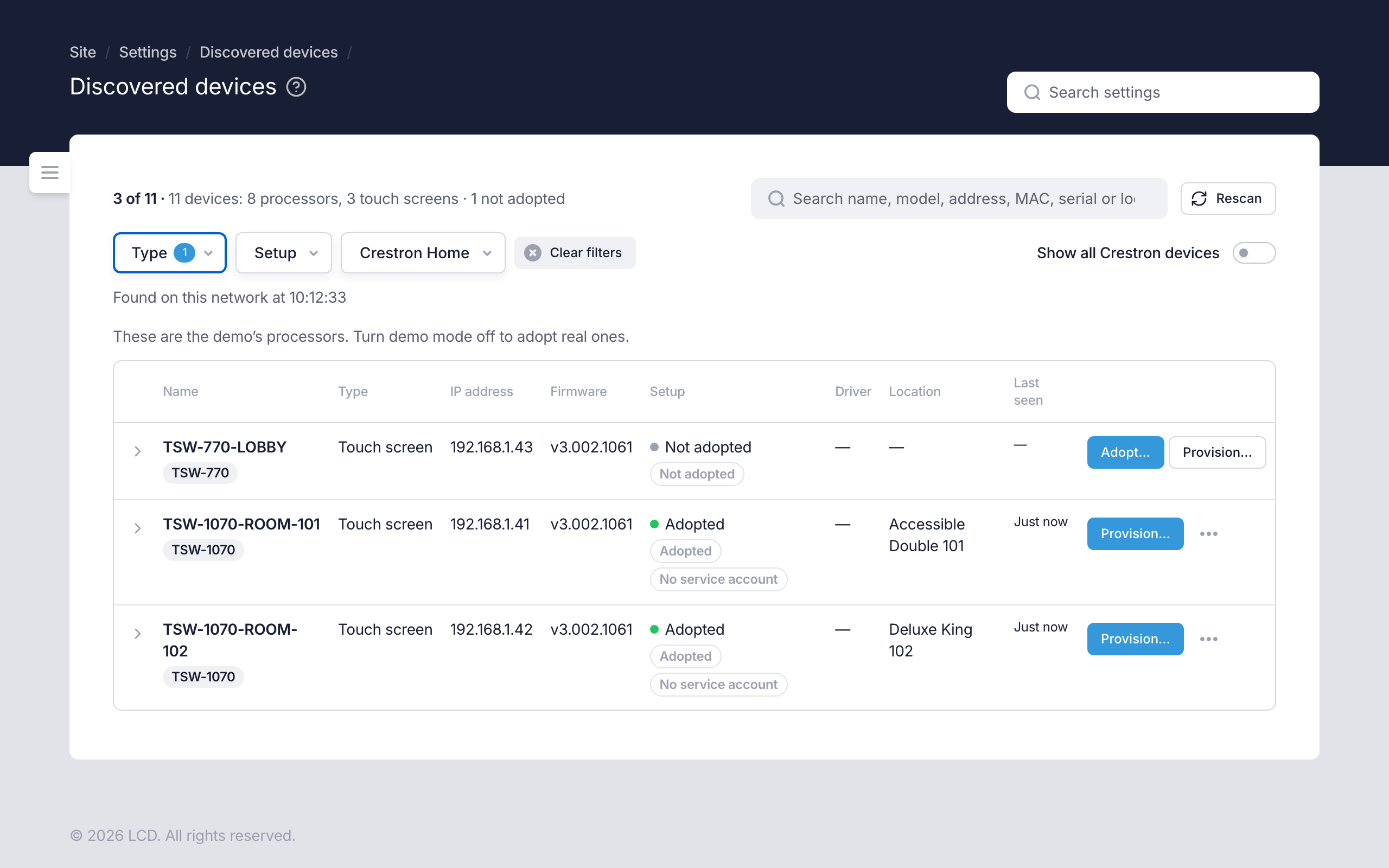
Each row shows the touch screen's name and model, its address, firmware, how far it has been set up, its location and when it was last seen. The arrow at the start of the row opens its details, with the MAC address and serial number.
A touch screen that discovery can't find, because discovery is blocked on the network, can be added by its IP address on Manual devices. See Manual devices.
Discover devices covers the page itself, scanning and the stages a device moves through.
Adopt a touch screen
- On the touch screen's row, select Adopt….
- Optionally choose a Location: where the touch screen is, so the System page can show it by location.
- Optionally choose a Service account. With one, Centro System Manager for Crestron signs in to the touch screen to read its name, serial number, firmware and the local processor it talks to. It only reads. Leave it at No API access to skip this.
- Select Adopt.
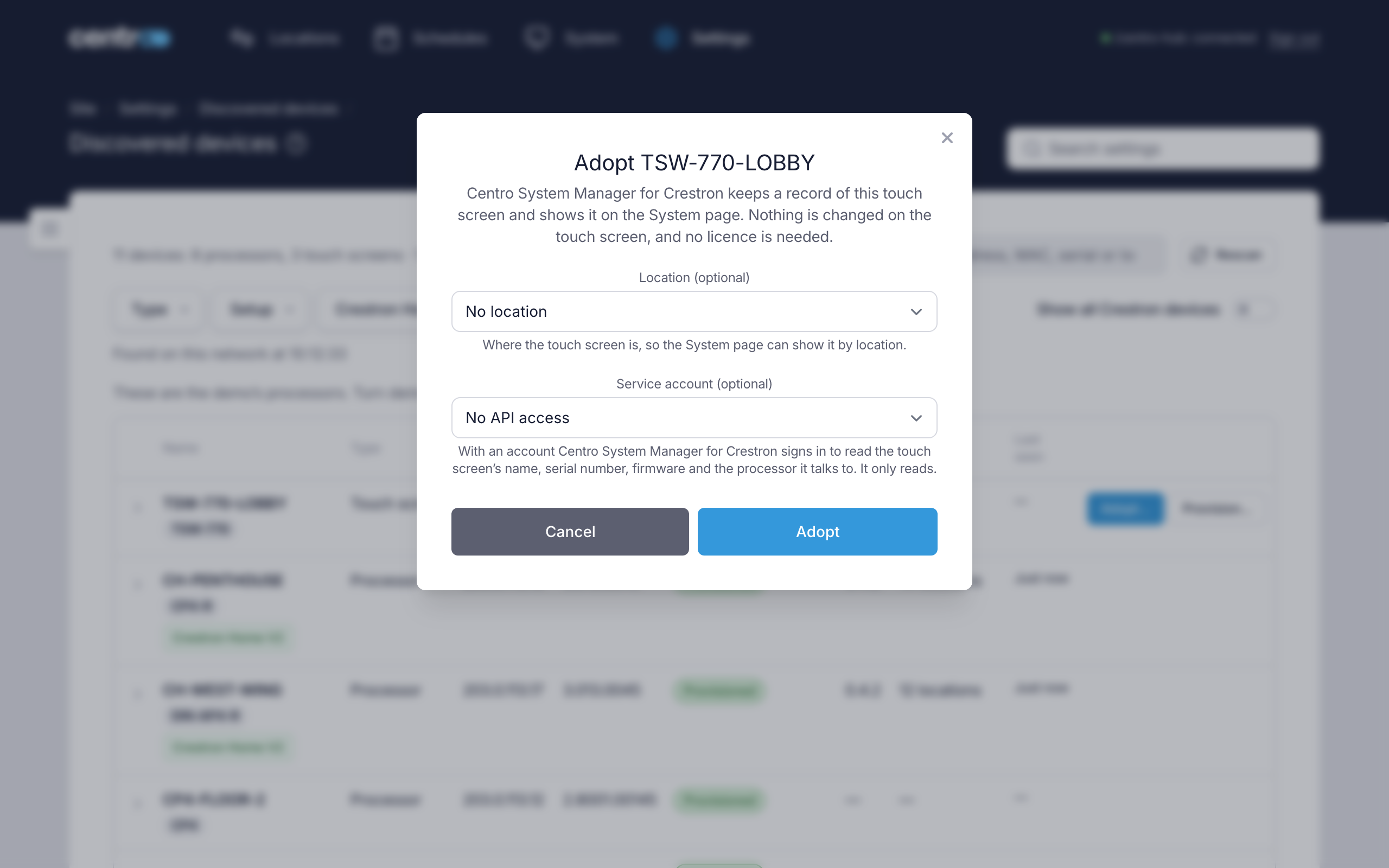
The row's setup changes to Adopted. To change the location or the account later, select Edit… in the row's actions.
Provision a touch screen
- On the touch screen's row, select Provision….
- Under Location it shows, choose the location.
- Under Signs in with, choose the service account that holds the touch screen's administrator.
- Select Provision.
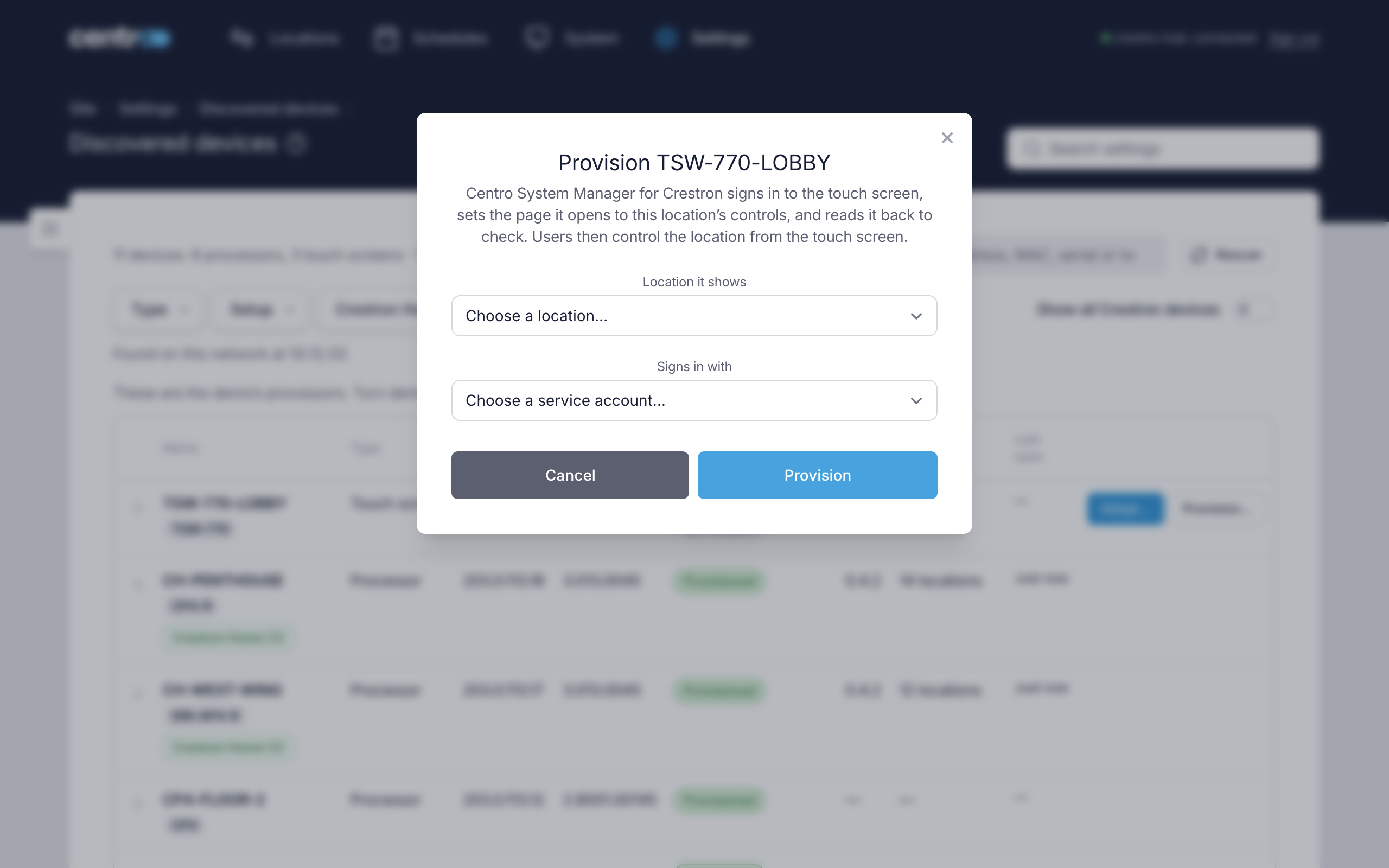
Centro System Manager for Crestron signs in to the touch screen, sets the page it opens to the location's controls and reads the setting back to check it took. When it's done the dialog reads The touch screen now opens, followed by the address.
If the dialog adds The touch screen needs a reboot to load it., select Reboot the touch screen. The touch screen shows the location a minute or two later.
The row then reads Online, with Shows the User App underneath.
If the touch screen runs its own project
A touch screen can only show the location while it's in User App mode. One that runs its own project, or another app, wouldn't show it.
This is checked before anything is changed. A touch screen that isn't in User App mode has the badge Not in User App mode on its row, and when you provision it the dialog stops and asks first. It tells you that to provision the touch screen, it's switched to User App mode and rebooted, and that it leaves its current project.
- Select Switch, reboot and provision to go ahead. The touch screen reboots and shows the location a minute or two later.
- Select Back to leave the touch screen as it is.
Switching replaces whatever the touch screen showed before with the location's controls. To switch it back later, run APPMODE DISABLE at the touch screen's console, then reboot the touch screen.
If Provision is greyed out
The reason is shown under the button:
| Under the button | What to do |
|---|---|
| Needs the User App Licence | Activate a User App Licence. Adopting still works without one. |
| Turn on the User App port first | The User App port is off, so the touch screen would have nowhere to load the location from. See The User App port. |
| Didn't answer the last scan | Check the touch screen is powered and on the network, then select Rescan. |
If provisioning fails
| The dialog says | What to do |
|---|---|
| The touch screen refused the service account's username or password. | Correct the account under Settings → Access → Service accounts. |
| The touch screen didn't accept the sign-in. | Check the touch screen's web interface is turned on, and that the account is one of the touch screen's administrators. |
| Centro System Manager for Crestron couldn't reach the touch screen. | Check the touch screen is powered and on this network, then Rescan and select Try again. |
| The touch screen rejected the address it was given. | Select Try again. If it keeps failing, see Getting support. |
| The touch screen accepted the address but reading it back gave something else. | The touch screen may not show the location. Select Try again. |
What the touch screen shows
A provisioned touch screen shows:
- A bar across the top with your logo, the site name and the location's name. With no site name set, the location's name takes its place. The logo and site name come from Appearance.
- The location's controls, the same cards as the User App. The touch screen is locked to its location.
- The location's Touch screen code, in a card headed Scan to open the controls. On a landscape touch screen it sits beside the controls; on a portrait one, underneath.
- An offer with a QR code of its own, beside the location's code, if value propositions are turned on. See General.
- The stay, in the bar, while stays are on: Welcome, and the name, with Check-out today or Arriving today under it. The touch screen never shows the dates. The name shows only while Show the name in the User App is on. See The stay.
Under the code a countdown reads Expires in: and the time left. When it reaches zero a new code appears. Because the code keeps changing, only someone standing at the touch screen can scan it. User App QR codes explains how long a user who scans it stays signed in.
To show the controls without the code, turn off QR code under What the User App shows on the location. See Choose what users can control.
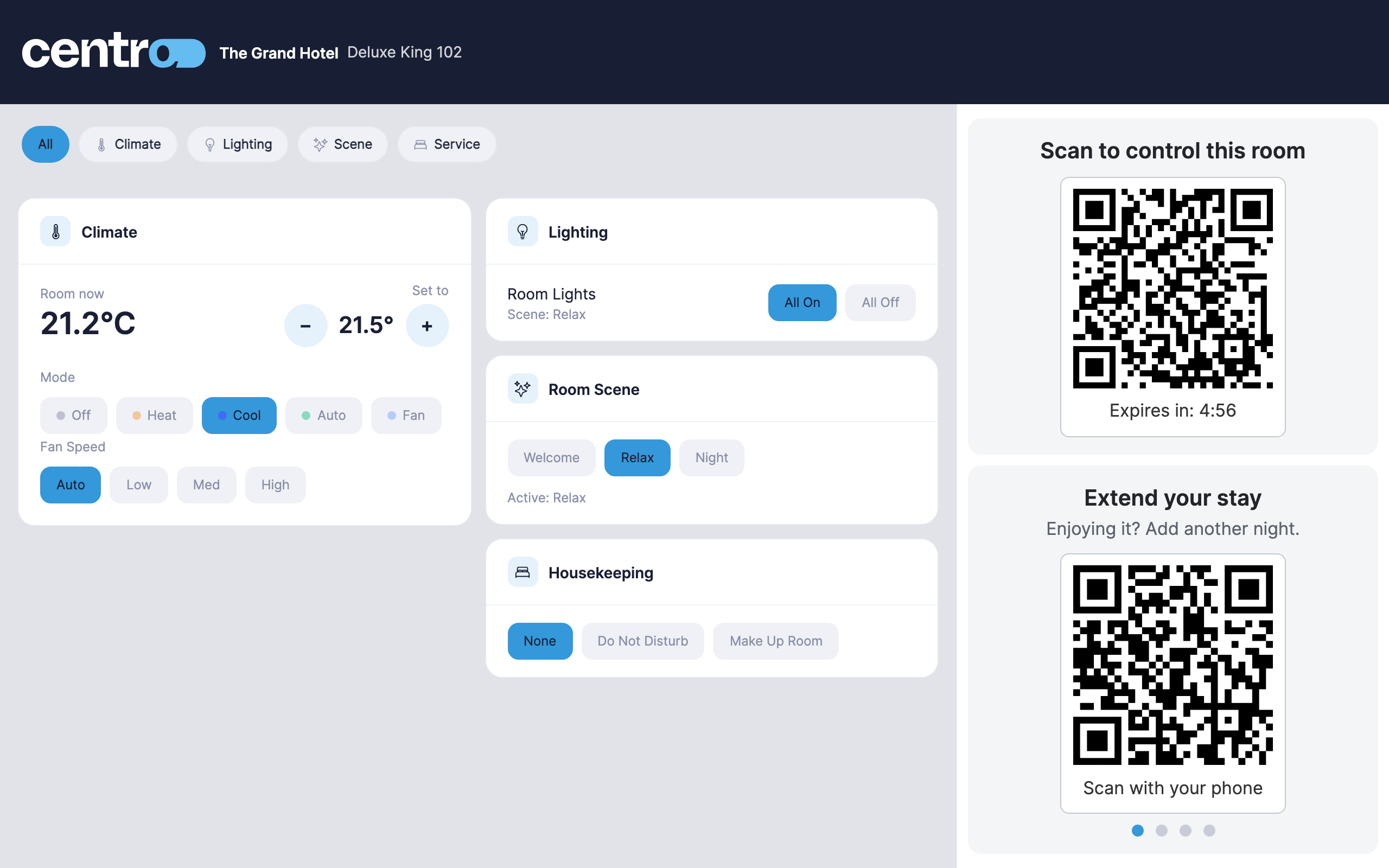
To see what a location's touch screen shows without going to the location, use Preview touch screen on the location. See Preview the touch screen.
Staying connected and up to date
The touch screen looks after its own connection. If its link to the processor drops, or staff sign the location's users out, it reconnects by itself. After the processor restarts, the touch screen keeps trying until the processor is back. If the location stops responding, the touch screen shows the same The controls aren't responding right now notice as a phone.
After a program upgrade, each touch screen reloads itself onto the new User App once nobody has touched it for a minute, or after 15 minutes at most.
After a newer User App is uploaded on its own (see Upgrade), the touch screens get it when they're reloaded. To send every provisioned touch screen its link again in one go, use Reload all touch screens. See Batch actions.
The touch screen's page
Every adopted touch screen has a page of its own, for Administrators. To open it, select the touch screen's name on Settings → System → Connections, or its card or row on the System page.
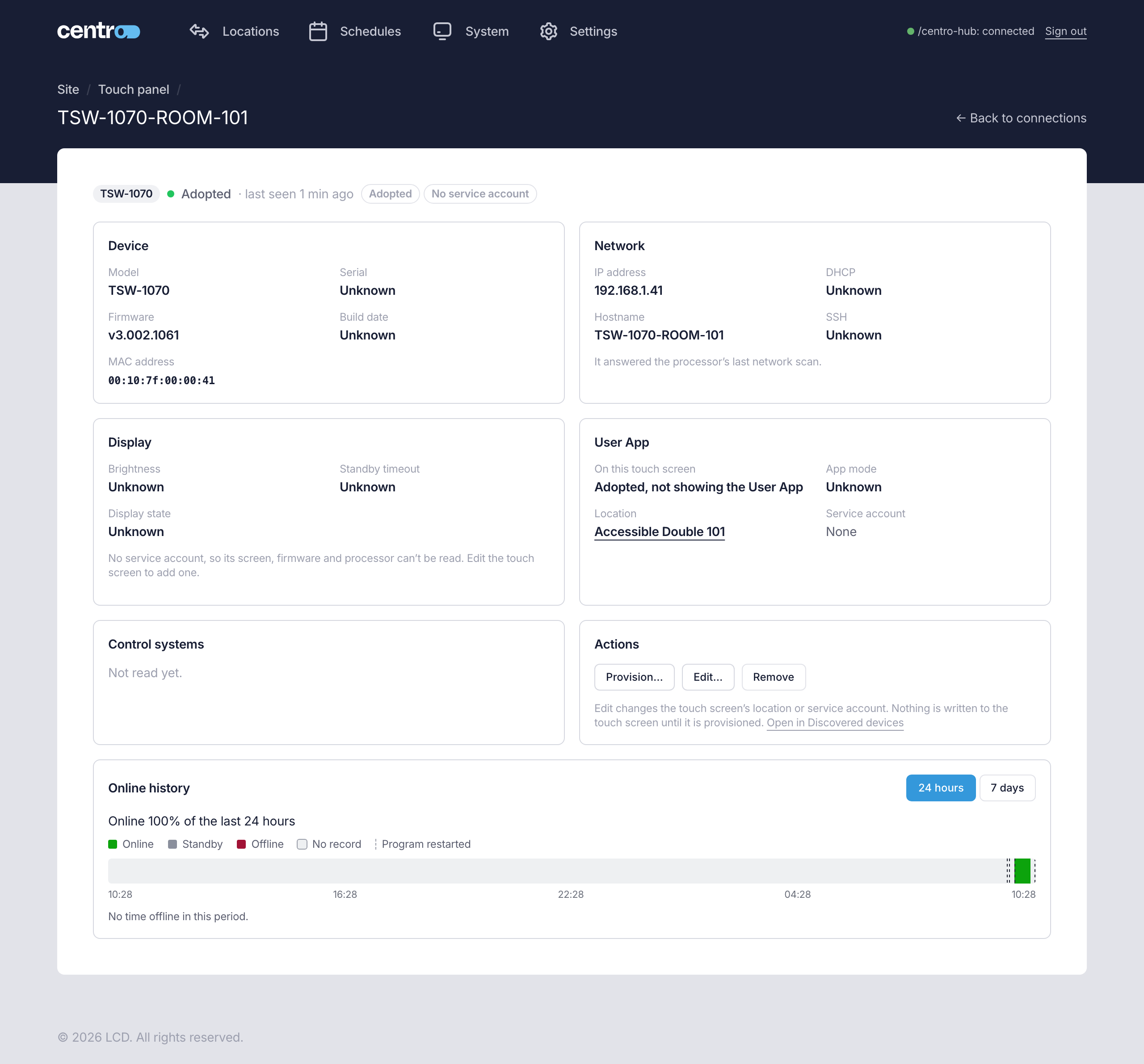
The line under the name shows the model, the state — such as Online or Standby — when it was last seen and how far it has been set up. The page has these sections:
| Section | What it shows |
|---|---|
| Device | Model, Serial, Firmware, Build date and MAC address. |
| Network | IP address, with the old one when the touch screen has moved, DHCP, Hostname and SSH, and whether it answered the processor's last network scan. |
| Display | Brightness, Standby timeout and Display state. Refresh reads them again. It only reads. |
| User App | Whether the touch screen shows the User App, its App mode, its Location, its Service account and the address this processor wrote to it. |
| Control systems | The entries in the touch screen's IP table: the address, port, IP ID and status of each control system it talks to. |
| Actions | Adopt…, Provision… or Re-provision…, Edit…, Re-link, Reboot, Forget and Remove, as on the row. Open in Discovered devices opens its row there. |
| Online history | When the touch screen was online, in standby and offline, over the last 24 hours or 7 days. |
The details are read with the touch screen's service account. With no account the page says so: select Edit… to add one.
The page reads the touch screen again every 30 seconds.
Where a touch screen appears
- On its location. Open the location under Settings → System → Locations. Under Connections serving this location, Touch screens serving this location lists each touch screen as Touch screen (adopted) or Touch screen · User App (provisioned), with whether it's online or in standby. Show in Discovered devices jumps to the touch screen's row. This list shows only while the User App Licence is active.
- Under Settings → System → Connections, with the connections. Its name opens its page. See Connections.
- On the System page, in the list of connections. Choose Touch screen under Type to see them alone. See System dashboard.
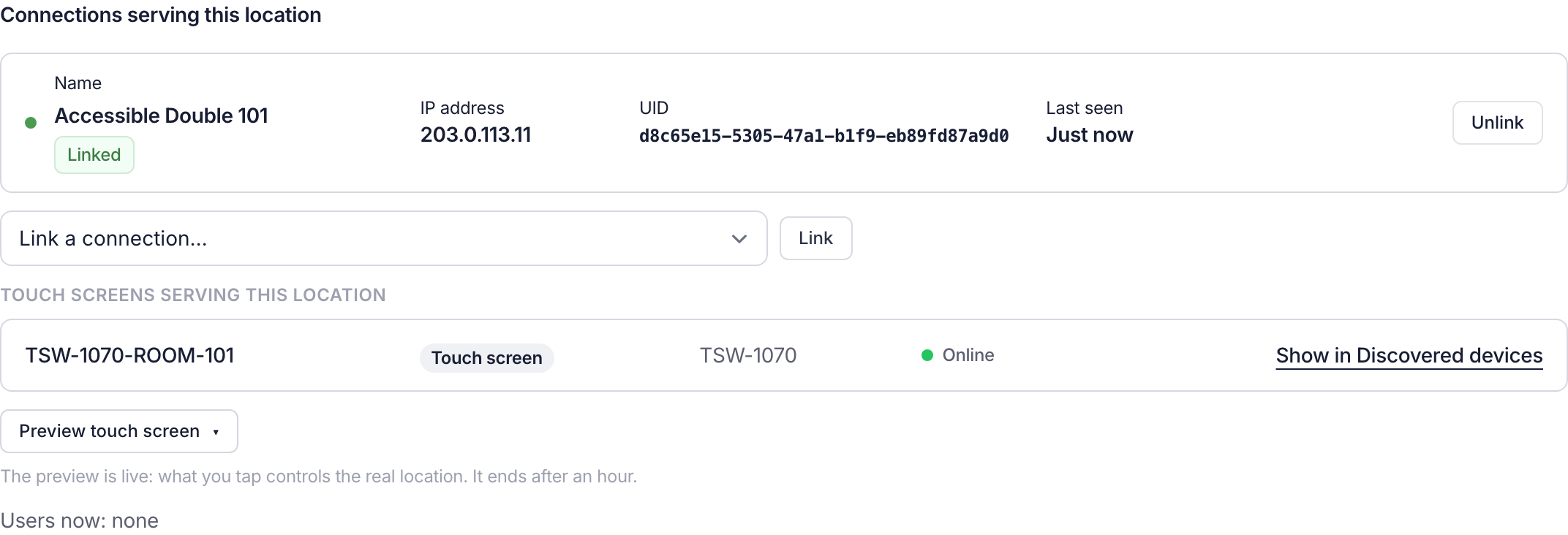
A touch screen isn't linked or unlinked on the location, as a connection is. Its location is set when you adopt or provision it.
What the states mean
| State | Meaning |
|---|---|
| Not adopted | The touch screen was found and no record of it is kept. |
| Adopted | On record, and found in the last scan. It doesn't show a location. |
| Adopted · not found | On record, but the last scan didn't find it. |
| Online | Provisioned and showing its location. |
| Standby | The display has switched off after its standby timeout. The touch screen is still on the network and wakes when someone touches it. It doesn't report to the processor while in standby, and it raises no offline alert. |
| Offline | Provisioned, but it has stopped calling in and isn't in standby. Check its power and network. |
| Address changed | Provisioned, but the scan found it at a different address. The row shows both. Select Re-provision…. |
| Location deleted | The location it showed has been deleted. Select Re-provision… and choose another. |
Change or remove a touch screen
Use the actions on the touch screen's row, or on its page. What they offer depends on the touch screen's state.
| Action | What it does |
|---|---|
| Re-provision… | The button on a provisioned touch screen's row. Provisions it again: use it to move the touch screen to another location, or after its address changed. |
| Edit… | Changes an adopted touch screen's location or service account. Nothing is written to the touch screen until it's provisioned. |
| Refresh | Reads the touch screen's name, firmware and local processor again. It only reads. |
| Re-link | Gives the touch screen a new link to the processor in place of the old one. The touch screen reconnects by itself. |
| Reboot | Reboots the touch screen. |
| Skip SSL errors | See below. |
| Forget | Stops the touch screen showing the location. The touch screen stays adopted. |
| Remove | Deletes the record of the touch screen. |
Forget and Remove
Forget ends the touch screen's access at once, so it no longer controls the location. The touch screen keeps showing the page until it's provisioned again or given another address. If the address the touch screen opened before is known, the confirmation offers Put back the touch screen's previous address: tick it to return the touch screen to what it showed before.
Remove deletes the record of the touch screen altogether: it leaves the System page and its location. For a touch screen that's showing a location, its access ends at once as well. Nothing else is changed on the touch screen, and it's listed again as Not adopted at the next scan.
Skip SSL errors
Skip SSL errors tells the touch screen's browser to accept a certificate it doesn't trust. It's off unless you select it, and provisioning never turns it on.
You don't normally need it, because the User App is served over plain HTTP. It's only for a site that serves the User App over HTTPS with a certificate the touch screen doesn't trust.