User App QR codes
Start with the Quick guide: Give users a QR code.
A user opens the User App by scanning a QR code for their location. Every location has three codes. They differ in how long a user's access lasts and in what ends it, so choose by how your site welcomes users.
User App access needs the User App Licence. See Licensing and editions.
The three codes
| Code | What it is | A user who scans it stays signed in | Use it for |
|---|---|---|---|
| Fixed code | Always the same, until you choose to replace it. | For 24 hours from the scan. Scanning again starts another 24 hours. | A card or sign left in the location. |
| Session code | A new code every time it's printed. | Until the code is next printed or regenerated. | A card printed for each user at check-in. |
| Touch screen code | Shown on the location's touch screen and changed every 5 minutes. | For 24 hours from the scan, or until the location's Session code is next printed, whichever comes first. | Locations with a touch screen, where only someone standing in the location should get in. |
The times are the defaults. To change them, see Change how long access lasts.
Some detail on each:
- Fixed code. Anyone who has the card can scan it, so a user who photographs it can get back in after they leave. Where that matters, use the Session code, or regenerate the Fixed code between stays.
- Session code. Printing it is the "a new user has arrived" action: the previous user's card stops working and the previous user is signed out, on every phone. A user who doesn't open the User App for seven days is asked to scan again.
- Touch screen code. The touch screen shows the code with a countdown, Expires in:, and draws a new one when it reaches zero. A code that has just left the screen still works for one more minute, so a user who scanned at the last second isn't turned away. The code shows only on a touch screen that has been provisioned — see Touch screens.
See a location's codes
- Go to Settings → System → Locations and open the location.
- Select the User App access tab.
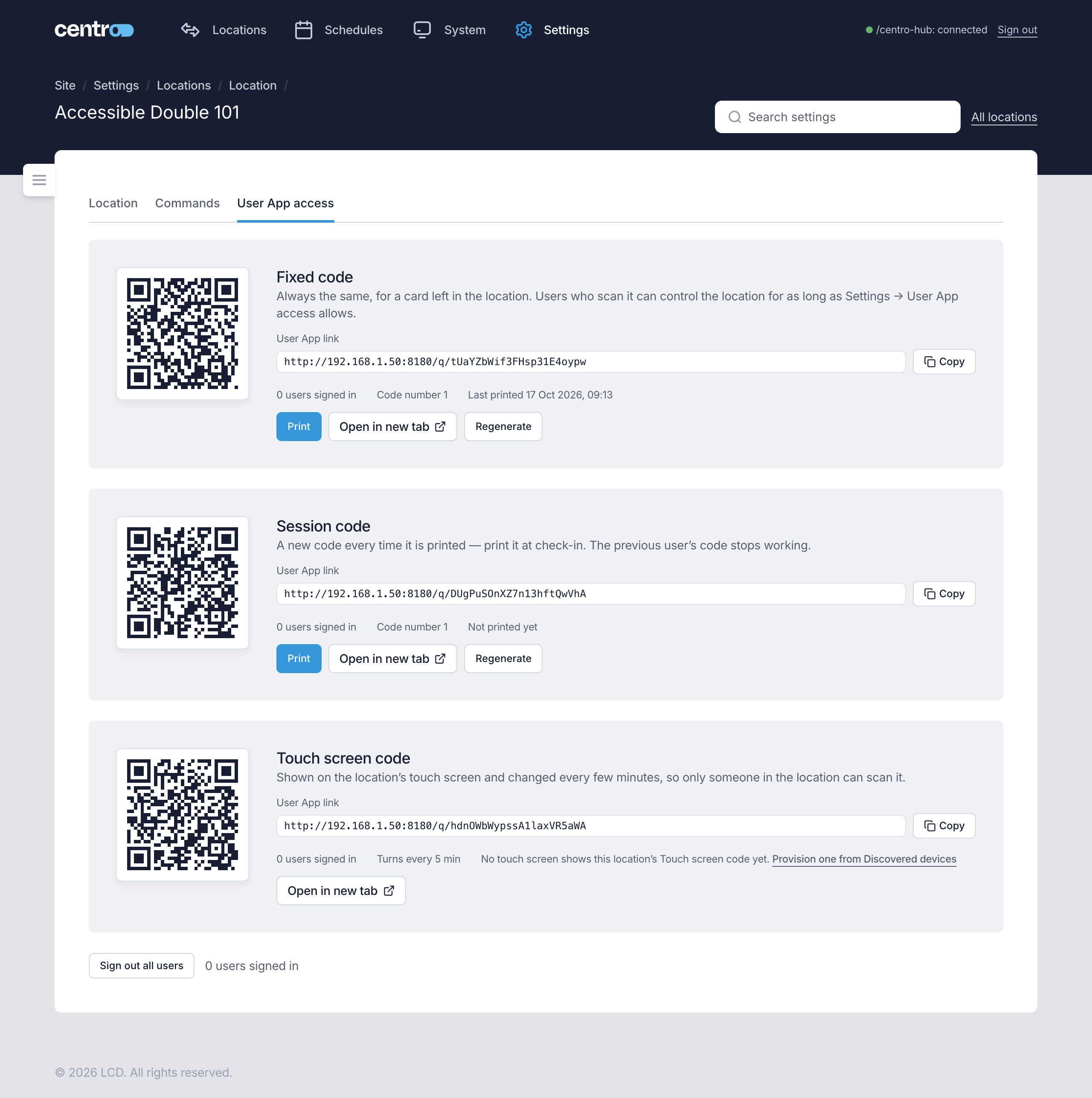
Each code has:
- User App link — the link the code holds, with Copy. Send it to a user who can't scan.
- Open in new tab — opens the User App with that code, to check what a user sees. It only opens from a device that can reach the User App address.
- How many users are signed in with that code.
- For the two printed codes: Code number, which goes up each time the code is replaced, and when it was last printed.
- For the Touch screen code: how often it changes, and which touch screens show it. If none does, a link takes you to Discovered devices to provision one.
The codes are made the first time anyone opens this tab or prints the location, so every location has all three.
The User App access tab is under Settings, so only an Administrator sees it.
Who can see and print the codes
| Administrator | Manager | |
|---|---|---|
| The QR button on a location, to show, copy or print its Fixed code | Yes | Yes |
| Print QR codes… for many locations | Yes | Yes |
| The location's User App access tab, with all three codes | Yes | No |
| Regenerate a code, Sign out all users | Yes | No |
The QR button is on each location's card and row on the Locations page. See Print QR codes.
On a processor with the User App Licence and no Manager Licence, the Locations page is a plain list of the locations, each with its QR button, and Print QR codes… at the top. Location control and schedules need a Manager Licence; the list is there so staff can show, copy and print the codes. An Administrator also sees Add a Manager Licence, which opens the Licence page.
What stops a code working
| What you do | The code | The users signed in |
|---|---|---|
| Print the Fixed code | Unchanged. | Unchanged. |
| Print the Session code | Replaced. The card printed before stops working at once. | Users of the Session code and of the Touch screen code are signed out. Users of the Fixed code stay. |
| Regenerate the Fixed code or the Session code | Replaced. The old one stops working at once. | That code's users are signed out. |
| Sign out all users | Unchanged. | Everyone in the location is signed out. They can scan again. |
| Check out the location's user, with End sessions at check-out on (see Stays) | Unchanged. | Phones are signed out. Touch screens stay signed in. |
| Delete the location | All three are deleted. | Everyone is signed out. |
| Change the processor's address | Printed codes point at the old address and stop working. | — |
A user who is signed out sees Your access has ended. A user who scans a replaced code sees This QR code is no longer valid.
Replace a code without printing
Select Regenerate beside the Fixed code or the Session code, then confirm. A warning comes first: Users of the old code lose access. Any card already printed with the old code needs printing again.
The Touch screen code has no Regenerate: it changes by itself.
Sign out a location's users
Select Sign out all users at the foot of the User App access tab, then confirm. Every phone using the location is signed out at once. The codes don't change, so anyone who still has a code can scan again — to keep someone out, regenerate the code as well.
A touch screen showing the location signs itself back in.
Change how long access lasts
These settings apply to every location.
- Go to Settings → Settings → General and find User App access.
- Change any of:
- Touch screen code changes every (seconds) — between 60 and 3600. The default is 300.
- Fixed code: users stay signed in for (hours) — between 1 and 168. The default is 24.
- Touch screen code: users stay signed in for (hours) — between 1 and 168. The default is 24.
- Select Save.
The Session code has no time limit to set: its users stay signed in until it's printed again.
A new time applies to users who scan after you save. Users already signed in keep the time they were given.
If the processor's address changes
Every code holds the processor's User App address. If the processor moves to a new address after codes have been printed, the User App access tab shows a warning with the address the prints point at and the address the processor has now. Reprint the codes, or give the processor back its old address.
To avoid this, give the processor a fixed address before printing. See Give the processor a fixed address.