Batch actions
Settings → Deployment → Batch actions runs one action on every device of a kind: every touch screen, or every Crestron Home processor. Use it after an upgrade or a change of address, in place of visiting each device on Discovered devices.
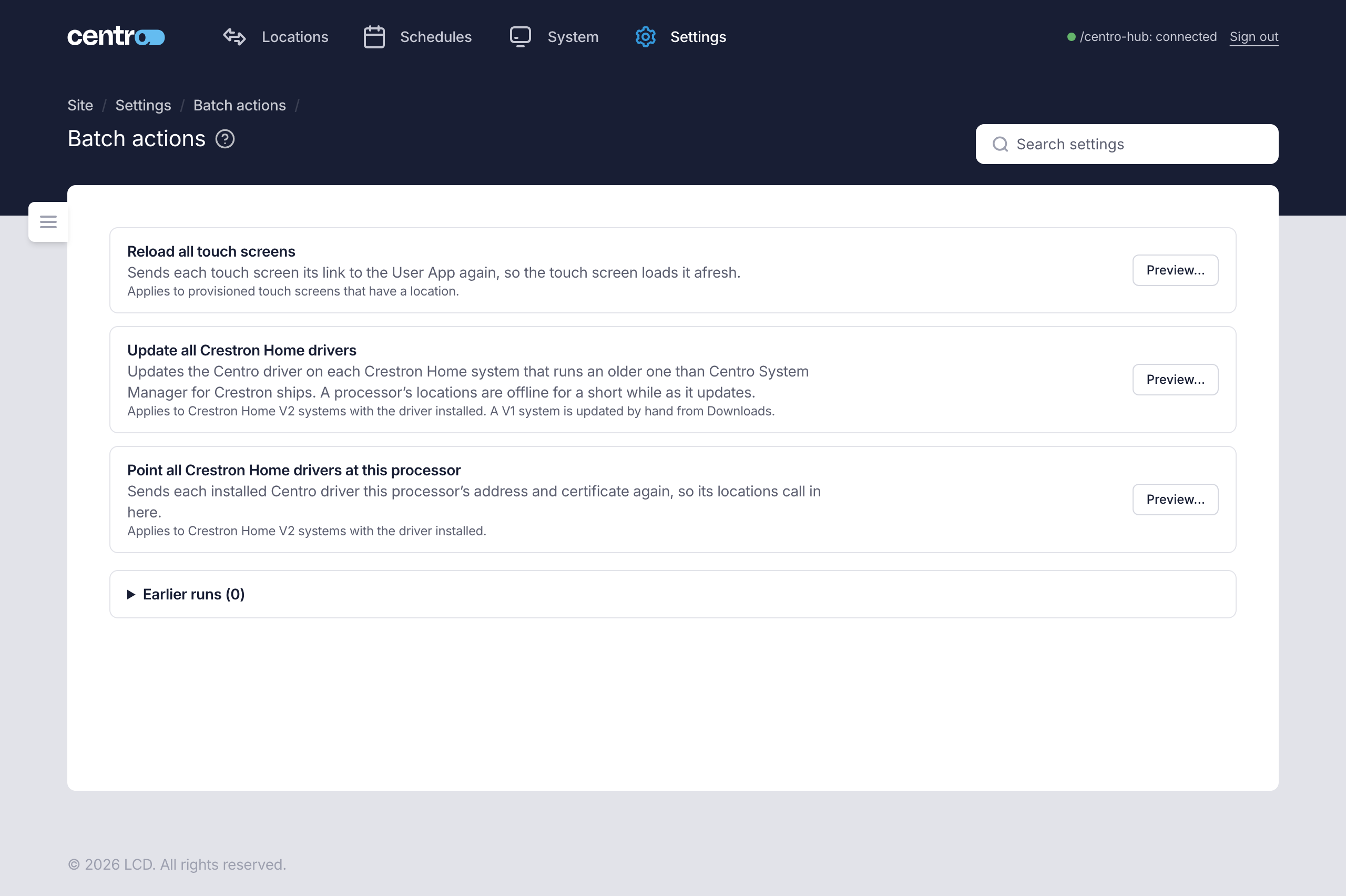
The three actions
| Action | What it does | Applies to |
|---|---|---|
| Reload all touch screens | Sends each touch screen its link to the User App again, so the touch screen loads it afresh — and with it a newer User App, after one is uploaded. | Provisioned touch screens that have a location. |
| Update all Crestron Home drivers | Updates the Centro driver on each Crestron Home system that runs an older one than Centro System Manager for Crestron installs. A local processor's locations are offline for a short while as it updates. | Crestron Home V2 systems with the driver installed. A V1 system is updated by hand, with the sideload steps on Downloads. |
| Point all Crestron Home drivers at this processor | Sends each installed Centro driver this processor's address and certificate again, so its locations call in here. | Crestron Home V2 systems with the driver installed. |
An action that can't be run shows the reason in place of Preview… — for example, that one-click install is turned off, or that the User App port is off.
After you upload a newer Crestron Home driver or User App on Upgrade, its panel offers Update all Crestron Home drivers or Reload all touch screens. Either opens this page with the action's preview already open. See Upgrade.
Run an action
- Select Preview… on the action.
- Check the preview. Will act on lists the devices the run reaches. Will skip lists the ones it leaves alone, each with the reason.
- Select Start.
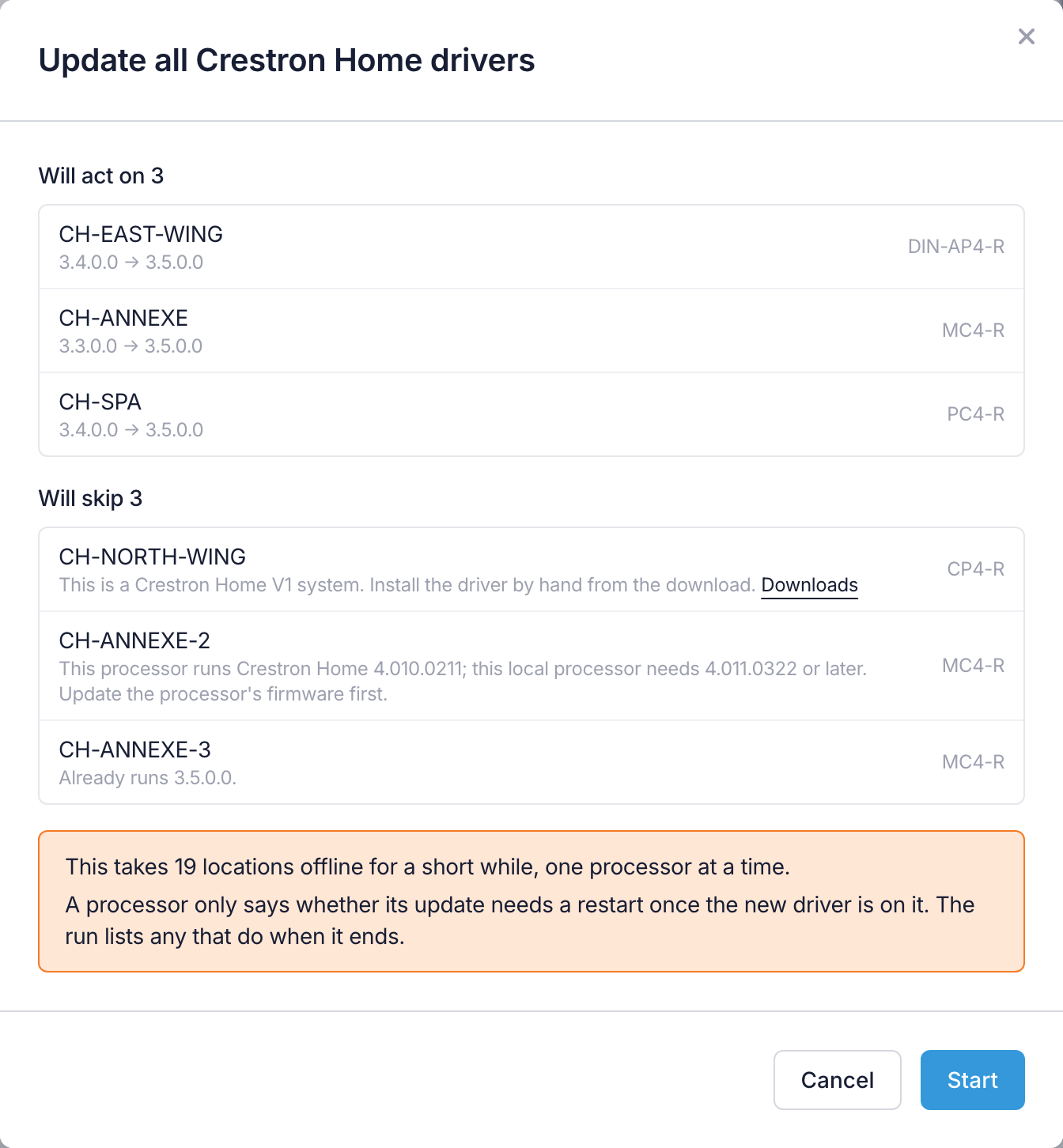
For the two driver actions Centro System Manager for Crestron signs in to each local processor to build the preview, one after the other, so it can take a while.
The preview also warns you what the run costs: how many locations go offline for a short while, one local processor at a time, and how many local processors will need a restart afterwards.
Why a device is skipped
| The preview says | What to do |
|---|---|
| A touch screen is adopted but doesn't show the User App, or has no location | Provision it to a location from Discovered devices. See Touch screens. |
| A touch screen has no service account | Give it one, so it can be signed in to. |
| The last scan didn't find a touch screen, or found it at another address | Check it is on, then Rescan. Provision it again if its address changed. |
| The Centro driver isn't on a local processor | Install it from Discovered devices. See Connect Crestron Home. |
| A processor is a Crestron Home V1 system | Install or update the driver by hand. The line links to Downloads. |
| A local processor runs an older Crestron Home than is needed | Update that processor's firmware first. |
| A local processor already runs the current driver | Nothing. |
While a run is in progress
Devices are worked through one at a time, and only one batch action runs at a time. A run carries on if you leave the page or close the browser.
The page shows how far the run has got, for example 12 of 40 · 1 failed, and each device as Waiting, In progress, Done, Failed or Skipped. A device that fails or is skipped doesn't stop the run.
Stop ends the run after the device it is working on. The devices it hadn't reached are left as they were.
When a run ends
The page sums the run up, for example Finished. 38 done, 1 failed, 1 skipped.
- Run again for the N that failed starts a new run for only the devices that failed.
- If the program restarted during the run, the summary says so. Run the action again to finish the rest.
Centro System Manager for Crestron never restarts a local processor. If an update needs one, the run lists the local processors to restart. Restart them yourself from the Crestron Home setup app to finish their update.
A processor only says whether its update needs a restart once the new driver is on it, so the preview can't always tell you in advance.
Earlier runs
Earlier runs lists the last 20 runs on this processor: the action, when it started and who started it, how it ended and how many devices were done, failed and skipped. Select Show to see each device's result.