Connections
Settings → System → Connections lists everything that calls in: the connections from locations, and the touch screens and local processors that have been adopted. For each one it shows the location it serves and whether it's trusted.
Devices are found and adopted on Settings → Deployment → Discovered devices, or added by IP address on Manual devices, and their health is on the System page. This page is the reference for what each column, badge and action means. For the steps, see Discover devices and Connection certificates.
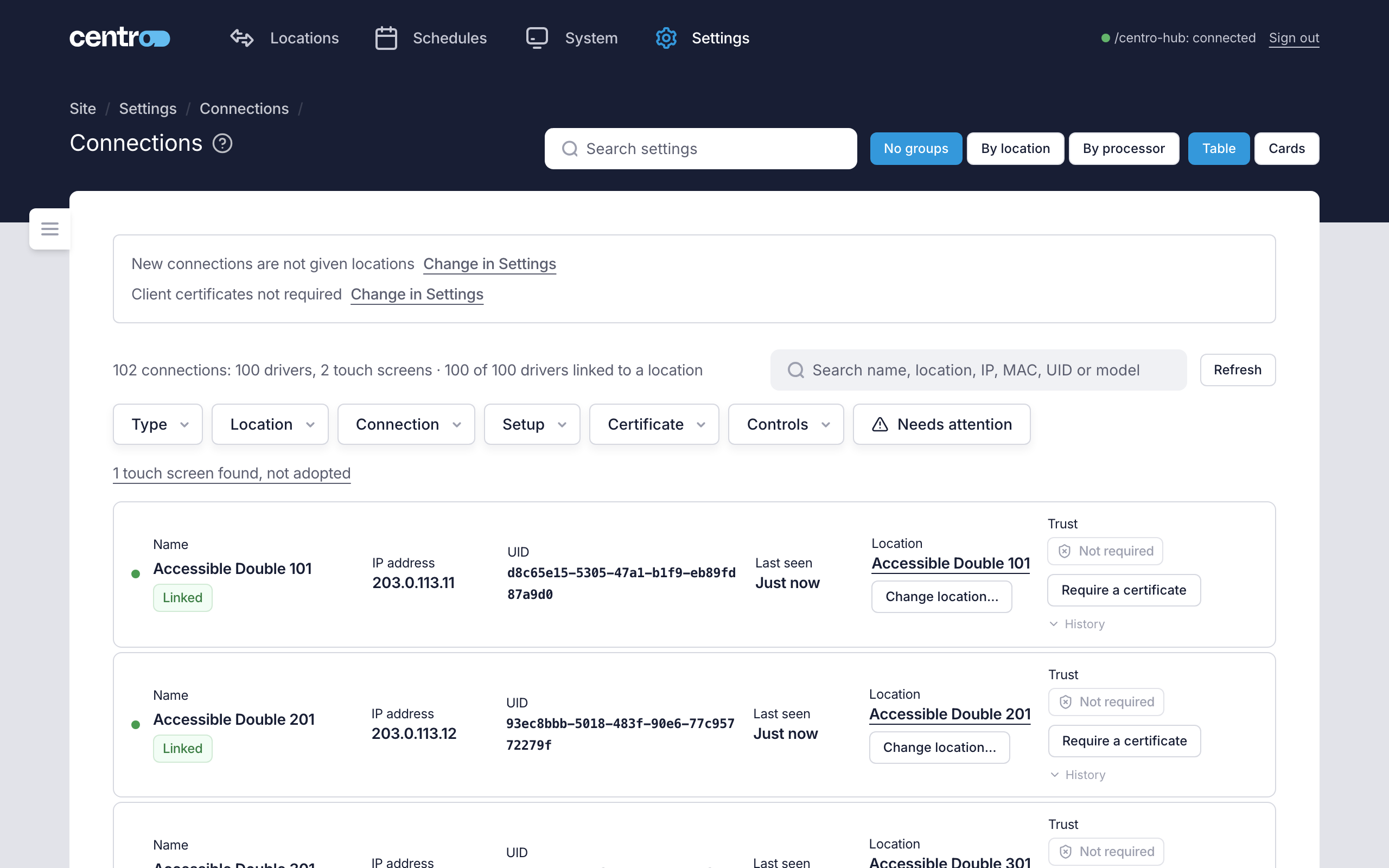
The top of the page
| Item | What it tells you |
|---|---|
| New connections get a location of their own / New connections are not given locations | Whether a connection that calls in without a location gets one. Change in Settings opens the switch under General. |
| Client certificates required / Client certificates not required | Whether every connection must present a certificate. Change in Settings opens the same section. |
| The stale notice | Counts the connections that haven't called in for over a day. Remove stale connections removes them all. See Connection certificates. |
| The summary line | How many connections there are of each kind — drivers, modules, touch screens and processors — and how many drivers and modules are linked to a location. While a filter is on, it starts with how many rows are shown. |
| Touch screens found, not adopted / processors found, not adopted | Devices found on the network but not adopted. The link opens Discovered devices. |
No groups, By location and By processor change how the rows are grouped, and Table and Cards change the layout. Your choice is remembered in this browser.
Search by name, location, IP address, MAC address, UID or model. Each filter asks one question:
| Filter | Choices |
|---|---|
| Type | Crestron Home driver, Crestron Custom module, Touch screen, Processor and Other. |
| Location | Linked to a location or Not linked to a location. |
| Connection | Online, Standby, Offline, Not seen for a day and Never seen. Only the values some row has are offered. |
| Setup | For touch screens and processors: how far each has been set up, such as Adopted, Signed in or Provisioned. |
| Certificate | For drivers and modules: Secured, Not required, In progress or Problem. A certificate that runs out soon counts as a problem. |
| Controls | For drivers and modules: what they control, such as Climate, Lighting, Shades, Scene or Housekeeping. |
| Needs attention | A button of its own. It shows only the rows with something to fix: a sign-in not tried, refused or on hold, a touch screen that moved address, a certificate problem, or a driver or module that hasn't called in for a day. |
Clear filters turns them all off.
Columns
| Column | What it shows |
|---|---|
| Name | The connection's name, with its kind: Crestron Home or Crestron Custom for a connection from a location, Touch screen or Touch screen · User App for a touch screen, Processor or Processor · Crestron Home for a processor. The dot is green while it is connected. A touch screen's name opens its page. |
| IP address | The address it last called in from. |
| UID | The identifier of a connection from a location. |
| Model · MAC | For touch screens and processors. |
| Last seen | When it last called in, or Online. A touch screen whose display has switched off reads Standby. |
| Display | For a touch screen, its brightness and standby timeout, for example Display 50% · standby 60 min. |
| Location | The location it serves, or Not linked. |
| Trust | For a connection from a location, its certificate state. For a touch screen or processor, how far it has been set up. |
Connections from locations
Badges
| Badge | Meaning |
|---|---|
| Linked / Unlinked | Whether the connection serves a location. |
| Stale | It hasn't called in for over a day. If its driver was removed from the processor, this record is all that's left of it. |
Trust: the connection's certificate
| State | Meaning |
|---|---|
| Not required | No certificate is asked of this connection. |
| Certificate required | A certificate is required, and the connection hasn't asked for one yet. |
| Waiting for enrolment | The connection is due to enrol for a certificate. |
| Securing connection | A certificate has been issued and the connection hasn't connected with it yet. |
| Waiting for the connection | The connection has a certificate and hasn't called in with it. |
| Secured | The connection is connected with its certificate. The short code beneath is the certificate's fingerprint; select it to copy the whole fingerprint. |
| Recovery in progress | You selected Re-enrol, and the connection hasn't enrolled again yet. |
| Authentication failed | The connection's enrolment failed. |
| Blocked | You blocked the connection. It can't connect until you select Unblock. |
A notice above the state says when a certificate runs out soon, or has run out, and the connection hasn't renewed it. "Soon" follows the Connection certificate expiring alert rule: 14 days unless it's changed under Alert rules.
Actions
| Action | What it does |
|---|---|
| Change location… / Link to a location… | Links the connection to a location, or moves it. A connection serves one location, so it stops serving the one it had. You can also create a new location from the picker. |
| Require a certificate | Requires a certificate from this connection alone. |
| Re-enrol | Stops the current certificate working now, so the connection must enrol for a new one. You're asked to confirm. A certificate stays required. |
| Revoke | Refuses the certificate from now on and disconnects the connection. It can enrol again unless you tick Also block this connection until I unblock it. |
| Stop requiring | No longer requires a certificate from this connection. Not available while the switch for every connection is on. |
| Unblock | Lets a blocked connection connect again. |
| History | Lists what has happened to the connection's certificate: issued, renewed, refused, revoked and so on. |
| Remove | On a connection that has been silent for over a day, removes it. Its location is kept and only unlinked, and any commands waiting for it are dropped. |
Removing a connection that has been silent for a week or more also revokes its certificate. A removed connection that calls in again shows up as a new one, and isn't linked back to its location.
Touch screens and processors
A touch screen or processor moves through four stages. The badge under its name shows the furthest one it has reached.
| Stage | Meaning |
|---|---|
| Not adopted | It has been found and no record of it is kept. It is listed on Discovered devices, not here. |
| Adopted | A record of it is kept, and it shows on the System and Connections pages. Nothing is changed on the device. |
| Signed in | Centro System Manager for Crestron has signed in to it with a service account and read its details. |
| Provisioned | A touch screen shows its location. A local processor runs the Centro driver, installed in one click. |
Other badges flag what needs attention:
| Badge | Meaning |
|---|---|
| Offline | It can't be reached now. |
| Standby | A touch screen whose display has switched off after its standby timeout. It's still on the network and wakes when touched. It doesn't report while in standby, and it isn't counted as offline. |
| No service account | No account is set for it, so its details can't be read. |
| Sign-in not tried | No sign-in with the account has been tried yet. |
| Sign-in refused | The device refused the service account. It isn't tried again automatically: check the account, then select Refresh. |
| Account on hold | Another processor refused this service account, so it isn't used anywhere until it is edited. |
| Not reachable | The last sign-in didn't reach the device. |
| Address changed | A touch screen's address has changed since it was provisioned. |
| No location | A touch screen's location was deleted. Link it to another. |
| Not in User App mode | The touch screen runs a project or another app. Provisioning switches it to User App mode and reboots it, after you confirm. |
| Install incomplete | The last driver install stopped, or finished and the driver hasn't called in yet. |
| Update available | Centro System Manager for Crestron carries a newer driver than the local processor runs. |
Touch screen actions
| Action | What it does |
|---|---|
| Change location… / Link to a location… | Puts the touch screen in a location. It switches to that location within a minute, and users' phone sessions for the touch screen end. |
| Re-link | Issues the touch screen a new token. It reconnects by itself. |
| Forget | Stops showing the User App on the touch screen. It stays adopted. You can also put back the touch screen's previous address. |
| Open in Discovered devices | Opens the touch screen on Discovered devices, where it is adopted and provisioned. |
Select a touch screen's name to open its own page, with its details, its actions and its online history.
For provisioning, see Touch screens.
Processor actions
| Action | What it does |
|---|---|
| Link to a location… | Records where the local processor is. Nothing is written to it. |
| Re-provision | Gives the local processor's Centro driver this processor's current certificate. A row whose driver still trusts this processor's old certificate says so, and its locations are offline until you do this. See Connect Crestron Home. |
| Account… | Sets the service account used to sign in to the local processor. |
| Refresh | Reads the local processor again. |
| Forget | Stops signing in to the local processor and drops what was read. It stays adopted. |
| Remove | Deletes the record of the local processor, and it leaves the System and Connections pages. Nothing is changed or uninstalled on it. |
Which actions a row offers depends on its stage. For re-provisioning and certificates, see Connection certificates.