First sign-in
Start with the Quick guide: Sign in for the first time.
Open Centro System Manager for Crestron in a browser, get past the certificate warning and sign in with a Crestron account from the processor.
Before you start
You'll need:
- The processor's IP address and the slot's admin port. The default is 8443 — see Ports and network.
- A username and password that exist on the processor, with Administrator access. Centro System Manager for Crestron has no accounts of its own.
Step 1 — Open the address
Browse to:
https://<processor-ip>:8443/
For example https://192.168.1.50:8443/. If you type http://<processor-ip>:8080/ instead, the processor sends you on to the HTTPS address.
Step 2 — The certificate warning
The first time, your browser warns that the connection isn't private. That's expected: the processor protects the connection with a certificate it made itself, and your browser hasn't been told to trust it yet.
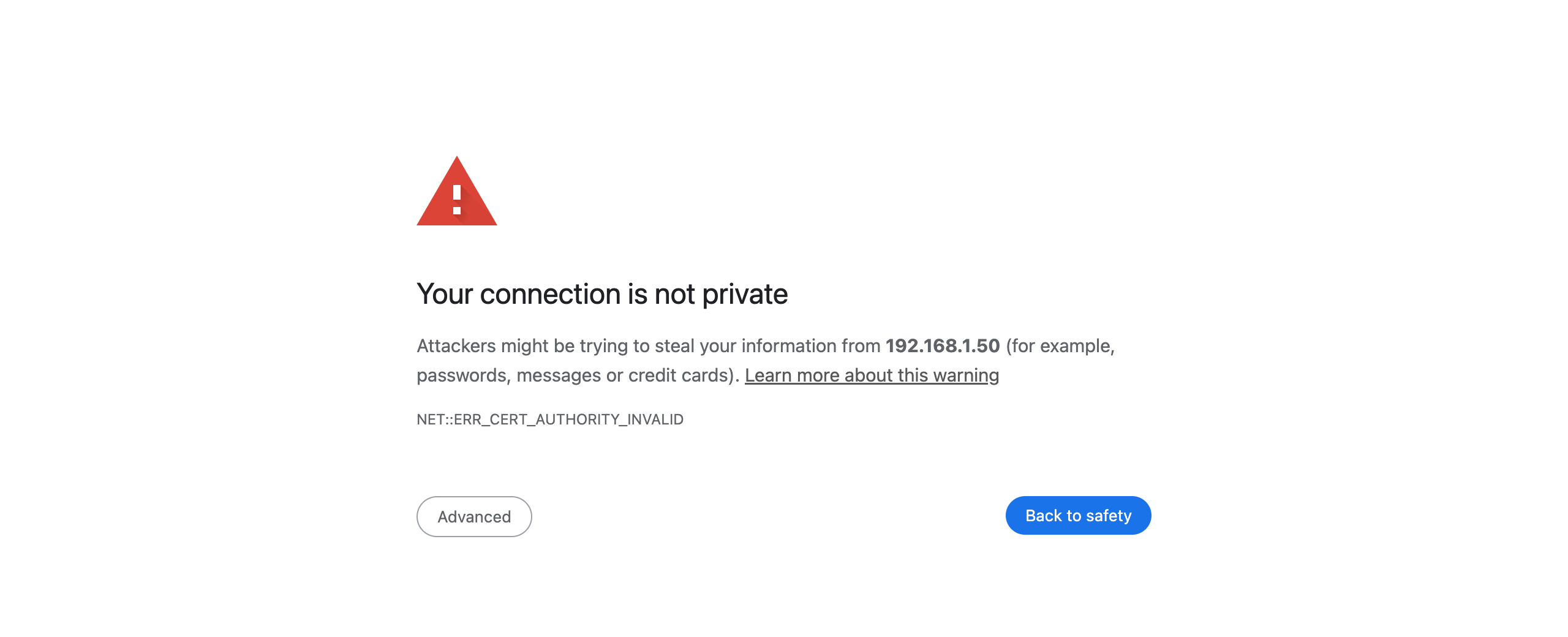
You have two ways forward:
- Carry on past the warning (in most browsers, Advanced, then proceed to the address). The connection is still encrypted, and this is fine while you commission. The browser will warn again.
- Trust the processor's certificate on this device, so the warning goes away for good. Do this on every computer, tablet and phone that staff will use.
Trust the processor's certificate
- Get the certificate file,
centro-box-ca.crt, in any of these ways:- On the sign-in page, select Seeing a security warning?, then Download the processor's certificate (
centro-box-ca.crt). - Browse to
http://<processor-ip>:8080/box-ca.crt. This works before the browser trusts the processor. - Once signed in, go to Settings → Deployment → Downloads and select Download certificate.
- On the sign-in page, select Seeing a security warning?, then Download the processor's certificate (
- Install it. The sign-in page shows the steps for the device you're on; they are:
| Device | Steps |
|---|---|
| Windows | Open the file and choose Install Certificate. Choose Local Machine, then Next (Windows asks for an administrator). Choose Place all certificates in the following store, Browse, and pick Trusted Root Certification Authorities. Then Next and Finish. Close every browser window and open the address again. |
| Mac | Open the file; Keychain Access adds it to your keychain. Find Centro Box Local CA under Certificates and open it. Expand Trust and set When using this certificate to Always Trust. Close the window and enter your password. Quit and reopen your browser. |
| iPhone and iPad | In Safari, download the file and tap Allow. Open Settings → General → VPN & Device Management, tap the Centro Box profile and tap Install. Then open Settings → General → About → Certificate Trust Settings and switch on the Centro Box certificate. Without this second switch Safari still warns. |
| Android | Download the file. Open Settings → Security → Install a certificate → CA certificate (on some phones Security & privacy → More security settings → Encryption & credentials). Tap Install anyway and choose centro-box-ca.crt from Downloads. Open the address again in Chrome. |
Firefox keeps its own list on Windows and Mac: Settings → Privacy & Security → Certificates → View Certificates → Authorities → Import, and tick Trust this CA to identify websites.
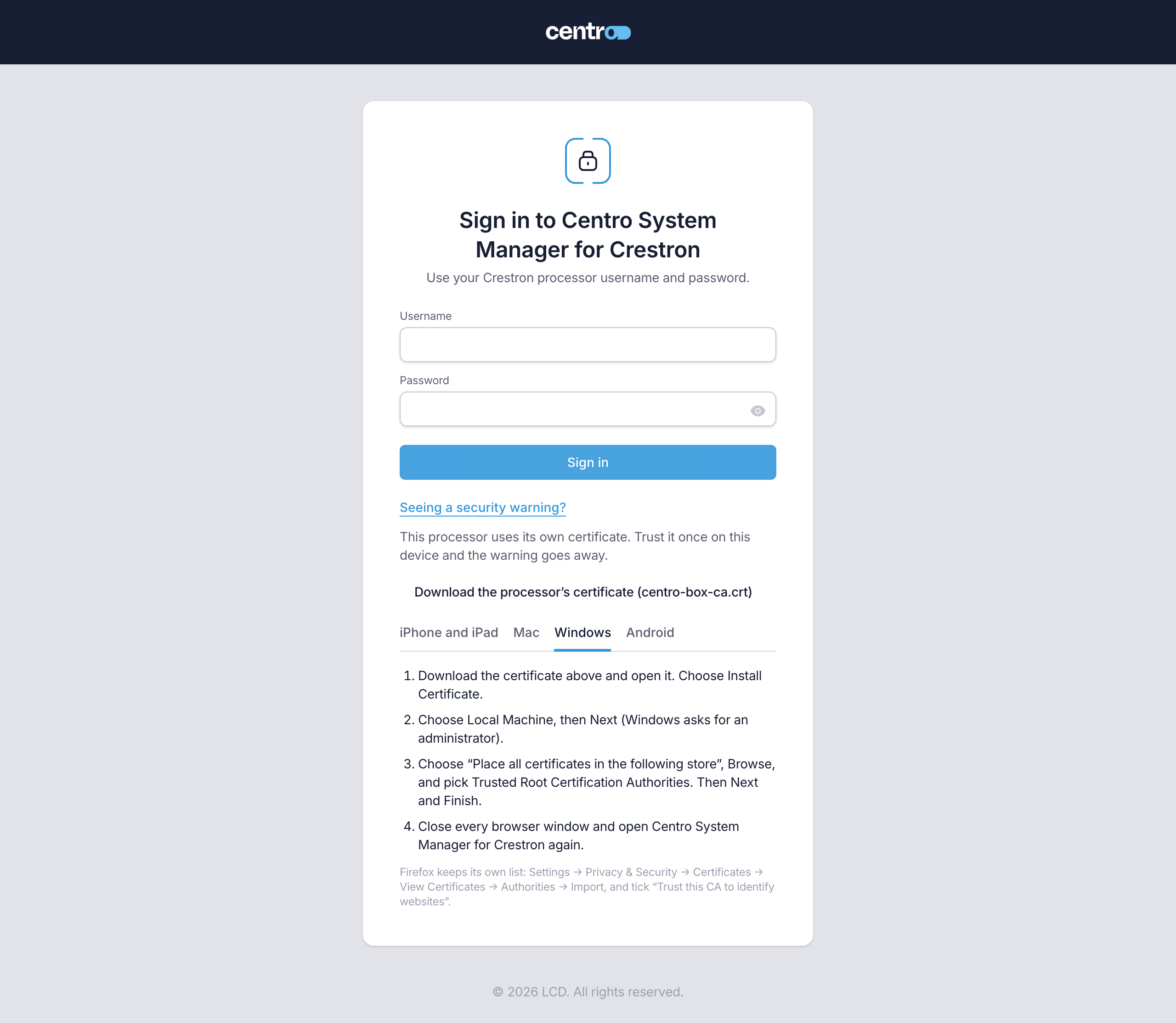
A site with its own certificate authority can give the processor its organisation's certificate instead, so devices trust it without any of this. That, and everything else about the processor's certificate, is on the Certificate page. Once a site certificate is in use, the Seeing a security warning? link no longer shows.
Step 3 — Sign in
- Enter your Username and Password — your Crestron processor account.
- Select Sign in.
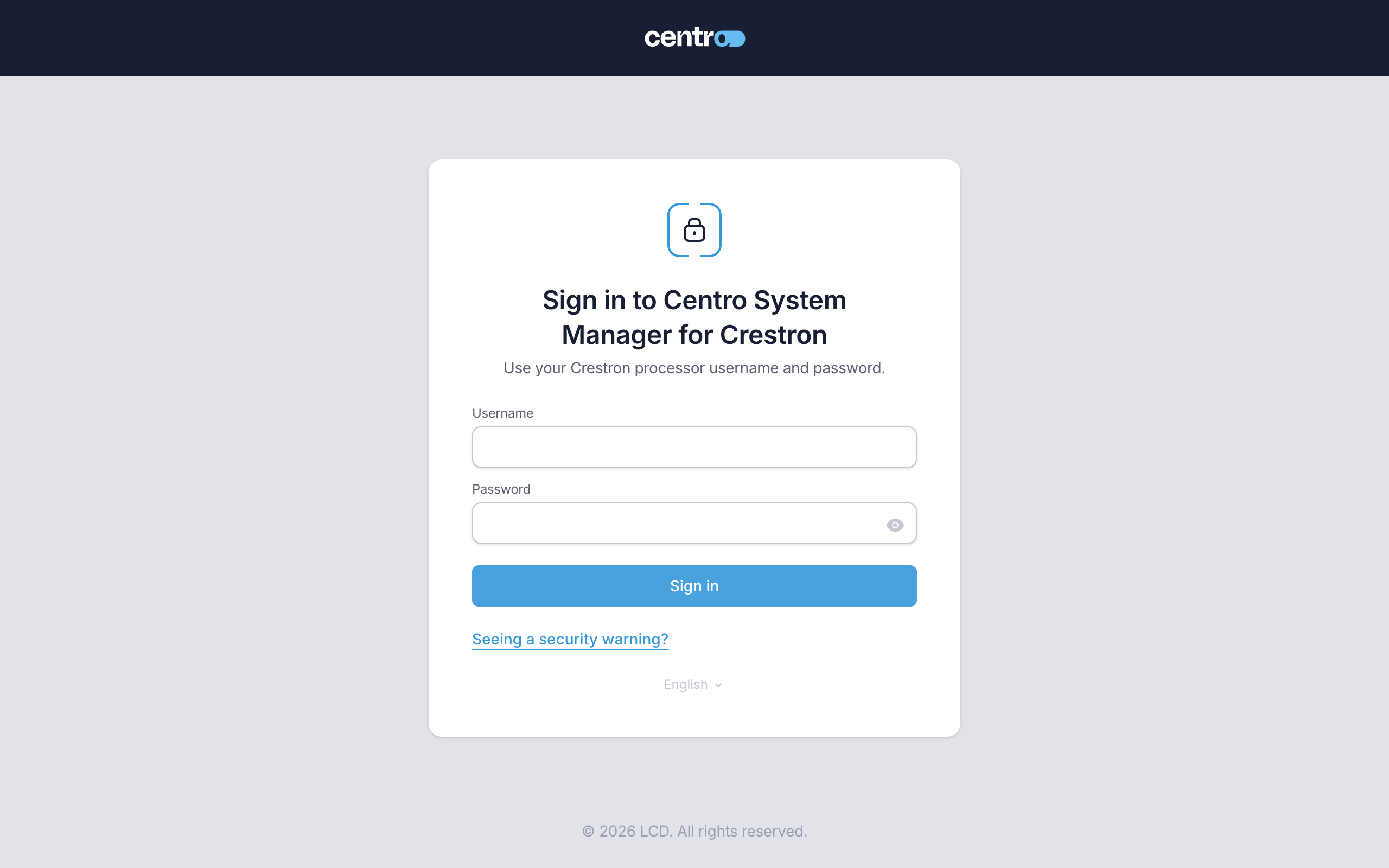
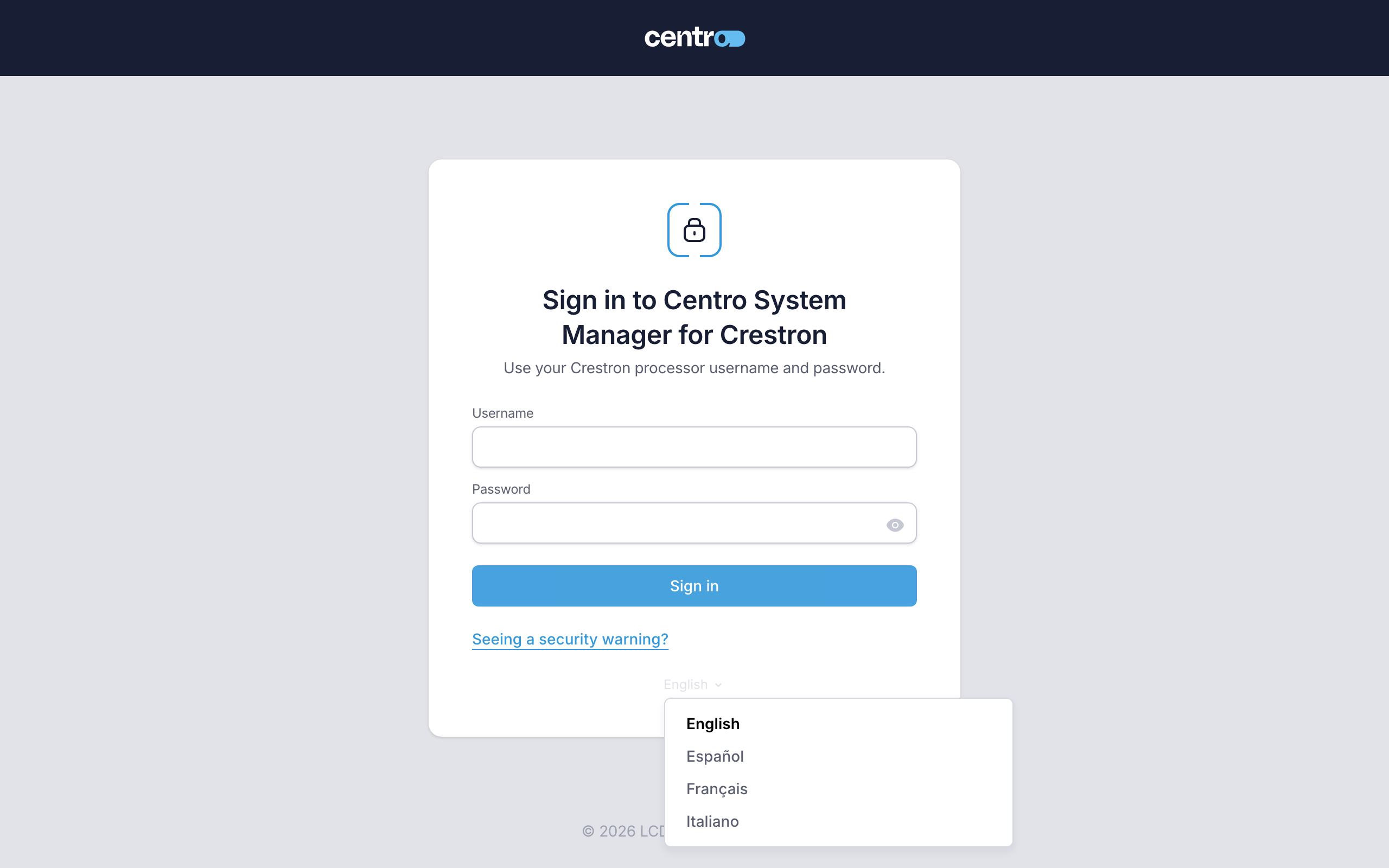
The sign-in page is in the processor's Default language. To read it in another, open the language switch under the form and choose English, Español, Français or Italiano. The choice is kept on this device and carries on after you sign in. See Language.
To start with, anyone with Administrator access on the processor signs in as an Administrator. That stays true until you map the processor's groups to roles, which the setup wizard asks you to do — see Administrators.
What happens next depends on how far setup has got:
- Before anyone has set it up, an Administrator is taken straight to the setup wizard. Anyone who isn't an Administrator sees "This processor isn't set up yet — ask an Administrator." until it has locations.
- Once setup is under way, the Locations page opens — the site dashboard. On a processor with a User App Licence and no Manager Licence, it's a plain list of the locations with their User App QR codes instead. See Site dashboard.
If the sign-in is refused
| The page says | What to do |
|---|---|
| That username and password were not accepted | Check them and try again. If you're sure the password is right, the account may be locked or in no group on the processor. |
| The processor accepted this account, but it is in no Crestron group | Add the account to a group on the processor. |
| The processor has locked this account after too many failed attempts | A processor administrator can unlock it, or wait for the processor's lock to end. |
| You signed in on the processor, but none of your groups has been given access to Centro System Manager for Crestron | Ask an administrator to give your group a role under Settings → Access → Administrators. See Administrators. |
| Authentication is switched off on this processor, so nobody can sign in | This is a setting on the processor, not a password problem. Switch authentication on at the processor. |
| Centro System Manager for Crestron couldn't reach the processor's sign-in service | Try again. If it keeps happening, check the processor. |
| Centro System Manager for Crestron did not answer | Check that this device can reach the processor, then try again. |
| Sign-in is paused, with Try again in and a countdown | See the next section. |
When you're signed out
You stay signed in for up to 12 hours. When the program restarts — after an upgrade, a restore or a restart of the processor — everyone is signed out, and the sign-in page says "Your session has ended. Sign in again." Sign in as before.
Pauses after failed sign-ins
A Crestron processor locks an account after repeated failed sign-ins. That lock applies to Toolbox, the processor's own web pages and SSH as well as to Centro System Manager for Crestron, which can't lift it. So it steps in first and pauses sign-in itself, before the processor's limit is reached.
To start with:
- After 3 failed sign-ins for one username, or from one device, sign-in is paused for 1 minute.
- One more failure after a pause ends brings a 5 minute pause, and the next a 15 minute pause. Each later one is 15 minutes too.
- A correct password clears the count.
While sign-in is paused, the page says what is paused — the username, the device or both — and counts down: Try again in 0:58. The Sign in button stays off until the countdown ends, and reloading the page doesn't reset it. The countdown shows the real wait, which can be longer than the lengths above when one more failure would reach the processor's own limit.
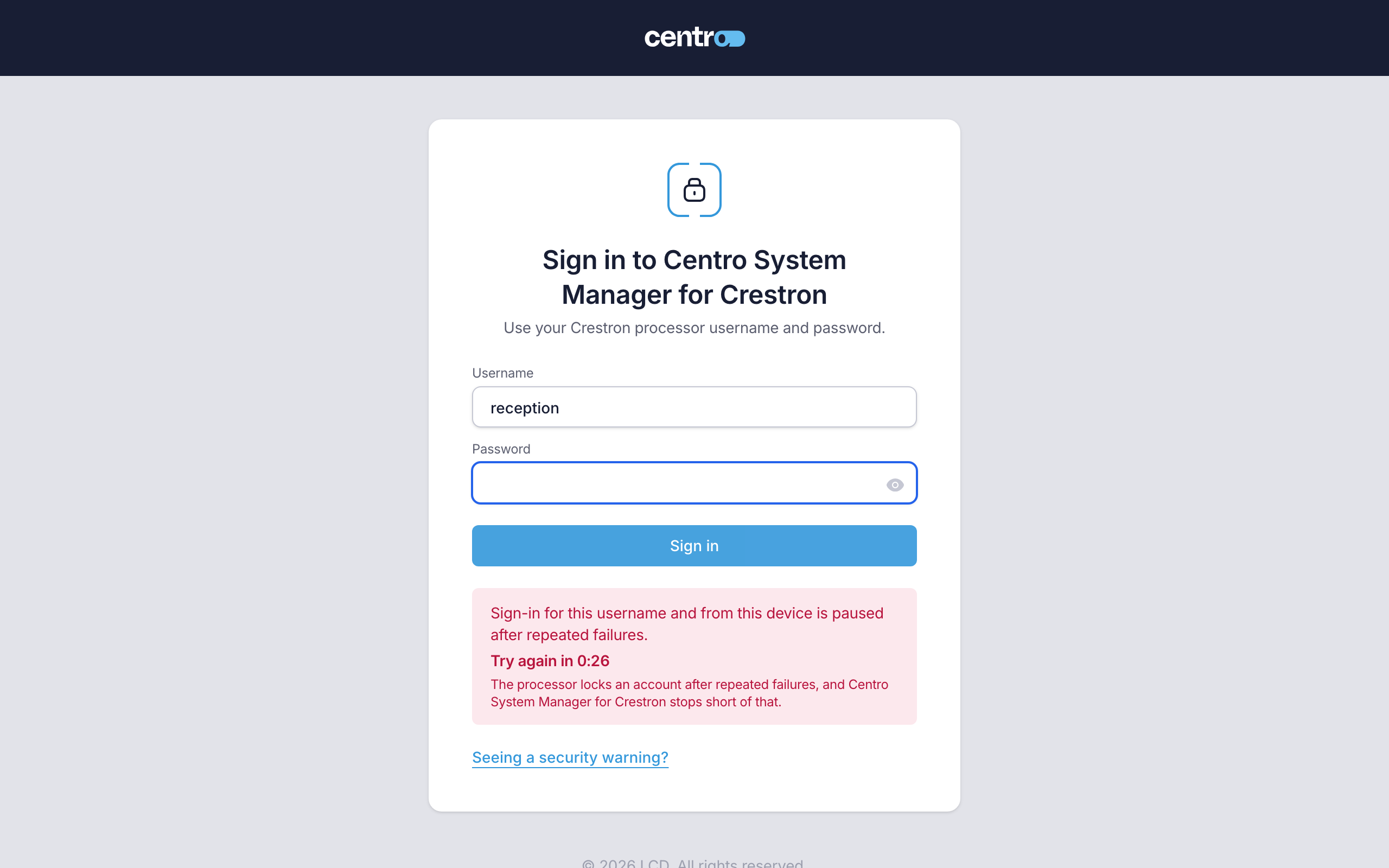
An administrator can lift a pause, and change the number of attempts and the pause lengths, under Settings → Access → Sign-in security — see Sign-in security.
Keep a separate Crestron administrator account on the processor for recovery only, and never use it to sign in day to day. If the everyday account is ever locked on the processor, the recovery account can still get in and unlock it.