Setup wizard
Start with the Quick guide: Run the setup wizard.
Until it has been set up, Centro System Manager for Crestron opens a wizard the first time an Administrator signs in. It takes you through commissioning one screen at a time, and each screen shows the settings page that step is done on, so there's nothing to go looking for.
The wizard never blocks you. You can skip a step, take the steps in any order or leave with Finish later and come back. Once setup is under way, the same steps become a checklist under Settings → Deployment → Setup.
Who sees the wizard
- An Administrator who signs in to a processor nobody has set up is taken to the wizard, once per sign-in, until its last screen has been reached.
- Anyone else who signs in then sees "This processor isn't set up yet — ask an Administrator."
- A processor that already has locations, or steps already marked, opens the Locations page. Its setup page is the checklist.
The first screen
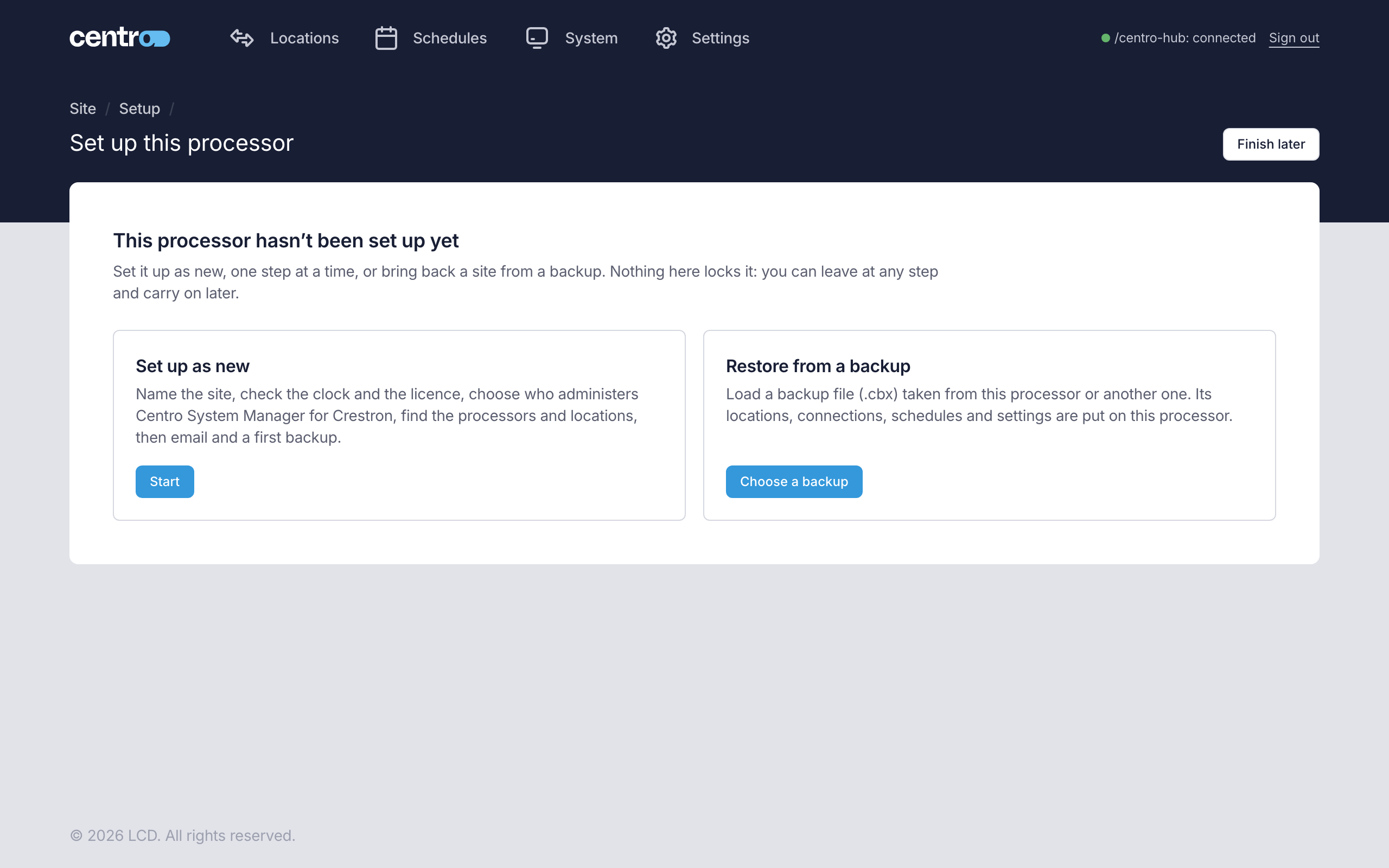
| Choice | What it does |
|---|---|
| Set up as new → Start | Starts the steps below. |
| Restore from a backup → Choose a backup | Opens the restore screen. Choose a backup file (.cbx) taken from this processor or another one and type its passphrase. The processor restarts with that site's locations, connections, schedules and settings. If the backup came from another processor, its licence is still tied to that processor: contact LCD support to move it to this one — see Activate a licence. See Backup and restore. |
The steps
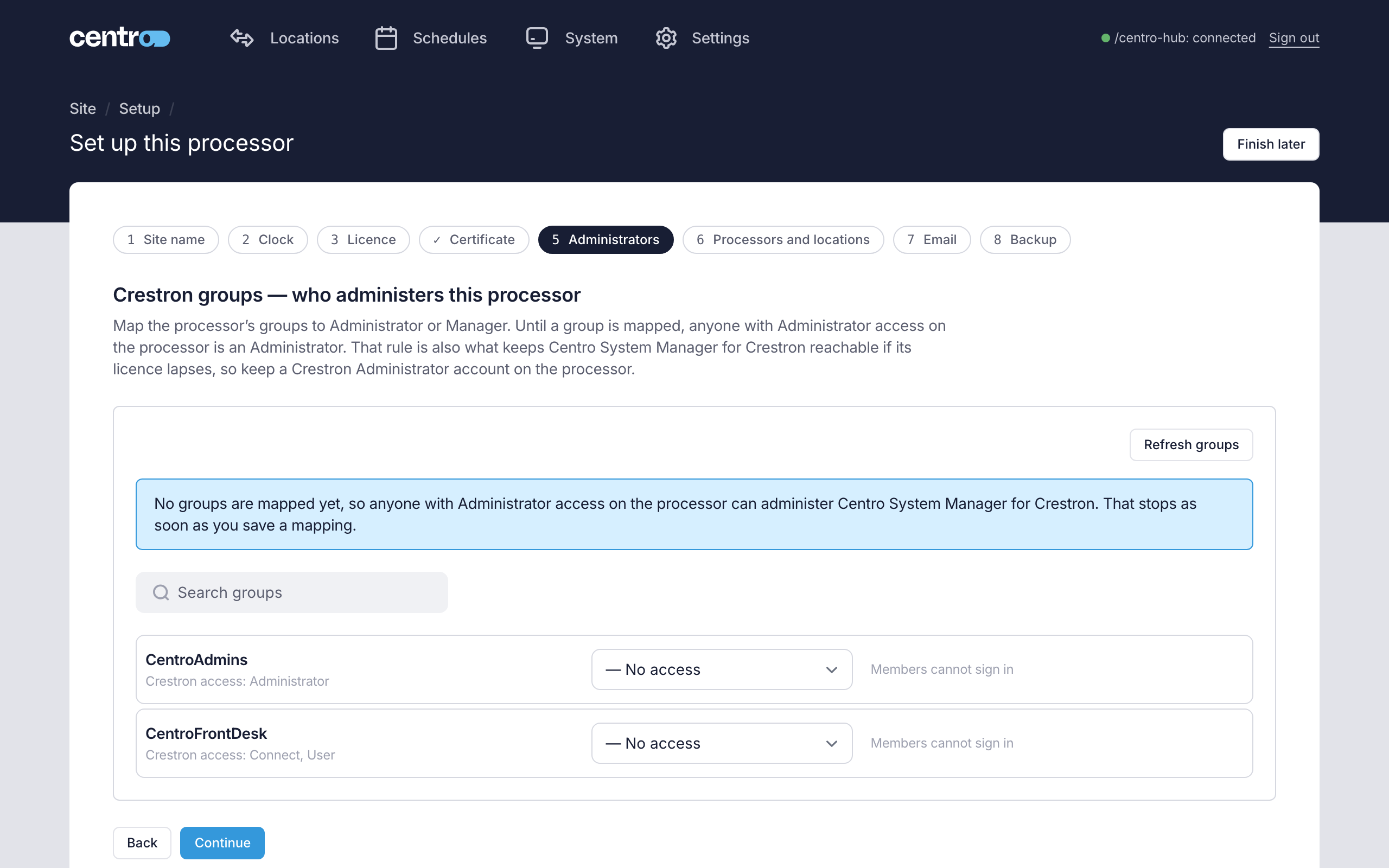
A strip across the top lists the eight steps. Select any of them to jump to it. A step that's done shows a tick, and a skipped one says Skipped. Back and Continue move one step at a time.
| # | Step | What you do | Going forward |
|---|---|---|---|
| 1 | Site name | Type the site's name. It's shown at the top of the User App, and it's what an Administrator types to confirm a factory reset. Leave it blank for none; change it later under Settings → Settings → Appearance. | Continue saves it. |
| 2 | Clock | Check the time, time zone and time server the processor reports. Schedules, logs and the trial all go by this clock. There's nothing to do unless it says Needs a look. The time zone and time server are the processor's own, so change them in the processor's settings. | Continue. |
| 3 | Licence | Add your licence keys, or carry on with the trial and activate later. See Activate a licence. | Continue marks the step done either way. |
| 4 | Certificate | Download the processor's certificate and trust it on each computer and tablet that will open Centro System Manager for Crestron, or give the processor your organisation's certificate. See First sign-in and Certificate. | The step completes by itself as soon as the page is open over https://. Over plain HTTP the wizard moves on and leaves it open. |
| 5 | Administrators | Map the processor's groups to Administrator or Manager. Until a group is mapped, anyone with Administrator access on the processor is an Administrator. See Administrators. | Continue marks the step done. |
| 6 | Processors and locations | Find the local processors on the network and install the Centro driver, so their locations call in. The step shows the Discovered devices table, with links to Open Connections and Open Locations. See Discover devices and Connect Crestron Home. | The step completes when there is a location. With none yet, the button reads Continue without locations and the step stays open. On a processor with neither a Manager Licence nor a User App Licence in use, it reads Skip for now instead — see When the processor has no Manager Licence. |
| 7 | Enter the site's mail relay and send a test message. See Email. | With no relay, the button reads Skip for now. Without one the processor can't email alerts; they only appear in the app. | |
| 8 | Backup | Download a backup and keep it off the processor. Then, under Where is the backup passphrase recorded?, write where the passphrase is kept — where, not the passphrase itself. Nobody can recover a lost passphrase. | With the note filled in, Continue marks the step done. With nothing written, the button reads Skip for now. |
The rule that a processor Administrator is an Administrator is also what keeps Centro System Manager for Crestron reachable if its licence lapses. Keep an Administrator account on the processor.
The summary
The last screen lists what happened:
- Set up — the steps that are done.
- Skipped — the steps you skipped, including a blank site name.
- Not done yet — the steps still open.
Each item is a link back to its step. If you recorded where the backup passphrase is kept, the summary repeats it.
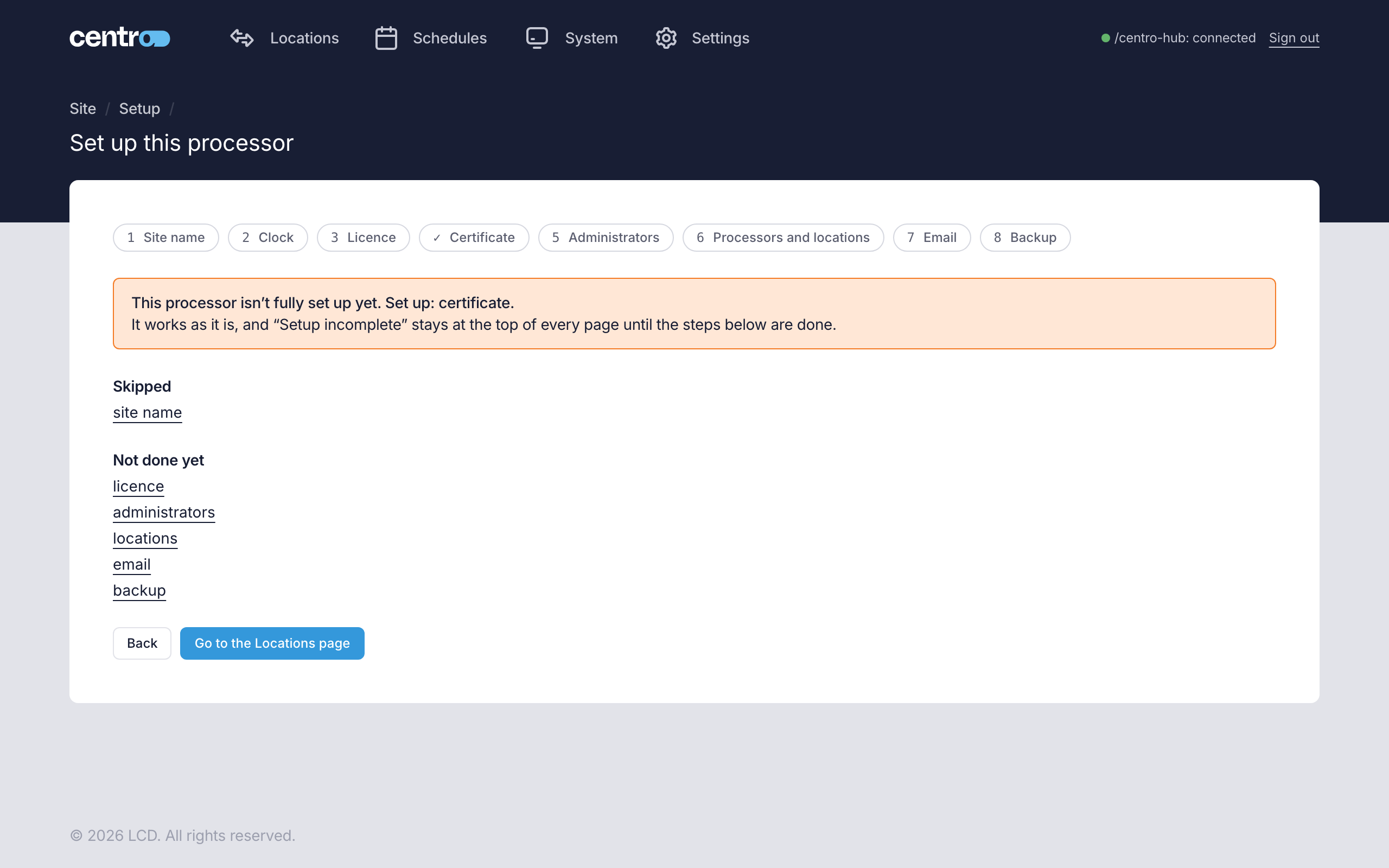
The summary starts with one of three lines: "This processor is set up.", "This processor is ready, with some steps skipped." or "This processor isn't fully set up yet." In the last case, Setup incomplete stays at the top of every page until the open steps are done.
Go to the Locations page ends the wizard. From then on, setup is the checklist.
Finish later
Finish later is at the top of every wizard screen. It leaves the wizard for this sign-in and takes you to the Locations page. Nothing is lost: the processor remembers each step, and the wizard is offered again the next time an Administrator signs in.
The setup checklist
Once setup is under way, Settings → Deployment → Setup shows the six commissioning steps as a checklist. The site name and the clock aren't steps here; the Clock card sits below the list.
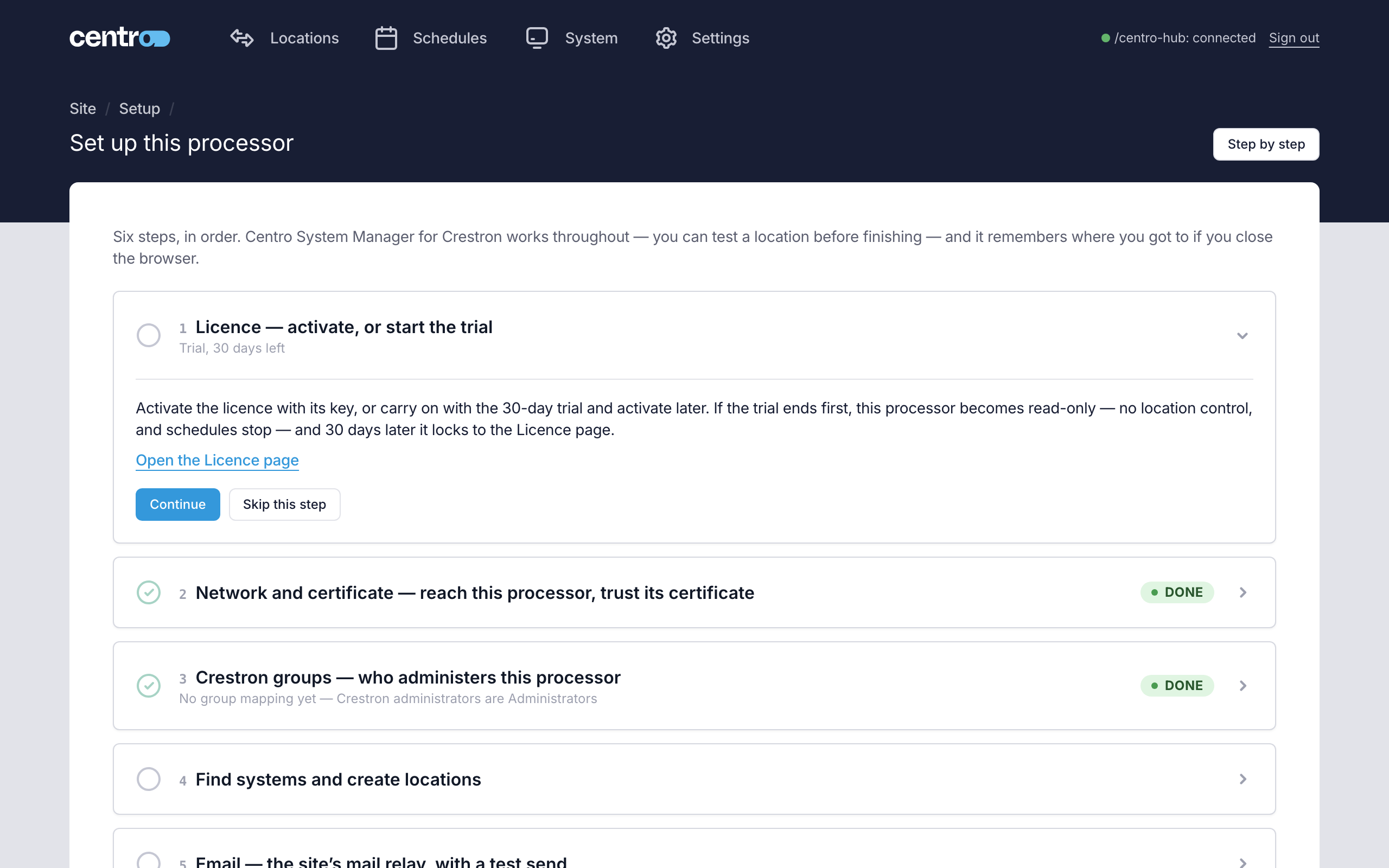
| # | Step | Can be skipped |
|---|---|---|
| 1 | Licence — activate, or start the trial | Yes |
| 2 | Network and certificate — reach the processor, trust its certificate | No |
| 3 | Crestron groups — who administers this processor | No |
| 4 | Find systems and create locations | Only on a processor with neither licence in use — see below |
| 5 | Email — the site's mail relay, with a test send | Yes |
| 6 | Back up and hand over | Yes |
- The page opens at the first step still to do. Each step says what it's for and links to the page where the work is done.
- Continue marks a step done and opens the next. Skip this step skips it; for email and backup the processor asks you to confirm first.
- Step 2 can only finish over HTTPS. If the page is open over plain HTTP, it says so and completes by itself once you open the page at its
https://address. - Step 6 needs the note saying where the backup passphrase is recorded before Continue is available.
- A skipped step counts as done as soon as the processor sees it done.
- Step by step, at the top right, opens the wizard again for anyone who'd rather be walked through.
Everything works throughout: you can test a location before finishing. Until steps 2, 3 and 4 are done, Administrators see a Setup incomplete banner at the top of every page, with a Continue setting up this processor link.
When those three are done, the checklist is headed by a summary — "This processor is ready", what was set up, what was skipped and what isn't done yet — with a reminder to download a backup before you leave if none has been taken.
When the processor has no Manager Licence
Locations are free: Settings → System → Locations and the processors and locations step work on every processor, licensed or not. What differs is whether the locations step can be skipped:
| The processor has | The locations step |
|---|---|
| A Manager Licence — active, on its trial or read-only | Can't be skipped. It completes when there is a location. |
| A User App Licence and no Manager Licence | Can't be skipped: users and touch screens use the locations. The step says "This processor has the User App Licence without the Manager Licence. Create its locations and link their processors here: users and touch screens use them. The Locations page and schedules need a Manager Licence." |
| Neither | Can be skipped. The step says "This processor has no Manager Licence or User App Licence, so nothing controls its locations yet. You can still create locations and link processors now, or skip this step and come back to it; connections keep reporting meanwhile." |
Here the Manager Licence counts while it's active, on its trial or read-only; the User App Licence counts only while it's active. See Activate a licence.
A factory reset puts the processor back to the start, and the wizard opens again at the next sign-in.