Bulk commands
Start with the Quick guide: Send one command to many locations.
A bulk command sends one command to many locations at once — every location on a floor, every vacant location or the locations you tick. Use it to mark a floor Dirty, turn the lights off in every vacant location or set one temperature across a floor.
You start on the site dashboard, with the Control these N locations button.
Choose the locations
The button always says how many locations it will command. There are three ways to choose them.
Every location. With no filter set, the button reads Control these 100 locations on a site of 100 locations.
The locations a filter shows. Search or filter the dashboard first, and the button counts only the locations shown. To command every location on the second floor, select Group and tick the floor's group.
The locations you tick. To pick locations one by one:
- Select Table at the top of the dashboard.
- Tick the locations you want. Select all ticks every location the filters show.
- Check the count beside Select all, for example 2 of 100 selected.
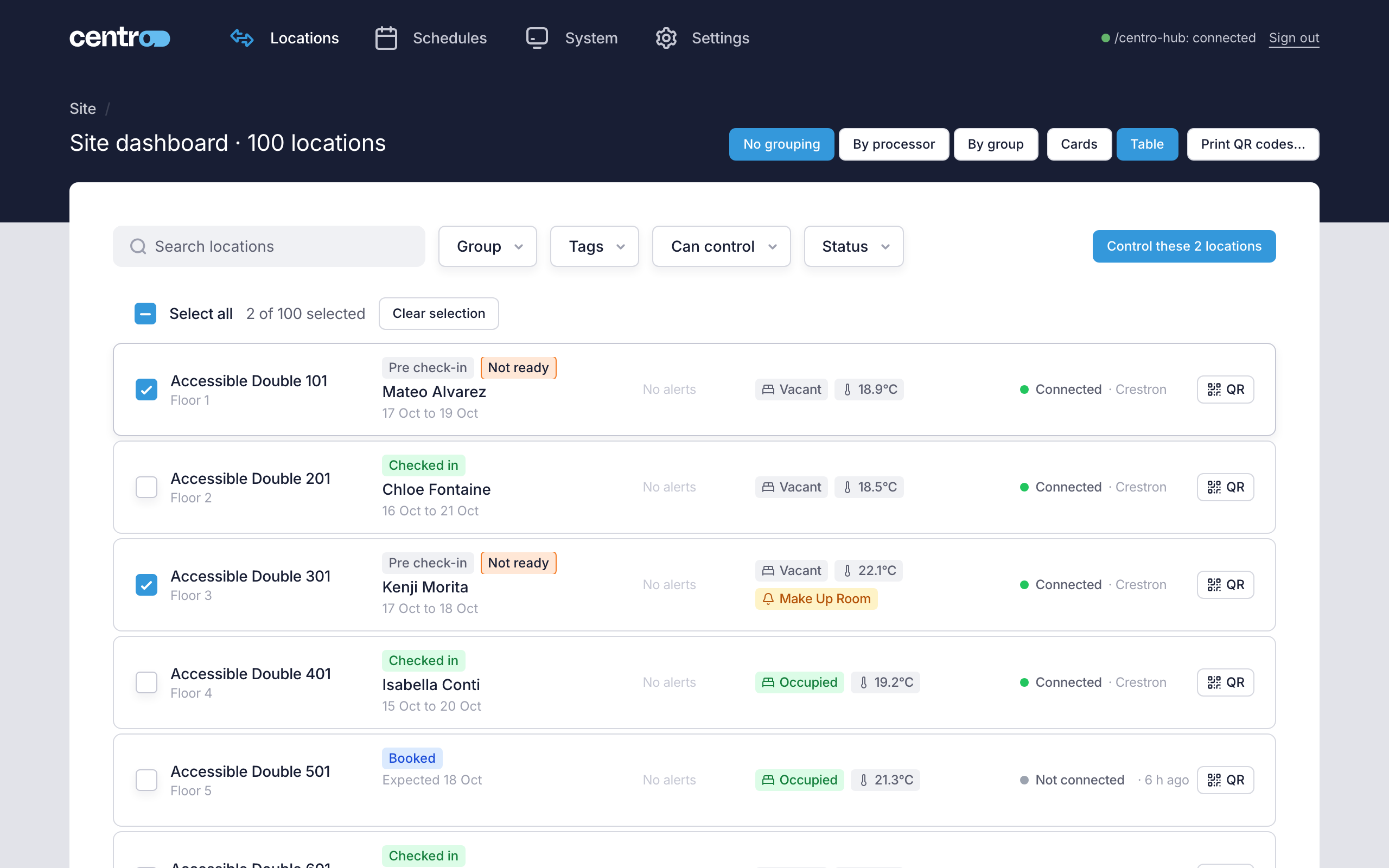
Ticked rows are only ever locations you can see. If you change a filter and a ticked location drops out of view, it's unticked and the dashboard tells you. Switching to Cards clears the ticks.
Send the command
To mark every location on a floor Dirty:
- On the site dashboard, filter to the floor.
- Select Control these N locations.
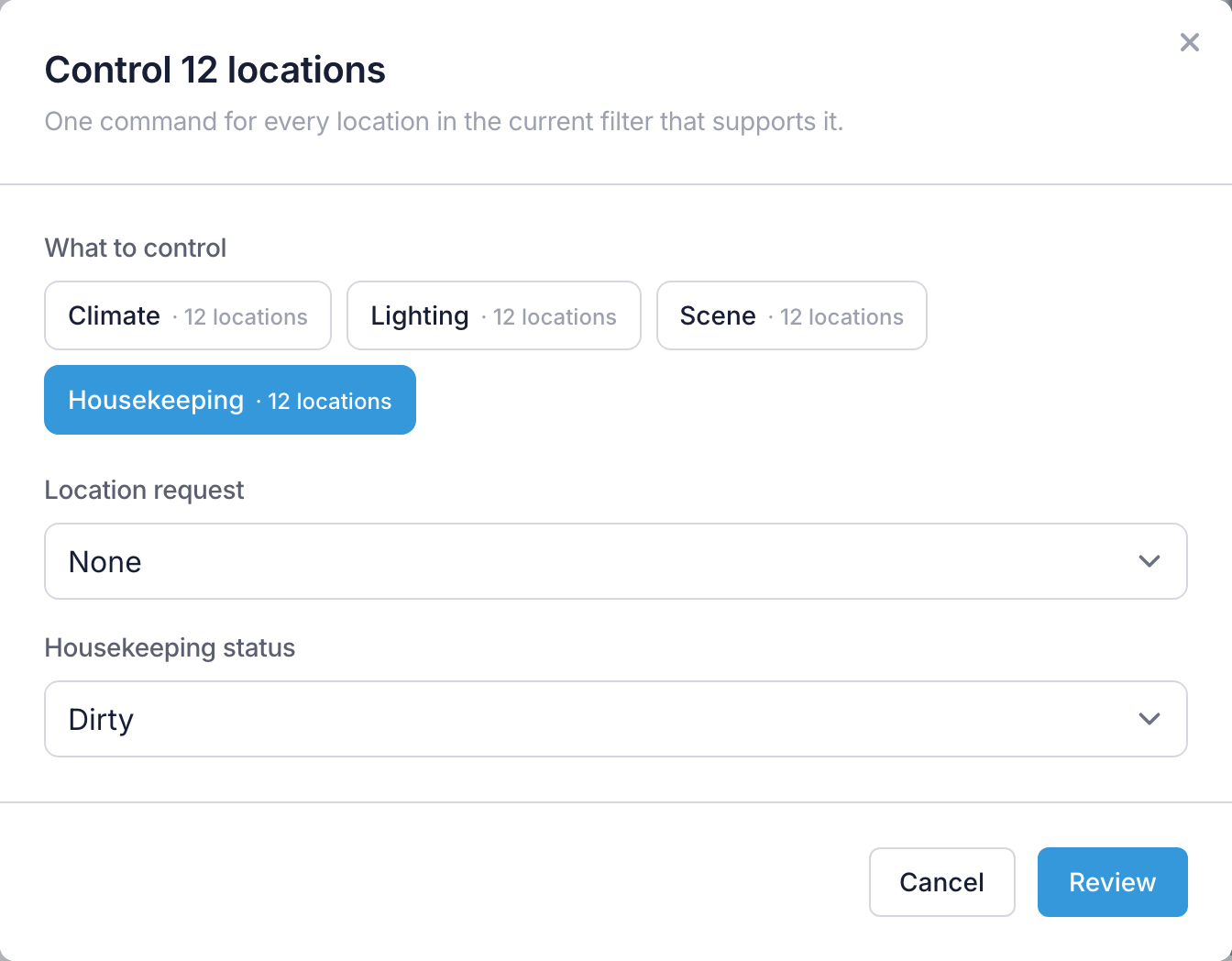
- Under What to control, select Housekeeping.
- Set Housekeeping status to Dirty.
- Select Review.
- Check the number of locations, then select Send to N locations.
What you can send
Each choice under What to control shows how many of your locations accept it.
| Choice | What you set |
|---|---|
| Climate | Temperature setpoint, Temperature unit, Mode and Fan speed. Leave Mode or Fan speed on Leave as it is to change the temperature without changing how each location is running |
| Lighting | Power on, ticked for on and unticked for off, and optionally a Scene |
| Scene | The Scene to recall |
| Housekeeping | Housekeeping status (Clean, Dirty, In progress) and Location request (None, Do not disturb, Make up room) |
Shades can't be sent to many locations at once: open each location's page instead (see Control a location).
A choice is greyed out when none of your locations accepts it, and the window lists those under Not offered. Clearing the filters or ticking other locations may bring in locations that do.
Housekeeping
A Housekeeping command always sets a housekeeping status, so choose the status you want even when you're sending a request.
The processor keeps every location's housekeeping status itself, so the status reaches every location you chose, with or without a connection that takes housekeeping. A location request is different: it goes only to locations with a connection that takes it.
When some of the locations have no such connection, Location request offers Leave as it is, and starts on it, so only the status is sent. If you choose a request, the window reminds you that it reaches only the locations with a connection that takes it.
Scenes across many locations
The Scene list is built from the scenes your locations report. Scenes that every location has come first, under In every location. Scenes that only some locations have are listed under Only in some locations, with how many locations have each.
Locations that don't have the scene you choose are skipped, not sent a scene they'd refuse. Select Enter a name instead to type a scene name that isn't in the list.
Check before you send
The review step shows which locations you chose and asks you to confirm, for example Send this Housekeeping command to 12 locations?
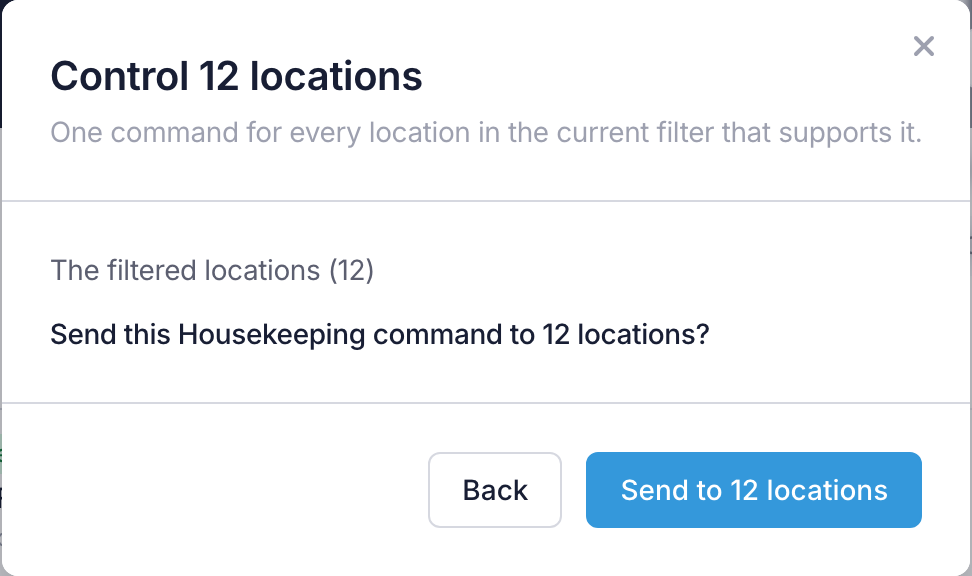
It also lists the locations that will be skipped and why — because they don't accept that kind of command, or because they have no scene of that name. The first eight are named. Select Back to change the command.
Follow the progress
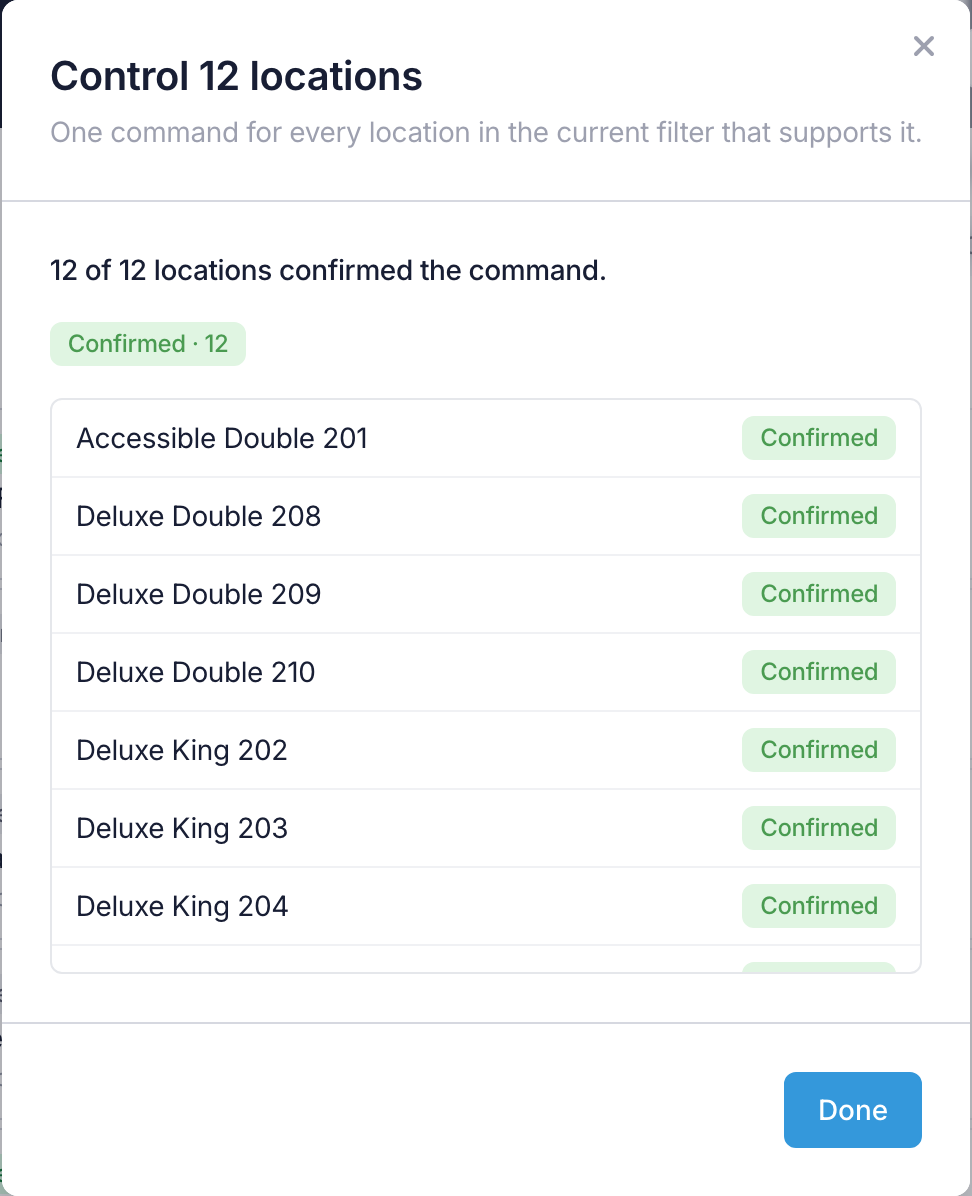
After you send, the window follows the command to every location. The processor spaces the commands out so that none is lost, which takes a few seconds on a large site.
| Status | Meaning |
|---|---|
| Queued | The command is waiting for the location's connection to collect it |
| Delivered | The connection has the command and hasn't confirmed it yet |
| Confirmed | The location has carried the command out |
| Done | The processor carried the command out itself, as it does for a housekeeping status |
| Partly done | The processor set the housekeeping status, but the location request wasn't sent: no connection takes requests for the location |
| Failed | The location didn't confirm the command. The reason is shown beside it |
| Skipped | The location doesn't accept this command, so nothing was sent |
| Not found | The location no longer exists |
A command waits up to 5 minutes for a location that's offline. A location that comes back within that time runs it then. After 5 minutes the command counts as failed and the processor stops trying, so the location doesn't run it later. The same 5 minutes apply to commands from a location's page, a schedule and the User App.
When every location has finished, the summary reads, for example, 12 of 12 locations confirmed the command. When the processor set a housekeeping status itself, the summary says so, for example 12 of 12 locations have the command: 4 confirmed by a connection, 8 set on the processor.
Select Done to close the window.
You don't have to wait. Close (the locations still get it) closes the window while locations are still confirming, and the commands carry on.
If the command can't be sent
If the window says the command could not be sent, select Send to N locations again. Locations that already have the command don't get it twice.
If the button isn't there
Control these N locations is missing when:
- you're signed in as a Manager and Managers can run group commands is off under Settings → Settings → General (see General)
- the Manager Licence trial has ended or the licence has lapsed, and the locations are read-only (see Licensing and editions)
- the filters show no locations.
When only one location is shown or ticked, the button reads Control this location.
To send the same command every day, use a schedule instead. See Schedules.