Add your licence
Centro System Manager for Crestron starts on a trial that lasts 30 days. To keep its licensed features after the trial, add a licence key for each one.
You need: your Manager Licence key and, if the site has one, your User App Licence key. The processor must be able to reach the internet, and you must be signed in as an Administrator.
- Go to Settings → Settings → Licence: select Settings in the top navigation, select the tab at the left edge of the page to open the settings menu, then open the Settings group and select Licence. On a phone, select the Settings menu bar above the page instead.
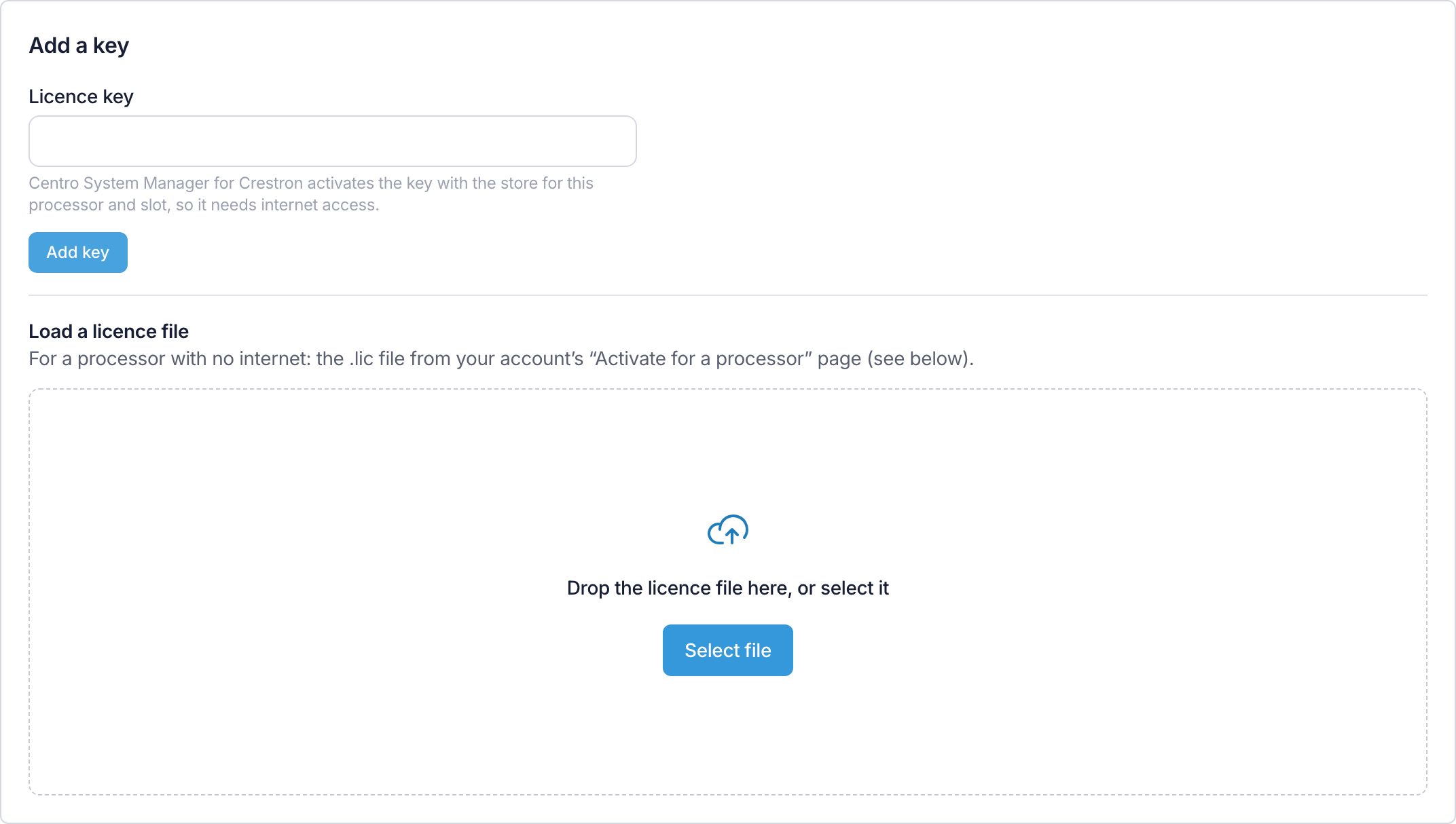
- Find the Add a key panel.
- Type or paste the key into Licence key.
- Select Add key.
- Repeat for the User App Licence key, if the site has one.
You should now see the feature show Active under What this processor has, and the key listed under Keys with Online in the Added column.
If the page says "This processor can't reach the licensing service", see Activate offline with a licence file.
Next: Connect Crestron Home.
More detail: Activate a licence.