API keys
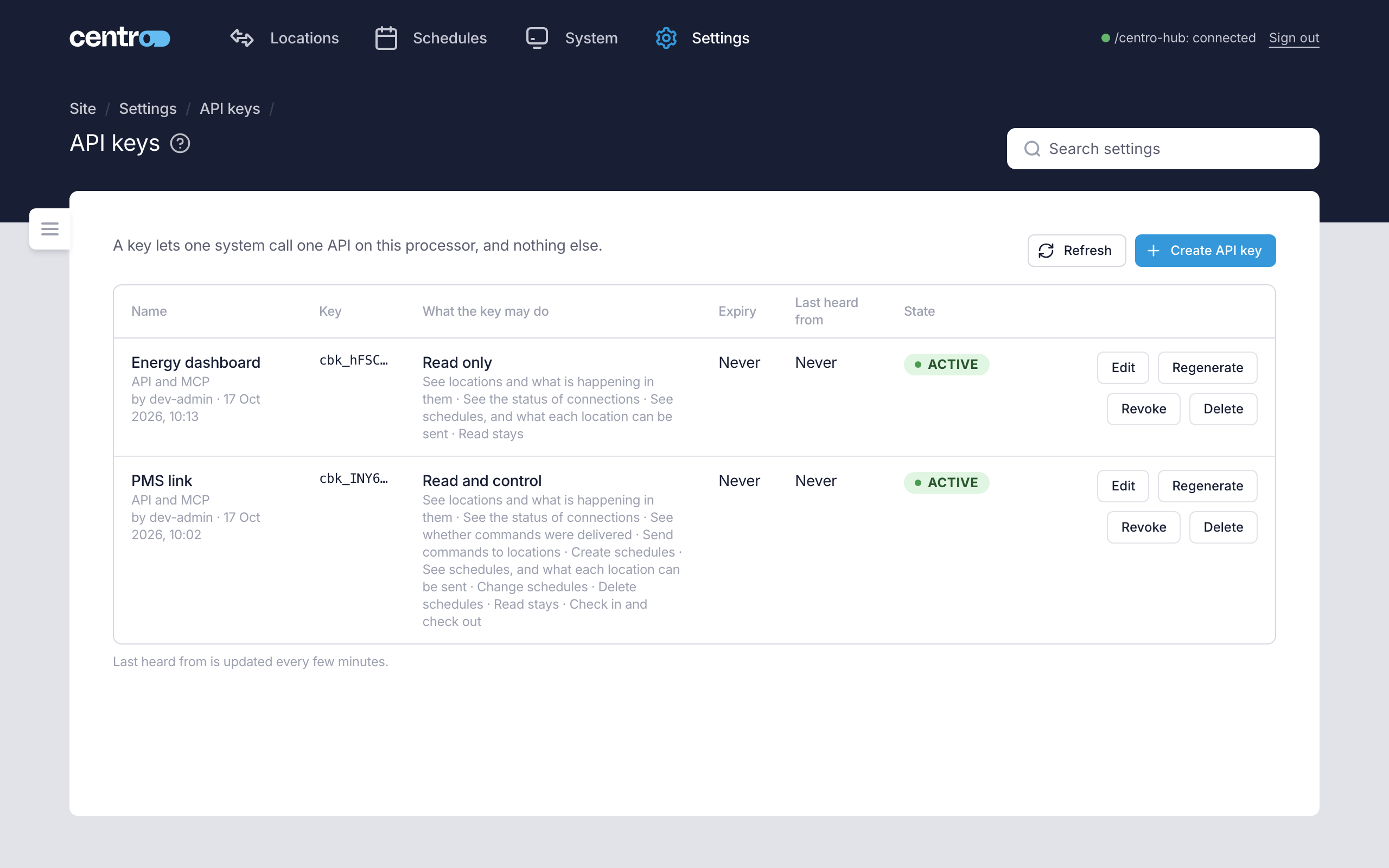
Settings → Access → API keys holds the keys other systems use to call this processor: a PMS link, an integration of your own, or an AI assistant through the MCP endpoint. Each system signs in with a key of its own, and the key decides what it may do.
An API key is the way in for another system. A service account is the other way round: a username and password this processor signs in to another system with. The two pages sit next to each other under Access.
For what a key can call, see API and MCP.
Before you start
API keys need the API Licence, together with a Manager Licence or a User App Licence. The API Licence has no trial. See Licence.
You can create keys before the licence is added. While the API Licence isn't working, the page says why in a notice above the list, and every call a key makes is refused. The keys are kept, and work as soon as the licence does.
What a key can reach depends on the other licences:
| The processor has | A key reaches |
|---|---|
| API Licence and Manager Licence | Locations and their state, location control, schedules and the status of connections. |
| API Licence and User App Licence only | Locations and their state, location control and the status of connections. Not schedules. |
| API Licence, with the Manager Licence read-only | Locations, schedules and the status of connections, to read. Nothing can be changed. |
| API Licence and neither of the others | Nothing. Every call is refused. |
Licences and limits gives every case, with what a refused call answers.
Create a key
- Select Create API key.
- Enter a Name, up to 64 characters. Make one key for each system that calls the processor, and name it after that system, for example "Building management system". Two keys in use can't share a name.
- Under For, choose API and MCP. This can't be changed once the key is made.
- To give the key an end date, tick This key expires and choose when. A key with no expiry works until it's revoked.
- Under What the key may do, choose a preset, or open Choose one by one. See What a key may do.
- Select Create API key.
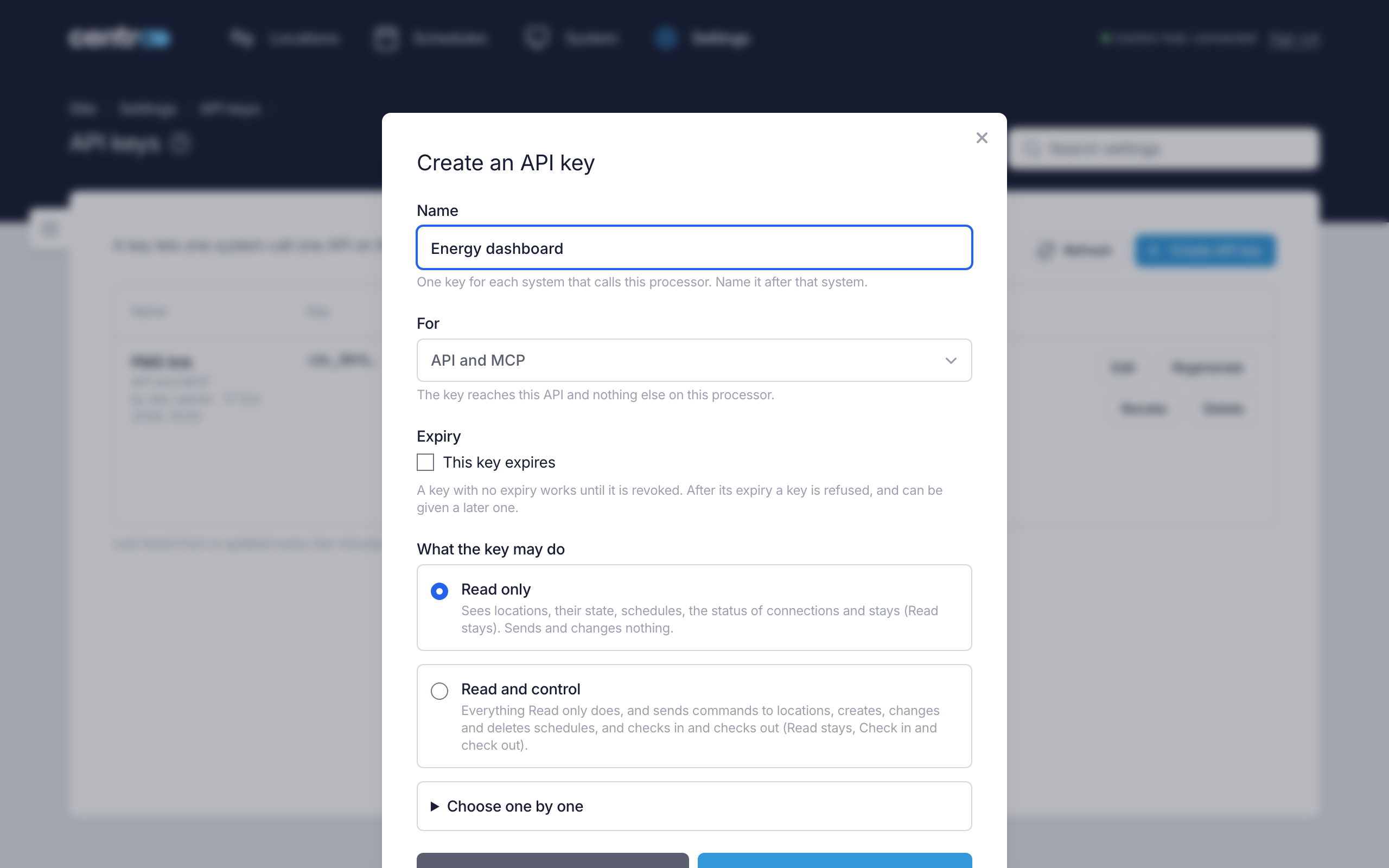
The key is shown once, in Your new API key.
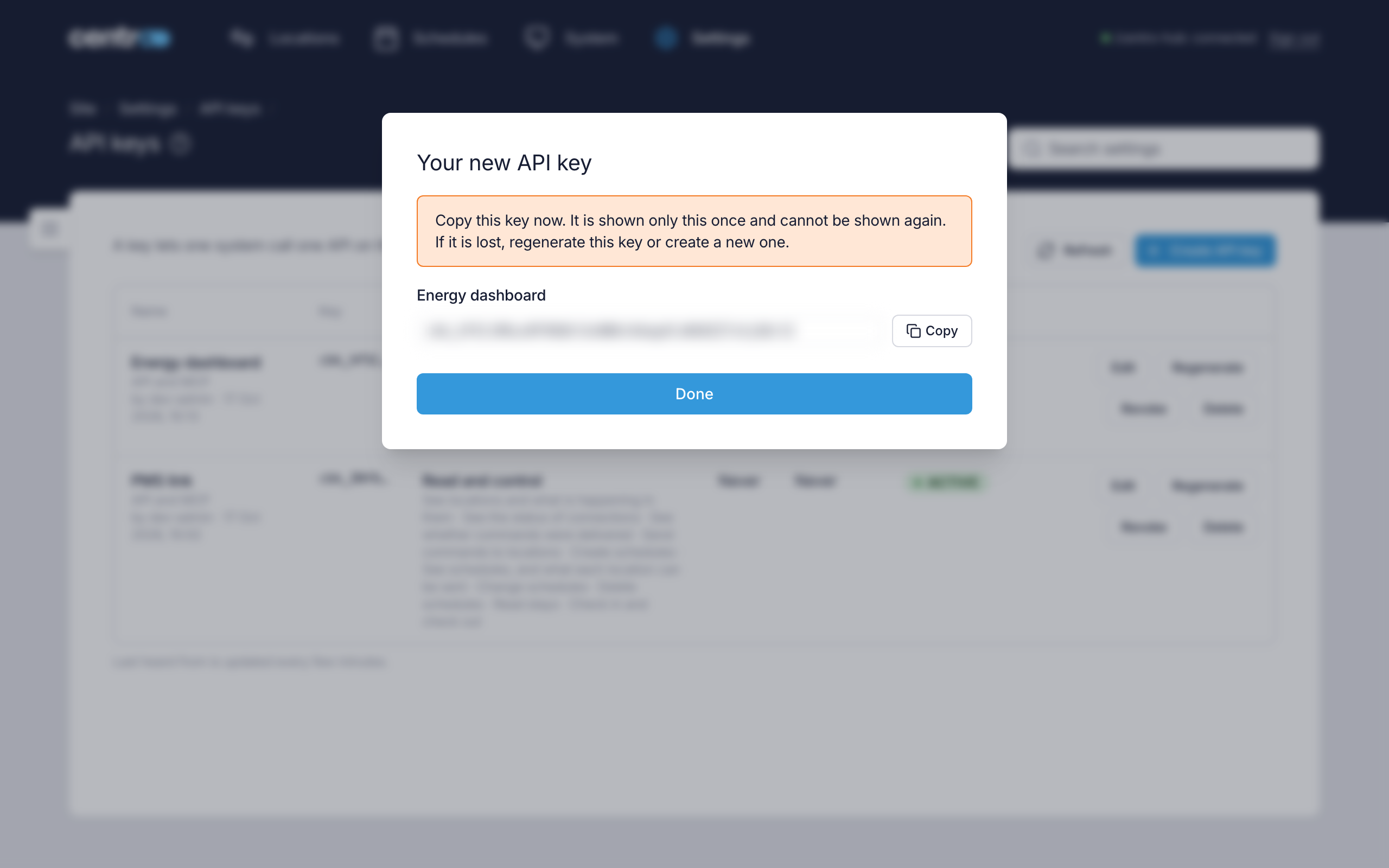
The key can't be shown again. The processor keeps no copy that can be read, only a fingerprint, enough to recognise the key when it's used. Copy the key, put it where the system that will use it keeps its secrets, then select Done. Nothing else closes the dialog, so a stray click can't lose the key.
If a key is lost, regenerate it or create a new one.
A key looks like cbk_ followed by 43 letters, digits, hyphens and underscores.
What a key may do
| Preset | What it allows |
|---|---|
| Read only | Sees locations, their state, schedules and the status of connections, and stays. Sends and changes nothing. A new key starts on this. |
| Read and control | Everything Read only does, and sends commands to locations, creates, changes and deletes schedules, and checks users in and out. |
Choose one by one lists every permission, to tick the ones the key needs. Ticks that match a preset select that preset. Any other set shows as Custom. A key needs at least one permission.
| Permission | What it lets the key do |
|---|---|
| See locations and what is happening in them | List locations, read one, read its state, its live notifications and its connections' status, and check where commands have got to. |
| See the status of connections | Read the status of every connection, as the System page shows it. It also adds each connection's details to the locations a key reads. |
| See whether commands were delivered | Check where commands have got to. See locations and what is happening in them covers this too. |
| Send commands to locations | Run a command in one location or in several. |
| See schedules, and what each location can be sent | Read schedules, when they last ran and what each location can be sent. |
| Create schedules, Change schedules, Delete schedules | Make, change or delete a schedule. |
| Read stays | Read stays through the Stay API. |
| Check in and check out | Send reservations, check-ins and check-outs through the Stay API. |
The routes behind each permission are on REST API.
The two stay permissions work only while stays are on and Stay API is ticked under Stays. While stays are off, the dialog says Stays are switched off in General Settings.
The switches under What Managers can do in General are for people, not keys. A key does what its permissions allow.
The list
| Column | What it shows |
|---|---|
| Name | The key's name, what it's for and who made it, when. |
| Key | The key's first eight characters, so you can tell which one a system holds. Never the whole key. |
| What the key may do | The preset, or Custom, with the permissions. |
| Expiry | The date, or Never. |
| Last heard from | When the key was last used, or Never. It's updated every few minutes, so it can be a little behind. |
| State | Active, Expired or Revoked. A revoked key stays in the list, greyed, with the date. |
Change, replace or end a key
| Action | What it does | Offered on |
|---|---|---|
| Edit | Changes the name, the expiry or what the key may do. The key itself stays the same, so the system that uses it carries on. Give an expired key a later expiry to make it work again. | Active and expired keys |
| Regenerate | Makes a new key in place of this one, and shows it once. The old key stops working at once, so the system that uses it is refused until it has the new one. The name, permissions and expiry stay. | Active keys |
| Revoke | Refuses the key from the system's next call, with 401. A revoked key can't be used again, and stays in the list as a record. | Active and expired keys |
| Delete | Removes the key from the list for good, and refuses it from the system's next call. Unlike revoking, it leaves no row behind. The log still records what the key did and who made, changed and deleted it. | Every key |
None of these can be undone.
Regenerate stops the old key at once. If the system can't be down, create a second key, switch the system over, then revoke the first.
How many keys
A processor holds 10 keys at most. Revoked and expired keys don't count, and don't hold their name. At the limit, Create API key is greyed out: revoke a key, or delete one you no longer need.
| The page says | What to do |
|---|---|
| "Another key already has this name. Choose a different name, or revoke the other key first." | Choose a different name, or revoke the other key if it's no longer used. |
| "This processor already has 10 keys. Revoke one that is no longer used before making another." | Revoke a key that isn't used. |
| "Choose an expiry in the future." | Choose a date and time that hasn't passed. |
| "Choose at least one thing the key may do." | Tick at least one permission, or choose a preset. |
| "No API is switched on for keys yet." | This processor has no API that takes keys. Update the program. |
Call the processor with a key
A system calls the processor over HTTPS, on the admin port — 8443 unless it was changed when the program was installed — with the key in an X-Api-Key header. A call with a key on any other port, such as the plain HTTP port or the User App port, is refused with 400, not redirected. See Ports and network.
The calling system must trust the processor's certificate. See Certificate.
The processor describes the calls a key can make in a reference of its own, at https://<processor address>:8443/docs/public. It lists each call with what it needs, and lets you try them with a key. The calls are real: a command sent from it reaches the location.
The MCP endpoint
An AI assistant, or any other MCP client on the site's network, reaches the processor at https://<processor address>:8443/mcp, with the key in the X-Api-Key header. Through it, the assistant can list locations and read their state and notifications, see what a location can be sent and send it a command, read and manage schedules and see the status of connections. Each of these needs the same permission as the call it stands for. See MCP.
Stays
A PMS sends stays to the processor with a key that may Check in and check out. The processor's own settings for that are under Stays, and the calls are described in Stay API.
What a key never reaches
Settings, the licence, upgrades, backups, certificates, sign-in and access, other API keys, the System page's health and history, touch screens, processors and the User App. These are for people who sign in. A key on any of them is answered with 401.
Limits
- A key can make 300 calls a minute. Beyond that, calls are refused until the minute is up.
- After 10 calls with a wrong key in a minute, the address they came from is refused until the minute is up. A good key from that address still gets in.
Keep keys secret
- Treat a key like a password. Anyone who has it can do what its permissions allow, from anywhere on the site network, until it's revoked, deleted or expires.
- Give each system its own key, with only the permissions it needs. Use Read only for anything that only reports.
- Set an expiry for a key you hand to a contractor or a trial.
- Rotate keys. Regenerate replaces a key in one step. Choose how often to rotate.
- Revoke at once a key that has been seen where it shouldn't have been, such as in a chat, a screenshot or a shared document.
- If a key was ever sent over plain HTTP, assume it was seen and revoke it.
Things to know
- Every call a key makes is in the log, with the key's name and its first eight characters, never the key itself. See Logs.
- A backup holds the keys' fingerprints, not the keys. Restoring a backup brings back the keys that existed when it was taken.
- Demo mode shows a key the demo locations, as it does the admin app.
- Only an Administrator sees this page and manages keys.